What Is Browser Automation? A Plain-English Guide for Operations Teams

Browser automation uses software or an AI agent to operate a web browser as a person would: logging in, clicking, typing, downloading files, and reading pages. It's also called web automation. Developers use it to test websites and collect data from public pages.
For your operations team, it can handle routine tasks on payer portals, licensing board websites, or supplier billing sites. You might use it to download monthly invoices or check a patient's insurance coverage before a visit.
We build Skyvern, an AI agent that helps operations teams automate portal work using plain-language instructions.
In this guide, we explain how browser automation works and compare the main approaches in plain English, using examples from the portal work Skyvern is built to handle. We also cover which tasks your team can automate and where people still need to step in.
Could browser automation handle your team's portal work? If you'd rather talk through your workflow than read the full guide, book a Skyvern demo with our team.
How browser automation works
A typical portal workflow follows this loop: open the site, sign in, find the right field, act, check the result, and save the output. Tools use different approaches to finding a field and deciding what to do next.
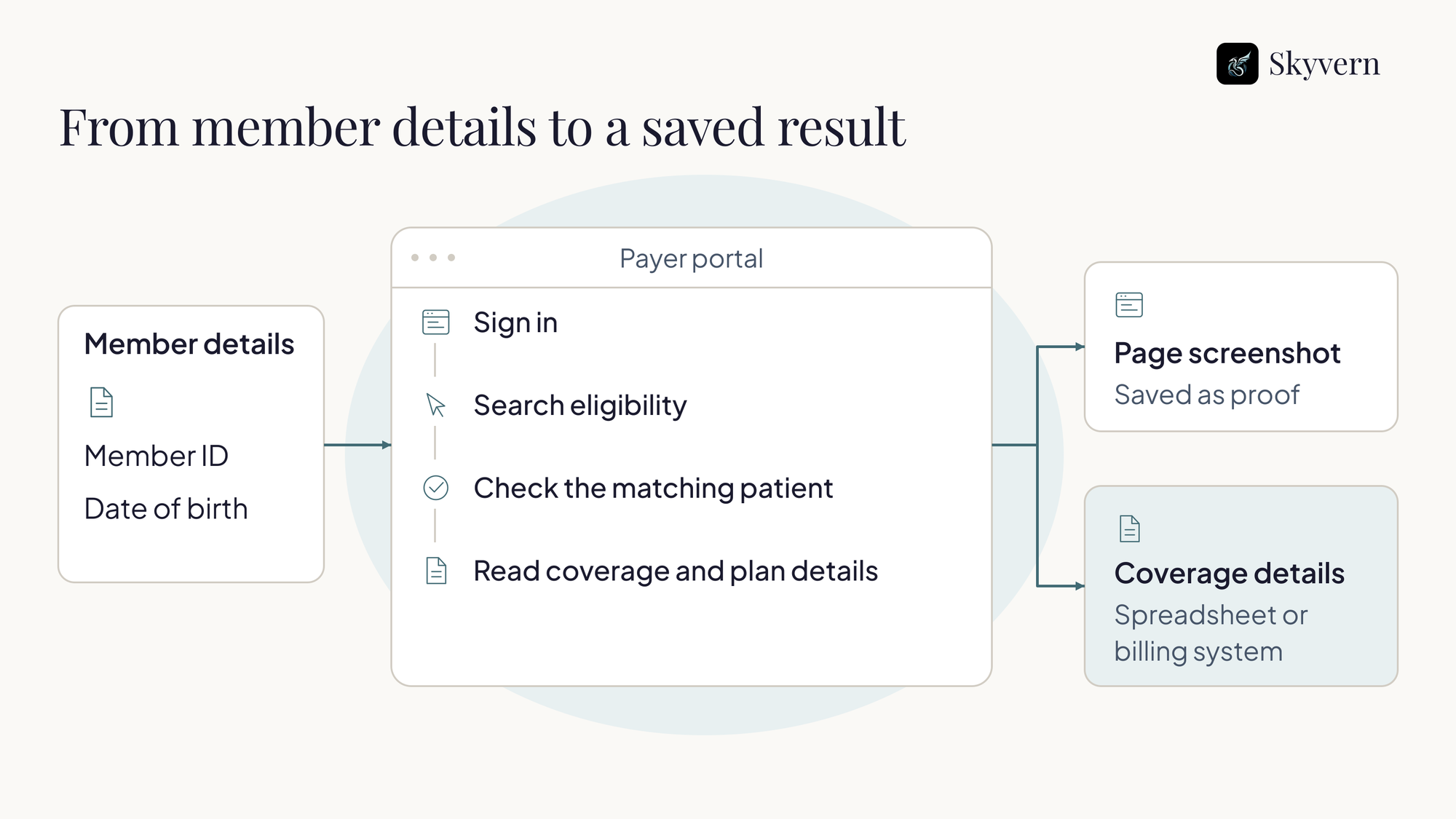
Here's the loop for checking a patient's insurance coverage before a visit on a payer portal such as Availity or UHC Provider.
- Open the site. The automation starts a browser and loads the portal's sign-in page.
- Sign in. It enters a stored username and password, then the multi-factor authentication (MFA) code the portal asks for. That code can come from an authenticator app, an email, or a text message. On sites your team is authorized to automate, a CAPTCHA can also appear at this point, and the tool tries to solve it or passes it to a person.
- Find the right field. It opens the eligibility search and enters the patient's member ID and date of birth.
- Act. It runs the search and waits for the results page to load.
- Check the result. It confirms the page shows the patient it searched for, then reads the coverage status and plan details.
- Save the output. It keeps a screenshot of the page as proof and writes the coverage details where your team uses them, such as a spreadsheet or the billing system.
The browser can run in a visible window, called headed mode, or with no window at all, called headless mode. Chrome's documentation describes headless mode as a way to run the browser "in an unattended environment", which suits a server with no screen attached.
Automation tools send commands that tell the browser what to do. Selenium uses WebDriver, a standard from the World Wide Web Consortium (W3C) that defines "a remote control interface" for browsers. Playwright and Puppeteer use the Chrome DevTools Protocol (CDP) to control Chromium browsers such as Chrome and Edge. The automation tool handles these protocols, so your team doesn't need to work with them directly.
Three ways to automate a browser: scripts, recorders, and AI agents
Scripts, recorders, and AI agents differ mainly in who builds the automation and who fixes it when the site changes.
| Scripts | Recorders and RPA bots | AI agents | |
|---|---|---|---|
| Examples | Selenium, Playwright, Puppeteer | Recorded bots in UiPath, Blue Prism, or Automation Anywhere | Skyvern, Browser Use |
| Who builds it | A developer, in code | Someone who records the task once, usually an RPA developer | The person who knows the process, by describing the goal |
| What breaks it | The site renames or moves an element the code points to | A screen changes and a recorded step no longer matches | An unclear instruction or a page the agent misreads |
| Who maintains it | A developer | The RPA team or a consultant | The process owner, by editing the instruction |
Scripts
Scripts use code to tell the browser what to do. They usually use selectors to identify the buttons, fields, and other items they need to interact with. They run fast and do the same thing every time. But they stop working when the site changes an element a selector points to.
Recorders
Recorders capture someone doing the task once and replay the same steps. Legacy robotic process automation (RPA) suites such as UiPath, Blue Prism, and Automation Anywhere include recorders, and their bots are usually built and fixed by trained RPA developers or consultants. These suites also include AI features. For example, UiPath's Healing Agent helps repair automation steps that break.
Ai agents
AI agents start from a goal, such as "check this member's coverage and save the result." At each step, the agent reads the current page and picks the next action, so a button that moves doesn't break the instruction.
Agents are slower than scripts because an AI model reads each page, and their results need the same checks as any other automation. Skyvern can save a successful run as code and replay it without the model reading every page. When that saved code fails because the page changed, the agent takes over and regenerates it. Skyvern calls this AI fallback, and it's on by default.
To compare specific products, our guide to browser automation tools covers the free and open-source options.
What operations teams automate in the browser
Most business browser automation is portal work that has no application programming interface (API): checks, submissions, and downloads that someone does by hand regularly. Here are five common jobs, each with a step-by-step guide:
- Eligibility checks on payer portals. Confirm a patient's coverage before care, as in the example above. See insurance eligibility verification.
- Behavioral health certification checks. Check the Behavior Analyst Certification Board (BACB) registry to confirm that each clinician's RBT or BCBA certification is current, and keep a screenshot as proof. See RBT and BCBA credential verification.
- Medicaid enrollment. Fill in and submit enrollment applications on state portals. See Medicaid enrollment automation.
- Vendor and carrier invoice downloads. Sign in to each billing portal every month and pull the new invoices. See how to automate invoice downloads.
- Government form submissions. Submit the same form for many people or companies. See government form submissions.
All five follow the loop above: a sign-in, a search or a form, and an output someone needs to keep.
Browser automation vs APIs and RPA
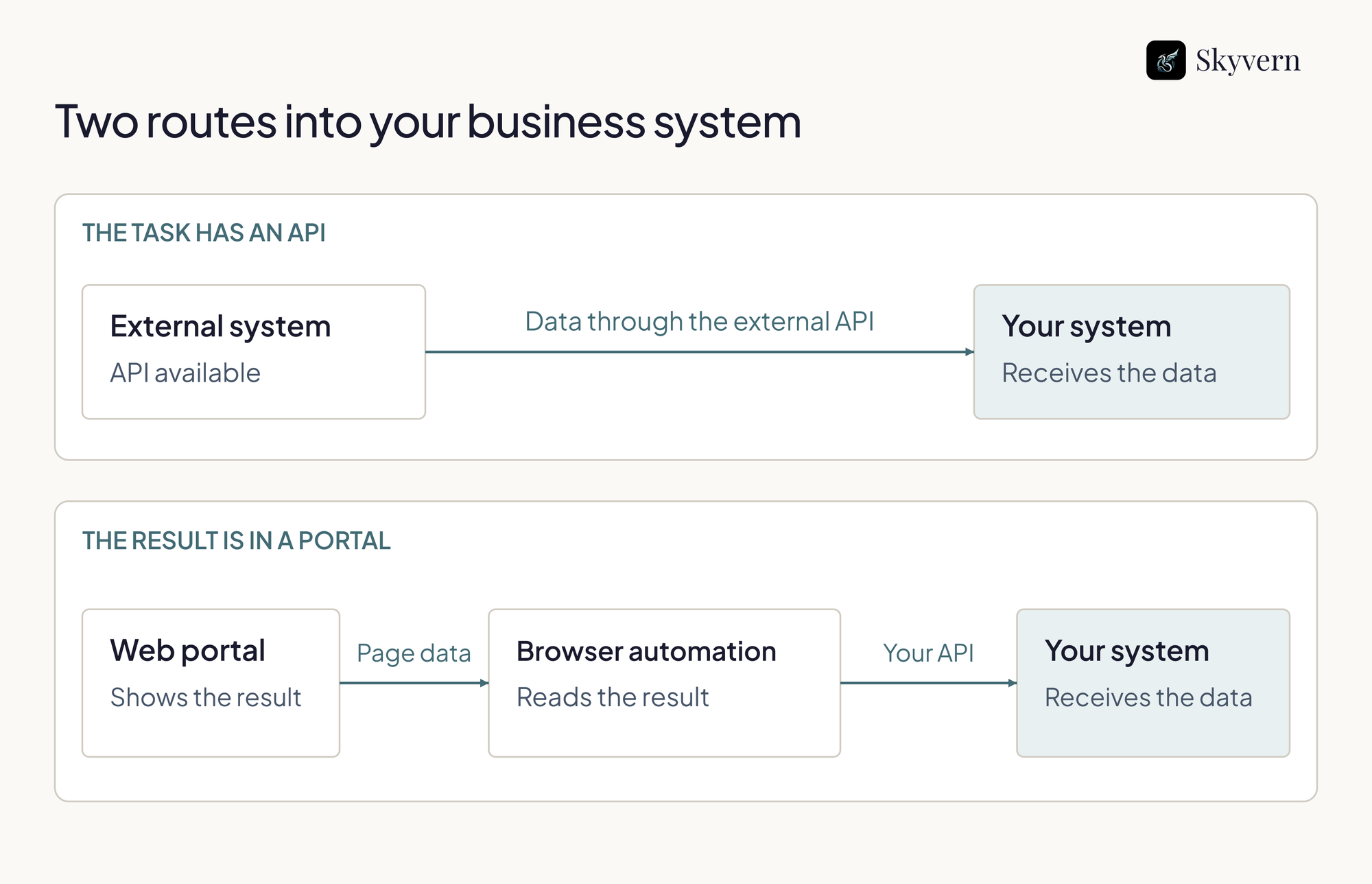
Use an API if it supports the task you need to automate, and use browser automation when the task can only be completed through a portal.
An API lets two systems exchange data directly, so the automation doesn't need to find buttons or fields on a web page. When a system offers an API for your task, it's faster and more stable than driving its website. Many payer, licensing-board, and government portals don't offer an API for the tasks operations teams need to complete. To automate those tasks, a tool has to interact with the portal through a browser.
Browser automation and APIs can also work together: an automation can read a result from a portal and then send it to your own system through that system's API.
RPA is the broader category. RPA tools automate work across desktop applications, files, and business systems, and they schedule and coordinate many bots at once. Browser automation is the part of that work that happens on websites. Some vendors, Skyvern included, use agentic process automation (APA) for the wider job around the browser: saving login details, handling unexpected problems, formatting results for other systems, and recording each action. Skyvern works only in the browser and doesn't automate desktop applications. Our comparison of AI agents vs RPA covers how the two differ day to day.
Software that uses AI to operate a browser for you is usually called an AI browser agent. Our comparison of AI browser agents covers the main ones.
Benefits of browser automation for business
The main benefit is capacity: the same team handles more checks, submissions, and downloads, so growing volume doesn't have to wait for new hires.
- Hours back per person. People stop spending hours on repetitive portal work and put that time into the cases that need judgment.
- Faster turnaround. Runs can start on a schedule or when new work arrives, and several can run at the same time, so a backlog clears sooner.
- Fewer errors from retyping. Values move from the portal into your system without anyone retyping member IDs, amounts, or dates.
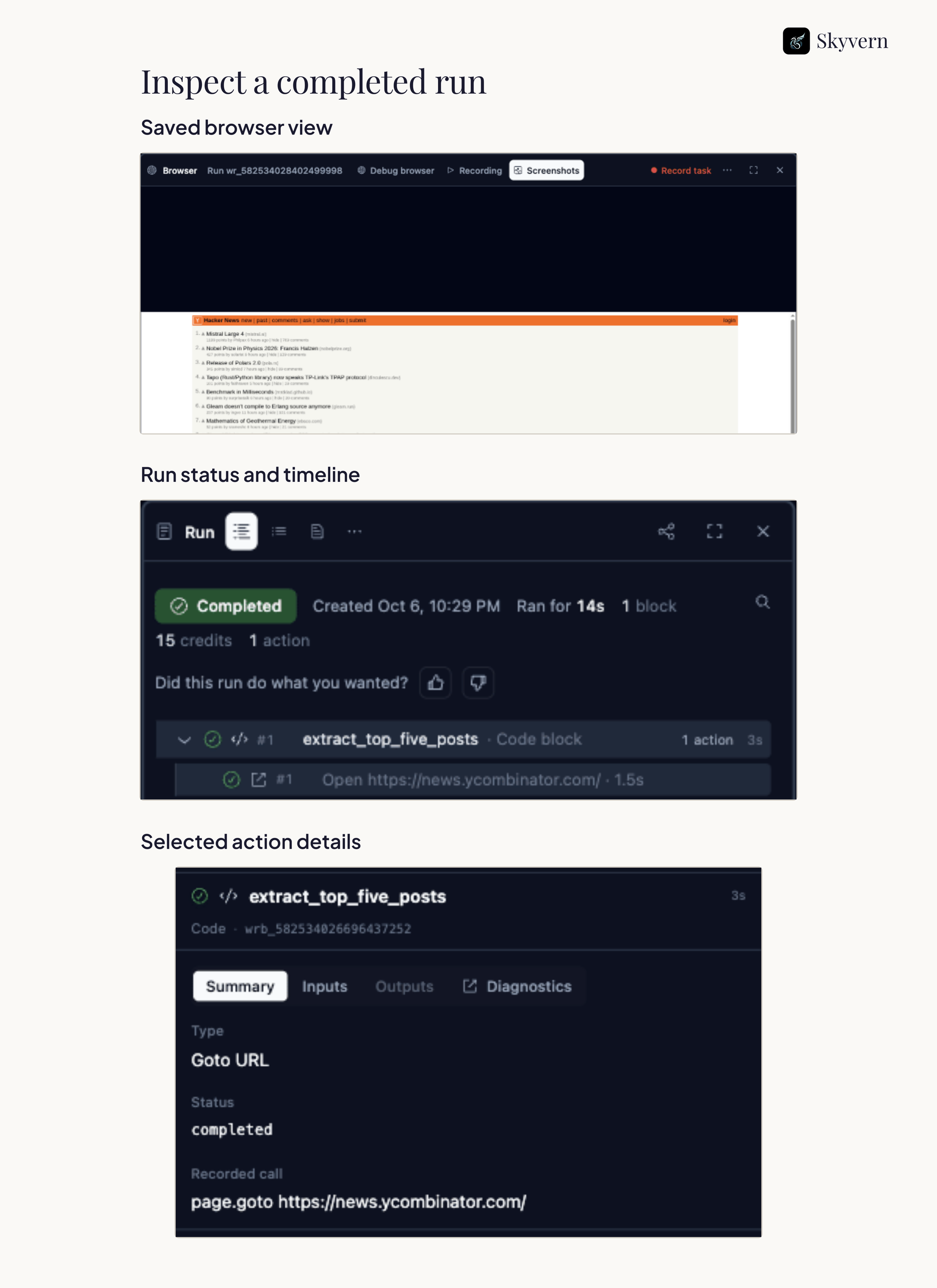
- A record of every step. Many tools save screenshots and recordings of each run, so you can go back and see what the automation did.
What to automate and what to keep manual
The five jobs above are good examples of tasks that suit browser automation. When choosing a task for your team, look for clear inputs, a result you can check, and repeatable steps in the portal.
Some work needs a test before you commit to it. Sites that change their layout often need a tool that reads the page on every run, or someone ready to fix the automation. Logins with MFA work when the tool supports the method the portal uses, so check that first. Portals with anti-bot checks need a trial run too, and you should automate only sites your team is authorized to use.
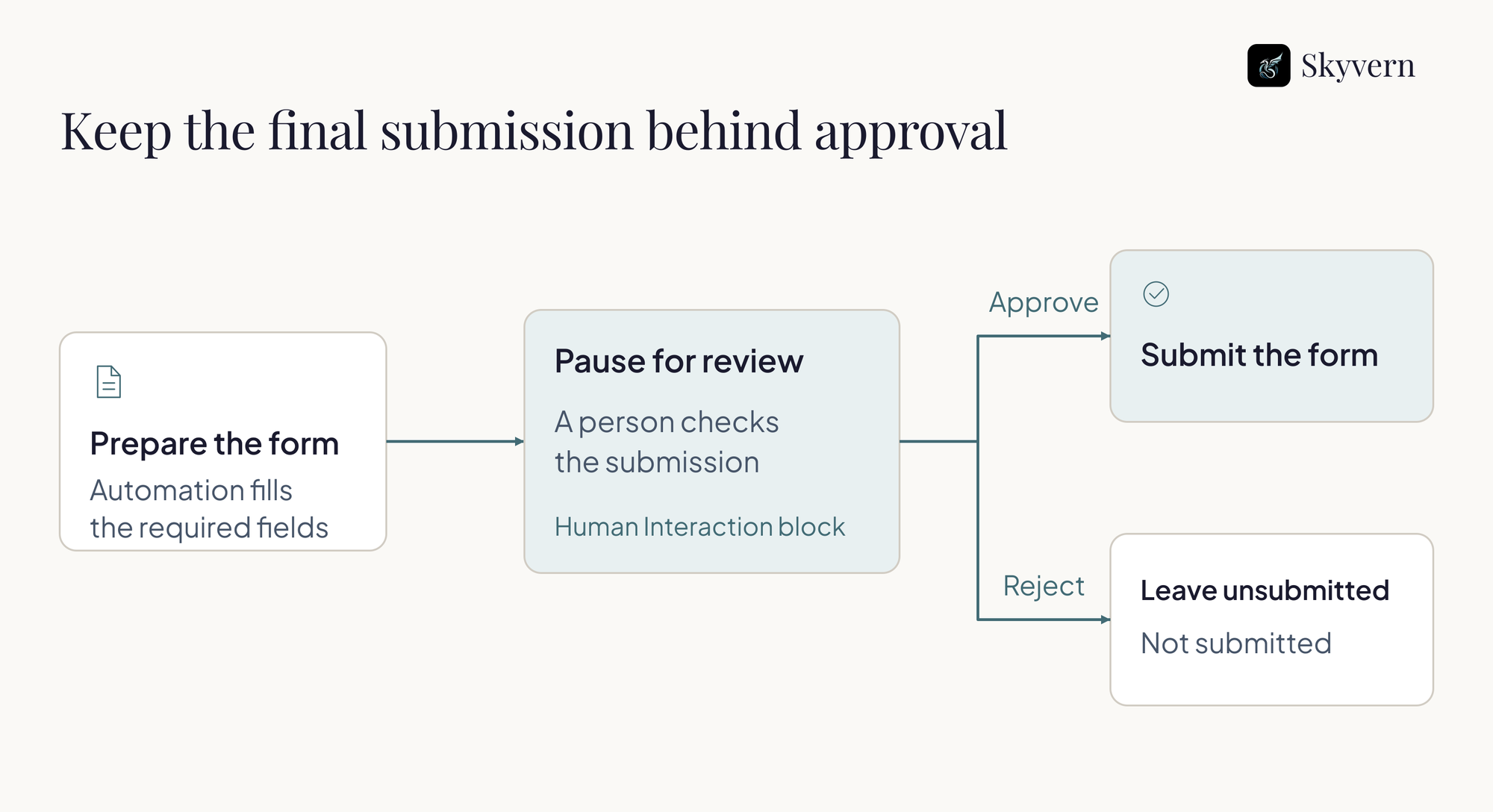
Other work should stay with people, or at least pass through a review step. Payments and legal filings are hard to reverse, so add an approval before the final submission. Writing that depends on judgment, such as a personal reply to a patient or a customer, stays manual.
Real-time tasks that need a person to monitor events and make decisions should stay under human control. When a task needs an automated response in a fraction of a second, such as trading or patient monitoring, use an API if it supports the task. Browser automation has to load web pages, so it takes longer to respond.
| Task | Fit | What to check first |
|---|---|---|
| Lookups and checks on portals | Strong | The portal's terms allow automated access |
| Form submissions across portals | Strong | Required fields and attachments |
| Invoice and report downloads | Strong | Where the files go next |
| Sites whose layout changes often | Test first | The tool reads the page on every run |
| Logins with MFA | Test first | Which MFA method the portal uses |
| Portals with anti-bot checks | Test first | You're authorized to automate the site |
| Payments and legal filings | Add a review step | Who approves the final submission |
| Judgment-heavy writing | Keep manual | Not applicable |
| Real-time systems | Keep manual or use an API | Whether the system has an API |
For the review step, Skyvern's Human Interaction block pauses a workflow until a person approves or rejects it, and it waits 120 minutes for an answer by default. The block is part of the Enterprise plan (pricing, block reference).
Start your first browser automation workflow with Skyvern
Start with one portal task your team repeats every week, and define what a correct result looks like. A good first task has a clear input, such as a member ID, and a result you can check, such as a coverage status with a screenshot.
Run the automation alongside the manual process for a while and compare the results before you hand the task over. Once it runs reliably and produces the expected results, you can repeat the same approach on the next portal job.
Our guide to automating browser tasks without code lays out a five-step plan for your first workflow. To try automating your chosen portal task with Skyvern, start a 14-day free trial of our Hobby or Pro plan, or book a demo to discuss your workflow with our team.
FAQ
What's meant by browser automation?
Browser automation means a program or an AI agent does work in a web browser in place of a person. It opens pages, signs in, fills in forms, downloads files, and reads the results, following instructions someone sets up once.
How do I automate browser tasks without coding?
Use a recorder or an AI agent builder. A recorder replays steps you show it once. An AI agent builder takes the task in plain language and works out the steps. In Skyvern, the Copilot builds a workflow from a description in chat, a recording of you doing the task, or the standard operating procedure (SOP) your team already follows, and your team reviews and runs it.
Can browser automation handle logins and 2FA?
Yes, though support varies by tool and login method. Skyvern can sign in with stored credentials and handle two-factor authentication (2FA) using authenticator codes, email, or text messages. A person still needs to respond when an authenticator app asks for login approval.
Our credentials docs explain setup, and our plans list feature availability and pricing. For more detail, see How Skyvern handles authentication.
Keep reading
5 Best AI Browser Agents for Automating Work on the Web
If you’re tired of your team clicking through the same web tasks, an AI browser agent could take some of that work off their hands. These tools can automate tasks such as filling out forms, collecting documents, and updating customer records. We build Skyvern for exactly this kind of work, including complex workflows on government websites and vendor portals. In this article, we cover five agents, including Skyvern, to help you choose. We explain how you build workflows with each tool and how
Best Browser MCP Servers: Which One to Use and How to Set It Up
So, you've got your agent running and want it to control a browser through an MCP server. Maybe it needs to sign in to a supplier portal each week and download invoices. But which server will work with your client, get past the 2FA step, and keep a record of what the agent did? And how do you set it up? We build Skyvern for recurring work in third-party portals. Our MCP server supports stored credentials, scheduled agents, and run recordings. We put together this guide to help you choose a brow
CAPTCHA Bypass in Browser Automation: What Works, and When a Person Should Solve It
CAPTCHA bypass in browser automation means getting an automated run past a CAPTCHA, either by solving the challenge, by triggering fewer of them, or by handing the challenge to a person. If you automate work on websites, you will meet CAPTCHAs at some point. They tend to show up at logins, on search forms and before a form is submitted. Buyers ask us about them very often on sales calls. This guide covers sites your team is authorized to automate: portals you have an account on, public lookups
Put the browser to work
Use Skyvern for the work that lives in a browser.
Turn repetitive browser tasks into reliable workflows with Skyvern.