How to Automate Invoice Downloads from Vendor Portals

Some vendors email their invoices. Others leave them in a billing portal for you to collect every month. If you manage dozens of those accounts, fetching the PDFs becomes a job of its own.
And that's the exact use-case we've built Skyvern for (I'm Skyvern's CEO).
You can automate invoice downloads with Skyvern by describing the task, connecting the vendor login, and scheduling the resulting workflow.
In this article, I'll walk you though how to setup invoice downloads from a vendor portal and show you how to automate the monthly collection.
If you'd rather skip the explanations and try it yourself, you can try Skyvern free for 14 days with enough credits to setup your first few workflows.
Before you start
We'll setup invoice collection from one vendor portals so at the very least you’ll need:
- A Skyvern account to build and run the workflow.
- The vendor’s login URL and credentials, with permission to view and download invoices.
- Access to any two-factor authentication the portal requires, such as an authenticator app, email inbox, or SMS number.
- A month of invoices you’ve already collected to check whether the first automated run downloads the right files.
You can retrieve the PDFs directly from Skyvern after a run. If you want automatic uploads to cloud storage, also have your destination’s connection details and credentials ready.
1. Connect the vendor account
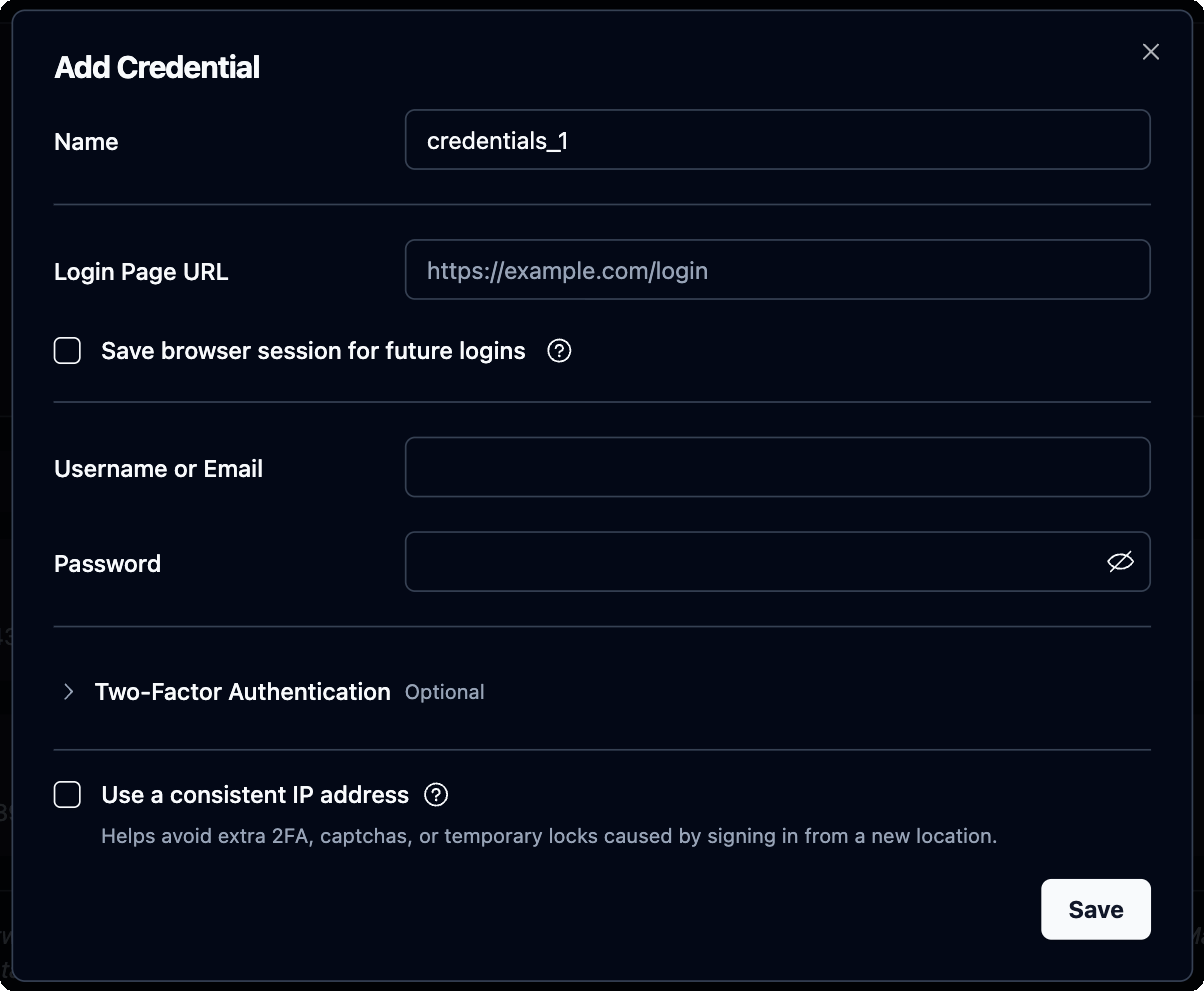
Open Credentials → Add → Password in Skyvern. Enter the portal's login URL, username, and password, and give the credential a name you'll recognize, such as “Acme billing.”
If the account uses two-factor authentication, expand that part of the form:
- For an authenticator app, save the authenticator key so Skyvern can generate codes.
- For email codes, connect the receiving inbox or arrange to forward the codes to Skyvern.
- For SMS codes, supply them through the app or API. An unattended run needs an automated way to deliver those messages.
The credentials guide covers each option.
2. Tell Skyvern which invoices to collect
On Skyvern's Home page, send Automation Copilot a description of the task. Be specific about the billing account and date range, particularly when one login gives you access to several companies.
Here's a prompt you can adapt:
Build an agent to collect invoice PDFs from [vendor portal URL].
Use the saved login I select.

Create inputs for billing_account, start_date, and end_date.
Open the selected billing account and find invoices issued between
those dates, including both dates.

Check every results page and download each matching invoice's
original PDF. Exclude receipts and account statements.

Return a list with the invoice number, issue date, and downloaded
filename. Report failed downloads and say if no invoices match.
Making the account and dates inputs lets you change them when you run the agent. You won't need to edit the instructions each month.
Copilot opens Studio and builds the workflow. Review its proposed changes before clicking Accept. The Copilot quickstart shows how proposals and test results appear.
Read the generated steps for anything specific to your vendor. A portal might call invoices “billing documents,” hide older files behind an archive tab, or show payment dates beside issue dates. Tell Copilot about those details so it uses the right route and filters.
3. Test a complete month
Pick a month whose invoices you already have. Click Run, enter the account and dates, and watch the agent work through the portal.
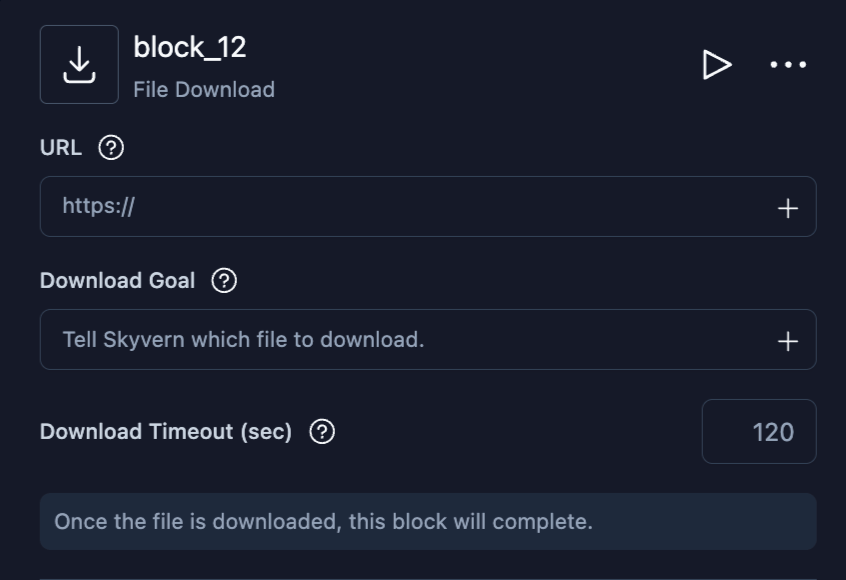
For a portal with individual download buttons, the workflow needs to repeat the download action for each invoice. Skyvern's File Download block provides instructions in Download Goal and a waiting period in Download Timeout. The timeout is useful when the portal takes a while to generate a PDF. See the block reference for these settings.
When the run finishes, retrieve the PDFs from Run → Outputs → Downloaded files. Compare their invoice numbers with your existing set and open a sample to confirm the company and dates. This catches problems a file count alone would miss, such as downloading the same invoice twice.
If something is missing, use the recording to locate the problem. For example, if the agent stops after the first page, ask Copilot to add pagination. If it clicks Download before a report is ready, adjust the waiting step. Run outputs and recordings are described in the run guide.
4. Choose where the files go
For an occasional collection, downloading the files from the run may be enough. For a recurring process, add a step that sends them to your team's storage.
If you use Amazon S3, add Cloud Storage Upload after the download steps. Select S3, configure the bucket, region, and credentials, and set a folder path such as invoices/acme/. The same block also supports Azure Blob Storage. Configuration details are in the storage block documentation.
The download block's File Name setting lets you replace a generic name like invoice.pdf. Use fields captured from the portal to produce a recognizable filename:
acme_INV-10482_2026-09-12.pdfBefore scheduling, decide how to handle invoices you've already collected. Keep a record of the vendor account and invoice number, then add a lookup in the workflow or receiving system before saving another copy. That gives a retry a way to skip invoices already saved.
5. Set up the monthly run
A recurring workflow needs a changing date range. Ask Copilot to add a step that calculates the previous calendar month's start and end dates each time the agent runs. Test the calculation across a month boundary: an October run should request September invoices, while a November run should request October invoices.
Then open Schedule in Studio. Choose Monthly, set the day, time, and timezone, and review Next Scheduled Runs. Skyvern's scheduling documentation explains the controls.
Match the schedule to the vendor's billing cycle. If it normally posts the previous month's invoices by the third, a run on the fifth gives it time to finish. For vendors that post files late, consider collecting an overlapping date range and using your collection record to skip documents already received.
Run History shows previous runs and their outcomes. If a browser automation run fails, open it to find the failing block. Fix with Copilot passes the failure to Copilot so you can review a proposed correction.
What's next
Congratulations! You automated your first invoice retrieval workflow with Skyvern.
Now you can reuse parts of that workflow to expand to other vendor portals!
It's easy: you just need to keep the parts that stay the same, such as the output fields, storage destination, and duplicate checks and give each portal its own login.
You can also implement advanced features like intelligent scheduling, priority-based processing, and integration with existing ERP systems. These enhancements change invoice processing from a manual bottleneck into a competitive advantage.
The scalability extends beyond just downloading invoices to complete integration capabilities that connect with your broader business processes.
Keep reading
How to Automate Grocery Price Comparison Across Local Competitor Websites (April 2026)
When you're manually tracking grocery prices across competitor sites, you're always working with yesterday's data. Your analyst pulls prices Monday morning, but produce costs shift with supply chains, promotions drop at midnight, and by Wednesday you're making calls based on numbers that no longer reflect what shoppers actually see. Automated grocery price comparison uses computer vision to identify prices by appearance instead of fragile code selectors, so when competitor sites redesign their p
How to Automate Travel Booking with Browser Agents (August 2026)
Booking travel at scale means your team is stuck toggling between portals that look easy from the outside but turn into a mess the moment you need to process volume. Travel booking automation software solves this with browser agents that automate the full workflow, log into portals you've never configured them for, and keep running when sites update their UI, because they read pages by meaning instead of fragile code selectors that break constantly. TLDR: * Browser agents automate travel book
Automating Employee Onboarding and Benefits Enrollment Across HR Portals (March 2026)
You log into ADP for payroll, then Blue Cross for medical, then VSP for vision, then your 401(k) provider, then two state tax portals. Automating employee onboarding consolidates that into one workflow where you pass employee data once and automation handles every portal in parallel. The entire onboarding sequence across disconnected systems completes in minutes instead of consuming 40 hours of your team's time re-entering the same information with different login credentials and form structures
Put the browser to work
Use Skyvern for the work that lives in a browser.
Turn repetitive browser tasks into reliable workflows with Skyvern.