Error Handling in Browser Automation (Updated June 2026)

I don't think we can deny the fact that automation has changed how we approach repetitive tasks by saving time and eliminating the monotony of manual work. However, when automating tasks in browsers, errors can quickly become somewhat of a roadblock. From stuff like page timeouts to CAPTCHA challenges, automation can get pretty frustrating if not handled effectively.
There's good news though! You can easily handle errors in browser automation with some good strategies and the right mindset. Let's look at some common challenges, provide practical tips to tackle them, and show you how to create dependable, resilient workflows.
TLDR:
- Browser automation breaks in six distinct ways: network timeouts, dynamic content shifts, CAPTCHAs, auth failures, element interaction failures, and unexpected pop-ups.
- Use exponential backoff for retries instead of flat retry loops; immediate retries can worsen failures on an overloaded server.
- Treat error logs as a pattern source, beyond being a plain record; repeated failures at the same step signal structural weak spots.
- Visual AI tools read the live page state instead of relying on selectors, so layout changes stop breaking your scripts.
- Skyvern is an Agentic Process Automation (APA) platform that handles exception routing, authentication, retries, and structured output delivery at the platform layer.
Why Is Error Handling Important?
You can imagine you’ve set up an automated script to complete a pretty mundane task, like filling out forms or scraping data. The script works perfectly on day one, but the next day, the website changes its layout, and the automation fails. Or maybe an unexpected pop-up appears, and your workflow just stops.
Errors like these can make automation really unreliable if you don’t plan for them. Error handling helps you make sure your scripts remain adaptable, minimizing disruptions and saving you from constant debugging. You can think of it as adding a safety net to your automation efforts.
Common Errors in Browser Automation
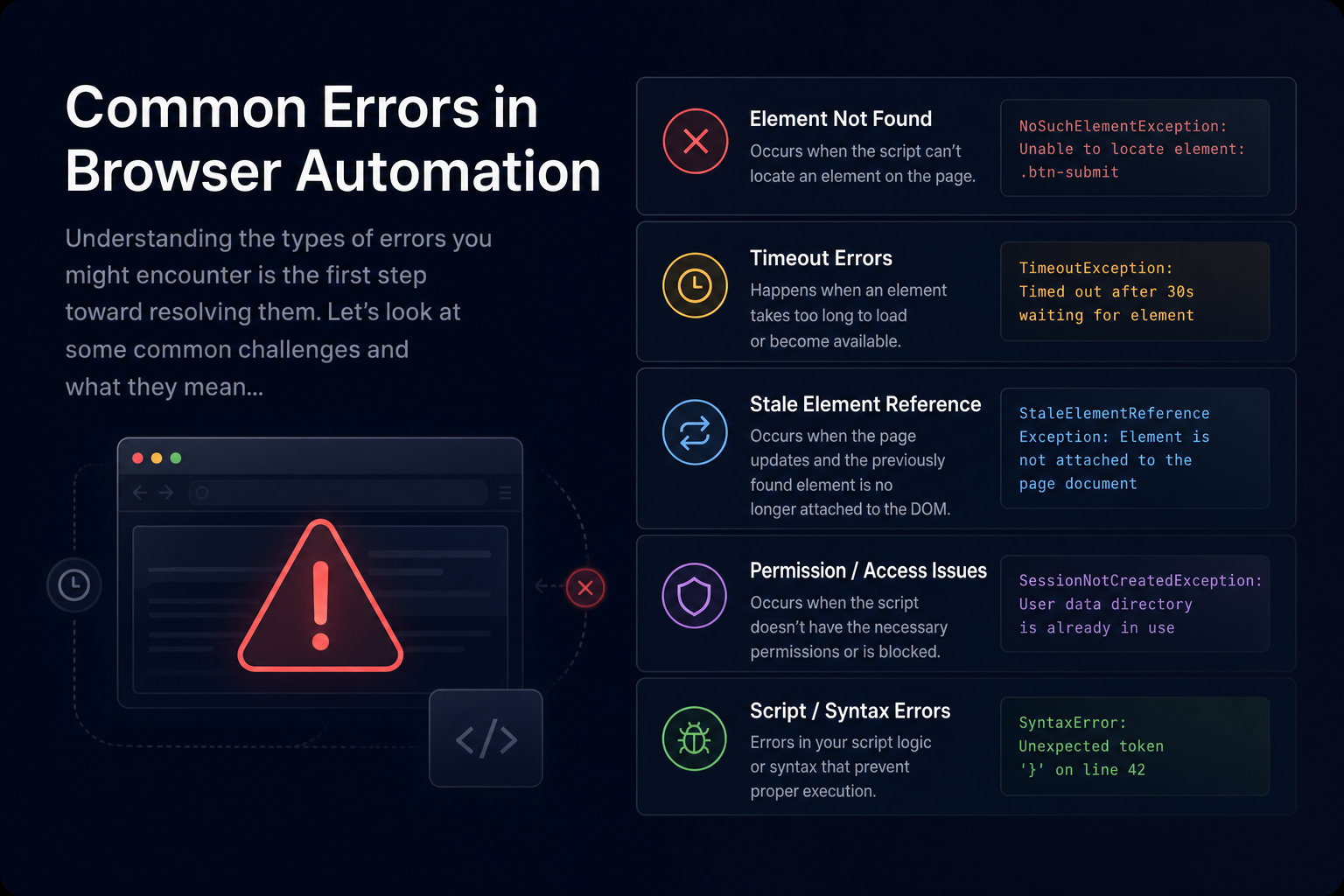
Understanding the types of errors you might encounter is the first step toward resolving them. Let's look at some common challenges and what they mean for your workflows:
Network and Connectivity Issues
Web automation relies a lot on stable internet connections. When the network is slow or intermittent, it's very easy for pages to fail to load or simply timeout. These issues can cause scripts to break midway. What makes these failures tricky is that they're often silent. The script keeps running but operates on incomplete data, producing inaccurate results instead of an obvious error you can immediately catch and debug.
Dynamic Content Errors
Many modern websites are highly dynamic, with elements that change frequently. For instance, a button you need to click might have a different ID tomorrow, or new elements might load only after scrolling. Single-page applications that use frameworks like React or Vue are particularly prone to this. Content loads asynchronously, and your script can try to interact with an element before it actually exists on the page, causing failures that are hard to reproduce consistently.
Anti-Bot Measures
Most websites use CAPTCHAs or rate-limiting to detect and block automated traffic. These are measures that can prevent your automation from completing tasks smoothly. Rate-limiting in particular can be subtle: the site doesn't block you outright but slows responses or returns empty results, making it hard to tell whether your automation ran successfully or was silently throttled.
Authentication Failures
Logging into accounts can be kind of tricky, especially when two-factor authentication (2FA) is required. Without proper handling, your automation can easily get stuck at the login page. Session timeouts add another layer of difficulty. Even if you authenticate successfully, a long-running workflow can be kicked back to the login screen partway through, leaving your automation stranded mid-task with partial work completed and no clean way to resume.
Element Interaction Issues
Sometimes, your script might struggle to find or interact with elements on a webpage. This can happen if elements are hidden, load slowly, or overlap with other components. Content inside iframes or shadow DOM trees is a common culprit. These elements are technically on the page but isolated from the main document, so standard selectors can't reach them without extra handling.
Unexpected Pop-Ups
Error Type | Root Cause | Primary Symptom | Handling Strategy |
|---|---|---|---|
Network & Connectivity | Slow or intermittent internet; server timeouts | Silent failures on incomplete data | Retries with exponential backoff (Tip 3) |
Dynamic Content | Asynchronous page loads; layout changes in SPAs | Element-not-found errors that are hard to reproduce | Smart waits + visual AI interaction (Tips 2, 5) |
Anti-Bot Measures | CAPTCHAs, rate-limiting, and bot-detection systems | Empty results or silent throttling | CAPTCHA-solving services; respectful request pacing (Tip 4) |
Authentication Failures | 2FA requirements; session timeouts mid-workflow | Script stranded at login screen with partial work done | Dedicated auth handling; session management (Plan ahead, Tip 1) |
Element Interaction | Hidden elements; iframe or shadow DOM isolation | Selectors fail silently; no visible error thrown | Visual AI reads the live page state instead of the DOM (Tip 5) |
Unexpected Pop-Ups | Modals, cookie banners, GDPR dialogs varying by region | Workflow freezes; subsequent steps never execute | Anticipate and dismiss; test across regions (Tips 1, 7) |
1. Plan for the Unexpected
Browser automation works best when you think ahead. Ask yourself:
- What could go wrong during execution?
- How might the website change over time?
- Are there scenarios where my script might break?
When you anticipate these challenges, you can easily build safeguards into your workflow. For example, include error-checking code to detect and handle issues like missing elements or slow-loading pages.
2. Use Smart Waits
Timing is everything in browser automation. Instead of relying on fixed delays (e.g., waiting 5 seconds), you can use smart waits that adapt to the webpage’s behavior:
- Explicit waits pause until a specific condition is met, like an element becoming clickable.
- Implicit waits tell your script to wait for a certain amount of time for elements to appear.
- Smart waits keep your automation from rushing ahead and interacting with elements that aren't ready yet.
3. Implement Retries
Some errors, like network glitches, are temporary. Adding a retry mechanism would allow your automation to attempt the same action multiple times before giving up. This is really useful for transient issues like slow page loads.
The key is structuring retries thoughtfully. A flat retry loop, where you try again immediately three times in a row, can make things worse on an overloaded server. Exponential backoff is a better approach: wait one second before the first retry, two before the second, four before the third.
4. Handle CAPTCHAs
CAPTCHAs are a common problem in browser automation. Here’s how to manage them:
- Use dedicated CAPTCHA-solving services like 2Captcha, Anti-Captcha, or CapSolver that integrate directly with your automation scripts via API.
- For simple tasks, consider using websites that don’t require CAPTCHAs or provide API access.
While CAPTCHAs are designed to stop bots, proper tools can help your automation work through them without trouble.
5. Build Resilience Against Dynamic Changes
Dynamic websites usually introduce changes that can break automation. To make your scripts more adaptable:
- Move away from selector-based approaches altogether. Visual AI tools read the page the way a human would, so layout changes and element ID shifts no longer break your automation.
- Regularly test your automation to catch and adjust for website updates. Knowing the common mistakes in browser automation helps you avoid the pitfalls that cause these failures.
6. Log Errors and Monitor Runs
Keeping track of what happens during automation is key for debugging. Add logging to your scripts so you can see:
- What actions were taken.
- Where errors occurred.
- How long tasks took to complete.
Logs become genuinely useful when you treat them as a pattern source, beyond being a plain record. If the same step fails repeatedly at the same time of day, that's a signal. Maybe the target site does scheduled maintenance, or rate-limiting kicks in during peak hours. Review logs after every failed run, even when nothing appears broken. For workflows that run frequently, set up alerts so you know immediately when failure rates spike above a threshold. Over time, your error logs will show you where your automation is fragile, which is a much cheaper way to find weak spots than waiting for a production failure.
7. Test Across Different Environments
Webpages can behave differently depending on the browser, device, or location. Test your automation in multiple environments to make sure there's consistent performance. This is very important if your workflows rely on geolocation or browser-specific features.
Code Example: Running a Portal Workflow with Built-In Error Handling
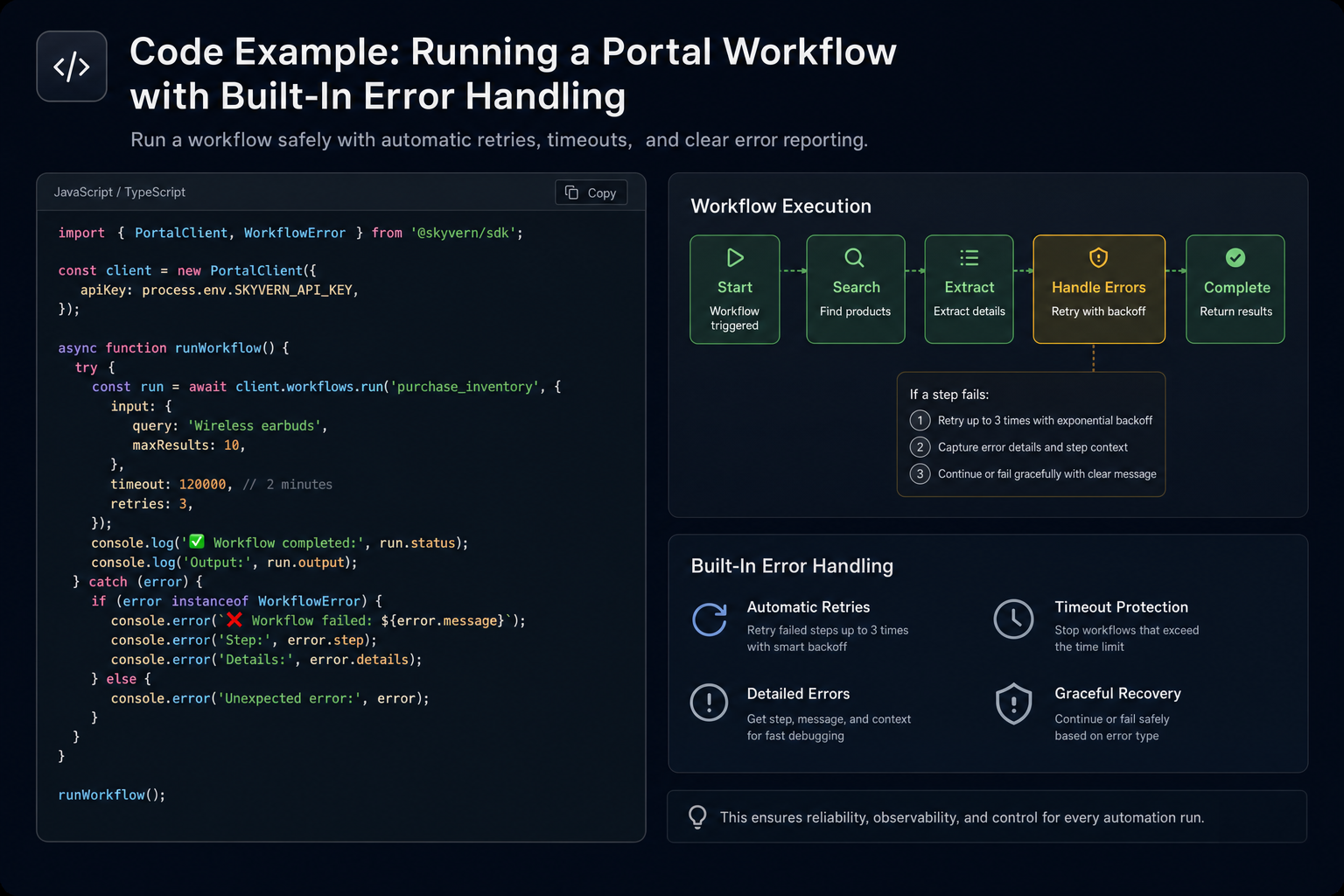
The tips above describe what to build. This is what it looks like when the platform handles those concerns for you. The workflow below logs into a vendor portal, works through a TOTP-based 2FA prompt, extracts invoice data as structured JSON, and sends the result to a webhook when done. Authentication, retries, and output formatting are handled at the platform layer, not in the script.
import asyncio
from skyvern import Skyvern

# Initialize the client with your API key
skyvern = Skyvern(api_key="YOUR_API_KEY")

async def run_invoice_extraction():
    task = await skyvern.run_task(
        # Starting URL for the portal
        url="https://vendor-portal.example.com/invoices",

        # Plain-language goal — no selectors, no recorded paths
        prompt=(
            "Log in to the portal, navigate to the invoices section, "
            "and extract all unpaid invoices. "
            "COMPLETE when the invoice list is fully loaded and extracted."
        ),

        # Skyvern reads TOTP secret and handles 2FA prompts automatically
        totp_identifier="your-stored-totp-id",

        # Define the output shape so downstream systems always get consistent JSON
        data_extraction_schema={
            "type": "object",
            "properties": {
                "invoices": {
                    "type": "array",
                    "items": {
                        "type": "object",
                        "properties": {
                            "invoice_id": {"type": "string"},
                            "amount_due": {"type": "number"},
                            "due_date": {"type": "string"}
                        }
                    }
                }
            }
        },

        # Webhook receives the result when the task finishes —
        # no polling loop needed for long-running portal sessions
        webhook_url="https://your-system.example.com/webhooks/invoices",

        # Block until complete and return the result directly
        wait_for_completion=True,
    )

    print(f"Task ID: {task.run_id}")
    print(f"Status:  {task.status}")
    print(f"Output:  {task.output}")
    return task

asyncio.run(run_invoice_extraction())
Because Skyvern reads the live page state instead of relying on selectors, a portal that renames a button or restructures a form between runs is new input, not a breakpoint that requires a script fix. The output schema is checked after every run, so the JSON your downstream system receives stays consistent regardless of which layout Skyvern encountered.
Final Thoughts on Error Handling in Browser Automation
Automation is really about simplifying your life, not adding to your stress. You should start small, test often, and don't hesitate to use tools and frameworks designed to make error handling more manageable. This is really what Agentic Process Automation platforms are built to solve. browser workflows are the mechanism, but the platform layer handles exception routing, authentication, retries, and structured output delivery, so you're not solving each one manually.
Looking for a solution that takes this off your plate? Skyvern is an Agentic Process Automation (APA) platform that uses computer vision and AI to interact with web pages the way a human would by reading the screen visually instead of relying on brittle selectors. That means it adapts when layouts change, handles unexpected pop-ups, and manages authentication flows without manual intervention. Give it a try.
FAQ
What's the difference between using exponential backoff vs. a flat retry loop in browser automation?
Exponential backoff spaces retries with increasing delays (1 second, then 2, then 4) instead of firing them back-to-back. Flat retry loops can flood an already-struggling server and worsen the failure, while exponential backoff gives the target system time to recover between attempts.
How do I handle authentication failures caused by session timeouts in long-running browser automation workflows?
Build session timeout handling directly into your workflow design: add save-draft checkpoints between major steps so partial progress isn't lost, and implement dedicated authentication blocks that can re-enter credentials when a portal kicks your workflow back to the login screen mid-run. Testing across realistic session durations before production deployment will surface timeout patterns that only appear after several minutes of execution.
Should I use selector-based automation or visual AI for portals that change their layouts frequently?
Visual AI is the better fit for frequently changing portals. Selector-based tools break the moment a portal renames a button or restructures a form, requiring manual script updates each time; visual AI reads the live page state at runtime, so a layout change is new input instead of a fatal breakpoint. For stable internal tools with predictable layouts, the overhead of visual AI may not be worth it.
What types of errors cause browser automation workflows to fail silently instead of throwing an obvious error?
Network failures on incomplete data loads, rate-limiting that throttles responses without blocking outright, and element interaction failures inside iframes or shadow DOM trees are the most common silent failure modes. These produce incorrect or empty results while the script reports success, which is why log review after every run matters as much as catching failures when they surface.
Can browser automation handle two-factor authentication without manual intervention?
Yes, for TOTP-based authenticator apps and email-based OTP flows. TOTP codes can be generated automatically from stored secrets, and email OTP can be handled by routing codes to an endpoint via forwarding rules. Phone and SMS-based 2FA, though, requires physical device interaction and cannot be fully automated with current tooling.
Keep reading
5 Best AI Browser Agents in 2026
The best browser agents can reliably and repeatedly handle jobs you would do by clicking through a web browser, like filling out a form, collecting documents, or updating customer records. So if you’re tired of wasting time filling out forms and clicking dropdowns, this article is for you. Before I continue, full disclosure: I am Skyvern’s CEO, a browser agent SDK written in Python built to automate workflows. It’s built specifically to handle complex business workflows, like dealing with heav

Page Object Model (POM) in Test Automation
I know why you’re looking into Page Object Model: you’re tired of fixing the same CSS selectors across five different tests every time someone changes a form. You copied the login steps a few times, the test suite grew, and now a small UI change means an afternoon of maintenance. POM gives those repeated interactions a home. Your test scripts call a method like signIn(), and a page object handles the fields and buttons underneath. When a shared selector changes, you have one place to fix it. I

Browser MCP in 2026: What It Is, How It Functions, and the Best Servers Available
Most browser automation scripts fail the moment a site changes its layout. A button moves, a class name updates, and your carefully crafted Selenium script stops working. Skyvern solves this by giving AI agents live browser access instead of hardcoded selectors. The agent sees what's actually on the screen, decides what to do next, and adapts when things change. That's the difference between brittle scripts that need constant maintenance and automation that keeps working. This guide covers what
Put the browser to work
Use Skyvern for the work that lives in a browser.
Turn repetitive browser tasks into reliable workflows with Skyvern.