

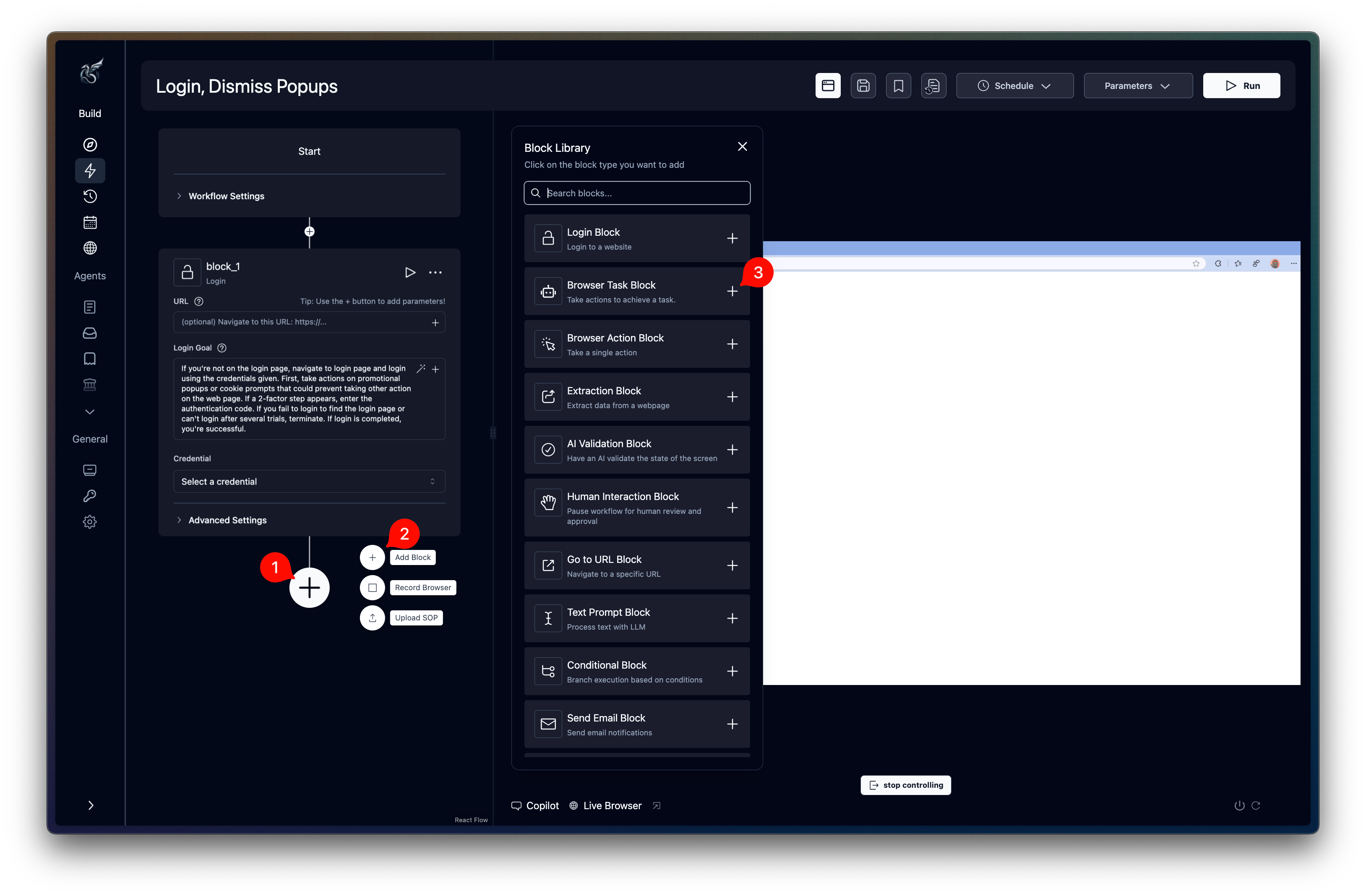
To add a block in your agent, click the + button, click on Add block, then select the block type from the menu.
Quick reference
Common fields
These fields appear on most blocks:
Browser-based blocks (Browser Task, Browser Action, Extraction, Login, File Download) add some of these fields:
Set 2FA Verification URL on the block that may encounter 2FA. A
totp_url set on the run does not fill empty block fields.Browser Automation
Browser Task
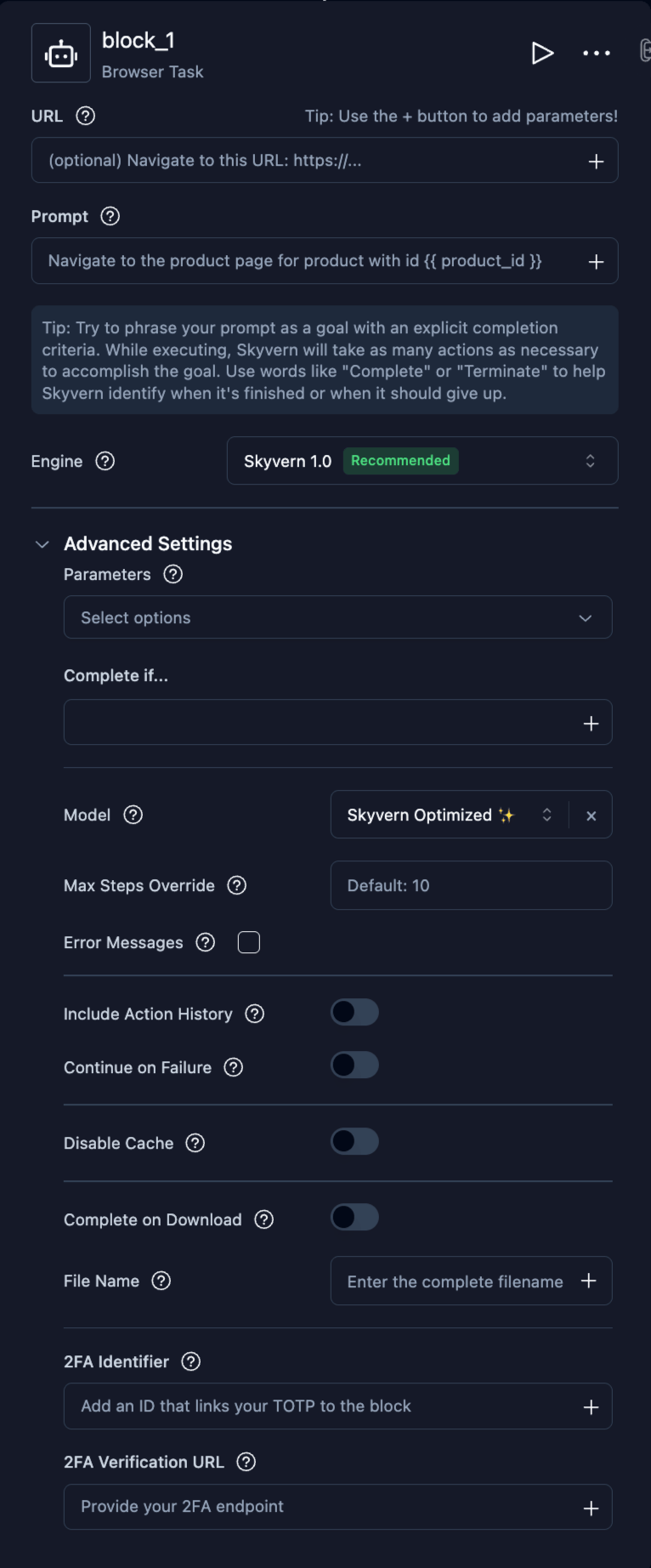
The primary block for browser automation. Accepts a natural-language prompt and autonomously navigates the browser to accomplish the goal. The block shows the same fields for every engine except Skyvern 2.0. Skyvern 2.0 is offered only on blocks that already use it; those blocks stay editable with a reduced field set. Every engine except Skyvern 2.0:
Existing Skyvern 2.0 blocks:
Additional fields in Advanced Settings (not on Skyvern 2.0 blocks):
Plus common browser fields.
Browser Action
Execute a single browser action. Best for precise, one-step operations like clicking a specific button or entering text in a field.
Additional fields in Advanced Settings:
Plus common browser fields.
Extraction
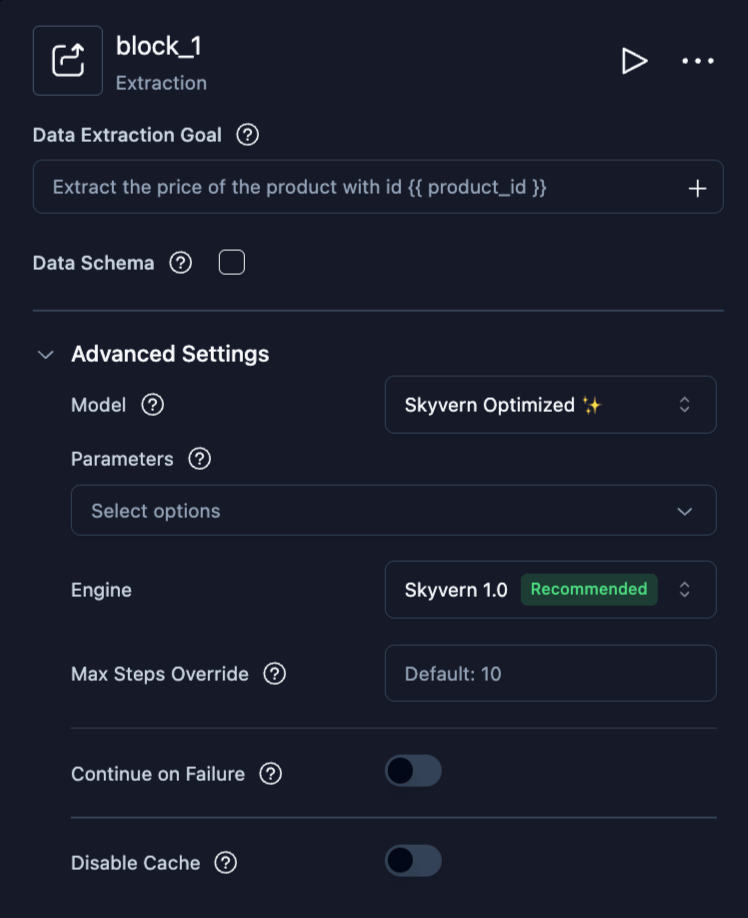
Extract structured data from the current page using AI.
Turn on Export as Parquet in the Export section to also write the extracted data to a downloadable Parquet file, without a separate Data Export block. It adds these fields:
Plus common browser fields.
Login
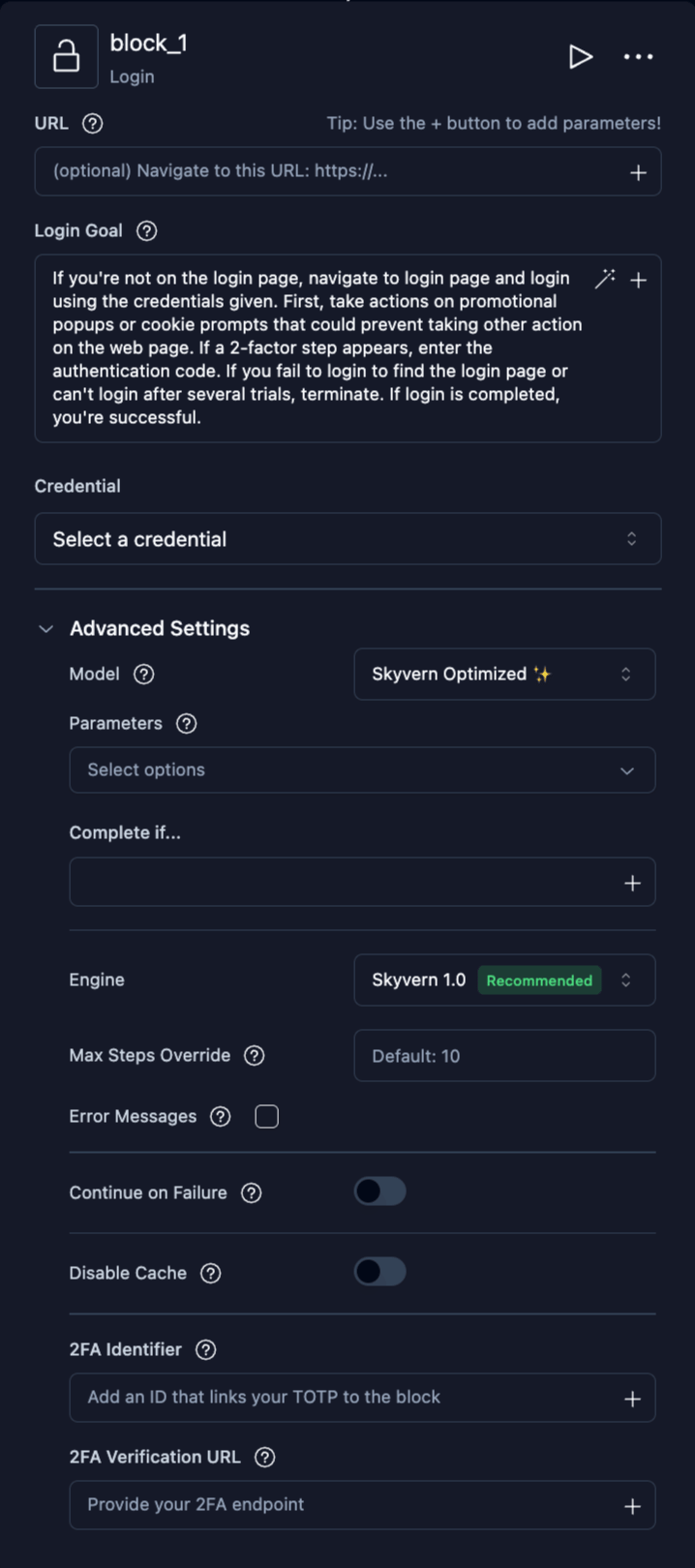
Authenticate to a website using stored credentials. Pre-filled with a default login goal that handles common login flows including 2FA.
Additional fields in Advanced Settings:
Plus common browser fields.
Go to URL
Navigate the browser directly to a specific URL without AI interaction.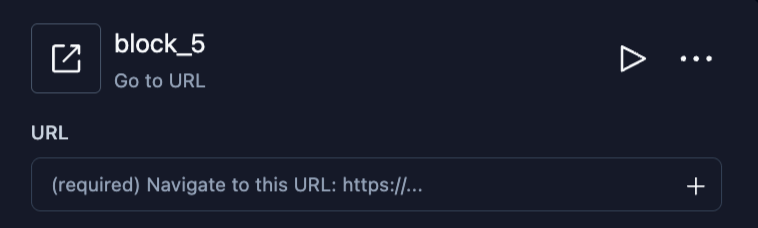
Print Page
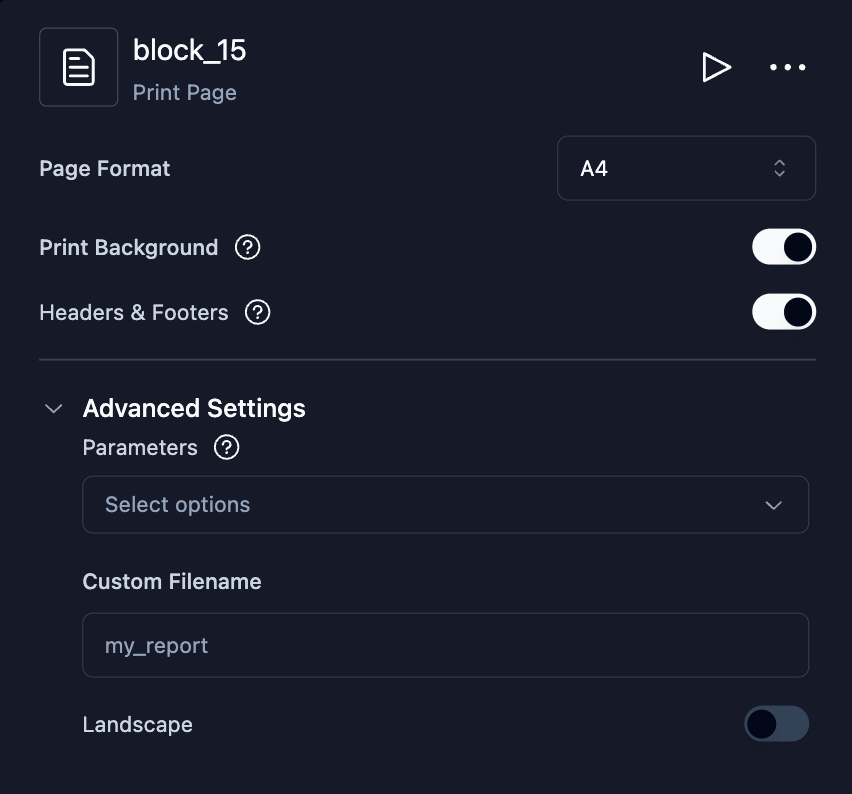
Print the current browser page to a PDF file. The PDF is saved as a downloadable artifact.
Additional fields in Advanced Settings:
Data and Extraction
Web Search
Search Google or Exa over an API. Addsite:example.com to the query to search within a site. This block does not open a browser or read linked pages.
Google supports site restrictions. With a single site:domain or site:domain/path filter, the block removes results outside the filter. It repeats the search up to twice when Google returns only results outside that filter. It does not filter queries with quotation marks, parentheses, |, OR, or multiple site: filters. Exa supports one positive site:domain filter. Unsupported Exa expressions fail instead of expanding the search.
Automatic starts with Google. It tries Exa only if Google fails before returning results and the server has an Exa key. Empty results do not trigger fallback. Selecting Google or Exa uses only that provider.
A Prompt receives the normalized results, including an empty list. Without a Data Schema, its answer is text. A Data Schema alone asks the model to return the results in that shape. The answer is stored in
prompt_output. Invalid schemas are rejected when you save. Schemas with parameter references are checked after those references are filled in. A response that fails validation retries once before the block fails.
Leave Prompt and Data Schema blank to skip result processing. Error Messages still make an LLM call when configured on the block or workflow. Block entries override workflow entries with the same code. The model checks results, processed answers, and block failures against those descriptions, including failures before the search starts.
A successful search completes when no error code matches, including when it returns zero results. A matching code terminates a successful search. If the search or Prompt fails or times out, a matching code attaches to that failure without changing its status or system failure reason. If error detection fails, the block keeps the search outcome without a code.
The old no_results_error_code and no_match_error_code fields are deprecated. Saved values are read as Error Messages. They describe empty results and results that do not satisfy the Prompt. An explicit Error Messages entry with the same code takes precedence.
The output always includes:
query: the rendered query, or the configured query if rendering fails.provider:googleorexa.results: objects withtitle,link,snippet,display_link, and one-basedposition.total_count: the number of returned results.prompt_output: null, text, or the JSON value defined by Data Schema.raw_response.pages: provider responses, with credentials removed.
snippet is empty when Exa has no cached copy of the page or when the request for page highlights fails.
For example, use {{ web_search_1_output.results }} in a downstream block. A later page failure keeps validated partial results and completes the search. A Prompt failure keeps those results but fails the block.
Failed and terminated outputs also include status, failure_reason, and errors. They carry a failure_category. For execution denials, such as insufficient credits, its value is null. Detected codes appear in the run’s errors list with their explanations. Enable Continue on Failure to let the next block inspect the output. The Search failure category applies to the run only when the block ends it.
A terminated Search block shows its failure reason in the timeline instead of the result count.
SERPAPI_API_KEY and EXA_API_KEY in the server environment. Google pagination can use multiple API searches for a single block run.
Text Prompt
Send text to the LLM for processing without browser interaction. Useful for summarizing, transforming, or analyzing data between browser steps.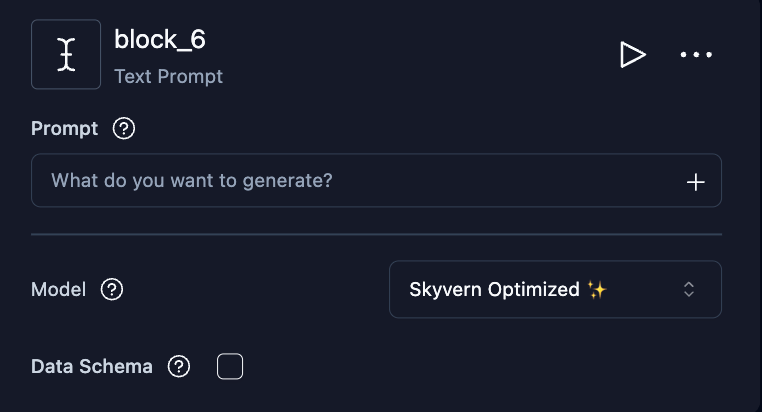
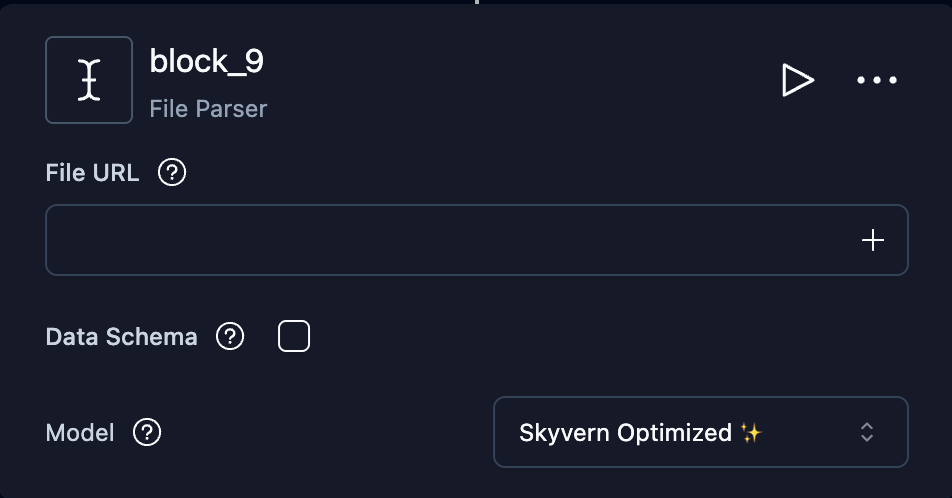
File Parser
Parse PDFs, CSVs, Excel files, images, DOCX files, and ZIP archives. ZIP inputs are unzipped, and the block outputs the extracted file list asfile_name, file_path, file_size, and run_file. Each extracted file becomes one of the run’s downloaded files, named run_file. Data Schema is ignored for ZIP inputs; loop over the file list and pass each file_path to another File Parser block to parse individual files.
For a CSV, Skyvern picks the delimiter from comma, tab, semicolon, pipe and colon. When none of them fits, it uses comma, or tab for a .tsv file. A one-column file stays one column, and a space-separated file parses as one column. The exception is a file whose lines, up to the first five, all hold the same number of colons, at least one, such as a list of URLs or times with no header row. Skyvern splits that file at the colons. A header row with no colon in it keeps the file in one column. A UTF-8 byte order mark is dropped, so the first column’s name is the header the file shows.
Very large files can exceed the parser’s time budget and fail the block. When a File Parser sits inside a loop, set On block failure (Advanced Settings) to Skip to next iteration so files that cannot be parsed are skipped and the rest of the list still runs.
Additional fields in Advanced Settings:
Google Sheets Read
Read cells from a Google Sheet. Connect a Google account with Google Sheets access on Integrations first.
The output holds
values, a list of rows with one list of cell values each. With Has Header Row on, rows holds one object per remaining row, keyed by the header; with it off, rows is null. The output also includes spreadsheet_id, range, sheet_title, cells and merges.
Google Sheets Write
Write rows to a Google Sheet, through the same Google Sheets connection as Google Sheets Read.
Turn on Create sheet if missing in Advanced Settings to create the tab before writing. You need it when the sheet name changes per iteration, such as
sheet_{{ current_index }}.
The output includes rows_written, updated_range, write_mode and spreadsheet_id.
Power BI Query
Run a read-only DAX query against a Power BI dataset. Power BI is available on Enterprise plans.
The DAX query must be literal text. The dataset can be literal text or a single input parameter reference, such as
{{ dataset_id }}. The block runs only when the person who connected the Power BI account starts the run from the agent editor; other runs fail. The output is a list of row objects.
Control Flow
Loop
Repeat a sequence of blocks. Child blocks are placed inside the loop on the canvas. The block has two tabs: For each runs the blocks once per item in a list, and While runs them as long as a condition stays true. For each fields:
While fields:
If the condition is false at the first check, the child blocks never run and the loop succeeds with an empty output. Either kind of loop stops at 1000 iterations and fails with
Reached max_loop_iterations limit of 1000.
Inside loop blocks, use these reserved variables:
{{ current_value }}: the current item.{{ current_item }}holds the same value.{{ current_index }}: the iteration number (0-based)
{{ current_index }}.
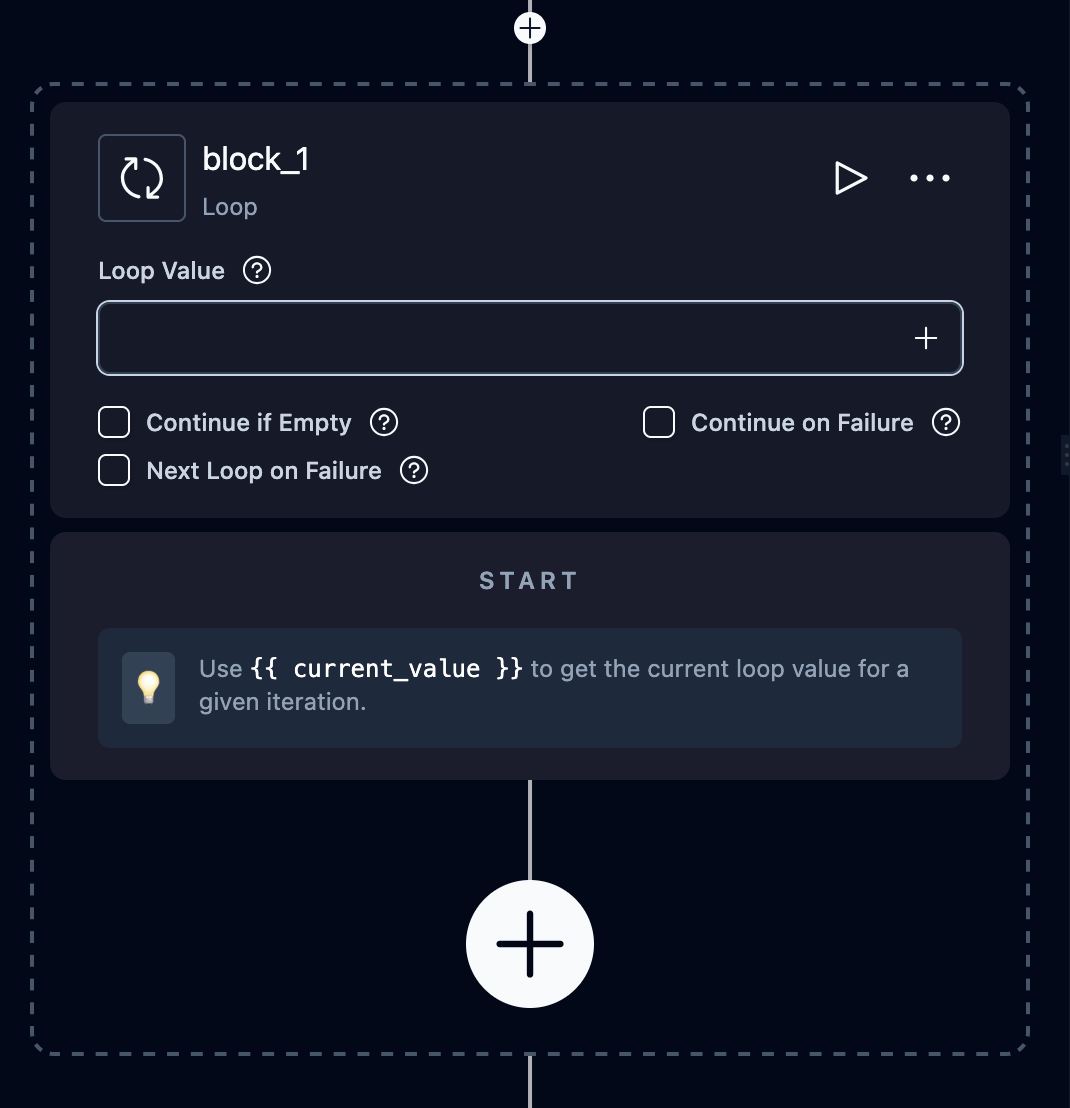
has_next_page boolean inside the loop, click Next, and let the next condition check decide whether to continue.
Conditional
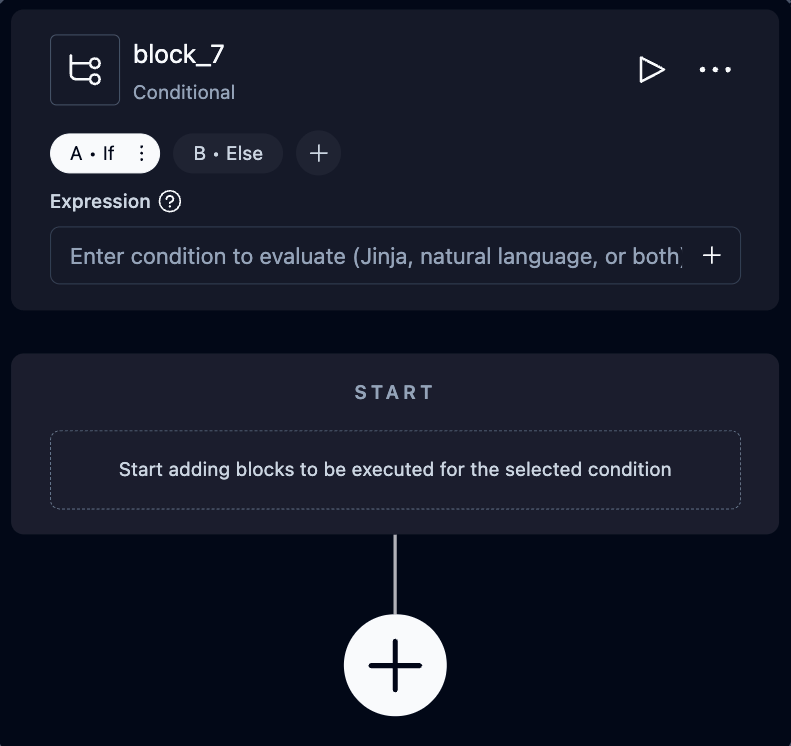
Branch the agent based on conditions. The UI shows branches as tabs (A, B, C, etc.). Each branch has an expression that determines when it executes. Expressions can be Jinja2 templates or natural language prompts.
Example Jinja2 expression:
AI Validation
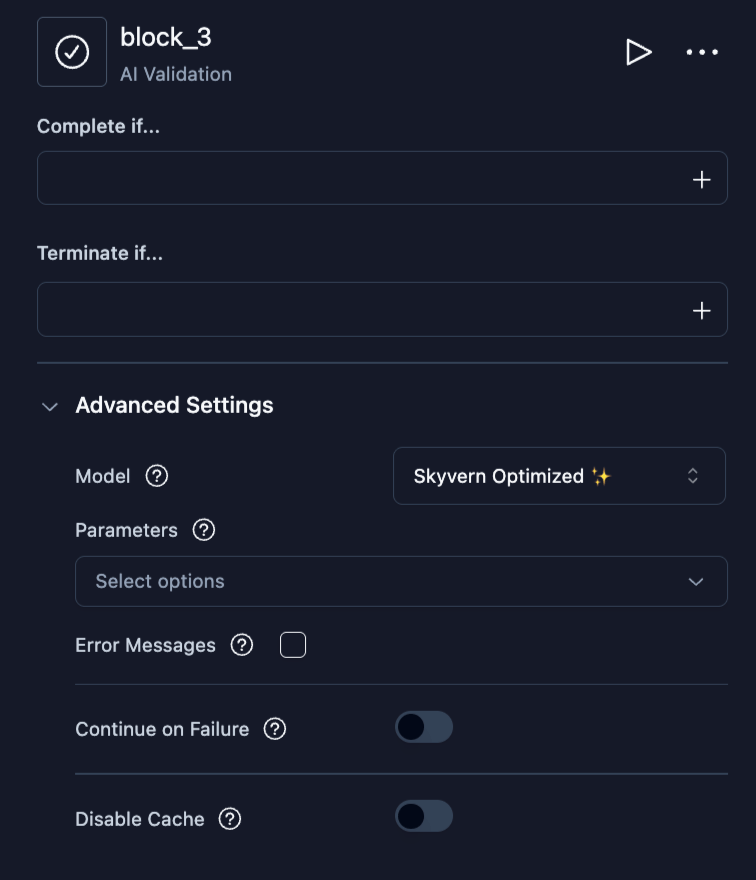
Assert conditions using AI and halt the agent on failure. Useful for checking that a previous block produced expected results before continuing.
Additional fields in Advanced Settings:
Code
Execute custom Python code. The block’s inputs are available as global variables. Top-level variables in your code become the block’s output.
After you edit the Goal, the block shows Goal changed — not applied yet in place of Generate. Apply new Goal has Copilot rebuild the code to match, and Undo restores the old Goal. When you edit the code of a block that has a Goal, it shows Code changed — Goal may be out of date, with Update Goal and Keep Goal.
Code can import
asyncio, datetime, html, json and re. Each one binds the
sandbox’s own version of the module, which carries part of the standard library and
loads nothing. The same names are already available without an import.
Every other module is refused, as is
import * from an allowed module and a name
that starts with an underscore. Saving an agent whose new or changed code holds a
refused import returns 422 and names the block; code that is already saved stays
saveable. A name an import binds is left out of the block’s output.
Password credential input parameters expose plaintext fields such as
login_credential.username and login_credential.password. These values are
readable by Python code inside the runner; they are not opaque handles. Use them
only where needed, such as passing them directly to browser operations.
For one-time codes, use await login_credential.otp(), the supported pattern
across both execution paths. Do not rely on .totp or the top-level otp(...)
helper, whose behavior differs between paths. If no OTP source is configured,
login_credential.otp() fails with a clear one-time-code-unavailable error.
Agent
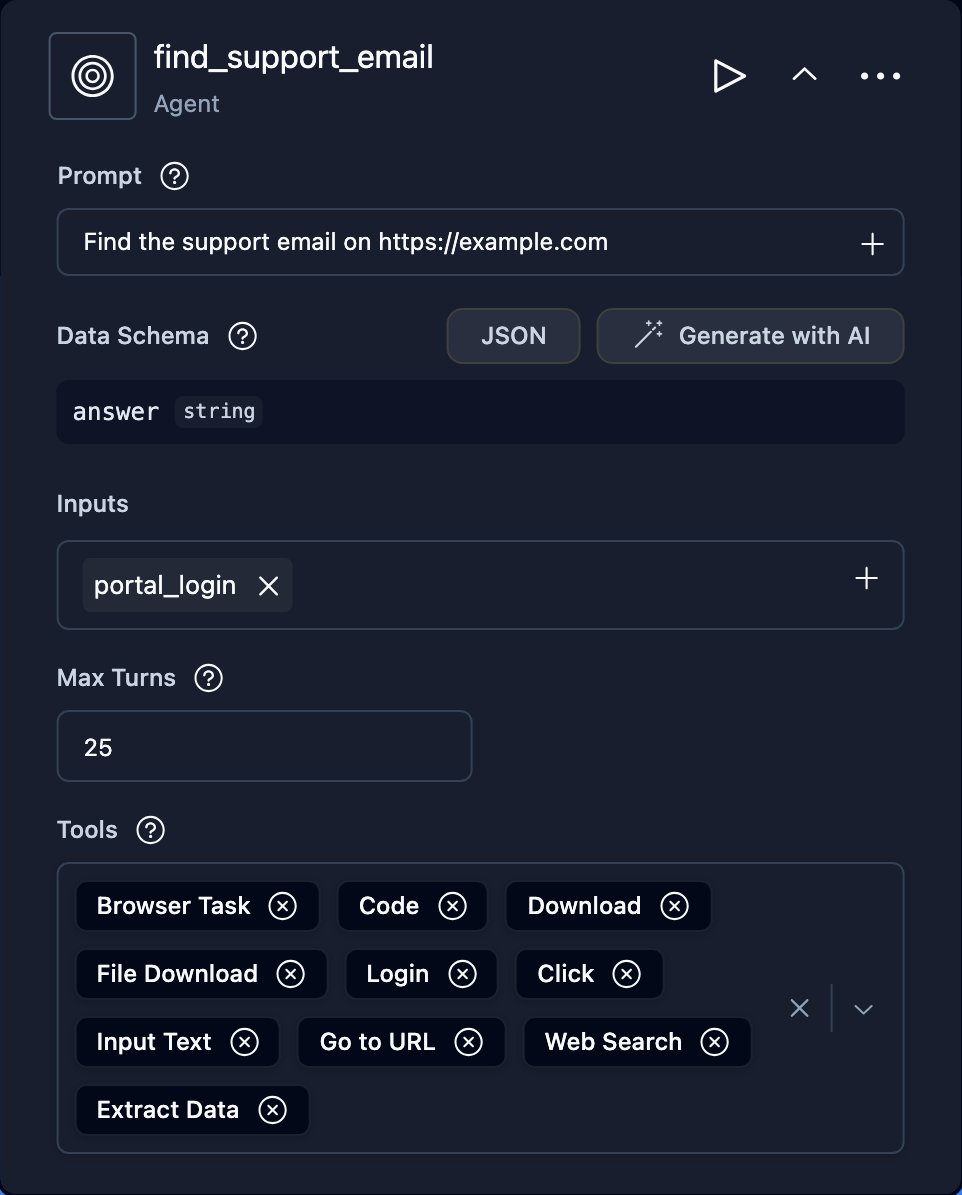
The Agent block lets a model choose which tools to call until it can return the fields in its Data Schema.The Agent block is available to selected organizations. Contact support to enable it.
The model can always read this run’s data (
read_run_data), return its answer (finish), or end the block as failed with a reason (fail). Without a Tools list it has no other tools. A new Agent block starts with these checked: Browser Task, Code, Download, File Download, Login, Web Search, Go to URL, Click, Input Text and Extract Data. The Tools checklist in the editor lists every optional tool, and checking one offers it to the model, except Login, which also needs a credential in Inputs.
A tool named after a block, such as Browser Task or HTTP Request, runs that block as an ordinary block and is billed as usual. Go to URL, Click, Input Text and Extract Data act on the run’s current page. Browser Task, File Download and Login each start a separate browser agent that uses your organization’s default step limit.
To sign in, check Login in Tools and add a credential to Inputs. Login is checked by default; it is offered to the model only when Inputs has a credential. Skyvern masks the run’s registered secrets in the tool results the model reads and in the recorded tool calls. The answer is saved as the model returns it, so do not ask the model to return a secret.
Copilot can add an Agent block to your agent and choose its Tools.
Agent Trigger
Start another agent from this one.
With Wait for Completion on, the block succeeds only when the triggered run completes. Its output holds
workflow_run_id, workflow_permanent_id, status, failure_reason and outputs, which holds the triggered agent’s block outputs by name.
With it off, the triggered agent starts in the background and the next block runs at once. The output holds workflow_run_id, workflow_permanent_id and status: "queued". Continue in the same session is unavailable, because this agent may close its browser before the triggered one finishes.
Agents can trigger each other at most 10 levels deep.
Wait
Pause agent execution for a specified duration.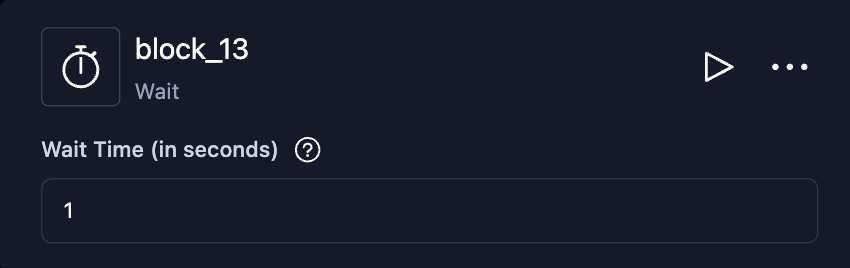
Terminate
End the run asterminated with a reason you write. Put one on a Conditional branch to stop a run before the part that spends steps. See pre-flight check.
Neither field can reference a credential or a secret. A template that references one is dropped, and the run still stops with a reason that names the block. Continue on Failure does not apply: the run always ends here.
Files
File Download
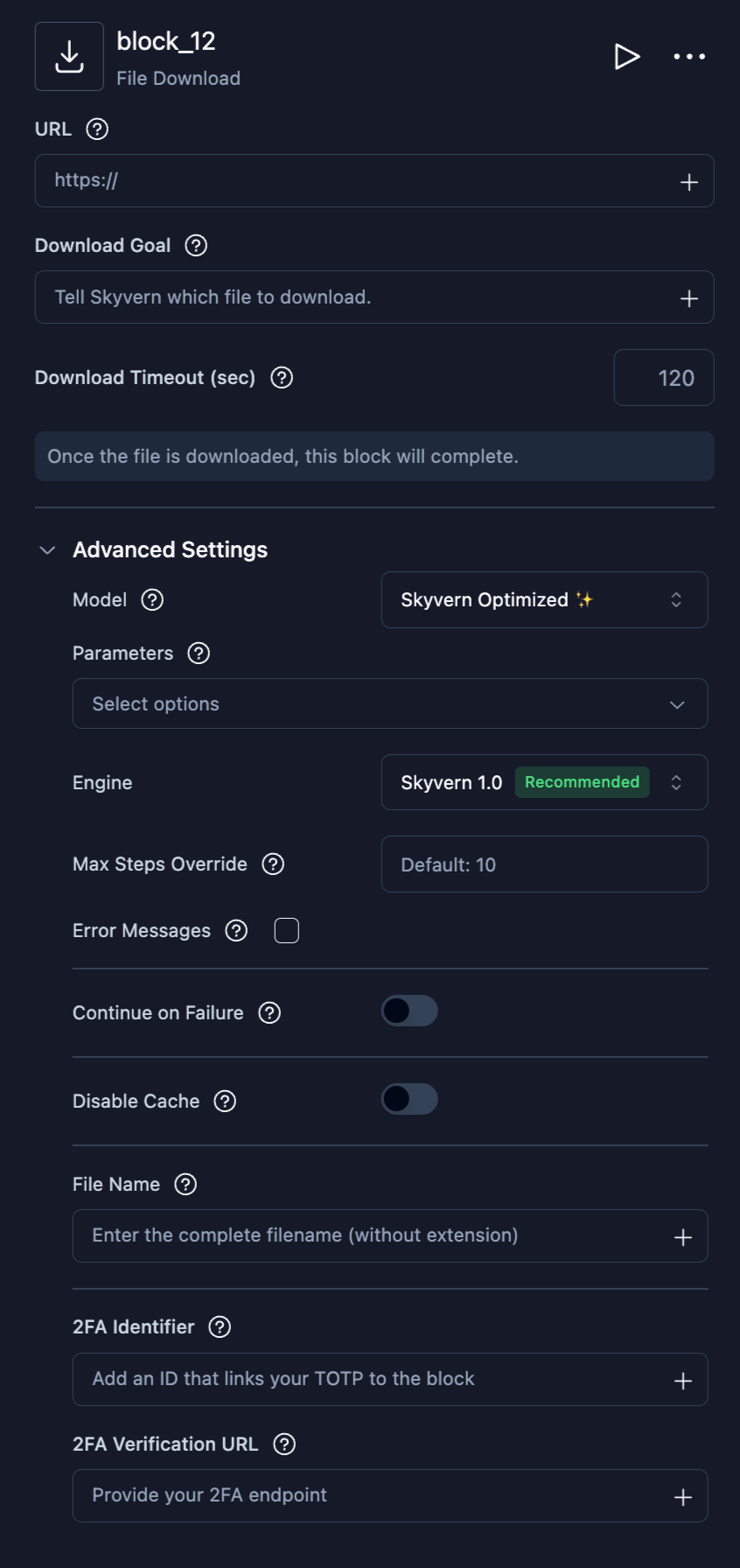
Navigate the browser to download a file. The block can keep the file in Skyvern or send it to cloud storage, and it can read the file from an SFTP server instead of a website. When URL points straight at a file, the browser starts a download instead of loading a page. Skyvern fetches the file once, waits for it to finish saving, and completes the block. A download the browser cannot save fails the block.
Additional fields in Advanced Settings:
Plus common browser fields.
Cloud Storage
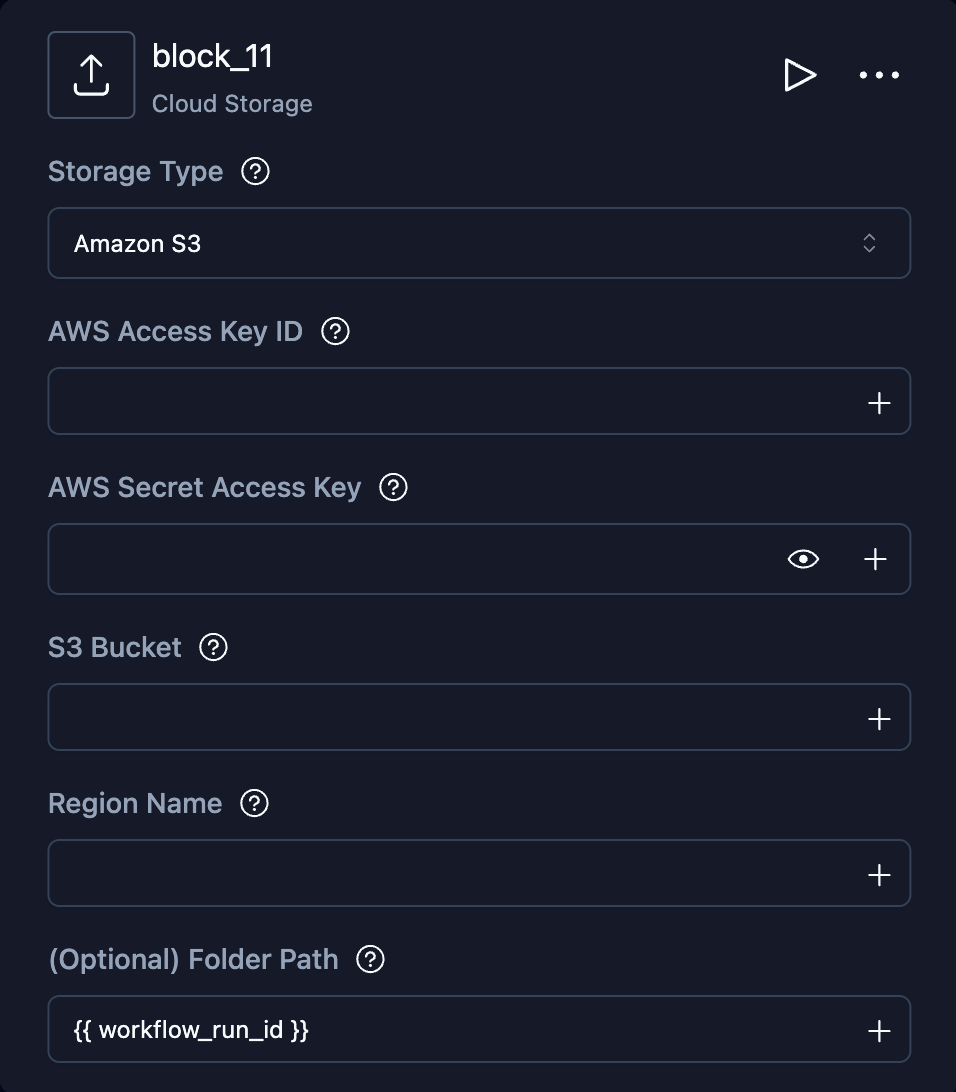
Upload files that earlier blocks downloaded to Amazon S3, Azure Blob Storage, Google Drive or an SFTP server.
The other fields depend on the storage type. For S3 and Azure, Folder Path starts as
{{ workflow_run_id }}, so each run uploads to its own folder.
S3 fields
S3 fields
Azure fields
Azure fields
Google Drive fields
Google Drive fields
SFTP fields
SFTP fields
PDF Fill
Fill in a PDF form from a prompt and a JSON payload, and save the filled PDF as a file of the run.
The block works best on fillable PDFs with form fields. A scanned or flat PDF is filled best-effort by placing text on the page, and fails if it has more than 25 pages.
fill_mode in the output is acroform for a fillable form and flat_overlay for a flat one.
The output also includes fields, skipped_fields, file_path, file_name, artifact_url and downloaded_files.
Split PDF
Split one PDF into several PDFs, following a prompt that says where each document starts and ends.
The block reads at most 1000 pages. A longer PDF fails with a message to split the source PDF into smaller files first.
The output holds
documents, one entry per new PDF with its name, folder, page_range, page_count, file_path, file_name and artifact_url. It also includes document_count, skipped, source_page_count and downloaded_files.
Communication
Send Email
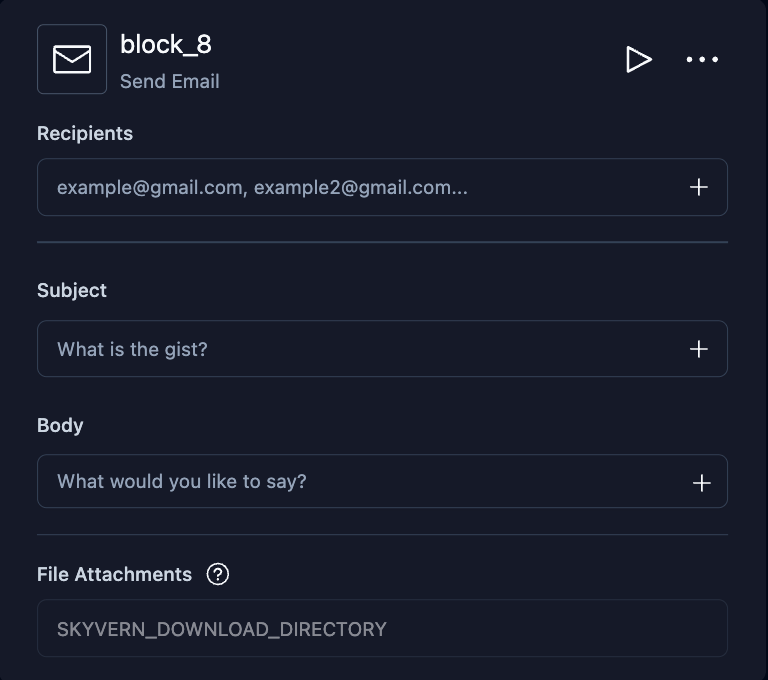
Send an email notification, optionally with file attachments from previous blocks.
Fields in Advanced Settings (SMTP only):
HTTP Request
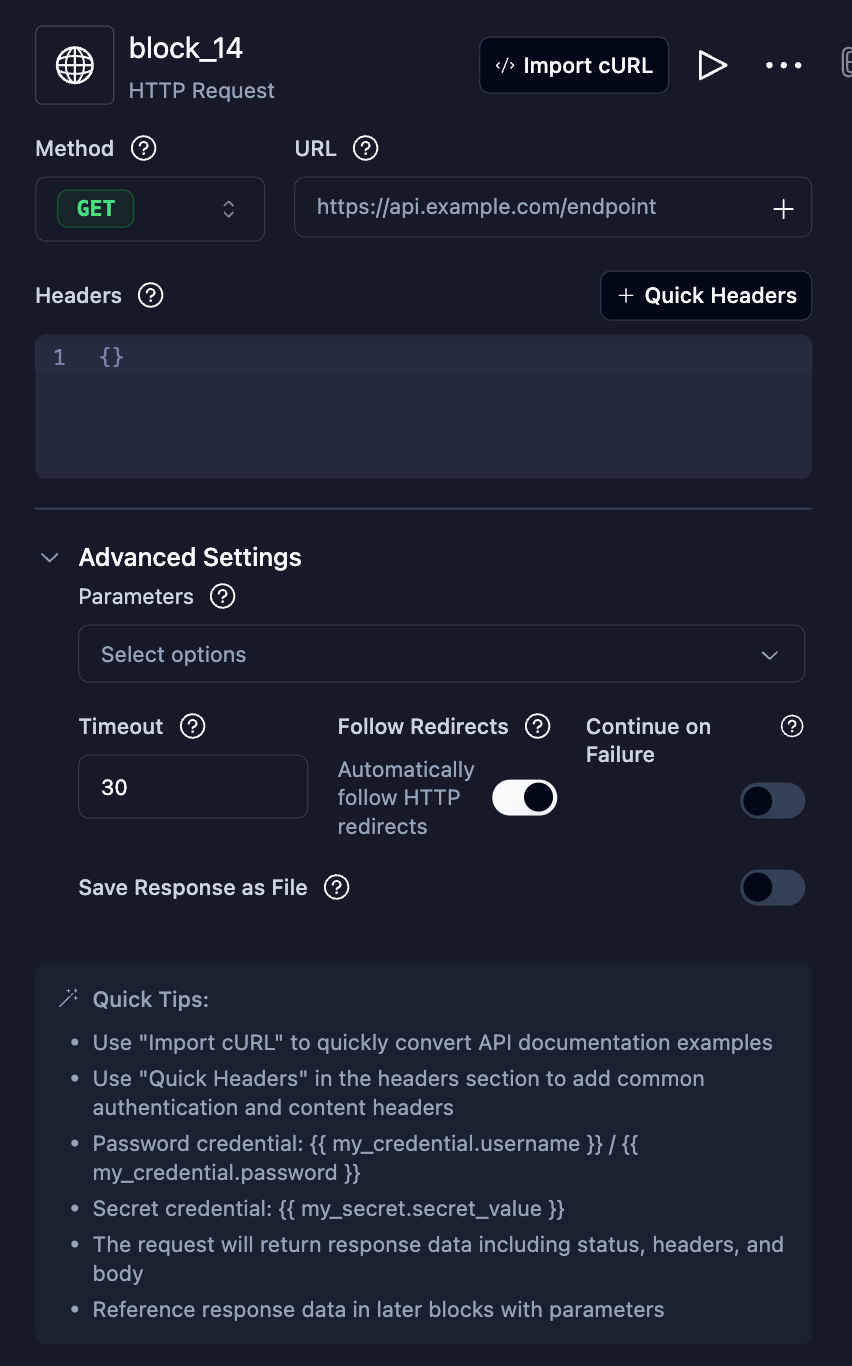
Make an API call to an external service. Click Import cURL, above the Method field, to populate fields from a cURL command.
Additional fields in Advanced Settings:
Human Interaction
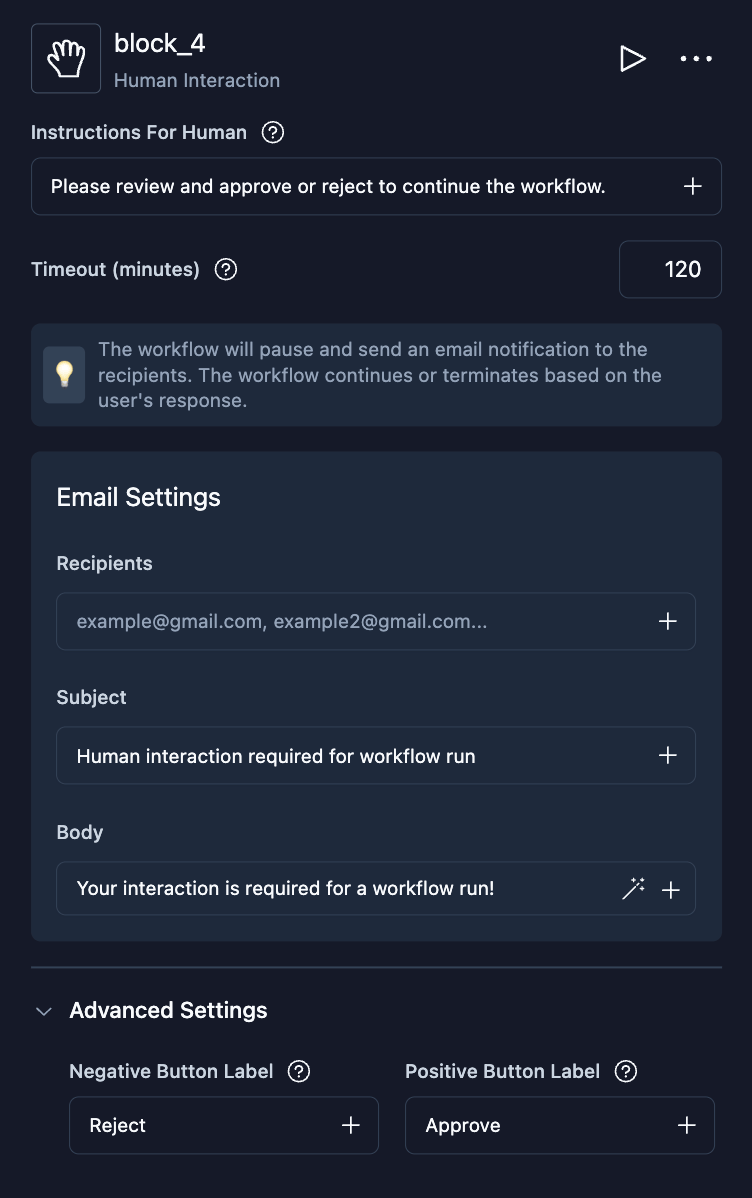
Pause the agent and request human input. Optionally sends an email notification to reviewers.
Email notification fields:
Additional fields in Advanced Settings:
The wait also ends before the timeout when the run itself stops. Canceling the run marks the block canceled, and closing the run’s browser session fails the block with “Browser session was closed while waiting for human interaction”.
Email Inbox
Read messages from a connected Gmail or Outlook account and keep the ones a prompt describes. Connect the account on Integrations first.
Fields under Optional Filters:
Folder, Match prompt, Sender and Subject support parameter references.
The output holds
email_client, folder, candidate_count, matched_count and emails.
Turn on Download Attachments to pass files from matched emails to later blocks. Skyvern saves each matched email’s attachments as run downloads and adds downloaded_files and downloaded_file_urls to the output. A saved attachment also carries its file_name, file_path and url in emails. Inline images are skipped. Attachments count toward the same per-file size, per-run size and file-count limits as browser downloads; an attachment that exceeds a limit or cannot be saved carries a download_error instead of failing the block.