

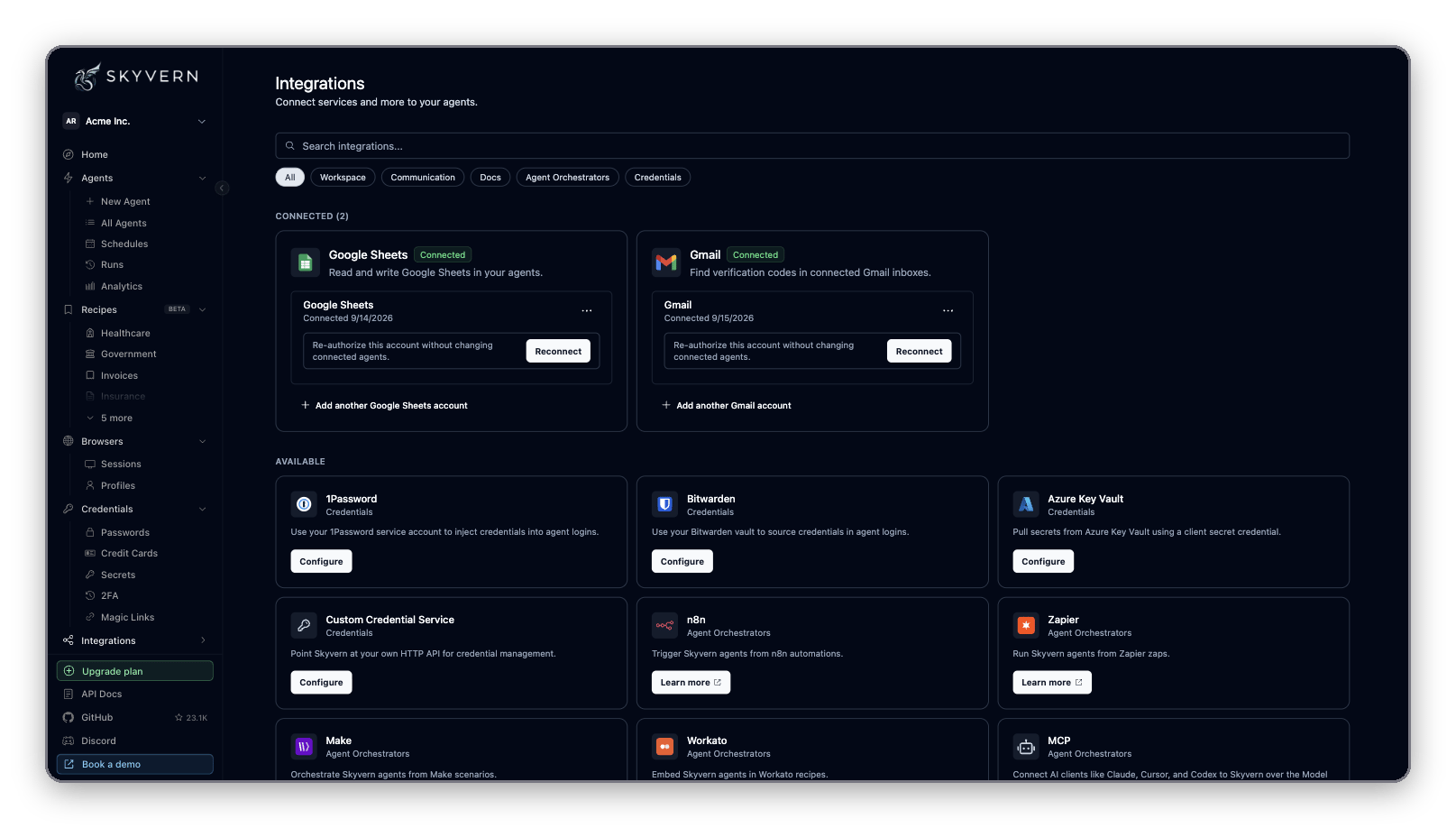
Don’t see what you need? Click Request → on the Request another integration card and name the service.
Google and Microsoft accounts
Google Sheets, Google Drive, Gmail and Outlook connect through Google or Microsoft sign-in.1
Click Connect
Click Connect on the tile.
2
Name the connection
Enter a name, such as “Finance Gmail”. You pick the account by this name in your agent’s blocks. Click Continue to Google (or Continue to Microsoft for Outlook).
3
Approve access
Sign in and approve every permission on the consent screen. Skyvern sends you back to Integrations, where the account appears under Connected.
Block settings are in the blocks reference.
Manage a connected account
Each connected card lists its accounts. From there you can:- Add another account: click Add another Gmail account (or the matching name) to connect a second inbox or Google account.
- Rename or Disconnect: open the … menu on the account row. The name you set is what agent blocks show in their account picker.
- Reconnect (Google only): if the card shows Needs reconnect, the authorization expired or you didn’t approve every permission. Click Reconnect and approve again. Agents that use the account resume without edits.
Password vaults
The four Credentials tiles let agents log in with secrets you already keep elsewhere. Click Configure, fill in the form, and save. The tile then shows Status: Active, or Status: Inactive if Skyvern could not use what you entered.
To change or remove a vault, click Edit on the tile, then update the fields or click Clear Token / Clear Credential / Clear Configuration.
How agents pick a vault item at run time, and how to reference items in an agent’s inputs, is on Credentials and 2FA.
MCP
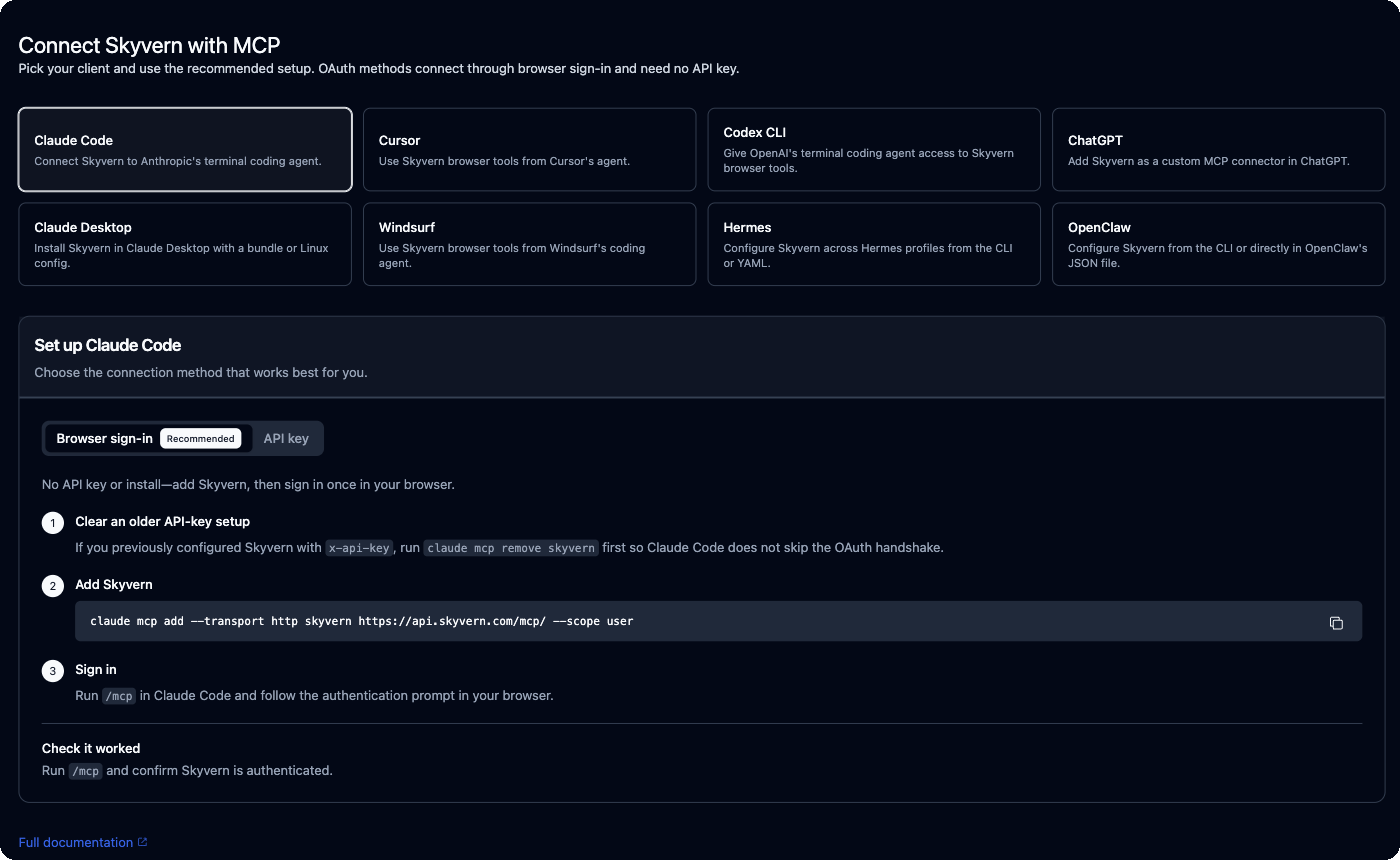
Click Set up → on the MCP tile, or Integrations → MCP in the sidebar, to open Connect Skyvern with MCP at/integrations/mcp. Pick your client: Claude Code, Cursor, Codex CLI, ChatGPT, Claude Desktop, Windsurf, Hermes or OpenClaw. The page shows the recommended setup for that client, with commands you can copy. Browser sign-in (OAuth) methods need no API key. API key methods come pre-filled with your key.
Automation platforms
Zapier, Make, n8n and Workato connect from their side: you add Skyvern inside the platform and paste your API key. The tiles on the Integrations page link to each platform’s Skyvern listing. All four follow the same pattern:- Build the agent in Skyvern first. The platform’s “run an agent” step only lists agents that already exist.
- Run it. Choose the agent and fill in its inputs. Add a webhook callback URL if you want the platform to hear back when the run finishes, rather than polling.
- Get the result. Use the platform’s “get” step with the run ID: agent run IDs start with
wr_, task run IDs withtsk_.
Zapier
Add Skyvern in your Zap and paste your API key. Listing: zapier.com/apps/skyvern.Make
Add Skyvern in your scenario and paste your API key. Listing: make.com/en/integrations/skyvern-ai.n8n
Install the community noden8n-nodes-skyvern, add it to your workflow and paste your API key.
Workato
Add the Skyvern connector to your recipe and paste your API key. Listing: workato.com/integrations/skyvern.Next
Credentials and 2FA
Store logins and use vault items in agents
Account and API keys
Find and rotate the key the platforms need
MCP and coding agents
Drive Skyvern from Claude, Cursor or Codex