

Build and run your first agent
1
Sign up and open Home
Create an account at app.skyvern.com. A new account answers a few short questions first (you can click Skip for now), then lands on Home.If you described a task in those questions, it is already in the prompt box.
2
Describe the task
In the box under What task would you like to accomplish?, write the task the way you would brief a colleague. Name the site, say what to do there, and say what you want back.Click the arrow to send.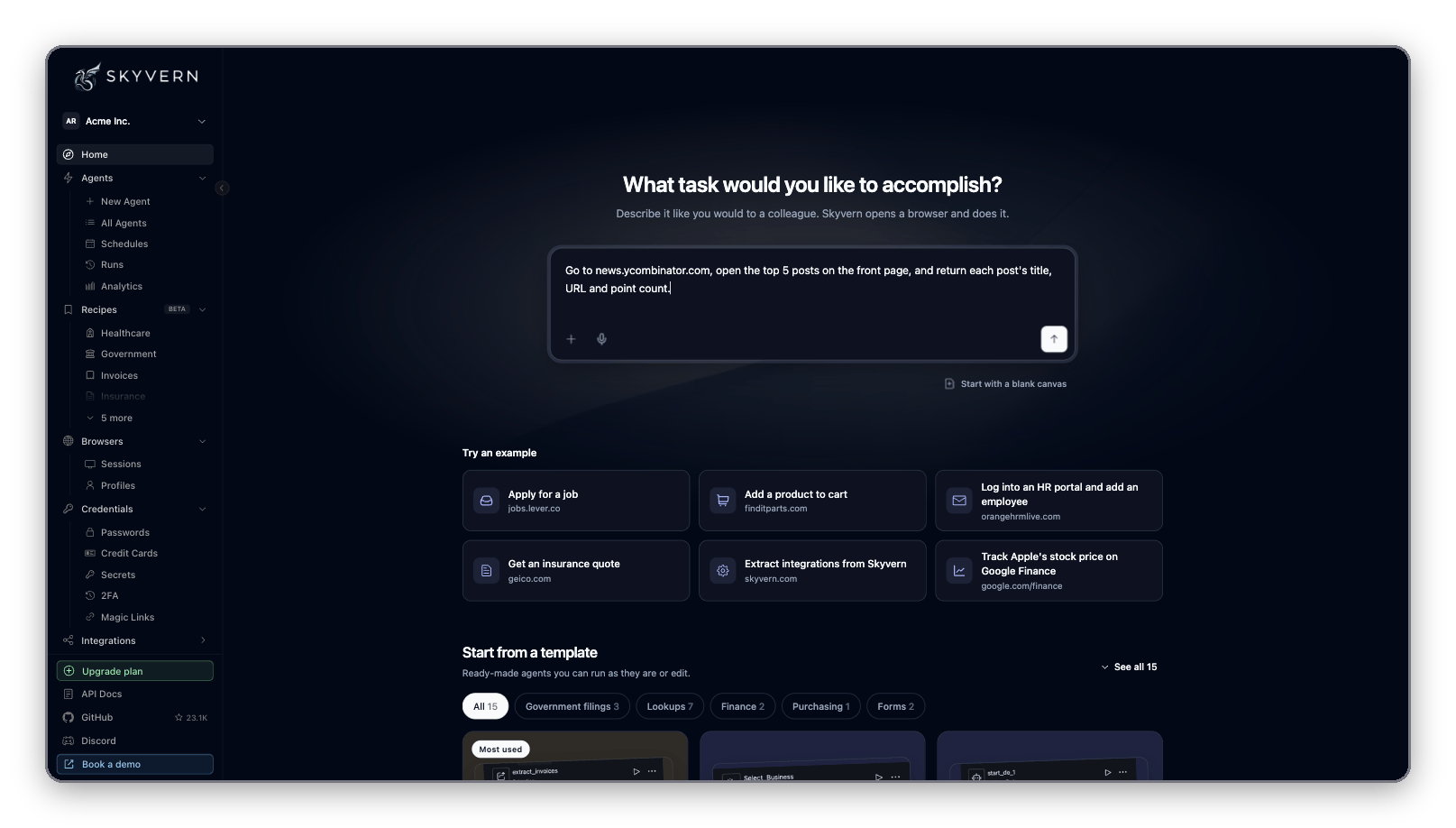
- Try an example below the box fills in a ready-made prompt you can edit.
- The + menu attaches files to the prompt (Upload document) or starts a recording of you doing the task yourself (Record task).
- The microphone button lets you dictate the prompt.
3
Let Copilot build the agent
Skyvern creates a new agent and opens it in Studio, with your prompt sent to Copilot. You don’t need to do anything yet.Copilot names the agent, plans the steps, opens the site in the Browser pane and adds blocks one by one. It runs each block to test it, so you see the browser move while it works.If Copilot only answers in the chat without proposing blocks, ask it to turn the work into an agent you can run again.Copilot stops to ask when it needs you: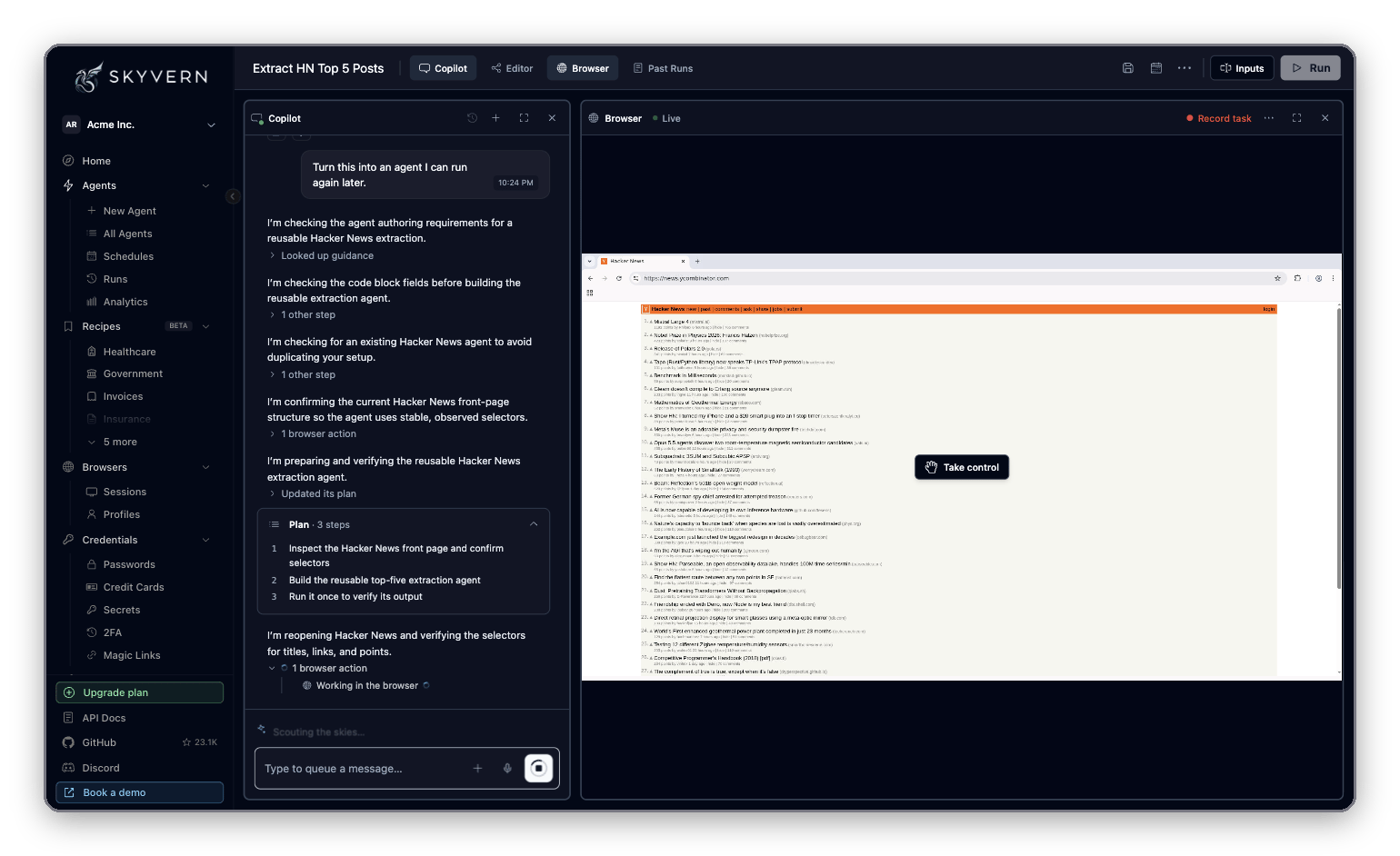
- A question. Pick an answer or type your own in the message box.
- A login. The Copilot needs to sign in card lets you pick a saved login under Saved logins or add one. See Credentials and 2FA.
4
Accept the proposed changes
When Copilot finishes, it shows a Proposed changes card listing the blocks it added, changed or removed. A pill tells you whether the blocks were Tested, Untested or Test failed.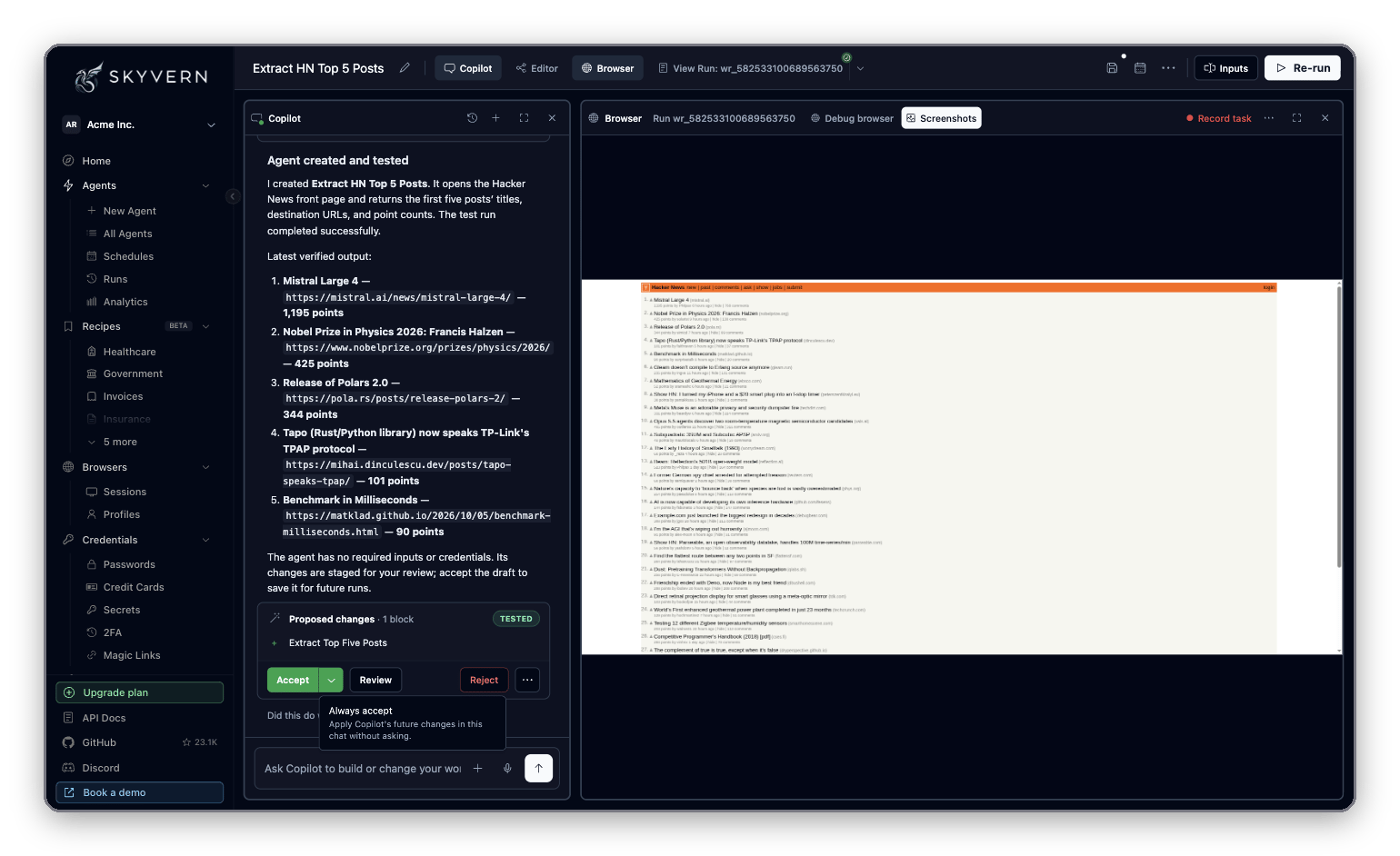
- Click Accept to apply the changes. They are saved to the agent.
- Click Review to compare the proposed agent with the previous version before you decide.
- Click Reject to discard them. The agent goes back to the previous version.
5
Run the agent
Click Run in the Studio top bar. The run form opens.Fill in any inputs the agent needs, then click Run agent. The default settings work for a first run. Runs and schedules explains every setting.
6
Watch it and read the results
Studio switches to the run. The Browser pane shows the browser live, and the Run pane’s Timeline shows each block as it runs.When the run ends, open Outputs in the Run pane. You’ll find the data the agent returned (Extracted information and Run outputs), any Errors, and links to Downloaded files.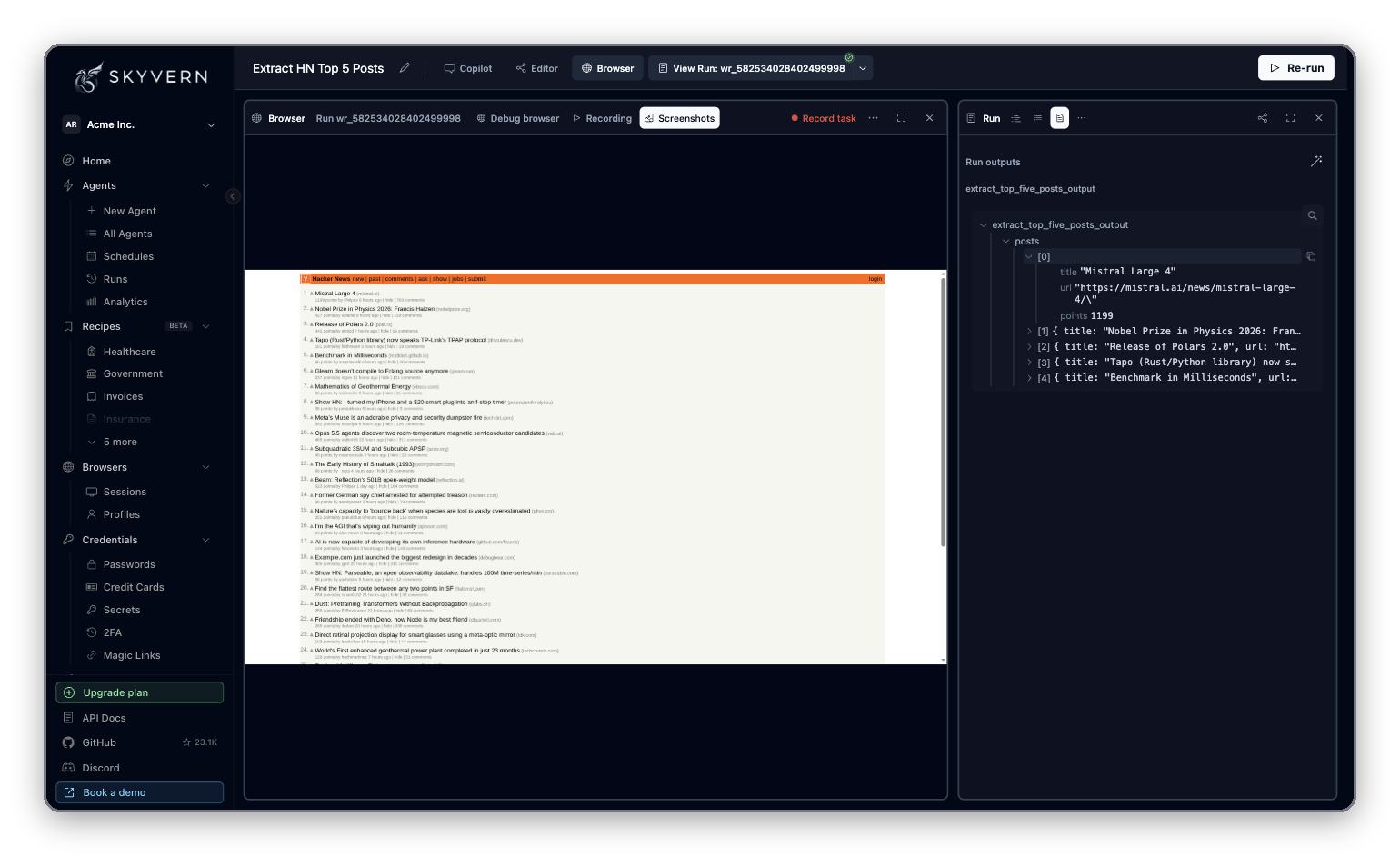
Change the agent by chatting
Keep talking to Copilot in the same pane. Ask for changes the way you asked for the agent:Other ways to start
Build in Studio covers editing blocks by hand, inputs, versions and organizing agents.
Tips for a good first prompt
- Name the site. A full URL saves Copilot a search.
- Say what “done” looks like. “Return the title, URL and point count” works better than “look at the posts”.
- Say what varies between runs. “The search term changes each time” tells Copilot to make it an input.
- Mention logins up front. If the site needs an account, say so, so Copilot asks for a saved login early.
Next
- Build in Studio: edit blocks, inputs and versions yourself.
- Runs and schedules: run settings, live control, run history and schedules.
- Credentials and 2FA: save logins and 2FA codes your agents can use.