

API keys
Your API key authenticates every API, SDK, CLI and MCP request for your organization.1
Open API keys
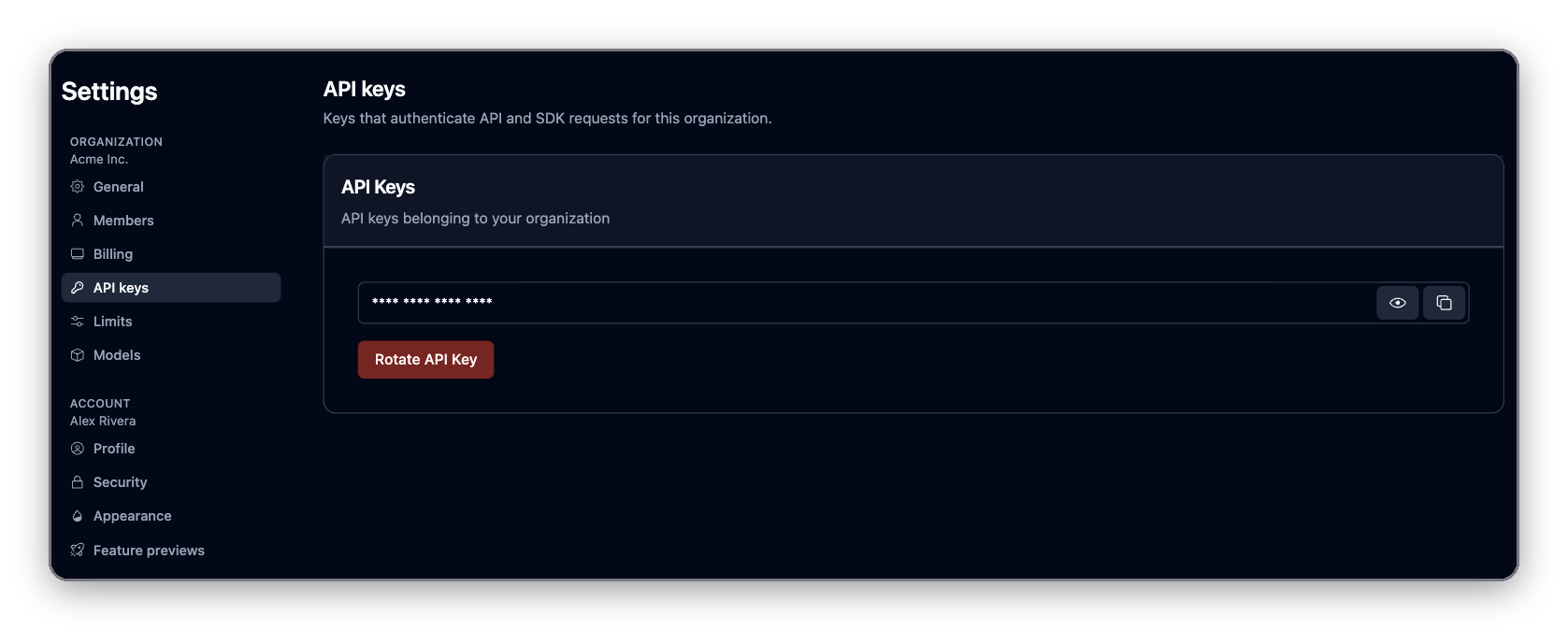
Go to Settings → API keys. The sidebar shortcut Integrations → API keys opens the same page.
2
Reveal or copy the key
The key is masked. Click the eye icon to reveal it, or the copy icon to copy it.
Rotate your key
Rotate the key if it may have leaked or someone who had it leaves.- Click Rotate API Key.
- Type
I want to rotate my keyand click Rotate key. - Copy the new key and update every script, worker and integration that used the old one.
API access
Authenticate requests
Send the key in thex-api-key header:
Authorization: Bearer <token>. See MCP and coding agents.
OAuth
Skyvern Cloud is an OAuth 2.0 authorization server, backed by Clerk. Clients that support MCP OAuth discovery, such as Claude Code, Claude Desktop, Cursor, Codex CLI and ChatGPT, need no client ID or secret: they register themselves and open a browser to sign in. Other OAuth clients can read the discovery metadata:
The server advertises the scopes
openid, profile, email, public_metadata, private_metadata, offline_access and user:org:read; the MCP server’s metadata narrows them to profile and email. These are identity scopes, not API permissions (see Permissions).
Access tokens expire and can be refreshed when you request offline_access. A refresh token works once and is replaced on every exchange; replaying an old one revokes the whole token family. Revoking the organization’s API key also invalidates tokens issued against it.
Permissions
The organization is the only permission boundary.- An API key can call every endpoint your organization can reach. There are no read-only, per-endpoint or per-agent keys.
- An OAuth token acts as the organization of the person who signed in, with the same reach as an API key. Its OAuth scopes (
profile,emailand the like) describe who signed in. They don’t limit what the token can do. - MCP tool scopes (
operate,build,browser,lean,all) only change which tools a client sees. They are not a security boundary. - Usage from any credential is billed to the organization.
API versions and deprecations
Skyvern’s REST API is versioned in the URL path. The current and only supported version is v1, served fromhttps://api.skyvern.com/v1/.
How versioning works
The major version appears once, as the first path segment. It never appears in a header, query parameter, orAccept media type.
Skyvern does not use date-based or header-negotiated versions. If your client pins
https://api.skyvern.com/v1, no deployment we make will change the shape of a response you already depend on.
What counts as backward compatible
Treat the following as expected withinv1, and make sure your client tolerates them:
- New endpoints and new HTTP methods on existing paths
- New optional request parameters and request body fields
- New fields in response bodies
- New values in existing enums (for example, a new run status or failure reason)
- New or reworded human-readable
detailstrings on error responses - Changes to the ordering of JSON object keys or of items in an unordered collection
What we will not do inside v1
These are breaking changes. They only ship in a new major version, never intov1:
- Removing or renaming an endpoint, a request field, or a response field
- Changing the type or format of an existing field
- Making an optional parameter required, or adding a new required parameter
- Removing a value from an enum
- Changing the HTTP status code or error code for an existing failure mode
- Changing the authentication a route requires
Stability guarantees by surface
Deprecation and sunset policy
When we do deprecate part of the API, this is what you can count on:- At least 6 months notice. That is the minimum time between the deprecation announcement and the sunset date on which the endpoint stops serving traffic. Removing an entire major version gets at least 12 months.
- A changelog announcement on the Skyvern changelog, naming the affected endpoints, the replacement, and the sunset date.
- Machine-readable response headers on every response from a deprecated endpoint, following RFC 9745 (
Deprecation) and RFC 8594 (Sunset). deprecated: truein the OpenAPI specification for the affected operation, parameter, or schema field, so generated clients and API tooling surface the warning automatically.- No silent removals. An endpoint that has not been announced, header-flagged, and given its full notice window will not be turned off.
Deprecation carries the moment the endpoint became deprecated, Sunset the moment it stops responding, and the Link header points at the announcement explaining the migration.
No
/v1 endpoint is deprecated today, so these headers are not present on any current response. The two deprecations in flight are field-level and documented in place: the title query parameter on GET /v1/agents (use search_key) and publish_workflow on task creation.Building a client that survives changes
- Pin the version prefix (
/v1/), not a specific SDK patch release. - Parse responses leniently: ignore unknown fields, default unknown enum values to a safe branch.
- Log any response carrying a
DeprecationorSunsetheader, and alert on it — that header is the earliest programmatic signal you will get. - Watch the changelog for announcements, and diff the OpenAPI specification in CI if you generate your own client.
Where changes are announced
Questions about a migration: support@skyvern.com.
Billing and credits
Open Settings → Billing. On the Free and Hobby plans, the Upgrade plan link at the bottom of the sidebar opens the same page; on other plans it reads Plan & usage.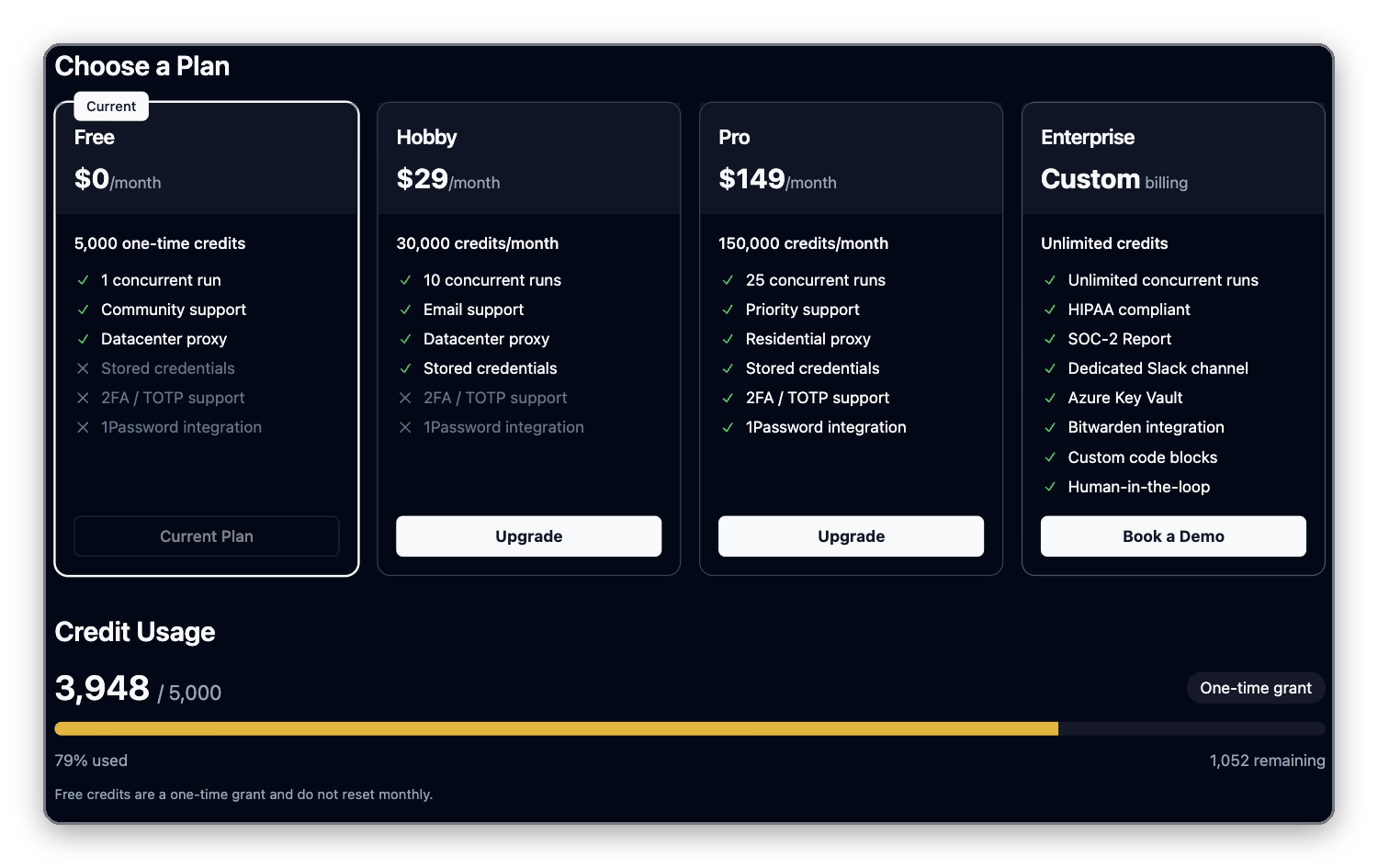
How credits are used
One credit is $0.001. Credits are charged for what the browser does:
A short login takes a few actions; a long multi-page run takes many more. Two job recipes have their own prices: applying to a job costs 100 credits per application (200 when it signs in with a saved login), and extracting a job posting costs 50 credits per attempt. Other recipes are billed like any other run.
Under Credit Usage you see credits used and remaining for the current period, your daily burn rate, and when your balance will run out at that rate. Expand Usage Breakdown to split usage into Regular Actions, Cached Actions, Browser Uptime and OTP Parses.
Plans
Free credits are a one-time grant and don’t reset. Click Subscribe on the Hobby or Pro card to start a plan. Once you’re subscribed, the cards read Upgrade or Downgrade and the page shows your current plan, with Manage Subscription to change or cancel it. For Enterprise, click Book a Demo. For a full feature comparison, see skyvern.com/pricing.
Extra credits and payment
On a paid plan, Buy Extra Credits lets you top up with a one-time purchase (25, 100 or a custom amount). Some plans also offer monthly add-on credit packs under Add more credits. Click Manage Payment Methods to update your card, see invoices and change billing details.Runs refused for credits
Skyvern checks credits before it starts a run and returns402 if they don’t cover it.
Members
Go to Settings → Members to invite teammates by email and manage their roles. Invite teammates in the organization menu at the top of the sidebar opens the same page. Members share the organization’s agents, runs, credentials, API key and credits.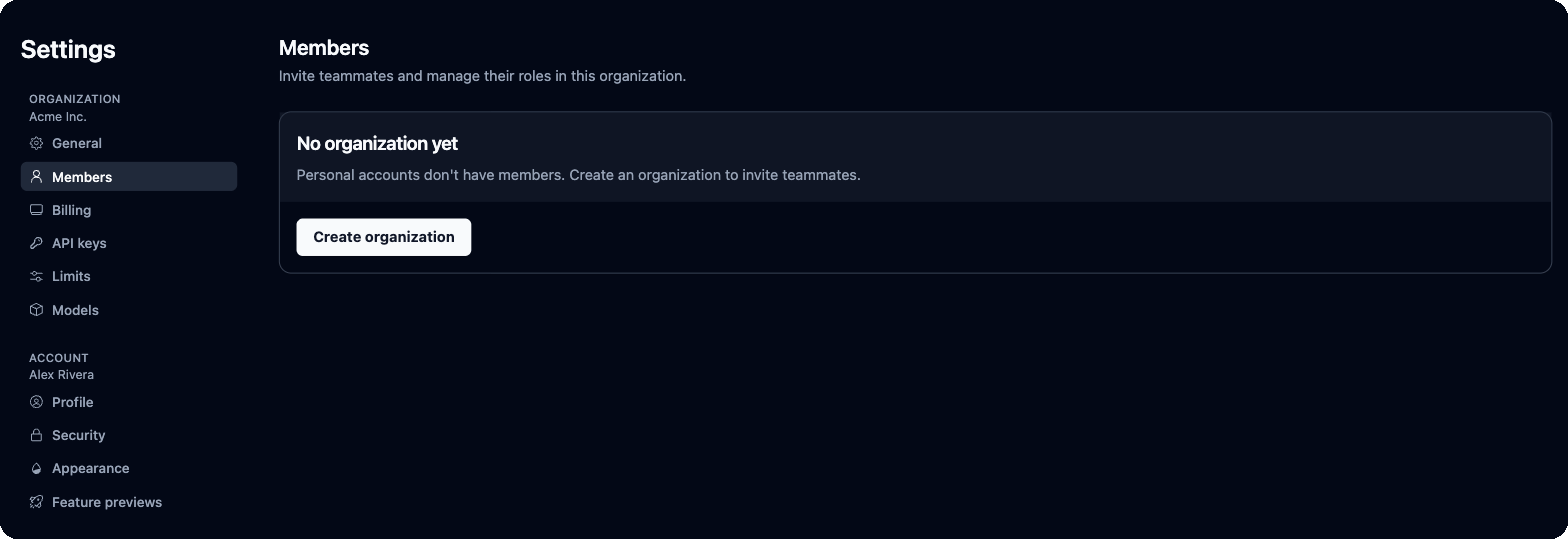
Organization settings
- General shows your Organization ID and Organization Name. Edit the name and logo in the Organization profile card.
-
Limits caps how much a run can do:
- Models has two cards. Custom LLMs adds your own OpenAI-compatible, Ollama or OpenRouter models. Default Models picks the Smart LLM and Fast LLM your runs use, or Skyvern Default.
- Labels appears when labels are turned on for your organization.
Your account
- Profile: your name, email addresses and connected sign-in accounts.
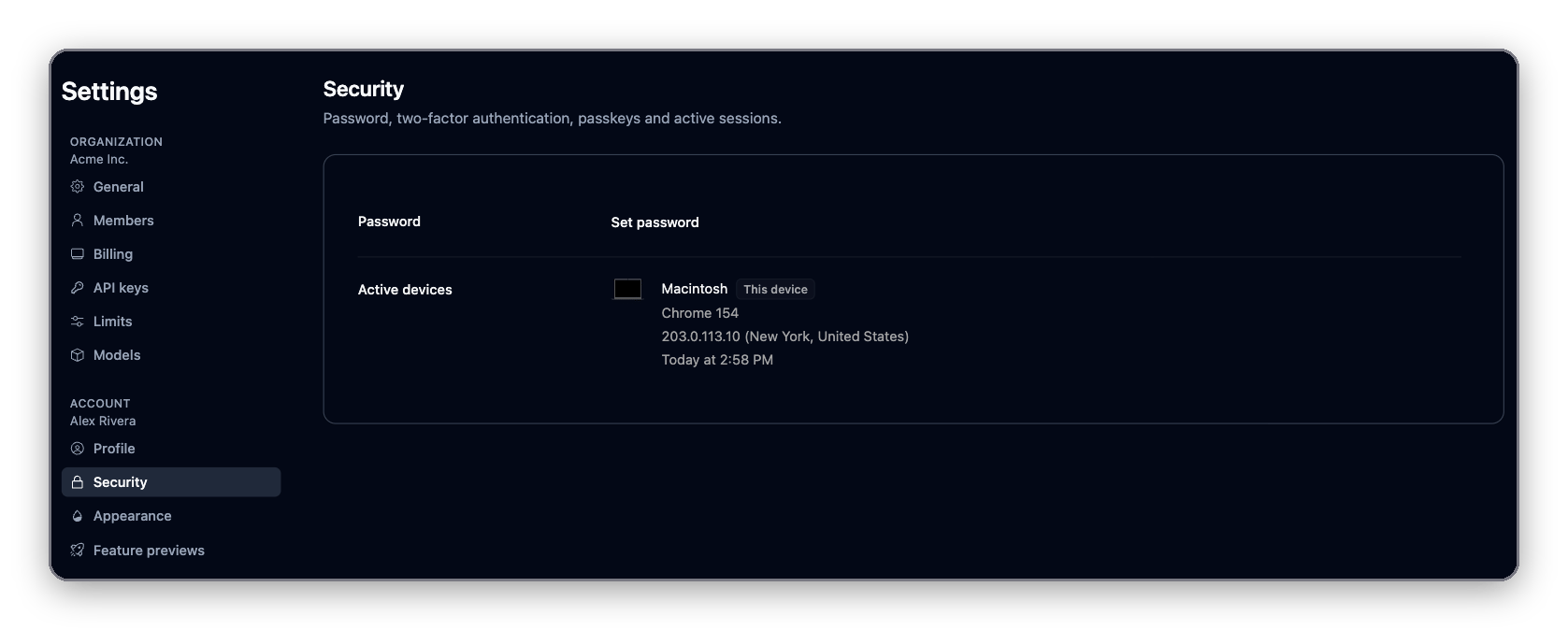
- Security: change your password, set up two-factor authentication and passkeys, and review the devices signed in to your account.
- Notifications: choose which emails you get: Product tips and account updates, Weekly digest and Product updates. Security and account notices (API key changes, new members, failing agents) are always sent.
- Appearance: Light, Dark or System theme for this device.
- Feature previews: replay onboarding, or turn on features still in development.
Next
Code quickstart
Use your API key to run your first task
Integrations
Connect Google, vaults, MCP and automation platforms
API reference
Every endpoint, with a playground