How to Automate Government Form Submissions with Agentic Process Automation (June 2026)

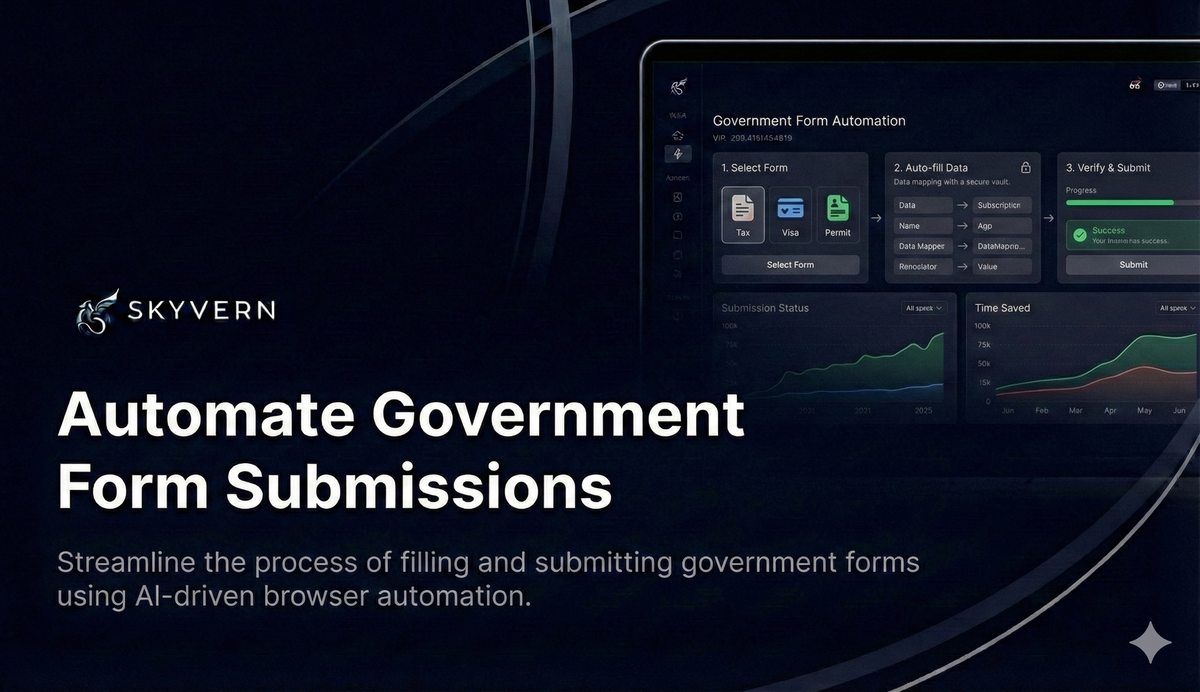
Manual form processing eats up your team's time. Traditional automation tools break every time a government website updates: XPath selectors fail, scripts stop working, and someone has to fix it. You need forms submitted faster without the maintenance treadmill. Browser automation for government powered by AI eliminates selector brittleness entirely: it reads pages visually at runtime, so layout changes become new input instead of fatal breakpoints. Here's the breakdown of how to set up government form automation that adapts automatically.
This is the class of problem Agentic Process Automation (APA) platforms are built to solve. Browser execution is the mechanism, but the actual product is autonomous multi-step operation: form detection, credential handling, exception escalation, and structured output delivery working end-to-end.
TLDR:
- Government form automation uses AI and computer vision to automatically complete and submit forms without manual intervention
- Traditional automation tools break when websites change, but modern LLM-powered solutions like Skyvern adapt dynamically
- Key requirements include secure authentication handling, compliance features, and the ability to work across multiple government portals
- Skyvern removes the need for custom selector scripting by providing ready-to-use AI form detection and submission features
- Proper setup includes workflow definition, security configuration, testing, and ongoing monitoring for compliance
What is Government Form Automation
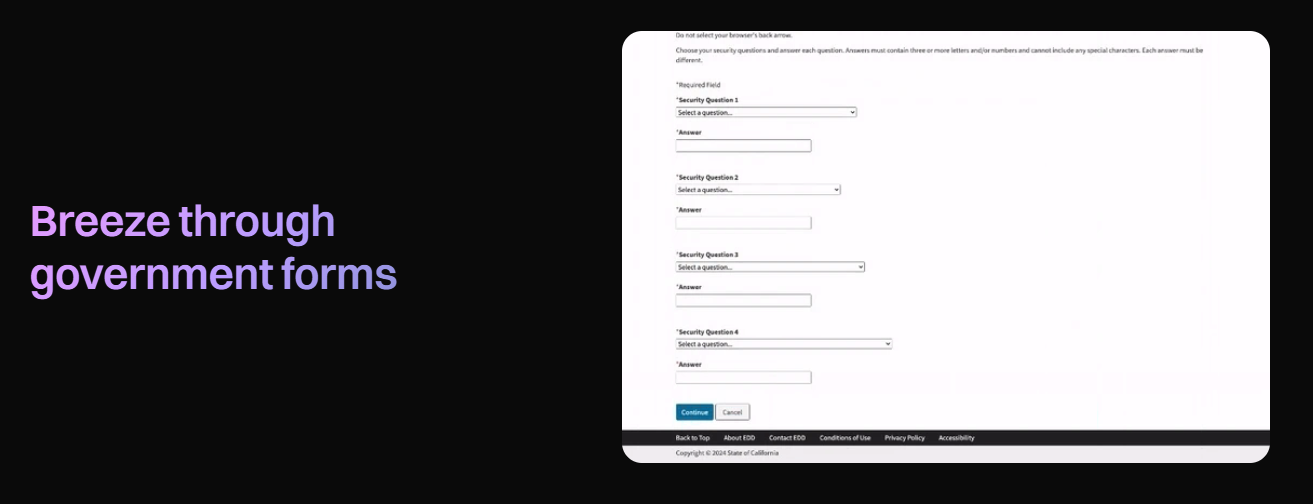
Government form automation refers to using software to automatically complete, submit, and process government forms without manual intervention. This technology connects multiple systems and approval chains into smooth digital workflows that maintain compliance and security standards.
Traditional form automation, though, relies on rigid, pre-programmed scripts that break every time a website updates its layout. Modern government automation takes a fundamentally different approach.
Instead of brittle XPath selectors, AI-powered browser automation uses LLMs and computer vision to understand forms dynamically by reading pages visually and identifying interactive elements by appearance and context. The system works with government websites it has never seen before, automatically detecting form fields, understanding requirements, and adapting to layout changes without breaking.
The technology changes how we interact with web applications by handling complex tasks like multi-step form filling, document uploads, and even handling conditional logic based on previous responses.
Why Government Form Automation Matters
Processing delays from manual form submission create bottlenecks in permit approvals, regulatory filings, and compliance documentation. A construction permit that requires a zoning form, a fire safety disclosure, and an environmental impact submission across three separate portals can take days of staff time: each form completed manually, each one a fresh opportunity for a missed field or transposed number that triggers a rejection and forces a restart.
The error surface is wide. Government forms frequently require exact formatting for tax IDs, license numbers, and reference codes. A single character off in a business registration number or an incorrectly formatted date field can result in a rejected submission, a compliance gap on record, and weeks of back-and-forth with the agency to correct it. Industries like healthcare, financial services, and construction face the sharpest consequences, where a missed filing window can mean fines or paused operations.
Volume compounds the problem. Organizations that file across multiple jurisdictions or agencies deal with dozens of portals, each with its own layout, session behavior, and field requirements. Staff who manually track and complete these forms spend a large share of their time on rote data entry instead of higher-value work, and the same information gets re-typed into each portal separately, multiplying both the effort and the error risk.
Security is another factor. Manual handling of government credentials and sensitive business data introduces exposure through shared passwords, unencrypted spreadsheets, and inconsistent access controls. Automated systems enforce consistent security protocols, store credentials in encrypted vaults, and generate detailed audit trails, creating the traceable record that regulators expect and that manual processes rarely produce without custom logging infrastructure built on top.
What's Required for Government Form Automation
Successful government form automation demands five core capabilities that go far beyond basic web scraping. The system must accurately extract and understand form structures without requiring manual configuration for each new website or form type.
First, you need AI-powered form detection that can identify fields, understand labels, and determine data requirements dynamically. Traditional OCR falls short here because government forms often have complex layouts, conditional fields, and varying formats across different agencies.
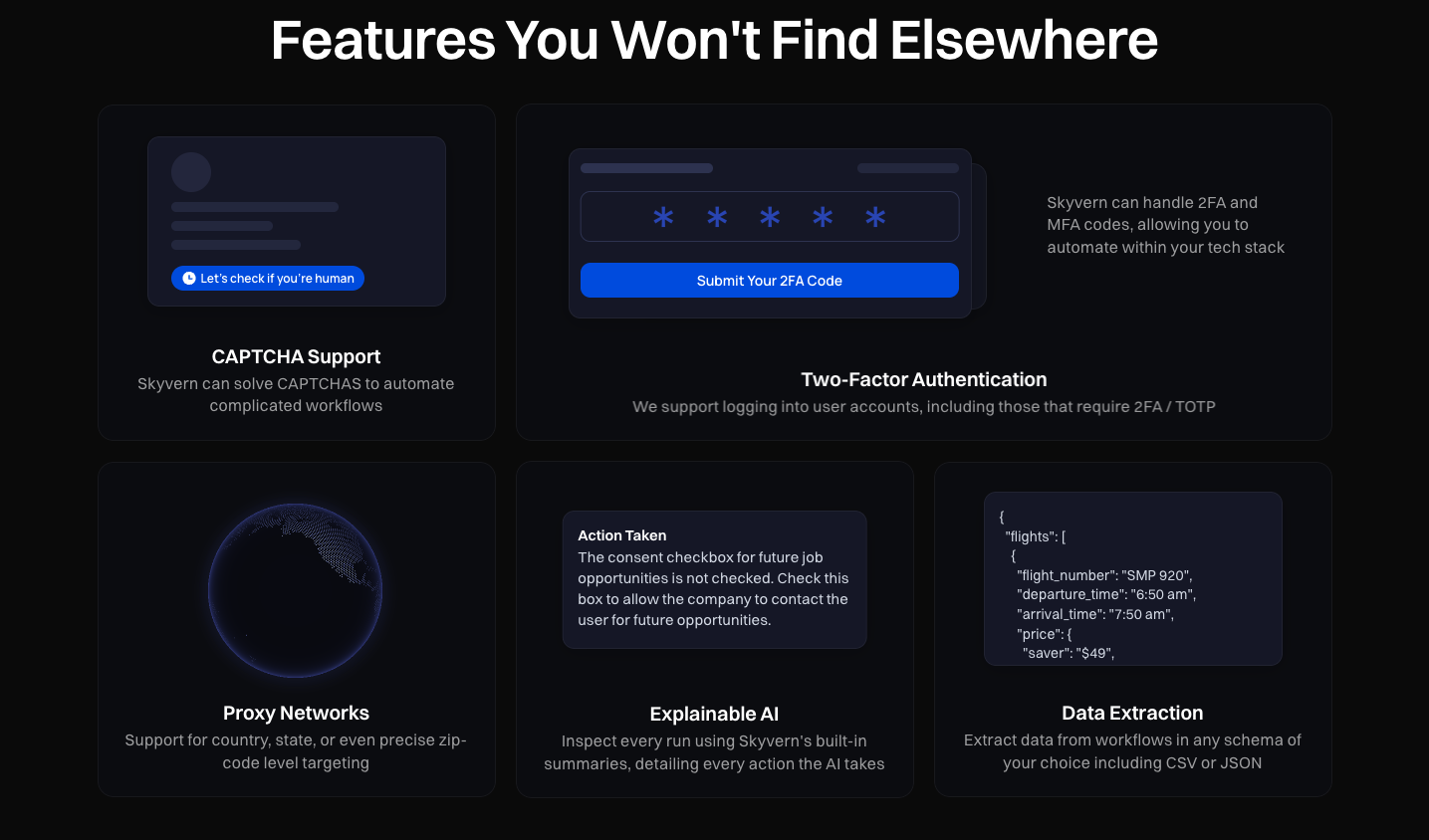
Authentication handling becomes complex with government systems. Your automation platform must support multi-factor authentication, TOTP codes, and secure credential management. Many government portals require additional security layers that basic automation tools simply can't handle.
Requirement | Traditional Tools | AI-Powered Solutions |
|---|---|---|
Form Detection | Manual XPath mapping | Automatic field recognition |
Layout Changes | Breaks automation | Adapts dynamically |
Authentication | Basic login only | 2FA, TOTP, secure storage |
Compliance | Manual audit trails | Built-in logging and reporting |
The system must handle form structures that change based on user responses. Government forms often include conditional logic where certain fields appear only after specific selections. Your automation needs to reason through these scenarios intelligently.
How Traditional Automation Tools Work
Traditional automation platforms like Selenium and UiPath operate through pre-programmed scripts that map specific XPath selectors to form elements. When you set up automation, a developer manually identifies each button, field, and dropdown by its exact location in the page's HTML structure. The script records these coordinates and replays the same path every time it runs.
Authentication in traditional tools handles basic username-password flows, though it requires hardcoded credential storage and manual configuration for each new portal. Multi-factor authentication becomes a blocking problem: most selector-based tools have no way to handle TOTP codes or dynamic security prompts without extensive custom development.
Compliance tracking exists only if you build it yourself. Traditional automation generates no audit trail by default. If regulators ask for a record of who submitted what and when, you'll need custom logging infrastructure layered on top of the core automation framework.
How AI-Powered Solutions Work
AI-powered automation uses computer vision and AI reasoning to understand forms at runtime instead of replaying recorded paths. The system reads the live page, including labels, buttons, and field types, and identifies interactive elements by appearance and context instead of fixed coordinates. When a field is labeled "Business Name," the AI recognizes it should receive your company name regardless of where it appears or what its HTML structure looks like.
Dynamic adaptation is built into the execution model. Where a traditional script breaks the moment a portal renames a button, an AI-powered system re-reads the page and keeps going. Layout changes become new input instead of fatal breakpoints.
Authentication handling works through the same visual reasoning. The system identifies login prompts, 2FA challenges, and session-timeout modals as they appear, then works through them using stored credentials and TOTP generators. No manual script updates required when a portal adds security layers.
Compliance logging is automatic. Every action, credential access, and data movement gets recorded in structured audit trails that meet regulatory requirements without custom development.
Requirement | Traditional Tools | AI-Powered Solutions |
|---|---|---|
Form Detection | Manual XPath mapping | Automatic field recognition |
Layout Changes | Breaks automation | Adapts dynamically |
Authentication | Basic login only | 2FA, TOTP, secure storage |
Compliance | Manual audit trails | Built-in logging and reporting |
Security compliance can't be an afterthought. Government automation requires encryption, secure data handling, audit trails, and adherence to standards like FedRAMP or SOC 2. And the compliance gap is real: most automation platforms weren't built with these standards as foundational requirements, creating architectural debt that can't be patched in later. These compliance requirements narrow the field of viable automation solutions considerably. Platforms that are already SOC 2 compliant, such as Skyvern, stand out by meeting these requirements from the start, not as a retrofit.
The platform, though, must provide explainable AI features. Government processes require transparency and the ability to audit automated decisions, making black-box solutions unsuitable for most public sector use cases.
Build From Scratch vs Using Skyvern
Building from scratch means writing selectors for each government website, then maintaining them through every layout change. Developer tools like Selenium and Playwright require extensive coding for each portal. You'll spend months mapping form fields, handling authentication flows, and building error handling logic. Then government sites update their layouts, and your scripts break.
The maintenance burden becomes overwhelming. Every website change requires developer intervention. Security updates, compliance audits, and feature requests create an endless backlog. Teams often spend more time maintaining automation than they saved by implementing it.
Skyvern eliminates the selector layer entirely. It reads pages visually at runtime, so when a portal redesigns, nothing in your workflow breaks. Where a selector dies the moment a portal renames a button, Skyvern re-reads the page and keeps going. That's not an incremental improvement over traditional tools. There's a lot of distance between maintaining brittle scripts and having a system that adapts automatically.
Skyvern eliminates these challenges through its LLM-powered approach. Instead of brittle scripts, it uses computer vision and natural language understanding to interact with government forms dynamically. A single workflow can handle multiple government websites without customization.
Skyvern is an Agentic Process Automation (APA) platform. The browser layer is how it reads and operates portals that have no API; the platform layer is what makes it production-grade: credential management, approval gates, audit logging, and exception handling.
The system adapts automatically when sites update their layouts. No more broken scripts or emergency maintenance calls. Skyvern's AI understands form context and requirements, making intelligent decisions about data entry and validation.
This approach eliminates months of custom development while providing superior reliability and maintainability compared to traditional automation frameworks.
Step 1: Set Up Your Skyvern Environment
Begin by configuring Skyvern for government form automation with proper security settings from day one. Create your account and set up the authentication credentials needed for accessing government portals securely.
Skyvern is SOC 2 compliant, a requirement for publicly traded companies and enterprise buyers assessing automation platforms. For organizations with data residency or HIPAA requirements, Skyvern supports customer-owned S3 bucket storage for execution artifacts, meaning screenshots, recordings, and workflow outputs never leave your infrastructure. Enterprises can also deploy with customer-managed LLM API keys, using their own AI provider contracts instead of shared infrastructure.
HIPAA-capable deployments require either self-hosted or VPC configuration with full audit trails. The platform logs every action, credential access, and data movement, creating the traceable record regulators expect.
Configure your workflow environment with government-grade security settings. This includes setting up encrypted credential storage, configuring audit logging, and creating data retention policies that meet compliance requirements.
Set up proxy configurations if your government forms have geographic restrictions. Some federal and state portals limit access based on location, requiring specific IP ranges or geographic targeting features.
Step 2: Define Your Form Submission Workflow
Define your government form submission workflows through natural-language prompts, executable Python code blocks, or YAML-based configurations. Skyvern's code-first architecture increasingly favors workflows constructed as executable Python code over prompt-based task chains, though the platform supports both approaches. You specify target websites, form fields, and data sources without writing complex selector logic.
Define conditional logic for forms with different paths based on responses, whether through natural-language goals, Python code blocks, or declarative YAML. Government forms often include eligibility questions or branching scenarios that require intelligent decision-making during the automation process.
Set up multi-step workflows for complex government processes spanning multiple forms or requiring approvals between steps. Many government procedures involve submitting initial applications, waiting for review, then completing additional forms based on the initial decision.
Configure data validation rules to make sure submitted information meets government requirements and format specifications. This includes field length limits, required formats for IDs or reference numbers, and business logic validation.
Step 3: Add Save-Draft Blocks to Handle Session Timeouts
Government portals enforce aggressive session timeouts, some as short as 10 minutes of inactivity, that kill automation mid-workflow. A permit application that takes 15 minutes to complete will fail if the portal logs you out at the 10-minute mark, forcing a restart from the beginning.
Save-draft blocks solve this by persisting partial progress between workflow steps. Position these blocks at natural breakpoints in multi-step processes: after completing a section, before moving to the next form, or between approval gates. When a save-draft block executes, Skyvern captures the current workflow state, saves filled form data, and stores session context before the portal can time out.
The mechanism works like this: the workflow pauses, Skyvern writes the progress checkpoint to persistent storage, then either resumes immediately or restarts from the saved state if the session expired. Where a traditional script treats timeout as fatal failure, save-draft blocks treat it as a recoverable interruption. The workflow picks up from the last checkpoint instead of starting over.
This matters most for workflows that span multiple pages or require human approval between steps. A construction permit might need zoning review before you can submit the electrical application, and that review could take hours or days. Save-draft blocks let the automation pause, maintain state across the review period, then resume when clearance comes through.
Configure save-draft frequency based on portal timeout thresholds and workflow complexity. For portals with 10-minute limits, add checkpoints every 5 to 7 minutes of expected execution time. For workflows with conditional branching, place save-draft blocks after each decision point so recovery logic knows which path was taken.
Step 4: Configure Authentication and Security
Implement secure authentication handling for government portals requiring login credentials. Skyvern stores credentials in an encrypted vault outside the LLM layer, referenced by credential_id at runtime; usernames, passwords, and TOTP secrets never pass to the LLM or appear in prompts.
Configure two-factor authentication and TOTP support for government systems requiring additional security layers. Many federal and state portals now mandate multi-factor authentication, making this feature important for reliable automation. Phone/SMS/voice 2FA is not supported, a blocking limitation for portals that require it. Email-based OTP works, though it requires forwarding rules and can introduce 10+ minute delays depending on email delivery.
Set up secure credential rotation policies to maintain ongoing security compliance. Government security standards often require regular password updates and access reviews, which your automation platform should handle.
Credential-based sequential processing prevents race conditions when workflows share credentials but requires correct 'run sequentially' parameter configuration. When multiple workflows need the same login, running them in parallel can trigger account lockouts or session conflicts. Sequential execution eliminates that risk.
The security configuration should also include data encryption both in transit and at rest, secure API key management, and role-based access controls for team members working with sensitive government data.
Step 5: Automatic Form Field Detection and Data Extraction
Skyvern uses computer vision and AI reasoning to automatically detect and classify form fields on government websites. The platform identifies input types including text fields, dropdowns, checkboxes, radio buttons, and file upload areas without manual configuration.
The system understands forms contextually, without relying on programmed field locations. It recognizes that a field labeled "Business Name" should receive your company name, regardless of where it appears on the page. The same reasoning handles semantic equivalents across different government portals, whether a form asks for "Company Name," "Legal Entity," or "Business Title," Skyvern maps the request to the right data field.
Define structured data extraction schemas using JSON or CSV formats to capture form confirmation data, reference numbers, and submission receipts. The platform validates data accuracy and completeness before form submission.
Skyvern's explainable AI provides clear justifications for field detection decisions, allowing transparency in the automation process. You can see exactly why the system made specific choices, which is important for compliance and auditing.
This level of sophistication is what separates AI-powered form automation from traditional scripting approaches.
Step 6: Handle Complex Multi-Step Workflows
Government forms often require multi-step processes with conditional logic and branching paths based on user responses. Skyvern's LLM-powered reasoning handles this complexity by reading form instructions at runtime and making intelligent decisions about which path to follow, the same capability a human operator uses when encountering a decision tree they haven't seen before.
Where a traditional script breaks the moment a form adds a conditional branch, Skyvern reads the eligibility criteria, understands the qualifying conditions, and determines which fields to complete based on business type, location, or prior responses. The reasoning happens contextually, not through pre-programmed rules.
Session persistence works across multi-page forms and intermediate confirmation screens. The platform maintains state through review pages, approval gates, and waiting periods, which is critical for regulatory filings that pause mid-workflow for document review or supervisor sign-off, then resume hours or days later from the exact checkpoint.
The mechanism shows up clearly in business license applications. A corporation filing in Delaware encounters different required fields than an LLC filing in California, with entity type fields, registered agent requirements, publication notices, and fee structures all varying by jurisdiction and business structure. Skyvern reads the form instructions on each page, identifies which fields apply to the specific entity and location, and completes only the relevant sections. No pre-programming of state-by-state variations required. The AI adapts to each combination by understanding the form's own logic instead of replaying a fixed path.
Step 7: Test and Validate Your Automation
Use Skyvern's live viewport streaming and action viewer tools to watch form submission processes in real-time during testing. You can see exactly what the agent did at each moment through video playback and timestamped execution logs: every click, field entry, and decision gets recorded with visual proof of what happened and when.
Set up monitoring and alerting systems to maintain ongoing reliability of your automation processes. Skyvern has no built-in proactive alerting or observability. You'll need to build custom monitoring via dashboards, webhooks, or external tools. This includes tracking success rates, identifying patterns in failures, and alerting administrators when intervention may be required.
Production reliability sees roughly half of workflows succeed on first attempt, with some failures from transient issues or third-party site downtime. The number is less a ceiling than a signal: the failure surface is concentrated in authentication edge cases and portal-side instability, not spread evenly across the workflow.
Create test data sets that cover edge cases and boundary conditions for government forms. This includes testing with different data formats, handling optional vs required fields, and validating behavior with incomplete or invalid data.
Step 8: Deploy and Monitor Your Government Automation
Skyvern provides live viewport streaming and built-in visualization tools for testing and debugging government form automation workflows. You can watch the automation work in real-time, which is incredibly valuable for understanding and optimizing the process.
Deploy your automation with appropriate error handling to manage temporary portal outages or unexpected form changes. Since there's no built-in proactive alerting, set up monitoring through webhooks or external tools to track automation success rates and identify forms that require manual intervention.
Production deployment includes full monitoring and reporting features. You can track success rates, identify patterns in failures, and continuously optimize your automation workflows through Skyvern's integration platform.
Traditional automation requires constant maintenance as websites change. With AI-powered solutions, the system adapts automatically.
Final thoughts on automating government forms with AI
Government teams face a structural problem: critical processes run on portals that have no API, require credentials that rotate, and break automation scripts every time the vendor updates their layout. Where a selector breaks the moment a portal renames a button, Skyvern re-reads the page visually at runtime, so layout changes become new input instead of fatal breakpoints. That eliminates the maintenance treadmill entirely. That is Agentic Process Automation (APA) in practice: browser execution as the mechanism, with credential management, audit trails, and workflow orchestration as the platform layer that turns a one-off script into a repeatable enterprise process. Skyvern handles the automation layer, though human review still matters for sensitive decisions. Do you want to own the maintenance problem, or do you want a tool that eliminates it?
FAQ
What types of government forms can Skyvern automate?
Skyvern uses computer vision and AI reasoning to automatically detect and classify form fields on government websites, including text fields, dropdowns, checkboxes, radio buttons, and file upload areas, without manual configuration. This AI-powered form detection works on forms the platform has never seen before, which means it can automate virtually any browser-based government form including regulatory filings, permit applications, tax submissions, compliance documentation, and licensing renewals.
How does Skyvern protect data security for government form submissions?
Skyvern stores credentials in an encrypted vault outside the LLM layer, referenced by credential_id at runtime; usernames, passwords, and TOTP secrets never pass to the LLM or appear in prompts. The platform logs every action, credential access, and data movement, creating the traceable record regulators expect. This enterprise-grade security includes encrypted credential storage, secure session management, two-factor authentication support, and compliance with government data handling requirements.
What happens if a government website changes its layout?
Skyvern re-reads pages visually at runtime, identifying interactive elements by appearance and context instead of stored selectors, so when a portal moves a button or renames a field, the workflow adapts automatically. Where a selector-based tool breaks the moment a website changes its layout, Skyvern treats the change as new input instead of a fatal breakpoint. No manual updates or maintenance are required.
How accurate is Skyvern's form completion?
Skyvern validates data against government specifications before submission, checking field length limits, required formats for IDs or reference numbers, and business logic validation rules. The platform's explainable AI provides clear justifications for each form field decision, showing exactly why the system made specific choices. This validation and transparency guarantee data accuracy before submission.
Can Skyvern handle forms that require file uploads or supporting documents?
Yes, Skyvern identifies file upload areas using the same visual form detection that handles other interactive elements, then integrates with cloud storage systems to pull and attach required supporting documentation. The platform handles file uploads as part of the automated workflow, working through multi-step upload processes and confirmation screens just as it works through form fields.
Keep reading
9 Best Tools for Security Questionnaire Automation
Security questionnaires are important for closing big enterprise deals. But tracking down answers, gathering evidence, and getting approvals is repetitive, time-consuming work. Security questionnaire automation tools help you reuse that work. The right tool finds approved answers. It flags questions for experts. It also helps send the completed questionnaire in the buyer’s format. The choice comes down to where you get stuck. Do you need a better answer library? A place for buyers to find secu
Construction Permit Automation: A Practical Guide
Let me guess: you or your team are tired of wasting countless hours filling out permit applications, uploading documents, and logging into city and county portals to check for updates. You already have a lot on your plate and filling out the same project details again and chasing down missing information every time doesn't help. Multiply that across several projects and jurisdictions, and managing applications becomes a job of its own. We built Skyvern to take that kind of repetitive work off

Automating Education Enrollment and Student Portal Workflows (April 2026)
Your enrollment coordinators spend hours each week on tasks that could run overnight without anyone touching a keyboard, but student portal automation keeps breaking every time a portal updates its layout. Traditional RPA tools rely on selectors tied to specific HTML structures, so when Slate redesigns its dashboard or Banner shifts a form field, your workflows stop working and someone has to track down the bug. The real cost shows up when response times to prospective students slow down because
Put the browser to work
Use Skyvern for the work that lives in a browser.
Turn repetitive browser tasks into reliable workflows with Skyvern.