How to do Bank Statement Automation with AI
 Suchintan Singh7 min read
If you're looking into bank statement automation, someone on your team probably spends the start of every month in bank portals. They log in, wait for the 2FA code, download the statement PDF, and copy the numbers into the accounting software. Then they repeat the same manual work for the next bank.
I built Skyvern to take manual data entry like this off your plate. It's an AI browser agent that logs in to your bank portals, downloads your bank statements, and extracts the transaction data for you.
Let me walk you through what automated bank statement retrieval covers and how to set it up in Skyvern.
What Is Bank Statement Automation?
Bank statement automation is the process of using AI web browsing agents to download bank statements, extract the transaction data, and send it to your books.
There are three steps to statement automation:
- Retrieval: Download your bank statements from the bank's website.
- Extraction: Read data from statement PDF exports and save them in a structured table.
- Processing: Save these information in your accounting software for bank reconciliation or bank statement analysis.
Doing this by hand is a waste of time, especially now that AI agents can handle it quickly and in bulk.
Skyvern makes all of this easy. Save your bank login once and describe the job in plain English. It logs in, downloads the statements, and returns clean transaction data every month, with no one babysitting it.
But there are still challenges in automating this.
What Makes Bank Statement Automation Hard
Automating bank statements sounds simple. In practice, a few things get in the way, and here's how Skyvern handles each one.
Statements Come as Inconsistent PDFs
Every bank formats its statement PDFs differently, and some arrive as scanned images, not text. That makes them hard to parse automatically. Keying them in by hand is time consuming, and manual data entry invites human error.
Skyvern's file parser reads PDFs, scanned images (using OCR), CSV, and Excel files. Tell it which fields you need, and it returns the same structured data for every bank: statement period, balances, transactions, deposits, and running balances. That gives you data extraction without a template per bank, and large volumes of bank statements can run in parallel.
CAPTCHAs Block Automated Logins
Banks show CAPTCHAs to stop bots, usually on the login page or whenever a sign-in looks new. Ordinary automation tools and AI agents write scripts that move robotically, so they get stuck on the CAPTCHA screen and wait for manual intervention.
Skyvern Cloud solves CAPTCHAs automatically, including reCAPTCHA, hCaptcha, and Cloudflare Turnstile, though its docs say solving isn't guaranteed. If you self-host, the run pauses 30 seconds so you can solve it by hand. Signing in from the same IP address every time (more below) also means banks show fewer CAPTCHAs.
Portal Layouts Differ and Change Often
Bank portal layouts and menus change all the time. The statements page might be called Statements, eStatements, or Documents, and a redesign can move it somewhere new overnight. Scripts with fixed selectors break there. An agent needs to be intelligent enough to navigate the portal and find where the statements can be downloaded, however the site is arranged.
Skyvern's agent reads each page the way a person does and uses AI to decide what to click. You describe the task in plain English, so there are no selectors to maintain, and it works on portals it has never seen. Once a run succeeds, Skyvern caches it as code for faster processing, and falls back to the AI agent when a page changes.
Bank Security Flags Unfamiliar Logins
Banks and other financial institutions are high-security sites. If your agent signs in from a browser at some new IP address, a lot of banks flag it as bot traffic. That means extra checks, a temporary lock, or a call from the bank. Two runs on the same login at once look suspicious too. Passwords kept in a shared spreadsheet are how data breaches start, a compliance risk for any team handling financial data.
Skyvern can give each credential a consistent residential IP, so the bank sees the same address every time. It can also save the browser session so later runs skip the login. An agent setting prevents overlapping runs on one login. Credentials sit in an encrypted vault and, per Skyvern's docs, never reach the LLM, logs, or API responses. For everything in-house, you can self-host.
Every Login Requires a 2FA Code
Almost every bank asks for a one-time code at login, from an authenticator app, a text message, or an email. That usually means one person holds the phone, and the work stops when they're out. Treasury teams juggling several banks feel this most.
Skyvern keeps the bank's authenticator key and generates a new code whenever the bank asks. For codes sent by text or email, it can call your own endpoint to fetch them. It works with credentials stored in 1Password, Bitwarden, or Azure Key Vault, and Step 1 below walks through the setup.
How to Automate Bank Statement Extraction With AI
Here's how automated bank statement retrieval works. You give an AI agent your bank login and 2FA setup. Then you describe in plain English which bank statements to download and what data to extract.
To get started, open Skyvern Cloud in your browser. You can also run Skyvern from the Python or Typescript SDK, or self-host it locally.
Step 1: Store Your Bank Login and 2FA Secret
You need to log in to your bank, so the first step is setting up your credentials on Skyvern. Open the credential management page and add a password credential: the bank's login page URL, your username or email, and your password. Skyvern saves them in an encrypted vault, so they stay out of your prompts.
Banks also ask for a one-time code at login, and Skyvern handles whichever method your bank uses:
- Authenticator app: when you enroll one at the bank, it shows a setup key or QR code. Paste the key into Skyvern, and it enters a fresh code every time the bank asks.
- Email or text message: choose that option, and forward the codes to Skyvern when they arrive.
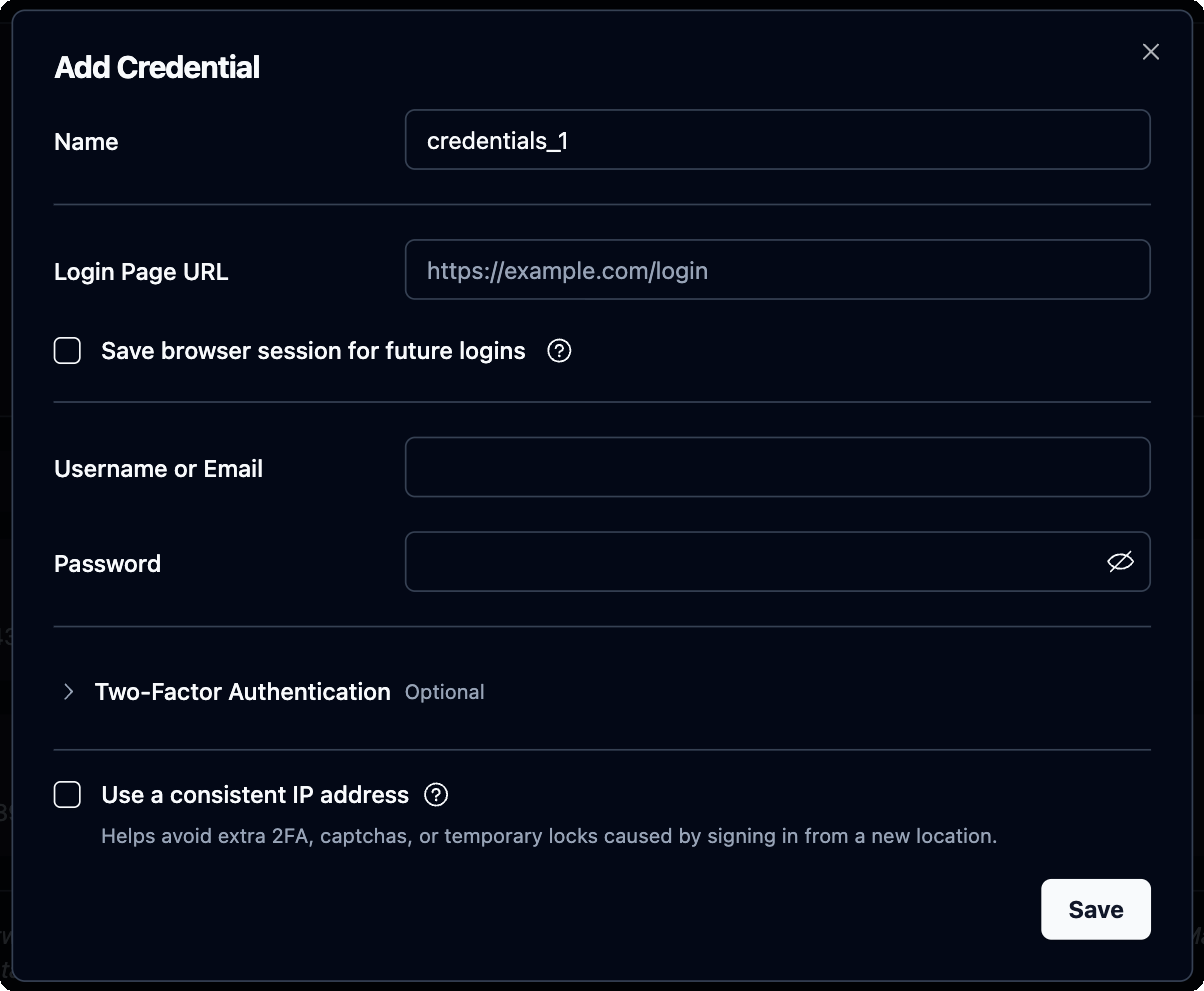
Here's more on how Skyvern handles authentication.
Step 2: Describe the Task in a Prompt
You don't need to build anything block by block. Go to the Skyvern home page and describe the job the way you'd brief a colleague.
Log in to the bank portal at https://example.com/login with the stored
credential. Download last month's statement PDF for each account. Extract
the statement period, opening and closing balances, and every transaction
with its date, description, and amount.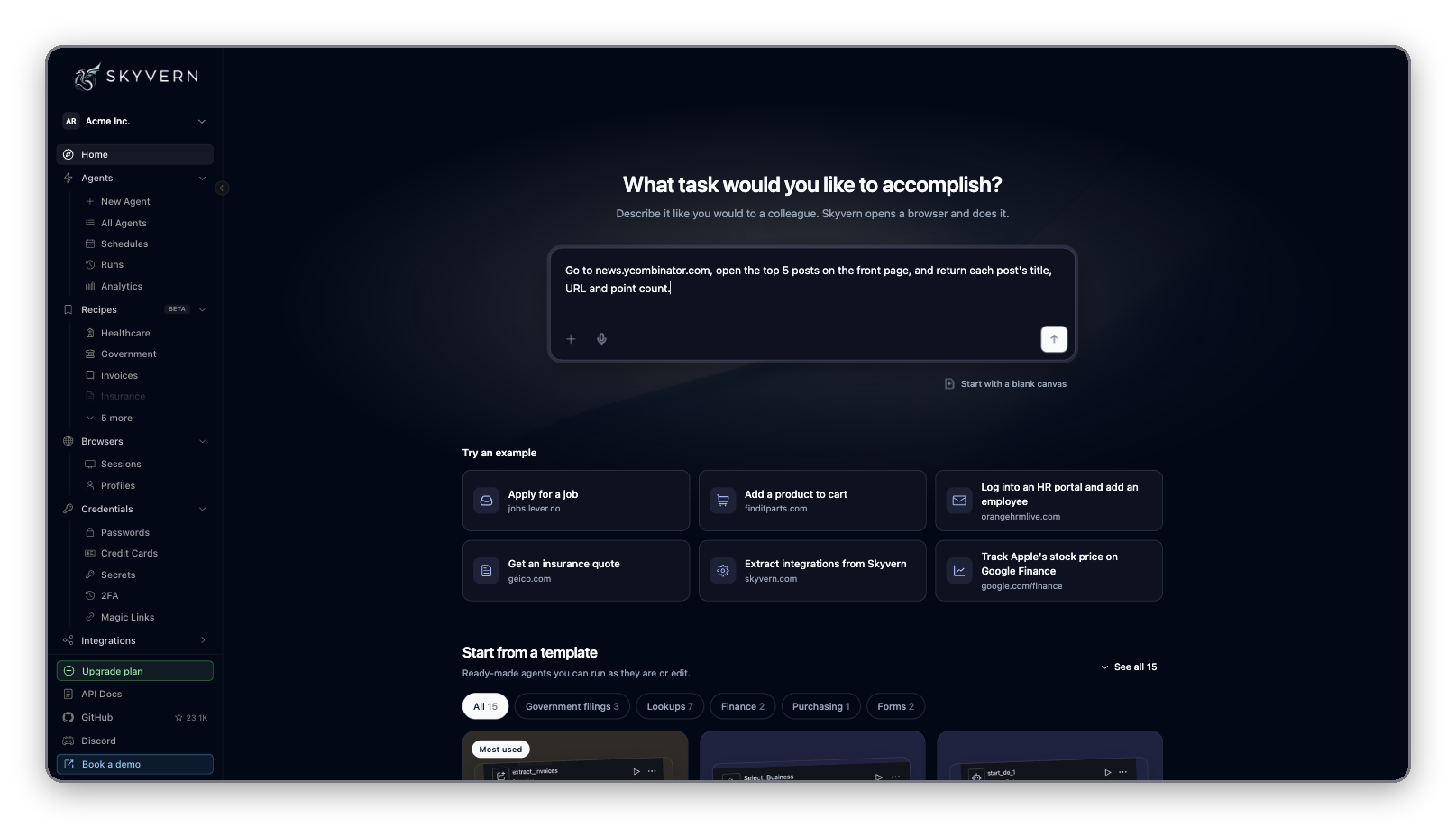
Skyvern turns the prompt into an agent and runs it. Add more context if your bank needs it:
- Which accounts to include, if you only want some of them.
- Where the bank keeps statements, if the page has an unusual name.
- What to do if the bank asks for something new, like a security question.
The more context the agent has, the fewer surprises you get.
Step 3: Watch the First Run
Watch the first run live. Skyvern streams the browser, so you can see the agent log in, enter the 2FA code, and download your bank statements.
When it finishes, Skyvern returns the downloaded PDFs and the extracted bank statement data as JSON.
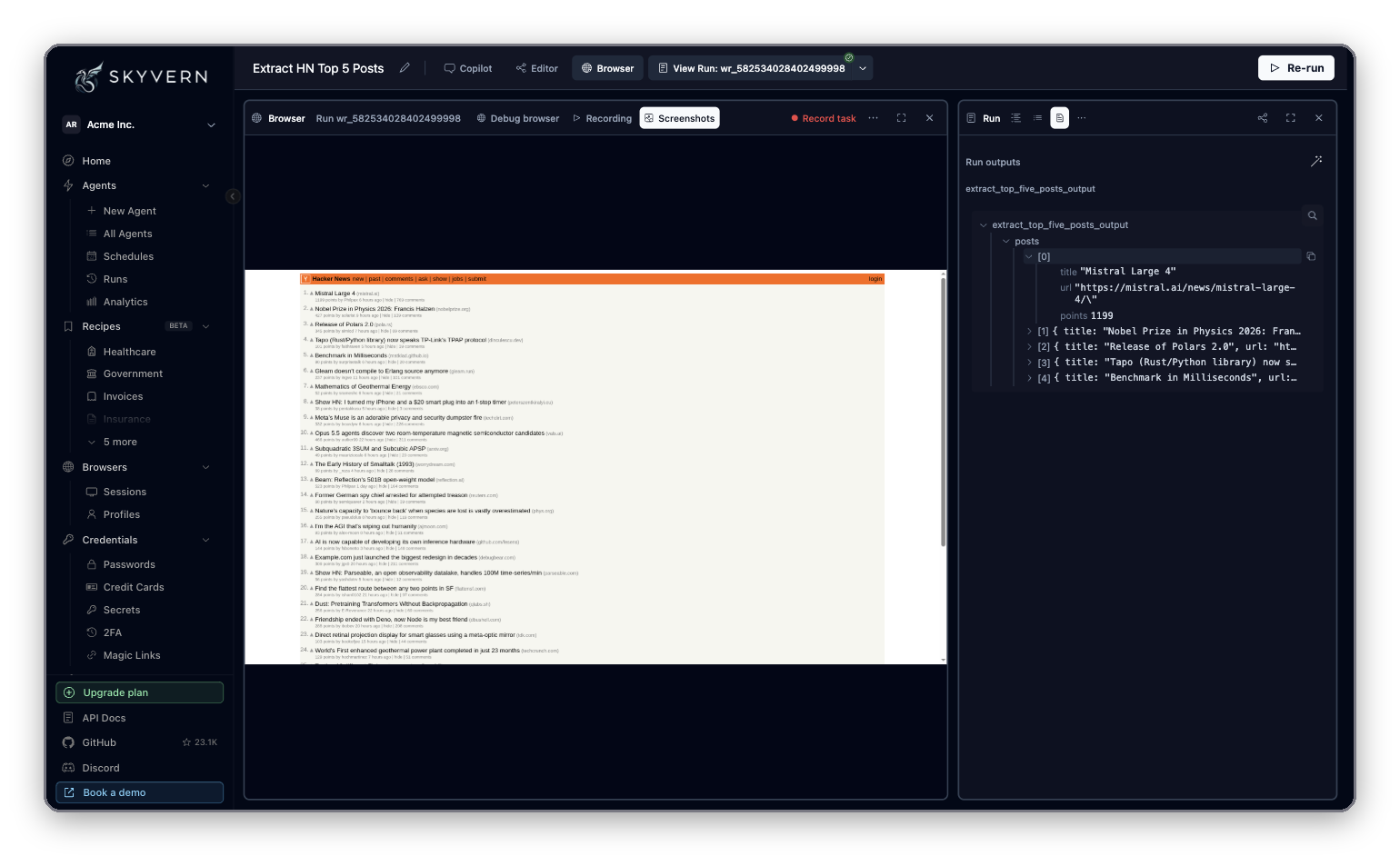
Check the extracted data against the original bank statements the first few times, and look for errors before you use it for bank reconciliation. Make sure the opening and closing balances, deposits, and running balances match, and no transactions are missing. If something is off, add more detail to the prompt and run it again.
Each run keeps a recording, screenshots, and the downloaded files. These help when you need to see what happened on a past run or check its accuracy.
Step 4: Schedule It and Send the Data
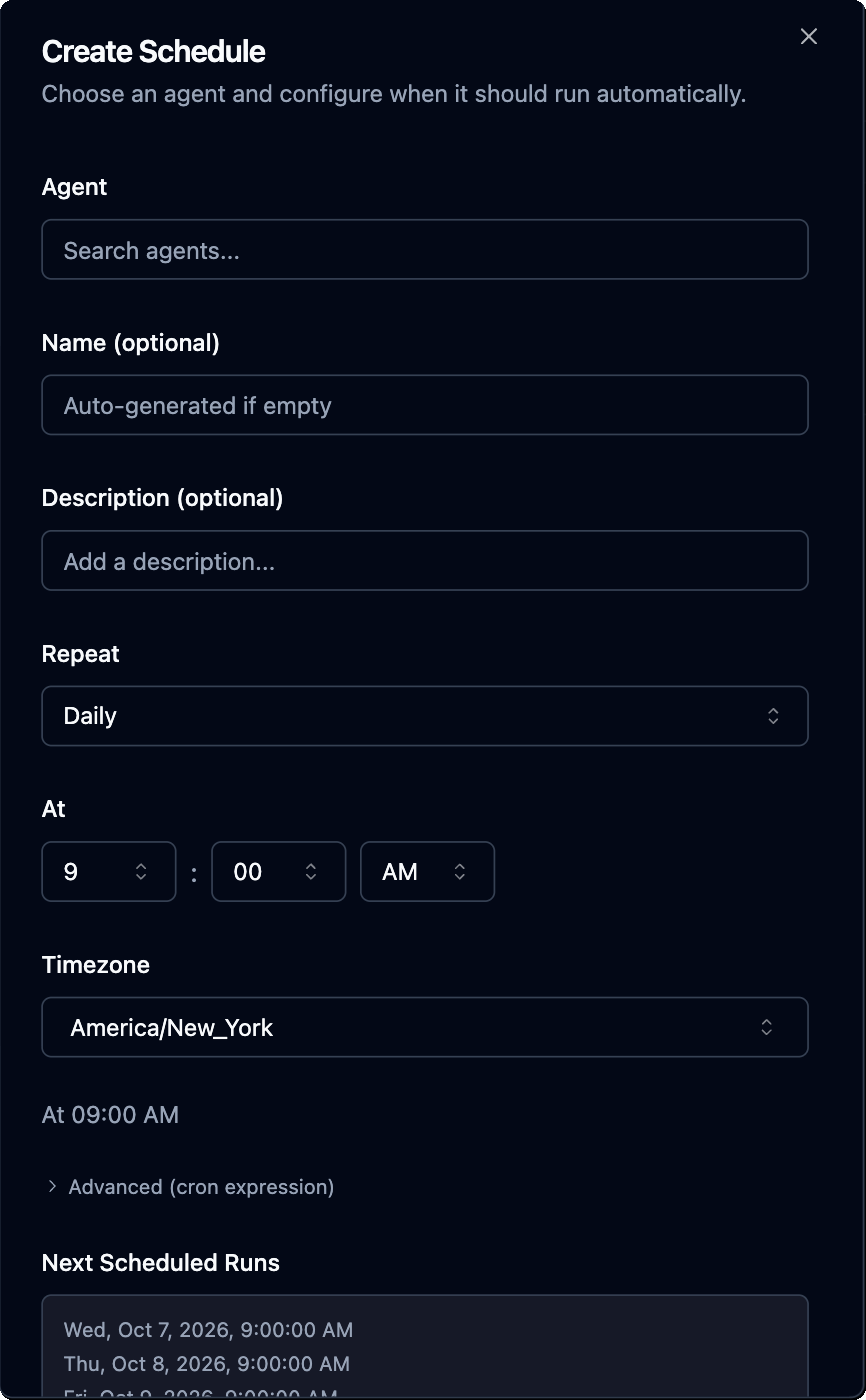
Bank statements come out monthly, so put the agent on a monthly schedule. Pick the day after your bank statements usually post, set the time and timezone, and Skyvern runs it for you.
Then send the data where it needs to go. You can save the statement PDFs to cloud storage so your team can find them later. You can also use webhooks to send the transaction data to your accounting software or your reconciliation process.
Your team gets each month's cash flow in front of them sooner, which helps with decision making.
Keep the original PDFs either way. They're your audit trail for compliance if a number in your financial reporting ever needs checking. Pulling bank statements straight from the bank, instead of collecting uploads, also cuts the fraud risk of an edited PDF.
Start Automating With Skyvern
Put monthly bank statement collection on autopilot. Connect your bank portal, tell Skyvern which statements to download, and review the extracted data. Then schedule the workflow so your team can get straight to reconciliation each month.
Keep reading
How to Automate Insurance Carrier Portal Workflows
Tired of watching your team waste hours manually filling forms and retrieving policy documents on Hartford, Travelers, Progressive and other insurance portals? Well, insurance carrier portal automation uses software to perform those tasks through the carrier’s website. With Skyvern (I am Skyvern' CEO), we use AI to interpret pages and act on them, so agencies can automate browser work even when a carrier does not provide an API for the task. In this guide I'll go over what an insurance carrie
Utility Bill Data Extraction Automation Guide (August 2026)
When your Puppeteer script can't find the download button after a portal redesign, you're not dealing with a small bug. You're looking at days of developer time to fix selectors, multiplied by however many vendor portals broke this month. Traditional utility bill data extraction automation fails at scale because it memorizes specific page structures instead of understanding what those pages actually do, which means every interface change becomes your problem to solve manually. TLDR: * Manual
Automating Mortgage and Lending Workflows on Lender Portals (March 2026)
Origination costs dropped to $3,200 per loan when digital tools took over, but underneath that number sits a processor manually logging into warehouse lender portals, copying borrower data across five different field structures, and waiting for 2FA codes. Your LOS handles internal pipeline work, but it doesn't touch the external portals where your team spends hours working through systems built without APIs. Mortgage portal automation fills that gap by replacing manual sessions with workflows th
Put the browser to work
Use Skyvern for the work that lives in a browser.
Turn repetitive browser tasks into reliable workflows with Skyvern.