

How Skyvern works
Every browser step runs the same loop: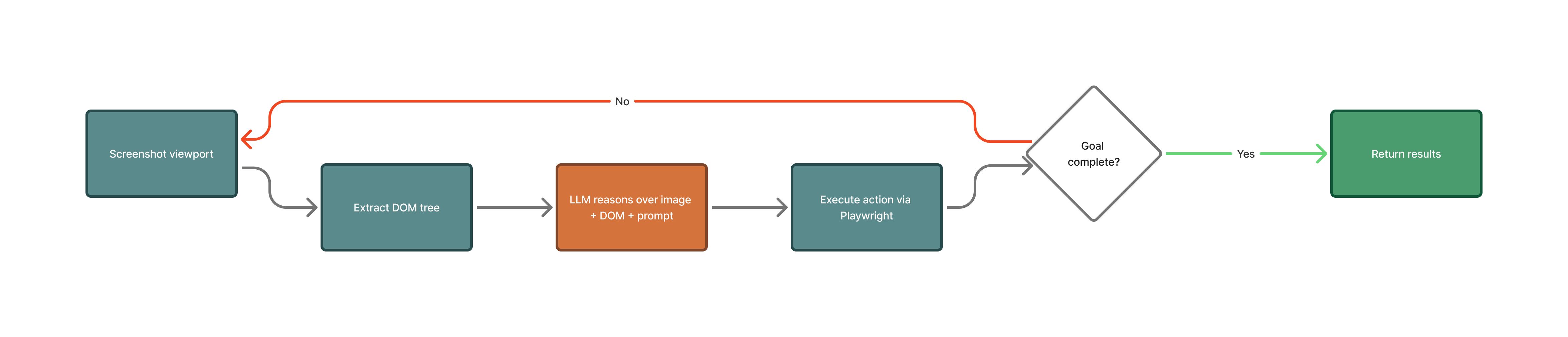
- Skyvern takes a screenshot of the page and reads its interactive elements: inputs, buttons, links and dropdowns.
- An LLM looks at both, together with your goal, and picks the next action: click, type, select, scroll, upload or extract.
- Playwright runs the action in a Chromium browser.
- Skyvern checks whether the goal is met. If not, it loops with the new page.
Agents
An agent is a saved, reusable automation: a sequence of blocks plus the inputs it takes. You build agents in the app with Copilot or in Studio, or create them through the API. You run them by hand, on a schedule or from code. The API, the SDKs and older docs call agents workflows. They are the same thing:
Go next: build your first agent in the app, or run one from code.
Blocks
A block is one step of an agent. Some blocks drive the browser (Browser Task Block, Login Block, Extraction Block, Go to URL Block). Others control the flow (Loop Block, Conditional Block, Wait Block), handle files (File Download Block, File Parser Block, PDF Fill Block) or talk to other systems (HTTP Request Block, Send Email Block, Google Sheets Read). Each block’s output is available to the blocks after it. Reference it as{{ <block label>_output }}, for example {{ extract_invoices_output }}.
Go next: the blocks reference lists every block and field.
Inputs
Inputs are the values an agent needs for each run: a search term, an account number, a file URL. You define them once and reference them in any block as{{ input_key }}. In Studio, open Inputs in the top bar to add or edit them.
An input has a type: string, integer, float, boolean, json, file_url or credential_id. When you run the agent you fill in each value. From code, pass them as parameters.
Go next: Build in Studio.
Runs
A run is one execution of an agent, or of a single task started from code. It records everything: a recording of the browser, a screenshot for each action, the reasoning behind each action, the output and any downloaded files. A run moves through these statuses:
A task is the code-only shortcut: one prompt and a starting URL, run without saving an agent first. Use
run_task in the SDK.
Go next: Runs and schedules in the app, or Going to production for polling, retries and errors in code.
Engines
An engine is the AI that drives the browser inside a block or a task.
In Studio, a browser block’s engine starts as Default. In Skyvern Cloud, a block left on Default in a new agent runs on Skyvern 3.0. From code, pass
engine to choose one explicitly.
Copilot
Copilot is the chat pane in Studio. You describe the job in plain words, and Copilot builds the agent: it adds and edits blocks, opens the site in a browser to work out the steps, and runs blocks to test them. You can keep chatting to change the agent at any time. Go next: build your first agent with Copilot.Studio
Studio is where you open and edit an agent in the app. It has four panes: Copilot, Editor (the blocks, as a flow you can edit directly), Browser (the live browser while a block runs) and Run (the timeline, inputs and outputs of a run). The top bar holds Inputs, Run and Schedule. Go next: Build in Studio.Browser sessions and profiles
A browser session is a live browser that stays open between runs, so a second run starts where the first left off: same tab, same cookies, same login. A session lasts 60 minutes by default. You can create it for up to 4 hours and extend it while it runs to a total of 6 hours. When it ends, its state is gone. A browser profile is saved browser state (cookies and storage) that you keep and reuse. You save one from a session or from a finished agent run, then start later runs from it to skip the login. Go next: Browsers.Credentials
A credential is a login, a credit card or a secret that Skyvern stores encrypted and fills into the page at run time. The LLM sees a placeholder and decides where the value goes; Skyvern types the real value. To also hide typed values in an agent’s screenshots and logs, turn on Mask Secrets in the agent’s settings. A password credential can also carry its 2FA method: an authenticator key, a code sent by email or text, or a passkey. You can store credentials in Skyvern or keep them in a vault you already use, such as Bitwarden, 1Password or Azure Key Vault. Go next: Credentials and 2FA.Schedules
A schedule runs an agent automatically, with the inputs you set. You pick a repeat pattern and a timezone in the app, or pass a cron expression or an interval from code. Runs can’t be closer than 5 minutes apart. Go next: Runs and schedules.Webhooks
A webhook tells your system when a run finishes. Set a URL in the agent’s Webhook Callback URL setting, or passwebhook_url when you start a run from code. Skyvern posts the run result as JSON and signs it with your API key in the x-skyvern-signature and x-skyvern-timestamp headers, so you can check it came from Skyvern.
Go next: Going to production shows how to verify the signature.
Next
Use the app
Build your first agent with Copilot.
Build with code
Run Skyvern from Python, TypeScript or the API.
Connect a coding agent
Give your MCP client a browser.