

Looking to self-host instead? See the local installation guide for full setup instructions.
1. Get your API key
Go to app.skyvern.com/settings and get your API key.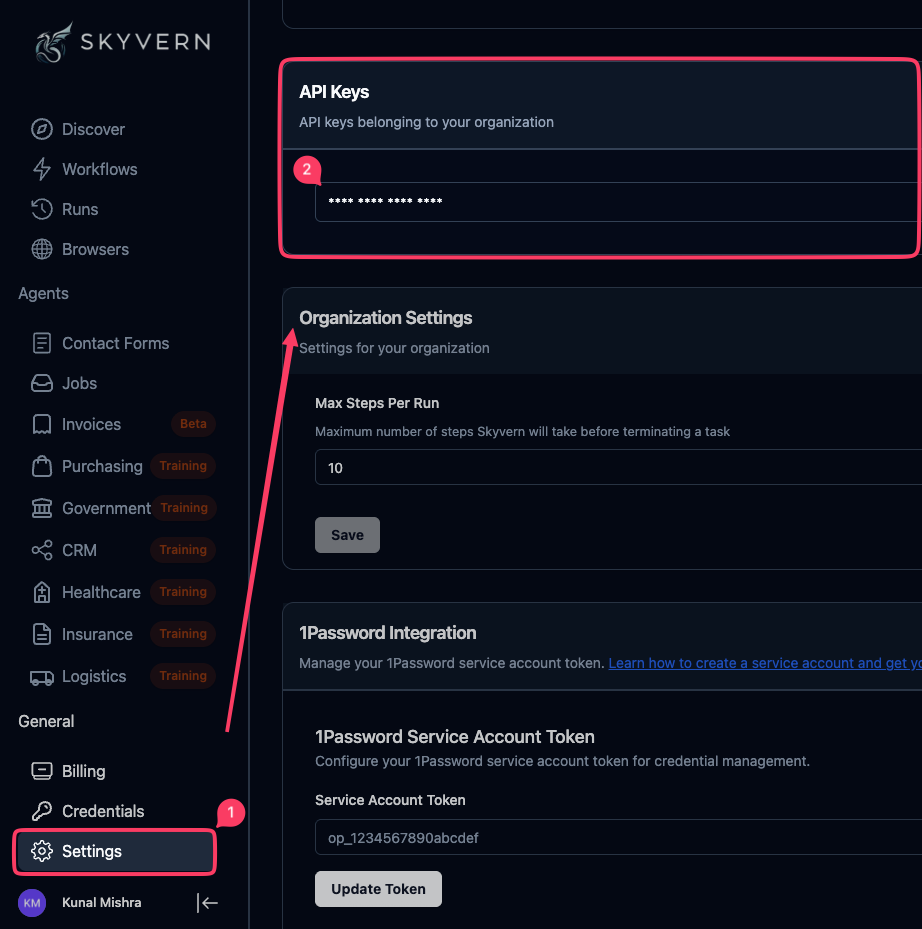
2. Give this prompt to your AI coding agent
Paste your API key below, then copy the prompt into your AI coding assistant. It will:- Install the Skyvern Python/TypeScript SDK
- Ask what you want to automate (say “Go to Hacker News and get the top comment of the #1 post” for example)
- Write a browser automation that launches a cloud browser, runs AI actions on pages, and prints the result
3. Next steps
Connect the MCP server
Give your AI coding assistant direct browser control through natural language. No SDK code needed. Claude Code and Cursor support MCP OAuth: point them at Skyvern Cloud and sign in through your browser. No API key is required in the MCP config. Other clients still use the API key from Section 1.- Claude Code
- Cursor
- Windsurf
- Codex
/mcp in Claude Code and follow the authentication prompt. Your browser opens for Skyvern sign-in and the token is stored for future sessions.Prefer a static key instead? Use claude mcp add-json skyvern '{"type":"http","url":"https://api.skyvern.com/mcp/","headers":{"x-api-key":"YOUR_SKYVERN_API_KEY"}}' --scope user.Keep building
Build a Browser Automation
The full Page/Agent/Browser walkthrough
SDK Reference
Every SDK method, parameter, and type (Python + TypeScript)
Full MCP Reference
All tools, config options, local mode, and troubleshooting
llms.txt
Machine-readable doc index for AI coding agents