Skyvern Changelog - October 2026
 Suchintan Singh4 min read
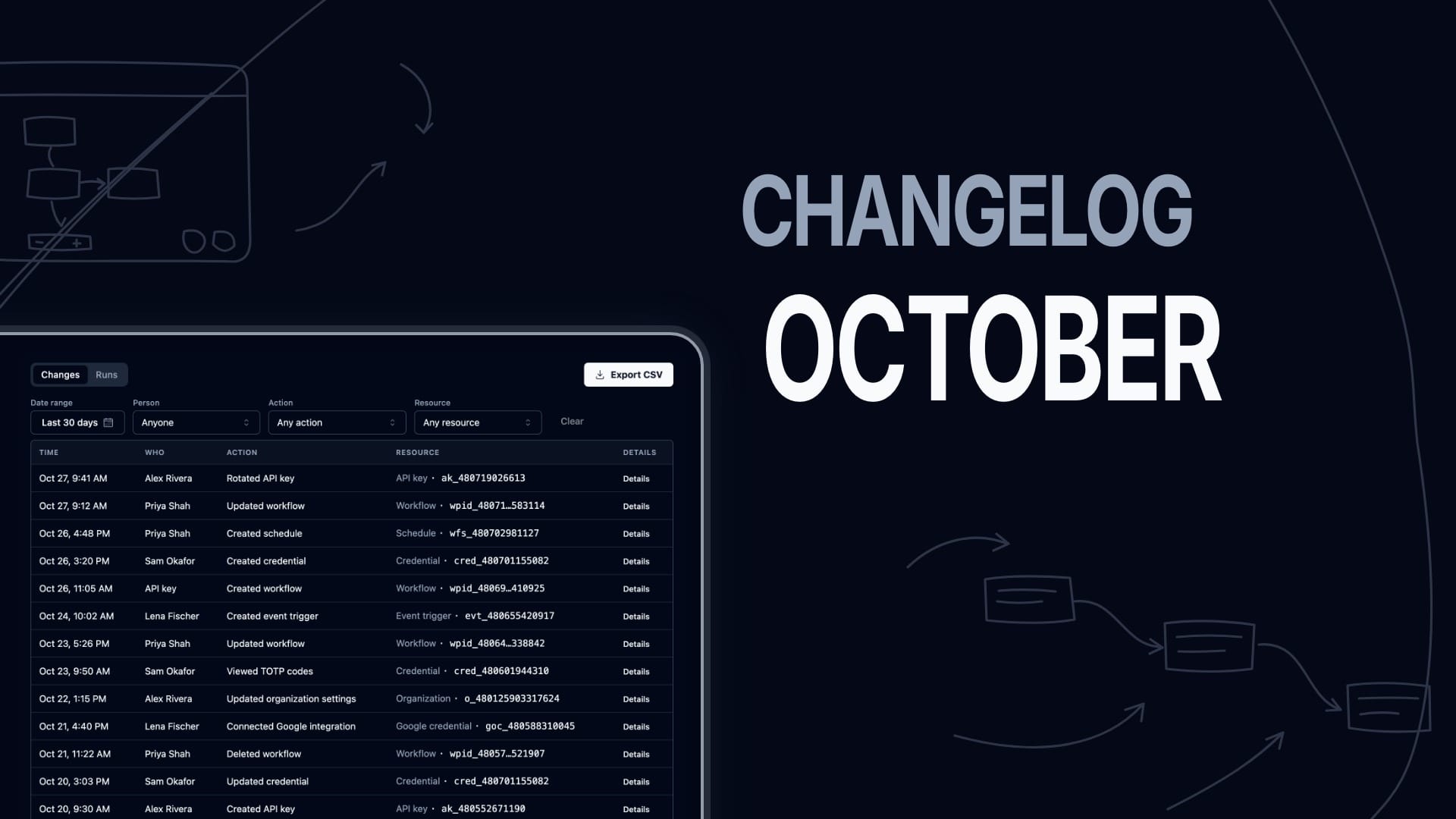
In October, we added 1Password imports and email attachment downloads to Skyvern, so you can use saved credentials and files from your inbox in your workflows. We also introduced audit logs for Skyvern Cloud organizations and added more detail to help you investigate failed runs. Alongside these additions, we updated templates and Copilot, improved browser controls, and fixed issues with downloads, logins, and workflow execution.
Import logins and credit cards from 1Password
Import up to 500 logins and credit cards from 1Password at a time. Skyvern stores each item’s title, category, and website. It reads the username, password, one-time code, and card details from 1Password when a run needs them.
To get started:
- Connect a 1Password service account token on the Integrations page, or in Settings if you self-host.
- Open Credentials and select Import from 1Password.
- Pick the items to import by vault.
Audit logs for organization changes and runs
Skyvern Cloud organizations now have an audit log in Settings > Audit log.
- The Changes tab lists who created, updated, or deleted a workflow, credential, schedule, or API key. It also covers integrations, members, and organization settings.
- The Runs tab shows who or what started each run: a teammate, an API key, a schedule, or Copilot.
The log records which fields changed, never their values. Skyvern keeps events for 90 days. You can export up to 25,000 rows as CSV or pull the same data from the API.
Personal workspaces don’t have an audit log yet.
Download email attachments
The Email Inbox block can now download attachments from matching Gmail or Outlook emails. Turn on Download Attachments to save them as run downloads. Later blocks can read the files from the block’s downloaded_file_urls output.
The setting is off by default, so existing workflows stay unchanged. For Gmail on Skyvern Cloud, connect a Standard Gmail account on the Integrations page.
Error codes and causes on failed runs
A failed run’s page shows the error codes and the cause next to the block that failed. Hover over a code to read its message.
On Skyvern Cloud, a run stopped by bot protection now reports ANTI_BOT_ERROR. When Skyvern can name the service, it adds a code such as CLOUDFLARE_TURNSTILE_ERROR or RECAPTCHA_ERROR. These codes need no error-code mapping. Not every blocked run gets one.
To add your own code to a run, set Error Code (Optional) on a Terminate block. Retry rules and the run list filter can match the code, and the run’s webhook includes it.
Start from a template
When you start from a template, Copilot now shows what the workflow will do, step by step. You then use the inputs card to enter the required information and select the saved logins the workflow needs.
On Home, select Use template on a template card to open your own copy in Studio. Template cards have category filters.
Home now starts with the prompt box. Select an example card to fill in the prompt.
Changes to defaults and API behavior
- Skyvern 3.0 is now the recommended engine. On Skyvern Cloud, blocks set to Default run on it in workflows created on or after October 1.
- Code blocks now accept
importforasyncio,datetime,html,json, andre. Skyvern rejects any other import when you save, before the run starts. - With no credits left, Skyvern now refuses scheduled runs, retries, code blocks, cached steps, and SDK actions before they start.
POST /v1/sdk/run_actionreturns HTTP 402. - The workflow API now returns
[REDACTED]in place of six stored secrets, such as SFTP passwords and AWS secret access keys. When you change the destination or copy the workflow, send the secret again. Otherwise, the save returns HTTP 422. - Skyvern now rejects uploads of executables, scripts, HTML and SVG files, and Office files with macros. The response is HTTP 415.
GET /v1/agents/runsacceptscreated_at_startandcreated_at_end. A text search on that endpoint now covers the last 30 days unless you sendcreated_at_start.- On Skyvern Cloud,
POST /v1/browser_sessionsnow returns HTTP 429 with aRetry-Afterheader when an organization starts too many browser sessions at once. - Self-hosted runs can reach sites on your private network. The new
ENABLE_URL_VALIDATIONsetting isfalseby default. Set it totrueif people you don’t trust can start runs.
More updates
Copilot and browser controls
- With 1Password or Bitwarden connected, Copilot can find a vault login by name and sign in on the websites saved on that item.
- Copilot can drag one element onto another, such as a card onto a column or a file onto a drop zone. Sliders, freehand drawing, and drags inside iframes aren’t supported.
- Ask Copilot to keep its browser open longer, up to the six-hour session limit, or to save a finished session as a named browser profile.
- Paste text into a live browser that you control: press Cmd+V or Ctrl+V, or select Paste.
- When a site rejects a saved login during a Copilot test, you can select Sign in myself (this test only).
- Set the browser timezone through the API with
browser_settings.timezone_id. It takes an IANA name such asAmerica/New_York, on a workflow definition or onPOST /v1/browser_sessions. - Skyvern Cloud browsers now try to solve AWS WAF image challenges.
Workflows and integrations
- The Send Email block can send from a connected Gmail account. On Skyvern Cloud, turn on Send email for a Standard Gmail account on the Integrations page.
- The File Download block can read a file from an SFTP server. You need the server’s host key.
- A run can download up to 300 files, up from 64.
- Saving from a stale editor tab no longer overwrites a newer version. The save returns HTTP 409, and the editor offers View history or Reload latest.
Team settings
- Admins can enable roles for Enterprise organizations. In Settings > Members, select Enable roles. Then set each role’s permissions on the Permissions tab.
- On Skyvern Cloud, version history now shows who modified each version: a teammate or Copilot.
- On Skyvern Cloud, go to Settings > Notifications to choose which Skyvern emails you get. Emails other than security, account, and workflow-failure notices now have an unsubscribe link.
Bug fixes
- Fixed canceled runs that kept running.
- Fixed file downloads marked successful when the response was an error page.
- Fixed a block’s download timeout being ignored, which stopped large downloads too early.
- Fixed partial workflow runs and tests that ran both branches of a conditional.
- Fixed web apps built with Flutter appearing blank to Skyvern. Flutter apps inside an iframe are not covered yet.
- Fixed tool calls failing for MCP clients that use a newer protocol revision.
- Fixed one-time codes failing on login pages that split the code across several boxes.
- Fixed cases where sensitive values could appear in run details.
- Applied dependency security updates.
Keep reading
Skyvern Changelog — September 2026
Everything we shipped in September 2026 — weeks of August 31, September 7, 14, and 21.

Skyvern August Changelog: Building Agents just got 10x easier
Everything we shipped in August 2026 — weeks of August 3, 10, 17, and 24.
Skyvern Changelog — July 2026
Everything we shipped in July 2026 — weeks of June 30, July 6, 13, 20, and 27.
Put the browser to work
Use Skyvern for the work that lives in a browser.
Turn repetitive browser tasks into reliable workflows with Skyvern.