How to automate Virginia Medicaid application prep in CommonHelp
 Suchintan Singh9 min read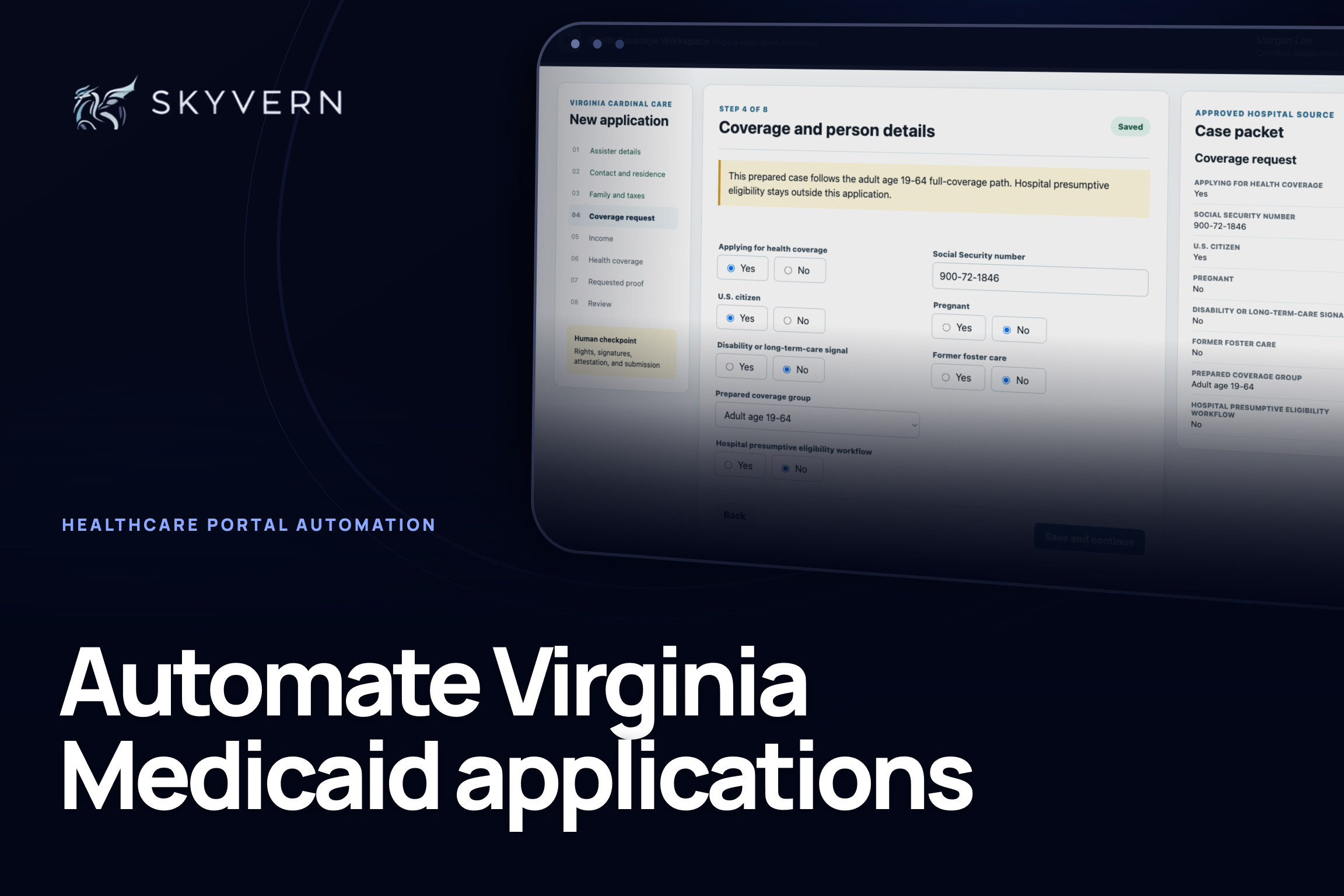
We built a working Virginia health-coverage application workflow and used Skyvern to prepare one hospital case from start to review. Skyvern copied the authorized assister, applicant, household, income, insurance, and appendix-routing data from the hospital packet, added four prepared verification records, checked 50 entered values, and stopped before anyone signed or submitted the application.
The run took 12 minutes 17 seconds. At hospital volume, this approach can return hundreds of hours now spent moving approved information from one system into another. Staff keep the decisions and legal actions. Skyvern handles the repeated browser work.
Built and tested by Skyvern
We mapped Virginia's current Cardinal Care application, built a state-specific interactive training workflow, and ran Skyvern through it from an authorized hospital queue to human review.
8 sections · 50 values checked · 4 prepared records · 0 mismatches · 12 minutes 17 seconds
Open the complete run and its evidence in Skyvern
What your team gets
Your team gets a controlled workflow that takes one authorized Virginia Cardinal Care case, prepares the full health-coverage application, checks it against the hospital packet, and sends it to a person for final review.
| Skyvern handles | Your team controls |
|---|---|
| Opening an approved case | Assister authority and Appendix C |
| Repeated entry across eight sections | Missing or contradictory facts |
| Following the prepared adult coverage branch | Coverage and eligibility decisions |
| Adding the requested verification records | Which proof Virginia requests |
| Comparing every entered value with the source | Rights, signatures, attestation, and submission |
This tutorial covers the full Cardinal Care application. It does not combine that work with Virginia hospital presumptive eligibility. HPE is a separate temporary-coverage process for qualified hospitals and should have its own workflow and controls.
How we proved it works
We used Virginia's current Cardinal Care application, CoverVA application guidance, CommonHelp entry point, verification guidance, and hospital presumptive eligibility material to map the workflow. We then built a synthetic application around one fictional hospital case and ran Skyvern against it.
This was not a test of an authenticated CommonHelp account. It was a controlled test of the portal-entry workflow a hospital can automate once it has approved access, an authorized case packet, and its own security controls. The result on this page comes from one completed synthetic run, not a production success rate.
The research also changed the build. Virginia's current applications page assigns Appendix F to an applicant age 19–64 who seeks long-term services and is not yet Medicare eligible. During final verification, we corrected that exception route in the published workflow rather than treating every disability or long-term-care case as Appendix D. That is why each state needs its own field map and test, even when the overall automation pattern looks familiar.
From case intake to human review
Keep the hospital's approved record as the source of truth. CommonHelp is the destination for the prepared application, not the place where the automation decides what the patient said or which program applies.
Hospital application queue
        |
        v
Authorized case packet and requested proof
        |
        v
Skyvern prepares the health-coverage application
        |
        v
Human review, signatures, attestation, and submission
This split gives your operations team a clear audit trail. The source record shows what Skyvern should enter. The Skyvern run shows what happened in the browser. The final reviewer owns the legal checkpoint.
What you need to get started
To reproduce the tutorial, you need:
- a Skyvern account;
- a fictional or properly approved test case;
- a map between your patient-assistance record and the Virginia application;
- the verification records approved for that case; and
- a person assigned to review the result.
For production, your organization also needs an approved way to help the applicant. Virginia says Navigators and Certified Application Counselors can help people apply. The current Cardinal Care application uses Appendix C when an assister helps complete the form or someone applies for another person. Keep that authorization and any required signature outside the browser-entry task.
You can use the synthetic Virginia workflow to test the steps without a government account or patient information.
1. Separate the full application from HPE
Start by naming the workflow precisely. This tutorial prepares a full Cardinal Care application through the health-coverage route. It does not make a hospital presumptive eligibility determination.
Use a simple routing rule before Skyvern starts:
Full Cardinal Care application, approved packet complete:
Send to the CommonHelp preparation workflow

Hospital presumptive eligibility, ABD, Medicare, LTSS,
Medically Needy, or conflicting case facts:
Send to the matching tested workflow or to staff
The distinction matters because HPE provides temporary coverage and follows a different hospital role and fact pattern. A full application still needs to be completed when the patient seeks ongoing Medicaid coverage.
2. Give Skyvern one authorized case
Our fictional case represents Commonwealth Harbor Medical Center helping a Virginia adult age 19–64 with a full health-coverage application. The approved packet contains:
- the Certified Application Counselor and hospital details;
- Appendix C authorization status;
- the applicant's contact and Virginia residence information;
- household and expected tax-filing facts;
- the prepared adult coverage group;
- current job and income information;
- current and available health coverage; and
- four verification records associated with the case.
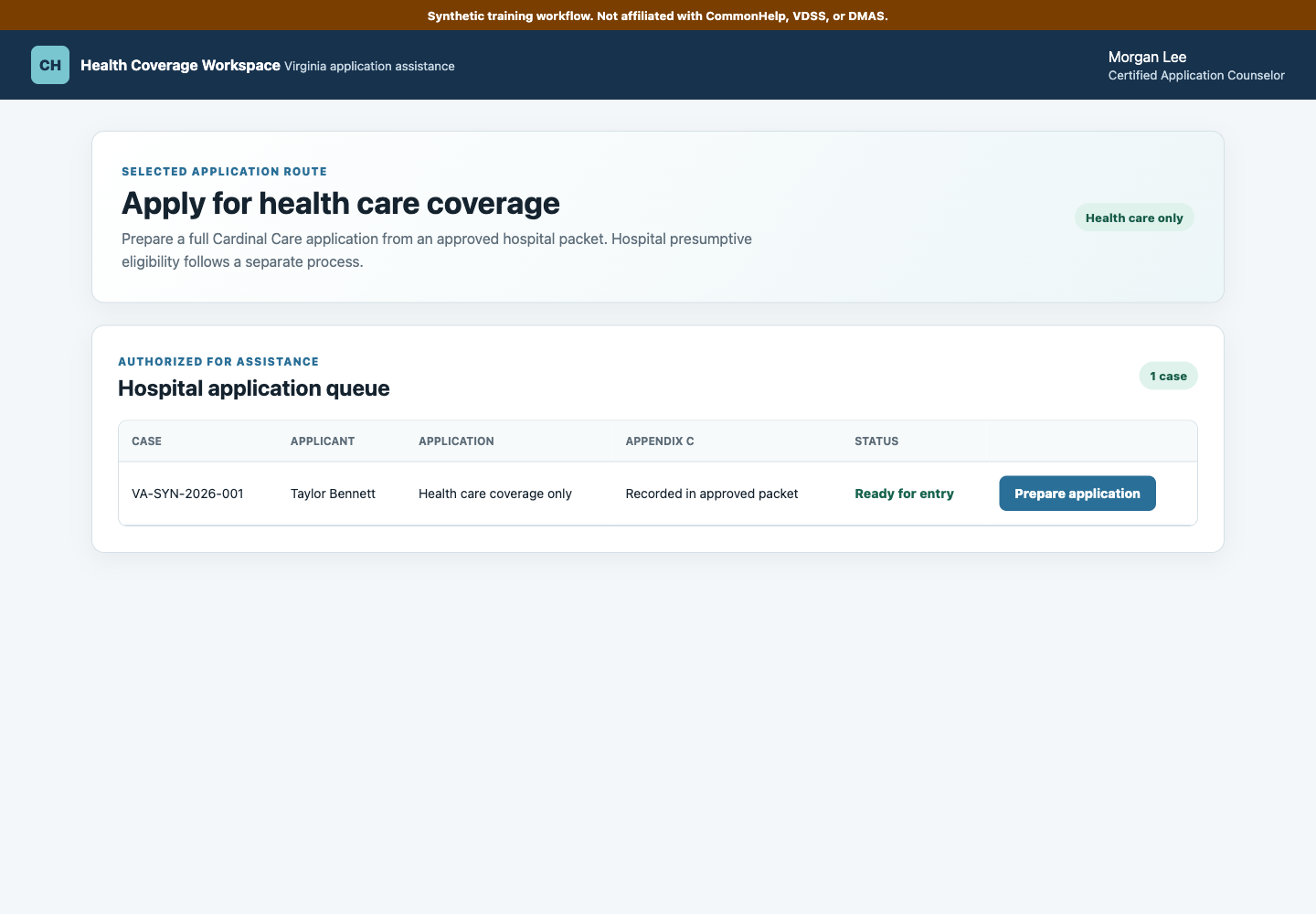
Your queue can live in a patient-assistance platform, a database, or a controlled spreadsheet. The important part is the contract around each row:
| Case | Route | Authorization | Source status | Result |
|---|---|---|---|---|
| VA-SYN-2026-001 | Health care coverage only | Appendix C recorded | Ready for entry | Awaiting automation |
Do not send a case to the browser until the required values are present and the route has been chosen by an authorized person. Skyvern should return incomplete, contradictory, or out-of-scope cases to staff instead of guessing.
3. Route each Virginia case correctly
The standard form order covers contact details, family and tax information, the people requesting coverage, jobs and income, deductions, and current or available insurance. The answers can also trigger additional Virginia forms.
For this test, Skyvern followed the adult age 19–64 branch. Hospital presumptive eligibility remained No.
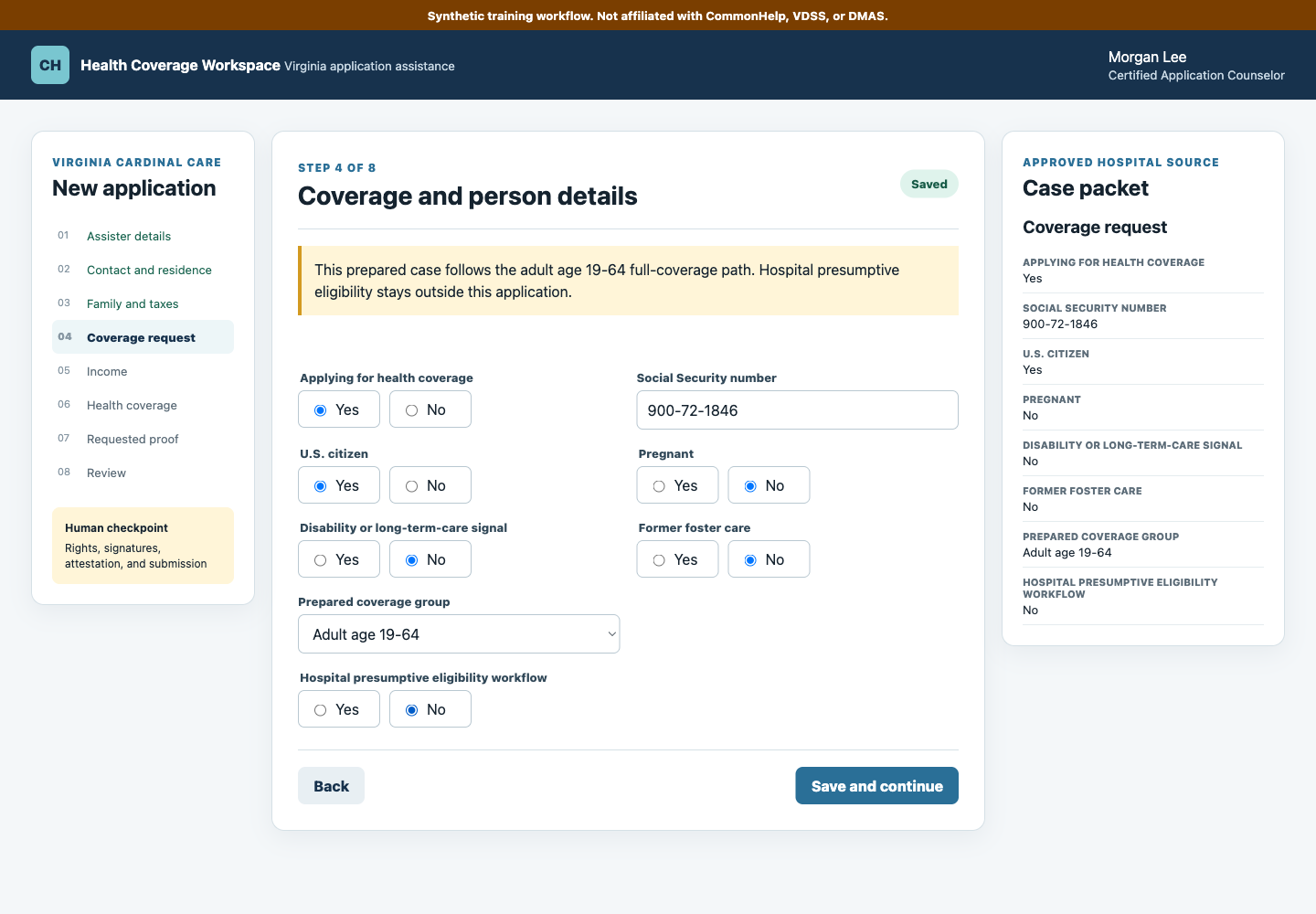
Build explicit routing rules for the supplements your team sees:
- Additional Person Supplement: more than two household members;
- Appendix A: someone can enroll in health coverage through a job;
- Appendix B: American Indian or Alaska Native information;
- Appendix D: age 65+, Medicare, disability, and specified long-term-care cases;
- Appendix E: Medically Needy Spenddown when Virginia asks for it; and
- Appendix F: long-term services for an applicant age 19–64 who is not yet Medicare eligible.
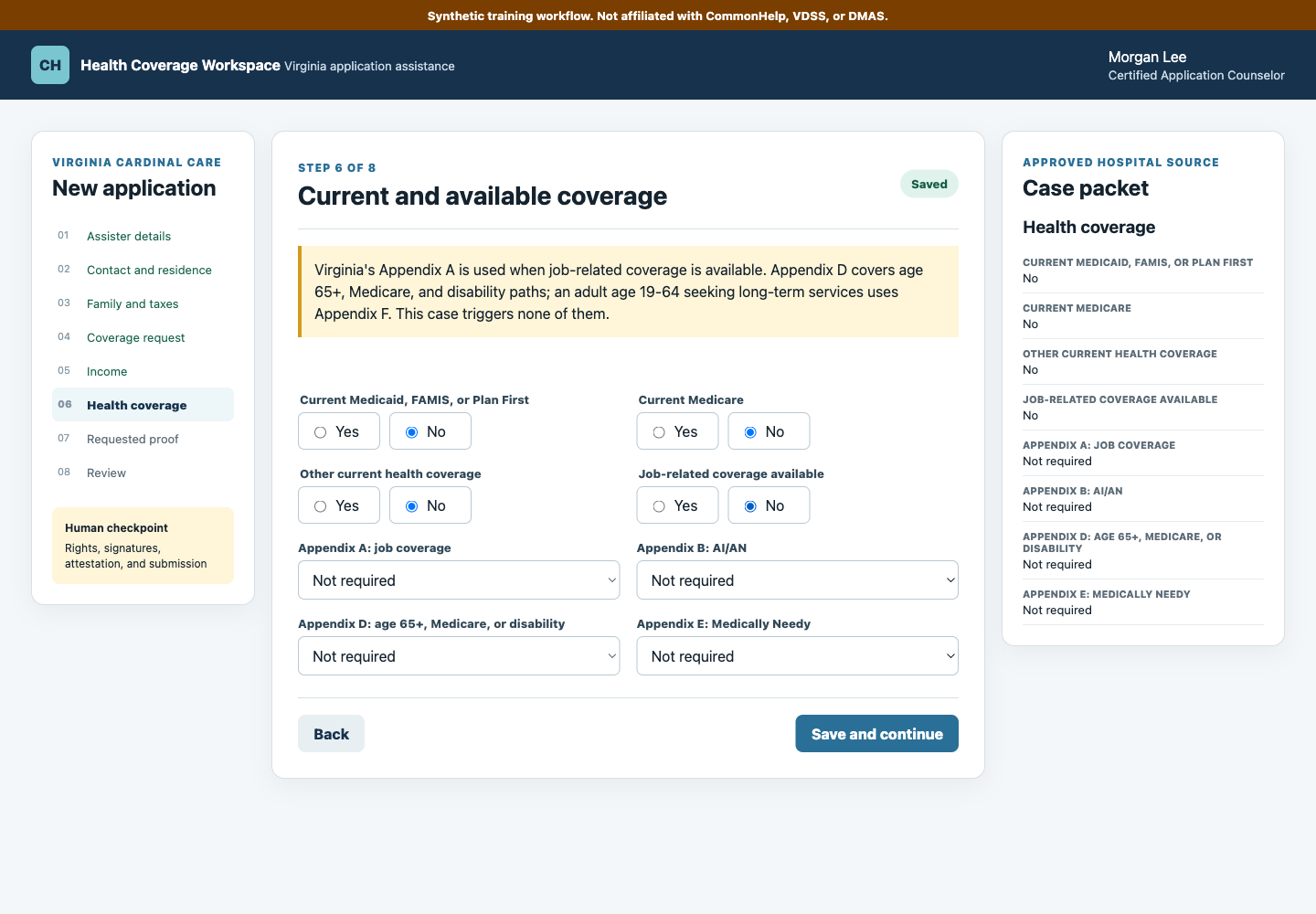
Our case triggered none of those forms. That is still a decision worth recording. The review evidence should show that each appendix was considered against the approved source rather than silently skipped.
4. Tell Skyvern what to do
Create a Skyvern task with the synthetic workflow URL and a narrow instruction. We used Skyvern 1.0 with this prompt:
This is a synthetic Virginia health-coverage training environment using
fictional data. From the Hospital application queue, click Prepare
application for the one authorized case. The selected route is Health
care coverage only. Hospital presumptive eligibility is a separate
workflow and must remain No.

On each of the eight sections, copy every value from the Approved hospital
source panel into the matching required field. Use the Adult age 19-64
coverage group. Do not invent missing information or change any appendix
routing.

On Prepared verification records, each record is already stored in the
approved hospital packet. Click Add approved record for all four items and
confirm each changes to Received. Do not open a local file picker or invent
a file path.

On Ready for human review, confirm Source comparison passed, 50 of 50
values matched, four of four records received, and zero mismatches. STOP.
Never accept rights, sign, attest, approve, or submit.
The task has a measurable finish line. It reaches review only when the entered values match the source and every prepared record has the expected status. It has no authority to choose an exception branch or cross the signature boundary.
5. Move the application to review
Skyvern opened the authorized case and worked through eight Virginia-specific sections:
- Assister details
- Contact and residence
- Family and taxes
- Coverage request
- Income
- Health coverage
- Requested proof
- Review
The approved hospital source remained visible beside each section. That makes a browser run easier to audit because reviewers can compare the entered values with the exact source used at that moment.
Do not treat these synthetic screen names as a claim about the current authenticated CommonHelp interface. Before production, test the approved account, real screen order, save-and-return behavior, document rules, and final review controls with Virginia and your compliance team.
6. Prepare only the proof Virginia requests
Virginia says the agency may need documents to confirm eligibility, but different programs and cases require different proof. Your eligibility worker identifies what is needed. That means the safe automation rule is requested packet in, not universal document bundle in.
Our synthetic packet contained four prepared records:
- Appendix C assister authorization;
- identity verification;
- Virginia residence verification; and
- current income verification.
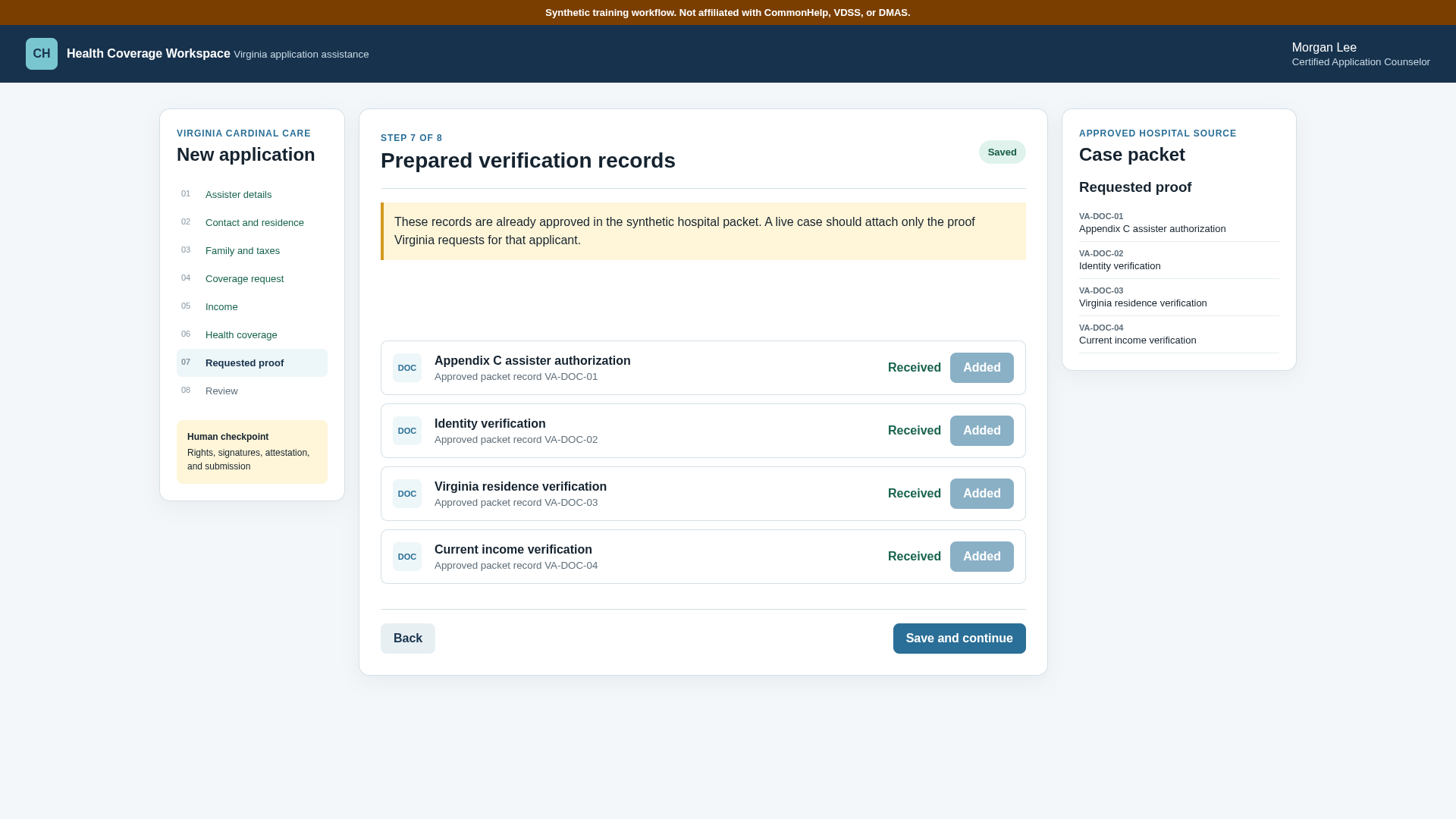
The simulator uses approved packet records rather than real files. In production, pass the actual case files through your approved storage and access controls. Check the document status after each action and send missing or rejected files back to staff.
7. Send a clean application to review
At the final screen, Skyvern compared the application with the approved packet. It found 50 of 50 values matched, four of four records received, and zero mismatches. It then stopped.
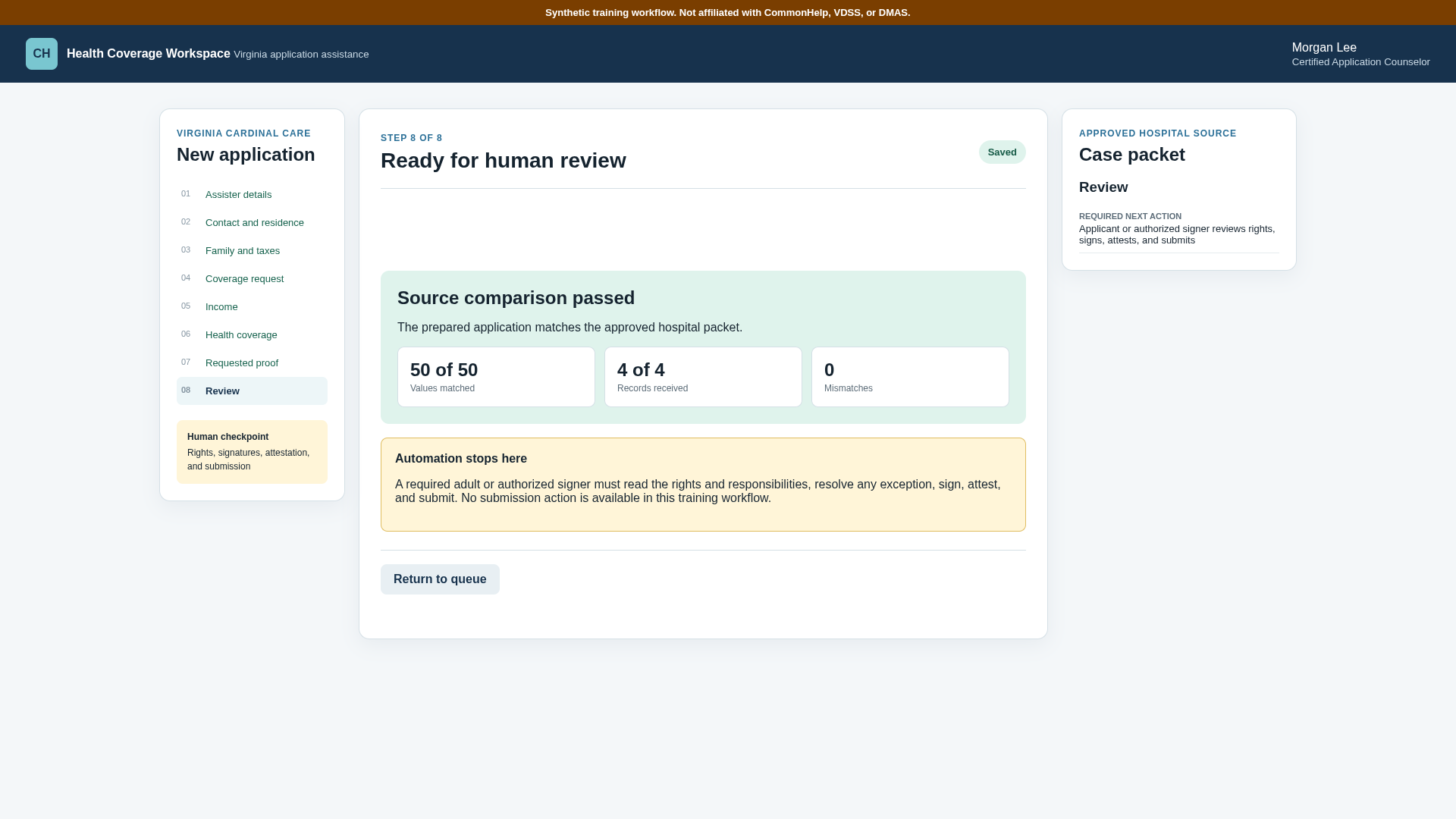
| Check | Measured result |
|---|---|
| Total run time | 12 minutes 17 seconds |
| Sections reached | 8 of 8 |
| Values matched | 50 of 50 |
| Prepared records received | 4 of 4 |
| Human corrections during the run | 0 |
| Rights accepted, signatures, attestation, or submission | No |
This proves one synthetic case completed the workflow we built. An authorized production pilot must measure results across the household types, income sources, appendices, document requests, and portal changes your hospital sees.
Try the workflow yourself
Open the Virginia training workflow and create a Skyvern task with the prompt above.
A successful run should:
- open the case marked Ready for entry;
- confirm the health-care-only route;
- copy every approved source value through the six data-entry sections;
- keep HPE and unused appendices outside the case;
- add four approved records and confirm Received;
- report 50 of 50 values matched and zero mismatches;
- reach Ready for human review; and
- stop before rights, signatures, attestation, or submission.
Then test the failure behavior. Remove one required value from a second fictional packet. The workflow should stop and return the case to staff. A guessed answer is a failed control even if the browser reaches the last screen.
Move from one case to your full queue
Once this narrow case passes a controlled pilot, save it as a reusable Skyvern Workflow. Give each new run an approved packet, requested documents, and a declared route.
Your hospital queue can then:
- start the workflow through the Skyvern API when staff mark a case Ready for entry;
- open CommonHelp with the credential and Browser Profile approved for the account;
- send complete standard cases to Ready for review;
- send missing data, unexpected screens, document errors, HPE, and appendix branches to Needs attention; and
- write the run status and evidence back to the hospital queue through a webhook.
Keep separate tested versions for materially different routes. A standard adult case, a multi-person household, job-related coverage, disability, LTSS, and Medically Needy cases do not share the same field map or review risk.
The Business ROI
The operating return comes from removing repeated portal entry from standard cases while trained staff focus on patients, missing facts, exceptions, and final review.
Monthly entry hours addressed =
monthly ready cases x manual entry minutes / 60

Monthly entry cost addressed =
monthly entry hours x loaded hourly staff cost
For example, 500 ready applications at 20 minutes of manual entry equal about 167 staff hours each month. At $35 per loaded staff hour, that is about $5,845 in monthly capacity. This is an illustration, not a saving measured by our synthetic run. Replace each input with your case volume, manual handling time, exception rate, final-review time, labor cost, and Skyvern cost.
The more useful CIO metric is cost per review-ready case. Track portal-entry time, human review time, exception rate, source mismatches, document failures, and completed cases. That shows whether the workflow creates capacity without hiding extra work in the review queue.
What it takes to use this in production
Before Skyvern touches an authenticated CommonHelp account, confirm:
- the hospital and operator have the right role and permission to assist;
- Appendix C or another current authorization is recorded before the run;
- protected information follows your privacy, access, and retention controls;
- the credential and browser session belong to the approved account owner;
- the workflow sends HPE and appendix exceptions to the right team;
- every entered value and document action leaves reviewable evidence;
- unexpected pages or contradictory facts stop the run; and
- rights, required adult signatures, attestation, and submission remain human-controlled.
Start with fictional or approved test cases. Keep submission manual while you compare every prepared application with its source. Expand only after each route has its own field map, failure tests, stop point, and accountable reviewer.
Skyvern can take the repeated browser work between your hospital queue and CommonHelp. The right first deployment is one approved case type with a visible source, a hard human checkpoint, and evidence for every run.
Talk to Skyvern about automating a healthcare portal workflow
Sources
- Virginia CommonHelp
- Virginia Cardinal Care application
- CoverVA applications and appendices
- CoverVA application assistance
- CoverVA application and requested-information channels
- Virginia verification requirements
- Virginia hospital presumptive eligibility fact sheet
- Skyvern core concepts
- Skyvern Browser Profiles
- Skyvern task settings and webhooks
- Synthetic Virginia application used in this tutorial
Keep reading
AI Automation for EOB Processing: Tools & Workflows (2026)
If you're looking into EOB processing, there's probably someone on your team spending hours downloading insurance payment documents and copying the numbers into billing software. They log in to one insurer's website, find the right document, save it, and move on to the next. We've built Skyvern for this kind of healthcare admin work. It's an AI browser agent that can log into these websites, find the documents, and download them for you. You can build the rest of the workflow in Skyvern too, fr
How to Automate Insurance Eligibility Verification with Skyvern
A step-by-step guide to using Skyvern for insurance eligibility checks, from entering patient details in payer portals to returning coverage and benefits to your appointment system.
How to Automate Pharmacy Invoice Downloads
When your accounting team needs an invoice from a wholesaler portal, somebody has to go and get it. They sign in, pick the pharmacy account, find the right billing period, download the PDFs, and file them. Then they repeat the process in the next portal. And then the next... Every billing cycle! I know the pain. We built Skyvern for healthcare workflows like this. You give an AI agent a job to do in the browser, and it works through the website to do it. For pharmacy invoice collection, that m
Put the browser to work
Use Skyvern for the work that lives in a browser.
Turn repetitive browser tasks into reliable workflows with Skyvern.