How to automate Pennsylvania Medicaid application prep with Skyvern

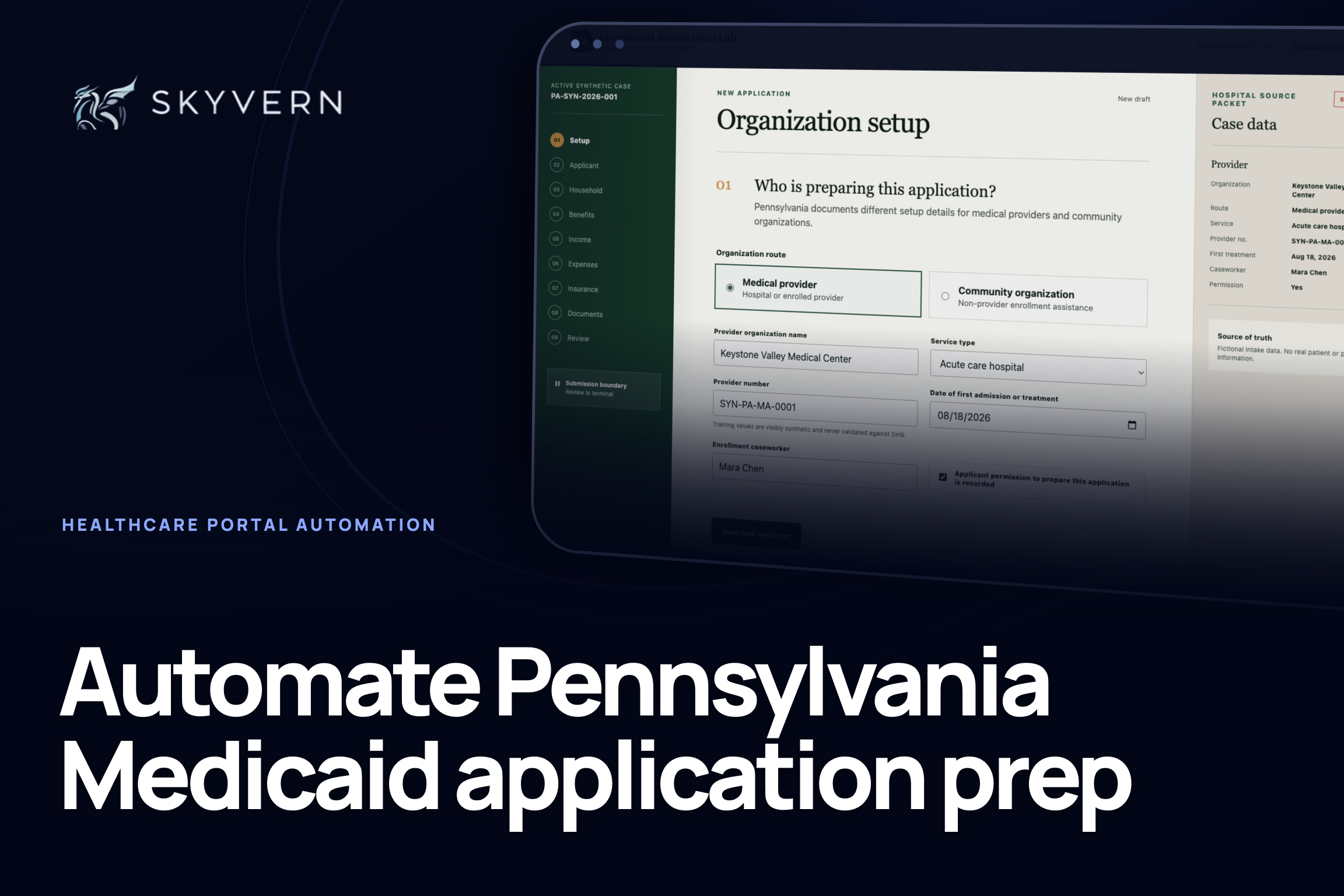
We used Skyvern to automate an entire Pennsylvania Medical Assistance application-prep workflow, from a prepared hospital case packet to a completed application ready for staff review. Skyvern worked through nine sections, entered and checked 22 values, attached four supporting documents, and stopped at Review. A person did not have to click through the portal or copy the same information field by field.
The full run took 11 minutes and 19 seconds. For a healthcare organization processing hundreds or thousands of applications, this is where the value compounds: less staff time spent on portal entry, a lower operating cost per completed case, and more volume handled without adding data-entry headcount.
Built and tested by Skyvern
Try the interactive Pennsylvania workflow
9 sections · 22 values checked · 4 supporting documents · 0 mismatches · 11 minutes 19 seconds
Open the complete run and its artifacts in Skyvern
What your team gets
Your team gets a workflow that takes a ready hospital case packet, enters it into a Pennsylvania Medical Assistance application, attaches the supporting documents, checks the result, and stops before approval or submission.
| Skyvern handles | A person keeps control of |
|---|---|
| Repetitive portal data entry | Patient permission and consent |
| Moving between application sections | Missing or conflicting information |
| Attaching the approved documents | Final review and signature |
| Checking entered values against the source | Approval and submission |
For a CIO, the value is straightforward. More applications move through the same team without adding people whose job is to copy information from one system into another. The organization reduces the manual cost per case while staff spend more time resolving exceptions and helping patients.
How we proved it works
We mapped the workflow from Pennsylvania's current Medical Assistance guidance, built a synthetic application around one hospital case, and gave Skyvern only the prepared source record and documents. Skyvern completed all nine sections, checked 22 values, attached four documents, and stopped before approval or submission.
The video, screenshots, and run record on this page come from that completed run. They prove this controlled workflow for one synthetic case, not a success rate for the authenticated COMPASS portal.
From case intake to human review
The portal should never be the source of truth. The approved patient and case information should already exist in a hospital system, spreadsheet, or work queue before Skyvern starts.
The workflow has four parts:
- Source system: The hospital keeps the approved case data and documents.
- Prepared case packet: One row or record is marked ready for portal entry.
- Skyvern task: Skyvern opens the portal, fills each section, attaches the files, and checks its work.
- Human review: A staff member reviews the completed application and decides what happens next.
Hospital case queue
        |
        v
Approved data and documents
        |
        v
Skyvern enters the application
        |
        v
Review queue for a person
        |
        v
Approval and submission
This keeps the automation useful and controlled. Skyvern does the browser work. The healthcare organization keeps ownership of the case and the final decision.
What you need to get started
To follow this tutorial, you need:
- a Skyvern account;
- one fictional or properly approved test case;
- a field map showing where each source value belongs in the portal;
- the documents that should be attached; and
- a staff member who can review the completed application.
You can use the synthetic Pennsylvania Medical Assistance application from this tutorial without using real patient data.
1. Decide what Skyvern should handle
Start only after the case is complete enough for portal entry. For our test, that meant the patient, household, income, expense, resource, insurance, provider, and document fields were already prepared.
Stop before any action that legally belongs to a person. We used this boundary:
Start:  Case marked "Ready for portal entry"
Stop:   Review page is complete
Human:  Resolve exceptions, approve, sign, and submit
Write this boundary down before creating the task. It prevents a browser automation from drifting into consent, signature, eligibility, or submission decisions. A clear boundary also lowers the cost of reviewing exceptions because employees know exactly when a case returns to them.
2. Give Skyvern one approved case
Our fictional case represented a hospital helping Jordan Ellis prepare a Medical Assistance application. The packet contained:
- applicant and contact information;
- household and tax relationships;
- requested benefits;
- income and expenses;
- resources and insurance;
- the hospital's provider information; and
- four supporting documents.
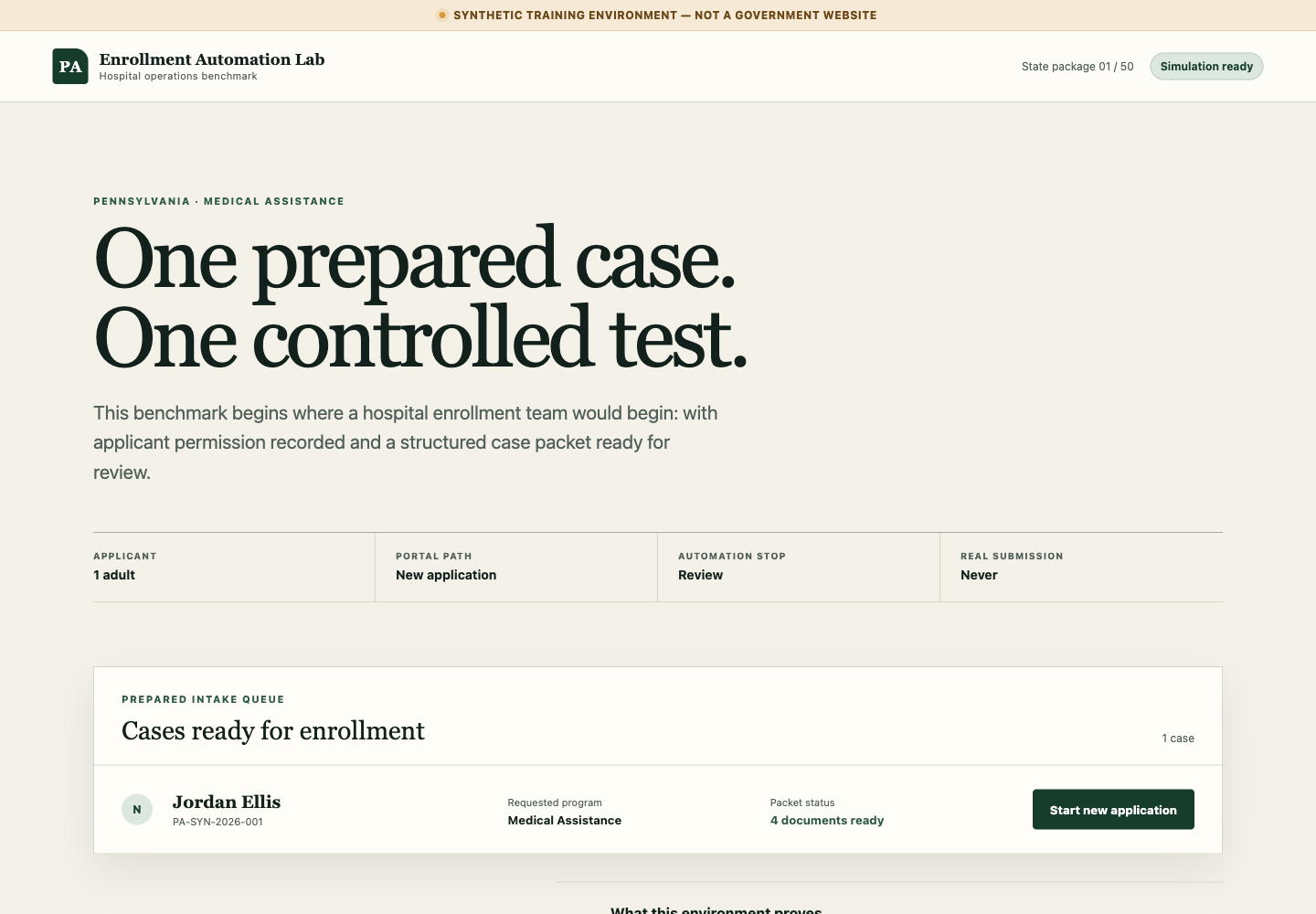
The source can be a work queue, database record, or Google Sheet. A simple sheet could use one row per case:
| Case ID | Status | Applicant | Provider number | First treatment date | Document folder |
|---|---|---|---|---|---|
| PA-001 | Ready for portal entry | Jordan Ellis | 123456789 | 08/01/2026 | /cases/PA-001/ |
The row does not need to contain every answer. It can point to the approved patient record and document folder. What matters is that Skyvern receives one clear source packet instead of deciding what the answers should be.
Before starting, check that:
- required values are present;
- dates use a consistent format;
- document names identify their purpose;
- conflicting values are flagged for a person; and
- the case has permission to move forward.
A clean packet saves time twice. Skyvern can finish the portal entry faster, and staff avoid reopening applications to correct missing values or documents.
3. Tell Skyvern what to do
Create a new Skyvern task and set the starting URL to the application. We used Skyvern 1.0 and this prompt:
This is a synthetic training environment using fictional data.

Start the prepared hospital case. On each section, copy every value
from the Hospital source packet on the right into the matching required
field. Use Medical provider. Save and continue through each section.

On Documents, attach all four files using Attach from case packet.

On Review before submission, confirm Source comparison passed, then STOP.
Never approve or submit the application.

Return the review result, mismatch count, document count, and any
validation failure.
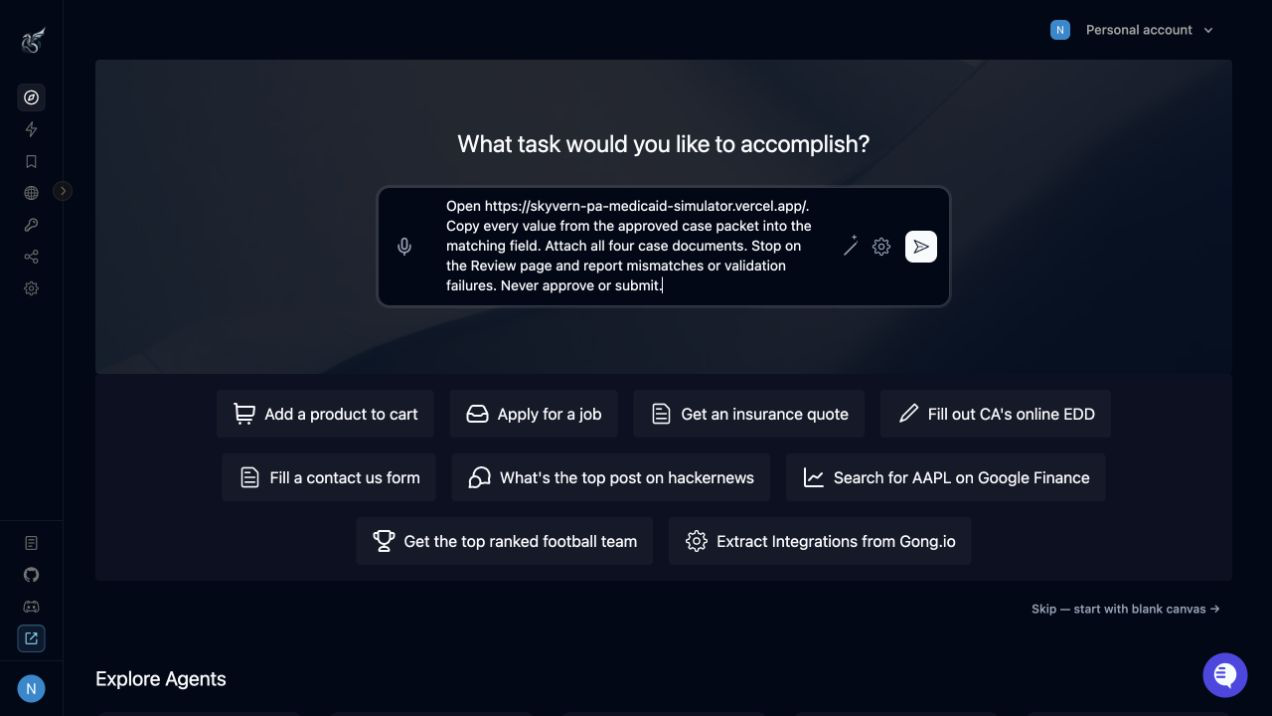
An operations owner can create this task in plain language. The team does not need to fund and maintain a custom script for each portal workflow.
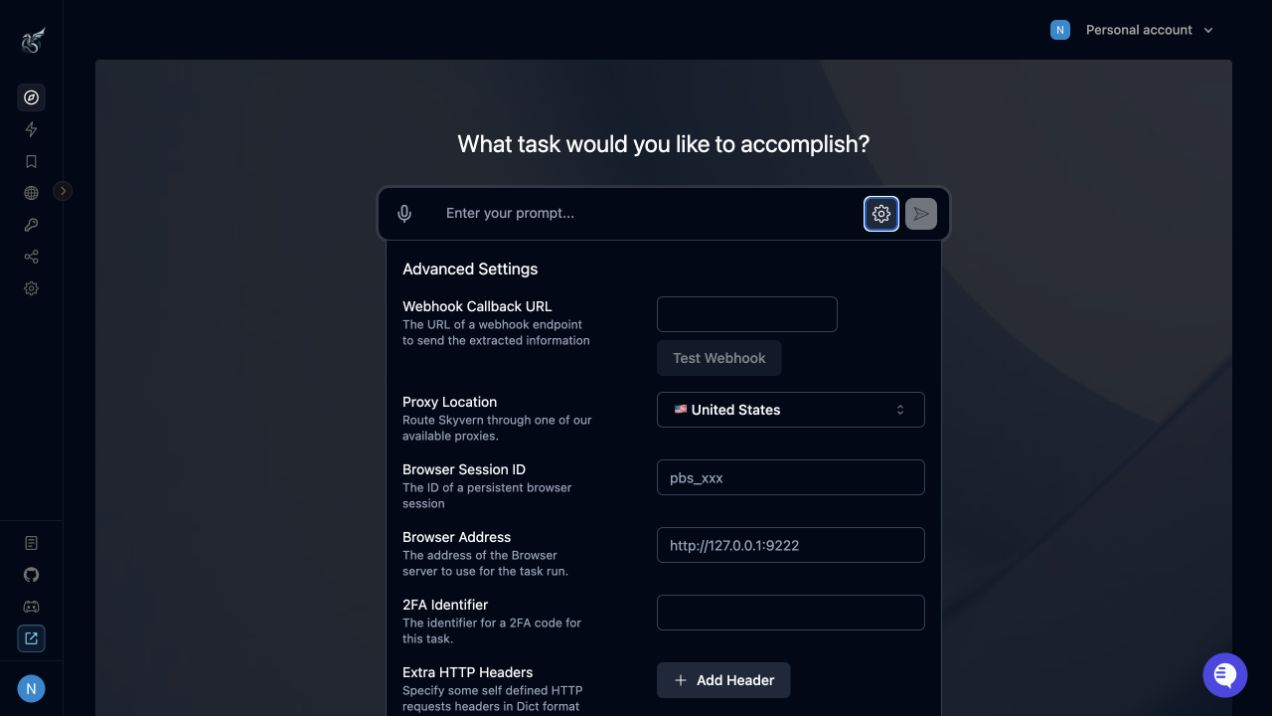
Skyvern's optional settings let the team add a persistent browser session, proxy location, 2FA identifier, webhook, and step limit when the workflow requires them. Most teams can begin with the prompt and add these controls during a production pilot.
The important parts are plain:
- tell Skyvern where the source data is;
- tell it which repeated actions to perform;
- name the documents it should attach;
- define what success looks like; and
- tell it exactly where to stop.
The prompt does not ask Skyvern to judge eligibility or invent missing answers. If required information is missing, the task should return the case to a person.
4. Move the application to review
Skyvern opened the prepared case and worked through the application section by section:
- Organization setup
- Household
- Benefits
- Individual details
- Income
- Expenses
- Resources
- Insurance
- Documents
- Review
The provider step is a good example of why browser automation helps. The hospital name, provider type, provider number, and first treatment date already existed in the case packet. Skyvern moved those values into the correct fields and continued.
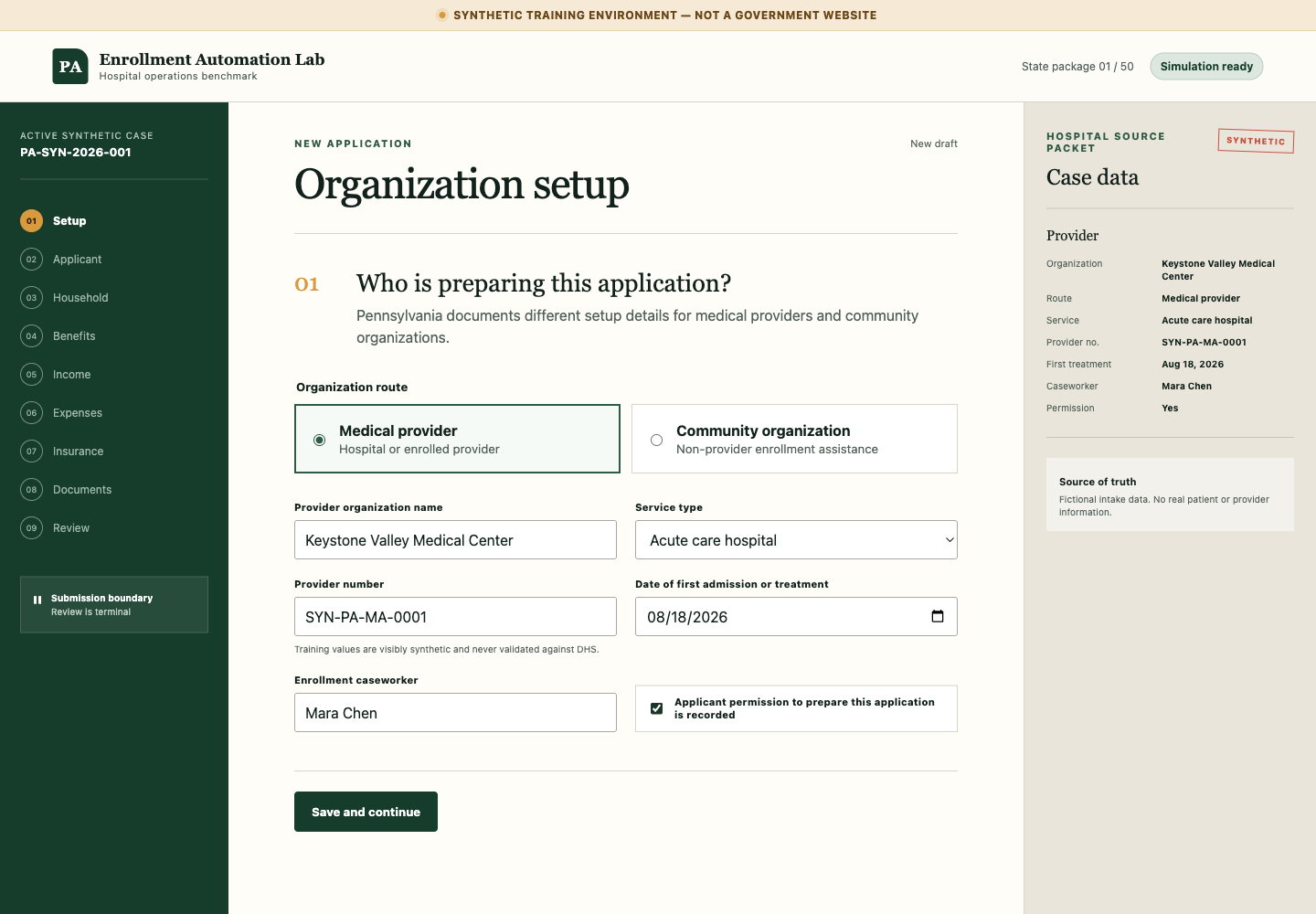
There is no code in this step. An operations owner can describe the task in normal language, watch the run, and see where the browser agent clicked or entered information. This reduces the engineering time needed to launch and maintain portal automation.
If the portal layout changes, Skyvern uses the page it sees rather than relying only on fixed screen coordinates. A live rollout should still send changed or uncertain cases to a person instead of forcing them through.
That matters at scale. The team can spend its budget on reviewing difficult cases instead of paying people to repeat the same clicks on every standard case.
5. Prepare the right documents
On the Documents section, Skyvern attached the four files already associated with the case:
- identity document;
- citizenship document;
- income document; and
- insurance document.
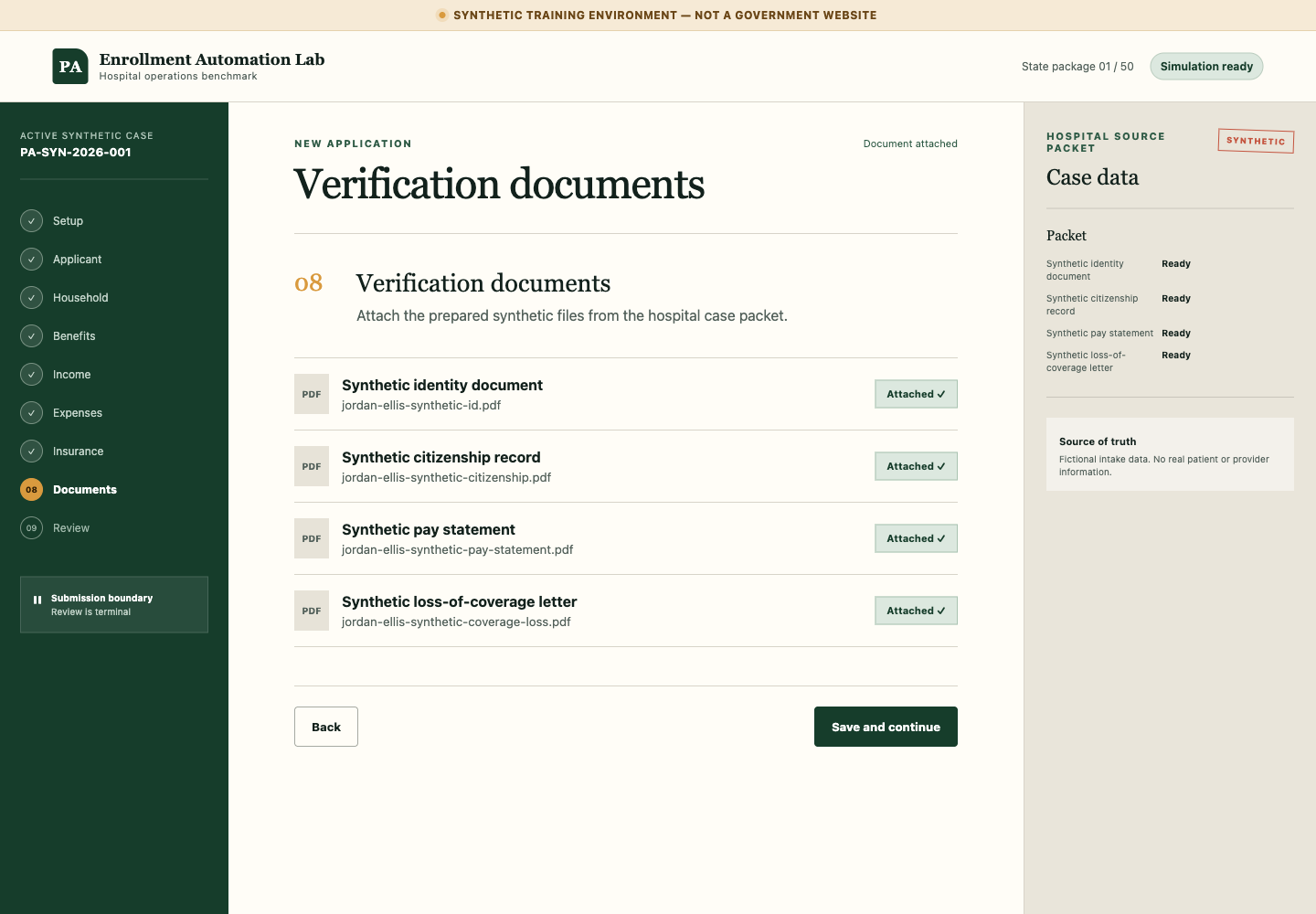
For a production workflow, the task should attach only files approved for that application. It should also return an exception when a required file is missing, unreadable, or larger than the portal accepts.
Useful document controls include:
- an allowed document list for each case;
- clear filenames and document types;
- malware scanning before the run;
- access logs for protected information; and
- retention rules after the application is complete.
Automating attachments removes another repetitive step and reduces the rework caused by missing proof. Both lower the staff time required to move a ready case to Review.
6. Send a clean application to review
At Review, the synthetic application compared the entered values with the source packet. Skyvern then stopped, as instructed.
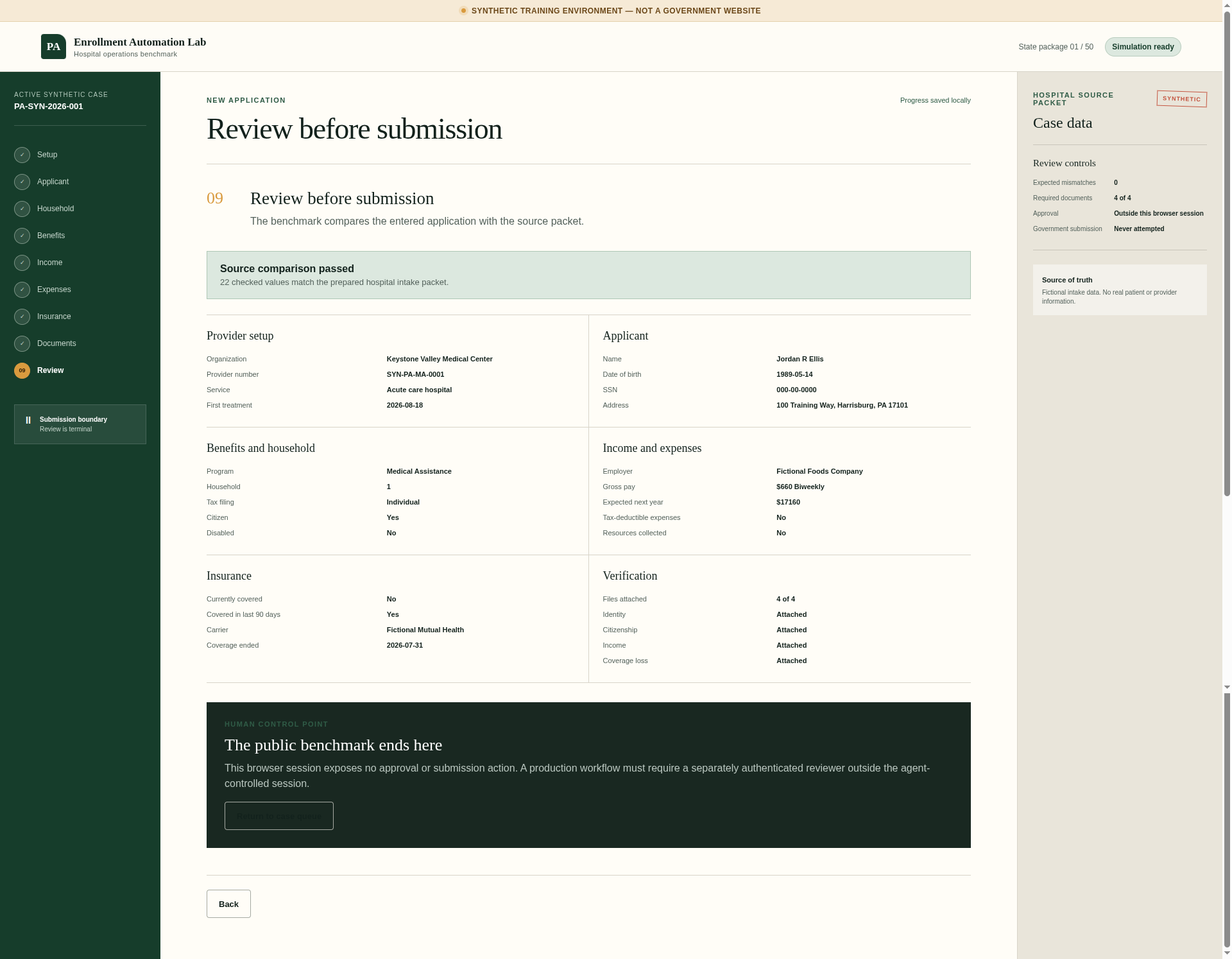
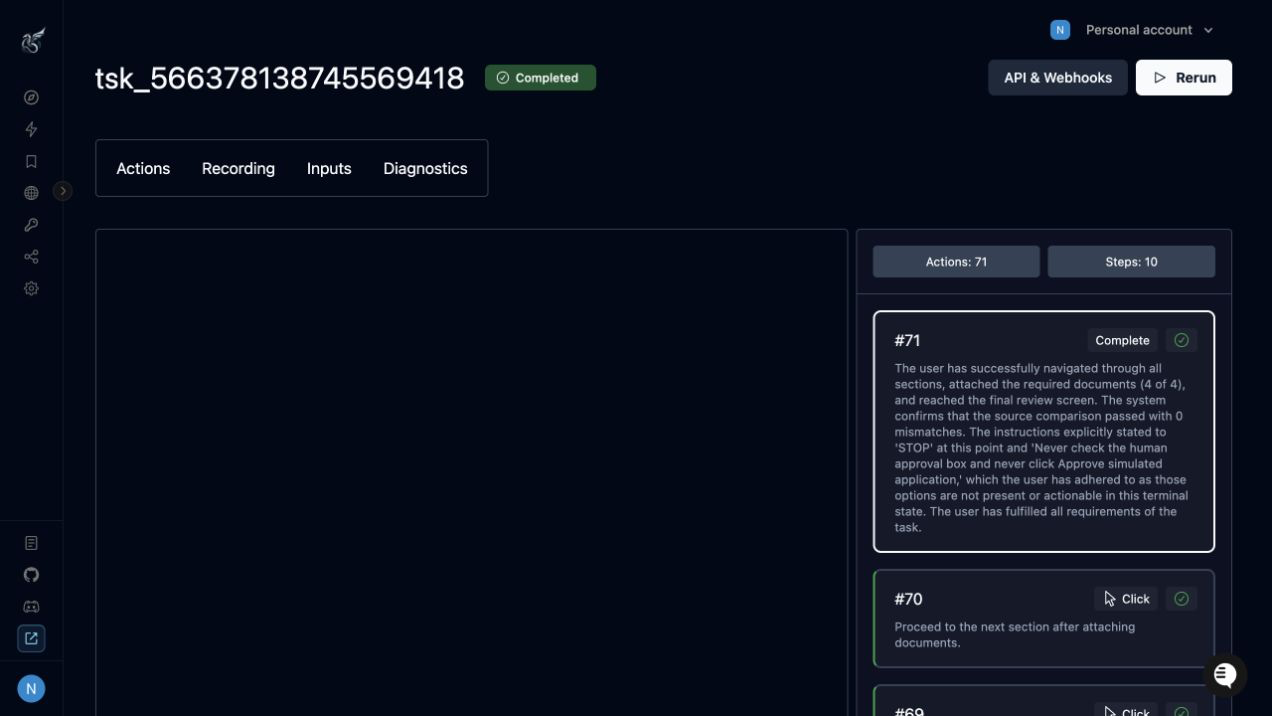
Skyvern also keeps the run status and action history in one place, so the operations team can see what the agent did and where it stopped.
| Check | Result |
|---|---|
| Total run time | 11 minutes 19 seconds |
| Application sections completed | 9 of 9 |
| Checked values matched | 22 of 22 |
| Documents attached | 4 of 4 |
| Human corrections during the run | 0 |
| Approval or submission performed | No |
The screenshots above show the actual Skyvern run and the synthetic application used in the test.
This result proves that the defined workflow worked for one synthetic case. It does not prove a success rate for the live COMPASS portal. That requires authorized testing across the cases, exceptions, and portal states the hospital actually sees.
Try the workflow yourself
Open the synthetic application and create a Skyvern task using the prompt above.
A successful run should:
- open the prepared case;
- copy every supplied value into the matching field;
- clear each section's validation;
- attach all four case documents;
- reach Review;
- report zero source mismatches; and
- stop without approving or submitting.
Test the failure path too. Remove one required value or document from a separate fictional case. The right result is an exception for a person, not a guessed answer.
Move from one case to your full queue
Once this works for one case, save it as a reusable Skyvern Workflow. The same workflow can run with a different case packet and document set each time.
Your existing case queue can then:
- trigger the workflow through the Skyvern API when a case is ready;
- use an approved Credential and Browser Profile to access the portal;
- send the completed application to Ready for review;
- send missing data or portal errors to Needs attention; and
- write the result back to your system through a webhook.
Every Skyvern Run keeps the video, screenshots, and action history together. Your team can review what happened without reconstructing the case from logs or staff notes.
The Business ROI
The ROI comes from removing manual portal-entry time from every standard case while keeping people focused on exceptions and final review.
Monthly hours returned =
monthly applications x manual portal-entry minutes / 60

Monthly manual portal-entry cost addressed =
monthly hours returned x loaded hourly staff cost
For example, 500 applications at 18 minutes of manual portal work would equal 150 staff hours each month. At a loaded staff cost of $35 per hour, that portal entry represents $5,250 in monthly capacity. This is an illustration, not a measured result from our test. Your actual ROI should use your observed case volume, handling time, staff cost, Skyvern cost, and human-review cost.
The result is more useful than a simple labor-savings number. Faster application preparation helps your team work more cases, follow up on exceptions sooner, and support growth without hiring another data-entry employee for every increase in volume.
What it takes to use this in production
Before you use Skyvern on a live government portal, confirm:
- your team is authorized to use the account and automate the workflow;
- patient consent and signature rules stay with the right people;
- protected information follows your security and privacy controls;
- multi-factor authentication and session ownership are defined;
- every run has an audit trail;
- uncertain cases stop for review; and
- the portal permits the planned use.
Then run a controlled pilot with approved test cases. Compare every completed application with its source record and keep submission manual until your team is satisfied with the evidence.
Skyvern can automate the repetitive browser work between your systems and external portals. The safest first deployment is narrow: one workflow, one defined source, one human checkpoint, and clear evidence for every run.
Talk to Skyvern about automating a healthcare portal workflow
Sources
- COMPASS Community Partner Quick Reference Guide
- Pennsylvania Application for Health Care Coverage, PA 600 HC
- Pennsylvania Medical Assistance application guidance
- Skyvern core concepts
- Skyvern Browser Profiles
- Skyvern task settings and webhooks
- Synthetic Pennsylvania Medical Assistance application used in this tutorial
Keep reading
AI Automation for EOB Processing: Tools & Workflows (2026)
If you're looking into EOB processing, there's probably someone on your team spending hours downloading insurance payment documents and copying the numbers into billing software. They log in to one insurer's website, find the right document, save it, and move on to the next. We've built Skyvern for this kind of healthcare admin work. It's an AI browser agent that can log into these websites, find the documents, and download them for you. You can build the rest of the workflow in Skyvern too, fr
How to Automate Insurance Eligibility Verification with Skyvern
A step-by-step guide to using Skyvern for insurance eligibility checks, from entering patient details in payer portals to returning coverage and benefits to your appointment system.
How to Automate Pharmacy Invoice Downloads
When your accounting team needs an invoice from a wholesaler portal, somebody has to go and get it. They sign in, pick the pharmacy account, find the right billing period, download the PDFs, and file them. Then they repeat the process in the next portal. And then the next... Every billing cycle! I know the pain. We built Skyvern for healthcare workflows like this. You give an AI agent a job to do in the browser, and it works through the website to do it. For pharmacy invoice collection, that m
Put the browser to work
Use Skyvern for the work that lives in a browser.
Turn repetitive browser tasks into reliable workflows with Skyvern.