How to automate Florida Medicaid application prep with Skyvern

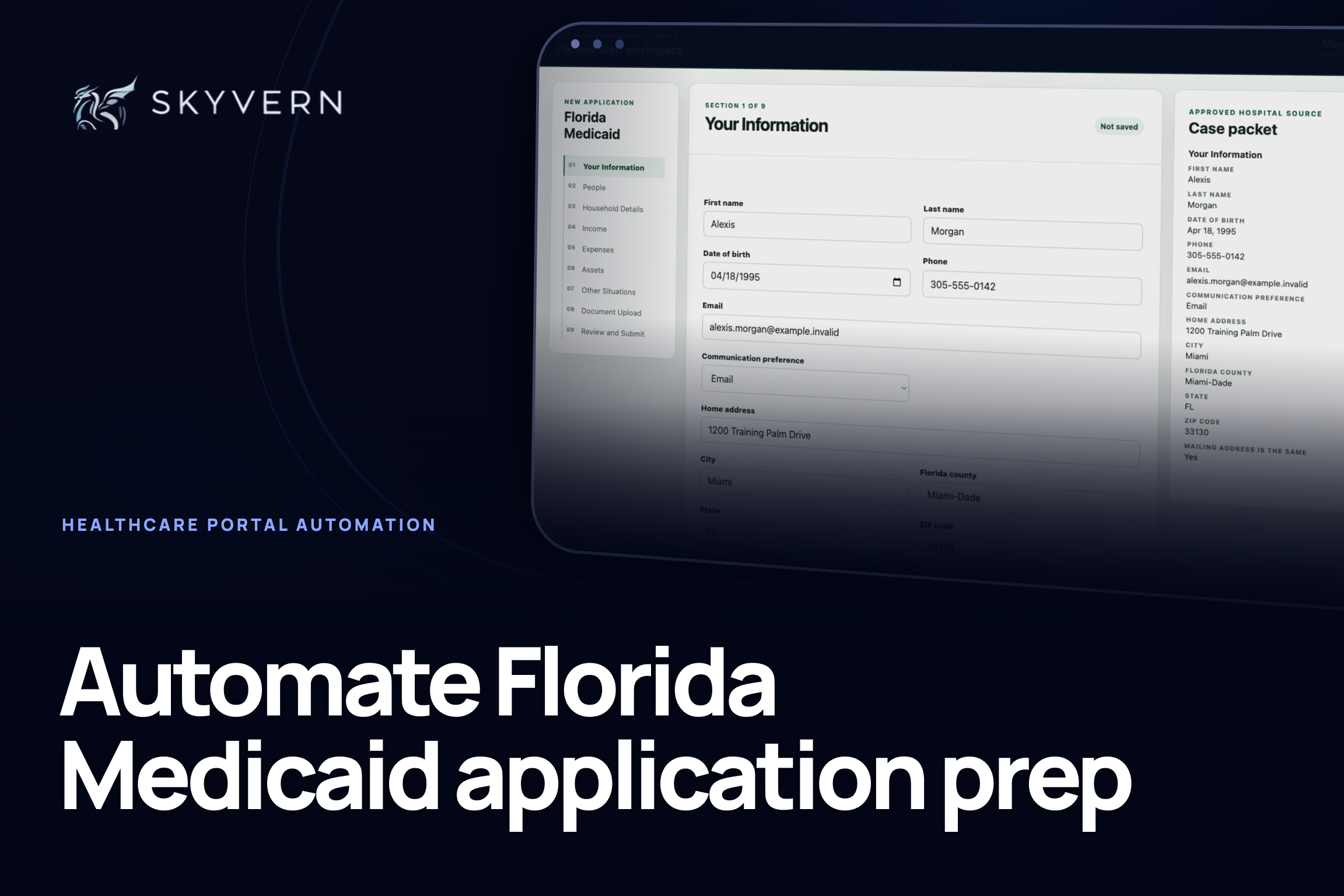
We used Skyvern to prepare a Florida Medicaid application from a hospital case packet. Skyvern opened a new case from a Partner Staff queue, worked through all nine MyACCESS sections, checked 44 values, added five approved document items, and stopped on Review and Submit for a person.
The run took 11 minutes 45 seconds. For a hospital processing hundreds of applications, the value is not one faster form. It is the staff time returned across every standard case, the lower cost per completed application, and the extra volume the same team can handle.
Built and tested by Skyvern
We rebuilt Florida's nine-section application workflow as an interactive training portal and ran Skyvern through it from a hospital queue to final review.
9 sections · 44 values checked · 5 document items · 0 mismatches · 11 minutes 45 seconds
Open the complete run and its artifacts in Skyvern
What your team gets
Your team gets a workflow that takes one approved hospital case packet, prepares a Florida Family-Related Medicaid application, attaches the required proof, checks the entered values, and sends the case to staff for final review.
| Skyvern handles | Your staff keeps control of |
|---|---|
| Opening the prepared case | Client authorization |
| Repetitive portal entry | Missing or conflicting information |
| Moving through nine application sections | Coverage and eligibility decisions |
| Attaching approved documents | Attestations and e-signature |
| Comparing the result with the source | Final approval and submission |
Skyvern takes the repetitive browser work out of the queue. Your staff stays responsible for the decisions and legal actions that belong to people.
How we proved it works
We mapped the workflow from Florida's current application and Partner Staff documentation, built the synthetic portal around one hospital case, and gave Skyvern only the approved source record. Skyvern started a new application, completed all nine sections, compared its work with the source, and stopped before attestation, signature, or submission.
The result above comes from one complete run of that workflow. The screenshots, video, run record, and test results on this page all come from the same benchmark.
From case intake to human review
The hospital's approved record remains the source of truth. MyACCESS receives the application, but it should not decide what goes into it.
The workflow has four parts:
- Hospital case queue: Staff mark a complete case ready for portal entry.
- Approved case packet: The record contains the patient data, case facts, and documents.
- Skyvern task: Skyvern prepares the application and checks its work.
- Review queue: A person resolves exceptions, accepts legal terms, signs, and submits.
Hospital case queue
        |
        v
Approved data and documents
        |
        v
Skyvern prepares the MyACCESS application
        |
        v
Ready for staff review
This design keeps the automation narrow. Skyvern copies and checks approved information. It never decides whether someone qualifies for Medicaid.
What you need to get started
To follow this tutorial, you need:
- a Skyvern account;
- one fictional or properly approved test case;
- a field map from your source record to the application;
- the approved supporting documents; and
- a staff member who can review the result.
For a live MyACCESS workflow, your organization also needs the right Florida Community Partner access. The official Partner Staff guide describes organization activation, role assignment, Okta setup, and client authorization. Keep those account and permission steps outside the browser task.
You can use the synthetic Florida application from this tutorial to reproduce the workflow.
1. Decide what Skyvern should handle
Start when the hospital has already collected and approved the case information. For our test, the packet included contact details, household relationships, pregnancy, tax filing, income, expenses, current coverage, and five supporting documents.
Stop before the actions that belong to an authorized person:
Start:  Case marked "Ready for portal entry"
Stop:   Review and Submit page is complete
Human:  Resolve exceptions, attest, sign, and submit
Write this boundary into the task prompt. A browser agent should prepare the case, not accept legal terms or make an eligibility decision.
2. Give Skyvern one approved case
Our fictional case represented Gulf Harbor Medical Center helping a pregnant Florida resident apply for Family-Related Medicaid. The packet contained:
- applicant and contact information;
- Florida residence and household details;
- pregnancy and tax-filing facts;
- employment income and housing costs;
- recent health-coverage information; and
- five case documents.
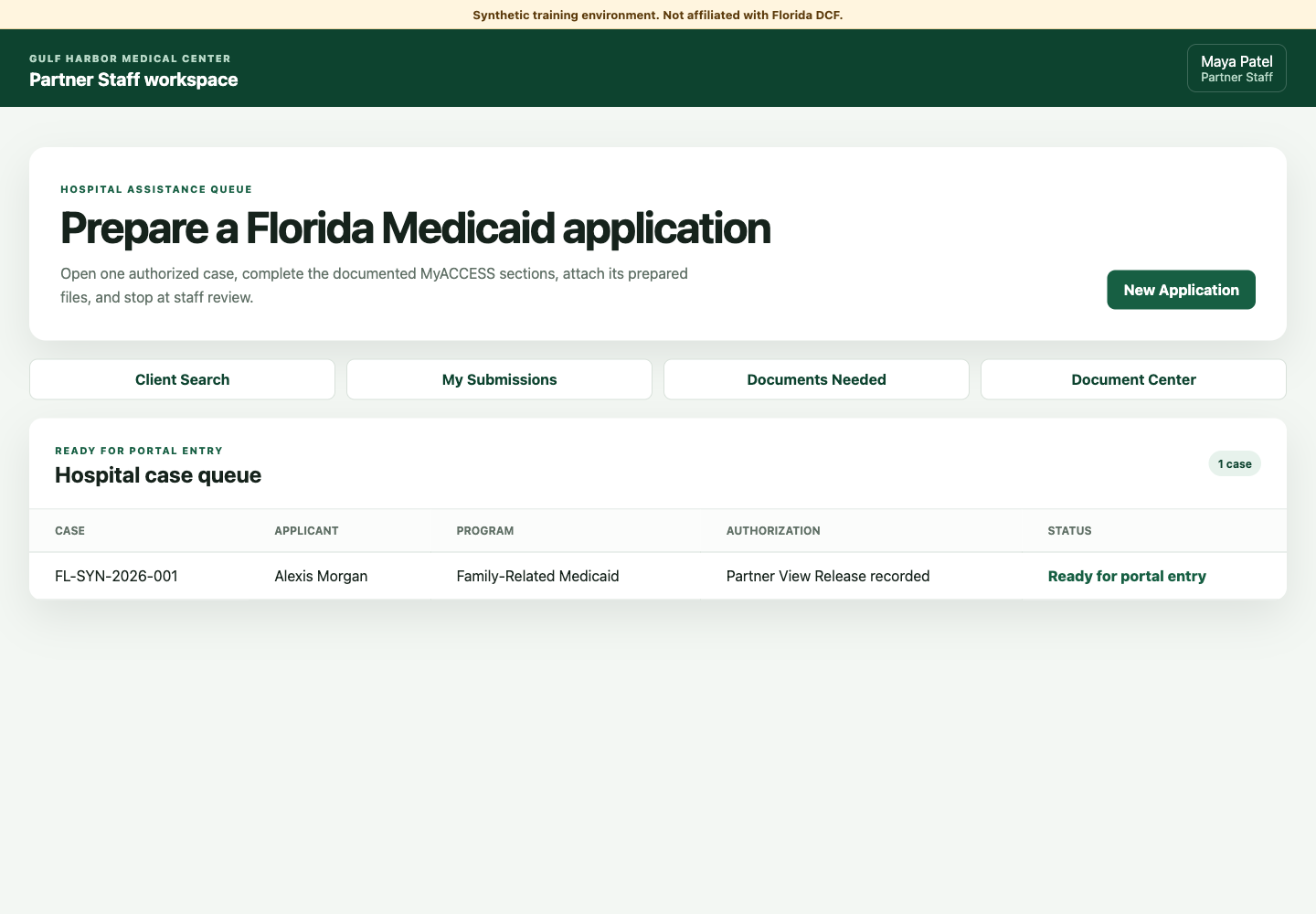
Your source can be a work queue, database, or Google Sheet. A simple queue might look like this:
| Case ID | Status | Program | Applicant | Partner authorization | Document folder |
|---|---|---|---|---|---|
| FL-SYN-2026-001 | Ready for portal entry | Family-Related Medicaid | Alexis Morgan | Recorded | /cases/FL-SYN-2026-001/ |
The row can point to the full patient record instead of repeating every answer. Skyvern needs one approved source, clear document names, and a defined result.
Before the task starts, check that:
- every required value is present;
- client authorization is recorded;
- conflicting facts are marked for staff;
- the coverage track is already chosen; and
- each document belongs to the case.
This preparation matters more than prompt length. A clean source packet lets Skyvern move a standard case forward and return incomplete cases to staff.
3. Tell Skyvern what to do
Create a browser task in Skyvern and use the application URL as the starting point. We used Skyvern 1.0 with this prompt:
This is a synthetic training environment using fictional data.

Start New Application from the Partner Staff dashboard. On each of the
nine sections, copy every value from the Approved hospital source panel
into the matching required field. Use Family-Related Medicaid.

On Assets, select Family-Related Medicaid and No for assets counted.
On Other Situations, use the supplied No/Yes values. On Document Upload,
click Add approved copy for all five packet items. Do not open a local file
picker. Confirm that every item says Received.

On Review and Submit, confirm Source comparison passed, then STOP.
Never accept attestations, sign, approve, or submit.

Return the mismatch count, document count, validation failures, and
whether the review boundary was reached.
The prompt tells Skyvern five things: where to start, which source to use, what work to repeat, how to check the result, and where to stop. It does not ask Skyvern to invent an answer or choose a Medicaid track.
In production, connect the task to the credential and browser profile approved for the Partner Staff account. Use a separate test account and fictional cases until your organization has verified the workflow and controls.
4. Move the application to review
Skyvern opened New Application and moved through the nine sections listed in Florida's current application overview:
- Your Information
- People
- Household Details
- Income
- Expenses
- Assets
- Other Situations
- Document Upload
- Review and Submit
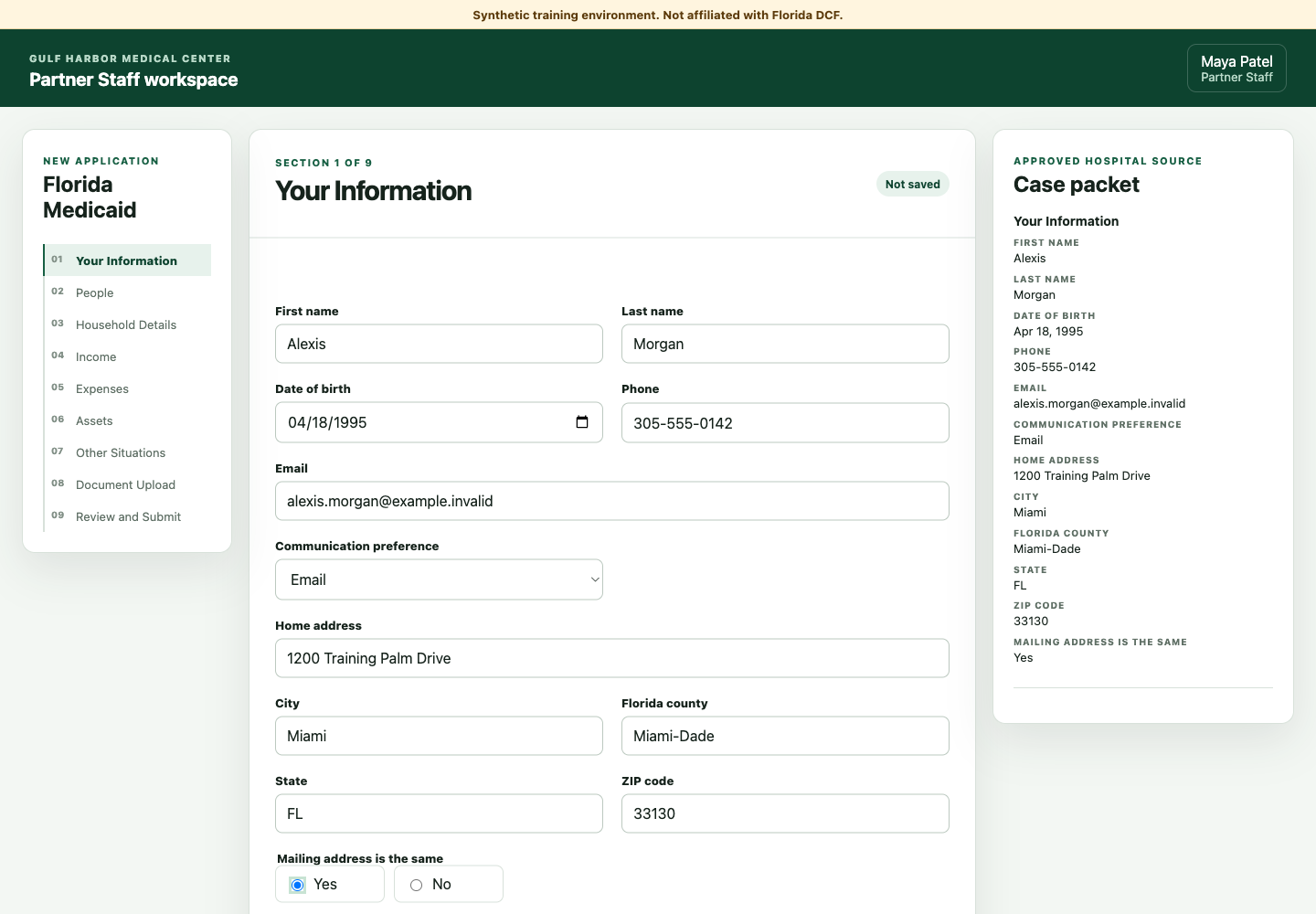
The application can change its questions based on the case. Our test used one narrow branch: a pregnant applicant seeking Family-Related Medicaid. It did not cover SSI-Related Medicaid, long-term care, Emergency Medical Assistance, Medically Needy, or hospital presumptive eligibility.
That narrow scope makes the workflow easier to control. If the source record flags another branch, route the case to a separately tested workflow or to staff.
5. Keep each case on the right Medicaid path
MyACCESS still shows an Assets section, but Florida does not count assets for the Family-Related Medicaid track used in this example. Skyvern recorded that branch and continued without inventing asset values.
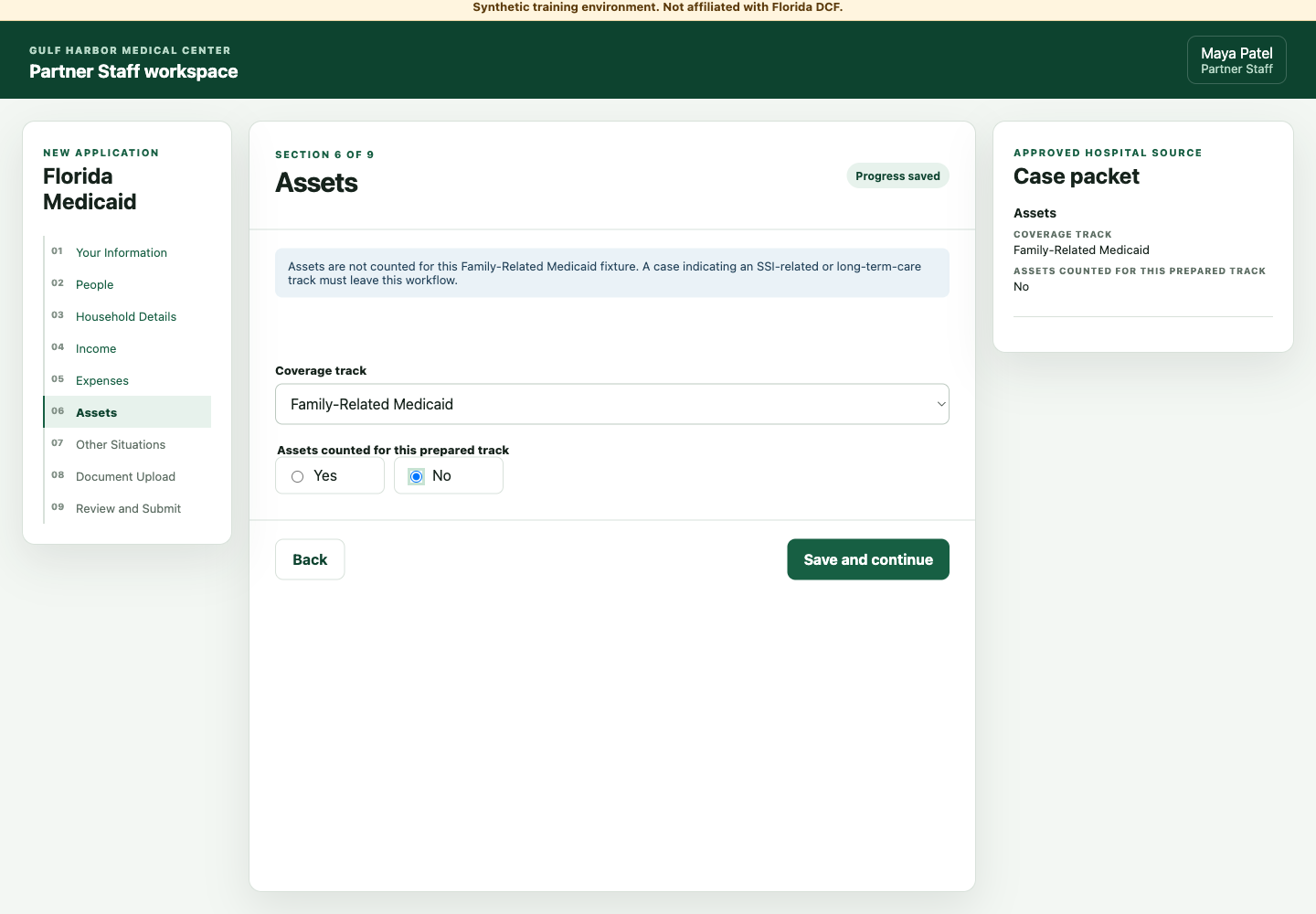
An aged, blind, disabled, or long-term-care case follows different rules. Treat that case as an exception until you have built and tested its own source map.
This branch handling is important at hospital scale. It prevents one broad automation from forcing unlike cases through the same path.
6. Prepare the right documents
Skyvern added the five document items prepared for the synthetic case:
- identity document;
- Florida residence proof;
- pay statement;
- pregnancy verification; and
- recent coverage-loss letter.
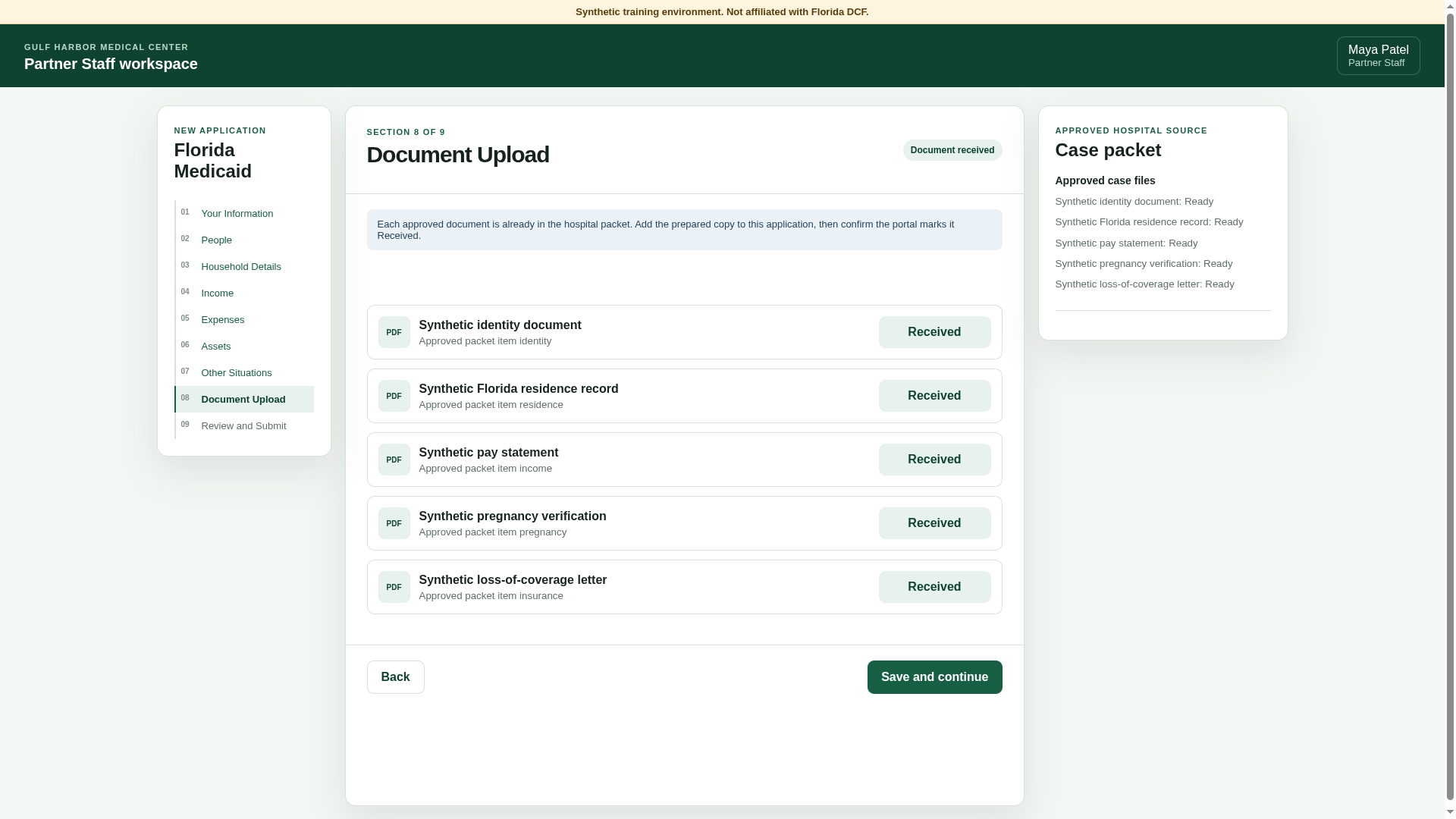
The training workflow used Add approved copy because its source packet contained document records rather than real files. The task checked the status after each item. It treated Received as success and would have returned Pending or Error to staff.
Our first test stopped at this step because the training portal displayed fictional filenames as if they were real uploads. We fixed the document control, restarted from the beginning, and the second run reached Review with all five items marked Received. In production, give Skyvern the actual case files rather than filenames alone.
For a live workflow, attach only files approved for that case. Use clear filenames, scan files before the run, restrict access to protected information, and define how long your systems retain each document.
7. Send a clean application to review
On Review and Submit, the synthetic application compared the entered fields with the case packet. Skyvern confirmed all 44 checked values matched, all five documents showed Received, and no validation failure remained. It then stopped.
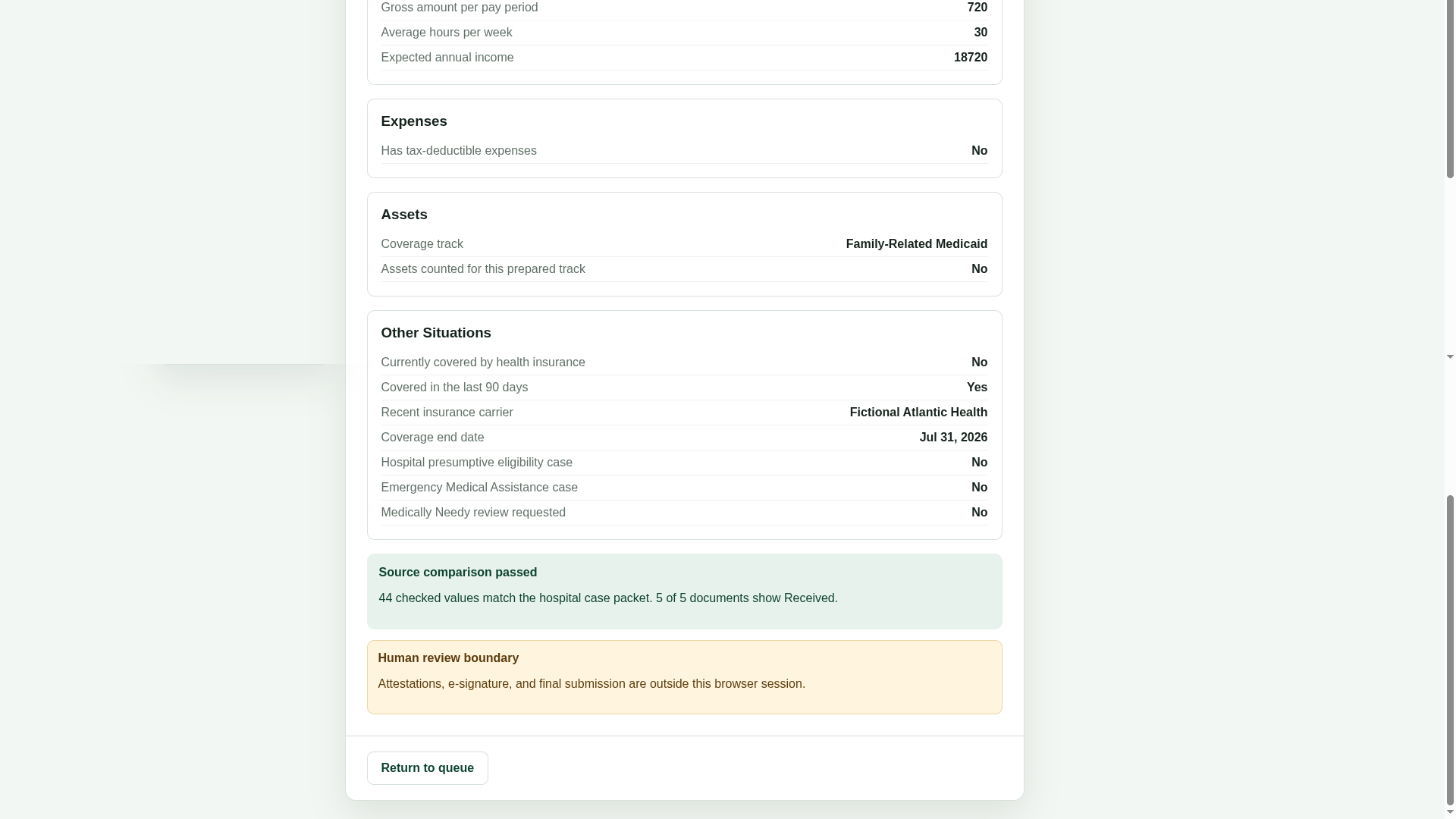
Skyvern keeps the run evidence together. Your operations team can see what happened without rebuilding the case from staff notes.
| Check | Result |
|---|---|
| Total run time | 11 minutes 45 seconds |
| Application sections completed | 9 of 9 |
| Checked values matched | 44 of 44 |
| Approved document items received | 5 of 5 |
| Validation failures | 0 |
| Human corrections during the run | 0 |
| Attestation, signature, or submission performed | No |
This result proves that one synthetic case completed the workflow we built. It does not establish a success rate for the authenticated MyACCESS portal. Measure that through an authorized pilot across the cases and exception paths your team sees.
Try the workflow yourself
Open the synthetic application and create a Skyvern task with the prompt above.
A successful run should:
- start New Application from the Partner Staff queue;
- copy each supplied value into the matching field;
- clear all nine sections;
- add five approved document items and confirm their Received status;
- report zero source mismatches;
- reach Review and Submit; and
- stop before attestation, signature, or submission.
Test the exception path too. Remove one required value or document from another fictional case. The correct result is Needs attention, not a guessed answer.
Move from one case to your full queue
Once one case works reliably, save the task as a reusable Skyvern Workflow. Pass a new approved packet and document set into the same workflow for each standard case.
Your hospital queue can then:
- start the workflow through the Skyvern API when a case becomes ready;
- open MyACCESS with an approved Credential and Browser Profile;
- move complete cases to Ready for review;
- move missing data, document errors, and unusual coverage tracks to Needs attention; and
- write the result back to your queue through a webhook.
Start with one narrow case type. Add another branch only after you have its approved source map, test cases, stop point, and review rules.
The Business ROI
The return comes from removing repeated portal-entry work from every standard case while staff focus on missing information, exceptions, and final review.
Monthly hours returned =
monthly applications x manual portal-entry minutes / 60

Monthly portal-entry cost addressed =
monthly hours returned x loaded hourly staff cost
For example, 500 applications at 20 minutes of manual portal work equal about 167 staff hours each month. At a loaded staff cost of $35 per hour, that work represents about $5,845 in monthly capacity. This is an illustration, not a measured result from our test. Replace the example with your case volume, handling time, staff cost, Skyvern cost, and review time.
The larger benefit is capacity. Your team can process more ready cases without hiring at the same rate, while staff spend their time on patients and exceptions instead of copying data between systems.
What it takes to use this in production
Before you use Skyvern on live MyACCESS accounts, confirm:
- your organization has the right Community Partner role and portal permission;
- client authorization is recorded before the task starts;
- protected information follows your security and privacy controls;
- account ownership, Okta, and session access are defined;
- every run keeps an audit trail;
- unusual or incomplete cases return to staff; and
- attestation, e-signature, and submission stay with authorized people.
Run a controlled pilot with approved test cases. Compare every prepared application with its source record and keep submission manual until your team trusts the evidence.
Skyvern can automate the repetitive browser work between your hospital systems and MyACCESS. The safest first deployment is one case type, one approved source, one human checkpoint, and a recorded result for every run.
Talk to Skyvern about automating a healthcare portal workflow
Sources
- MyACCESS
- Florida Partner Staff Role User Guide
- Florida Community Partner Network
- MyACCESS application overview
- Florida Family-Related Medicaid Program Fact Sheet
- MyACCESS documents for verification
- Florida applying for assistance guidance
- Skyvern core concepts
- Skyvern Browser Profiles
- Skyvern task settings and webhooks
- Synthetic Florida Medicaid application used in this tutorial
Keep reading
AI Automation for EOB Processing: Tools & Workflows (2026)
If you're looking into EOB processing, there's probably someone on your team spending hours downloading insurance payment documents and copying the numbers into billing software. They log in to one insurer's website, find the right document, save it, and move on to the next. We've built Skyvern for this kind of healthcare admin work. It's an AI browser agent that can log into these websites, find the documents, and download them for you. You can build the rest of the workflow in Skyvern too, fr
How to Automate Insurance Eligibility Verification with Skyvern
A step-by-step guide to using Skyvern for insurance eligibility checks, from entering patient details in payer portals to returning coverage and benefits to your appointment system.
How to Automate Pharmacy Invoice Downloads
When your accounting team needs an invoice from a wholesaler portal, somebody has to go and get it. They sign in, pick the pharmacy account, find the right billing period, download the PDFs, and file them. Then they repeat the process in the next portal. And then the next... Every billing cycle! I know the pain. We built Skyvern for healthcare workflows like this. You give an AI agent a job to do in the browser, and it works through the website to do it. For pharmacy invoice collection, that m
Put the browser to work
Use Skyvern for the work that lives in a browser.
Turn repetitive browser tasks into reliable workflows with Skyvern.