Skyvern MCP vs Browser-Tools-MCP: Which One Wins for Automation in May 2026?
 Suchintan Singh9 min read
Your AI coding assistant needs browser access, so the choice comes down to skyvern mcp or browser-tools-mcp. One tool hands your assistant debugging data from an active Chrome session. The other hands it a worker that can log into portals, fill multi-page forms, and keep running when the site renames a button. The architecture you choose depends on whether you want to observe the browser or direct it to act.
TLDR:
- Browser-Tools-MCP gives your AI assistant read-only access to console logs, network traffic, and DOM state for debugging, but it can't fill forms or run multi-step workflows.
- Skyvern MCP reads pages visually and executes complete browser workflows autonomously, handling logins, MFA, CAPTCHA, and form fills without breaking when sites change.
- Browser-Tools-MCP requires local setup with npm, Chrome extension, and config sync; Skyvern MCP runs as a hosted service with a single API key.
- Skyvern's visual reasoning costs more tokens per step, but Browser-Tools-MCP's DOM-only approach fails on dynamically rendered content and offers no auth handling.
- Choose Browser-Tools-MCP for debugging sessions where you need low-level inspection; choose Skyvern for production workflows that must run unattended across authenticated portals.
What is Browser-Tools-MCP?
Browser-Tools-MCP is a debugging and inspection tool that connects AI coding assistants to Chrome's DevTools through a two-part architecture: a Chrome extension that captures live browser state, and a Node.js middleware server that relays that data to MCP-compatible clients like Claude or Cursor.
Through that connection, your AI assistant can read console logs, inspect network traffic, query DOM elements, and run Lighthouse audits. Under the hood, it uses Puppeteer to drive the browser and the Lighthouse npm library to produce performance reports.
The tool also runs WCAG-compliant accessibility checks, analyzes render-blocking resources and page speed factors, and assesses on-page SEO. Everything it does is built around observation: Browser-Tools-MCP gives your AI assistant a window into what's happening inside a running page, not a way to act on it.
What Browser-Tools-MCP is built for
That read-only posture is a deliberate design choice, and it shapes where the tool fits well. If your workflow involves diagnosing a slow page, catching a JavaScript error, or spotting an accessibility violation, Browser-Tools-MCP surfaces exactly the data you need. It is a strong fit for developers who want their AI coding assistant to see what the browser sees during active debugging sessions.
Where it runs into limits is any workflow that requires the browser to actually do something: filling a form, logging into a portal, clicking through a multi-step process. Browser-Tools-MCP has no mechanism for that.
What is Skyvern?
Skyvern is an AI browser automation tool that reads web pages visually using computer vision and LLM reasoning, then acts on what it sees. Instead of relying on CSS selectors or DOM paths that break the moment a site updates, Skyvern identifies buttons, forms, and interactive elements by their appearance and context at runtime.
The practical upshot: if a human can do it in a browser, Skyvern can automate it without APIs, without brittle scripts, and without breaking when websites change.
Skyvern exposes this capability as an MCP server, which means AI agents built in Claude, Cursor, or any MCP-compatible environment can call Skyvern directly to run full browser workflows. Logins, multi-step form fills, file uploads, and data extractions all run through the same visual reasoning engine, so the automation holds up even when the underlying site shifts layout or renames a field.
Core Purpose and Architecture
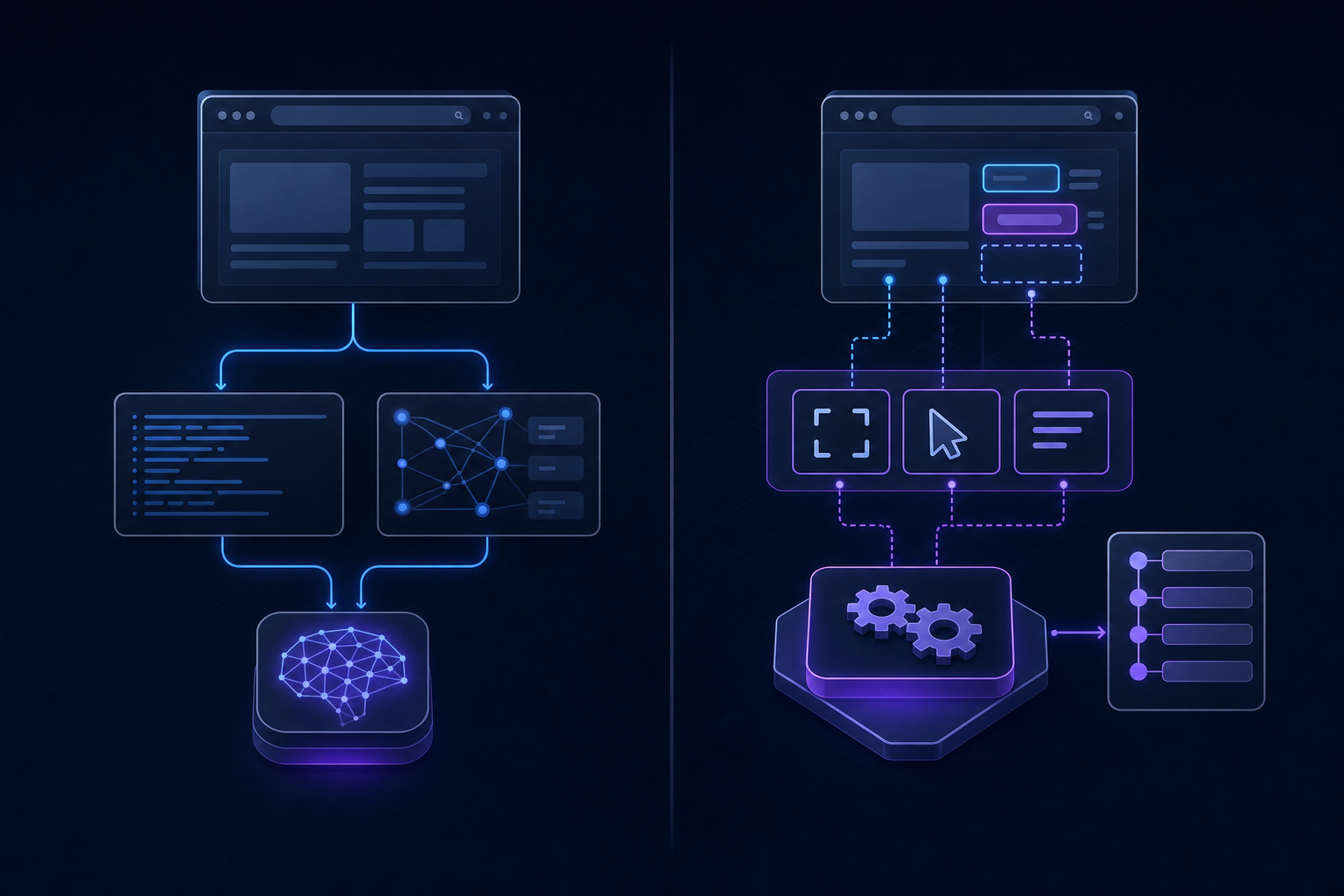
Two tools, two very different theories of how browser automation should work.
Browser-Tools-MCP functions as an observation layer. It gives LLMs structured access to what a browser sees: console logs, network requests, screenshots, and DOM snapshots. The architecture hands that data back to the LLM, which reasons over it and decides what to do next. For debugging sessions or exploratory tasks where you want the model reasoning over raw browser state, that design fits well.
Skyvern MCP takes a different approach. instead of feeding browser state back to an LLM for downstream reasoning, Skyvern MCP wraps a full AI execution engine. It reads pages visually using computer vision, identifies interactive elements by appearance and context, and works through multi-step workflows autonomously. Logins, form submissions, file uploads, and data extraction all happen without the calling agent managing each individual action.
The architectural gap matters in practice. Browser-Tools-MCP hands the LLM a window to look through. Skyvern MCP hands the LLM a worker that can complete the job.
Debugging and Monitoring vs Workflow Execution
The two tools take fundamentally different approaches here, and the gap matters depending on your use case.
That's genuinely useful for AI assistants debugging directly in Chrome and catch failures as they surface. The gotcha is that observation is where it stops. It watches the browser, not directing it through a complete workflow.
Skyvern MCP sits on the other side of that line. The focus is execution, not observation. It runs multi-step browser workflows end-to-end, handling logins, form fills, file uploads, and downloads without you writing step-by-step instructions for each action. Debugging, though, works differently here. Because Skyvern reads pages visually and reasons about them at runtime, errors surface at the workflow level instead of the DOM inspection level.
The practical split comes down to your goal:
- If you're diagnosing a specific page behavior or validating front-end output, Browser-Tools-MCP gives you the low-level read access you need.
- If you're running a workflow that spans multiple pages and needs to recover from layout changes without breaking, Skyvern MCP is the better fit.
Neither tool does both jobs equally well. Browser-Tools-MCP gives you the lens; Skyvern MCP does the work.
Setup Complexity and Infrastructure Requirements
Getting either tool running requires meaningfully different levels of effort, and that gap matters if you're trying to move fast.
Browser-Tools-MCP has a multi-step local setup: you install the npm package, configure the MCP server in your Claude Desktop config file, launch a separate Chrome extension, and keep all three components running in sync. Each piece is straightforward on its own, but the coordination overhead adds up, and any drift between component versions can break the connection silently.
Skyvern MCP, on the other hand, runs as a hosted service. You point your MCP client at Skyvern's endpoint, pass your API key, and the infrastructure side is handled for you. There's no local Chrome process to babysit, no extension to update, and no machine-specific path configuration to debug.
Teams vs. Individual Developers
For a solo developer doing local research or prototyping, Browser-Tools-MCP's setup is a one-time cost that's worth absorbing. The local-first architecture also means your browsing data never leaves your machine, which some developers prefer.
For teams, though, the calculus shifts. Skyvern MCP's hosted model means every team member connects to the same endpoint without replicating a local environment setup across machines. There are no "works on my machine" debugging sessions when onboarding a new engineer.
Authentication, CAPTCHA, and Production Readiness
Production automation breaks in predictable places: login walls, MFA prompts, and CAPTCHA challenges. How each tool handles these is often the clearest signal of whether it was built for real workflows or demo conditions.
Browser-Tools-MCP
Browser-Tools-MCP passes authentication context through the browser session it connects to. If the session is already authenticated, that context carries over. But there's no built-in handling for TOTP, MFA flows, or CAPTCHA resolution. Teams end up writing their own workarounds, which reintroduces the maintenance burden the tool was supposed to avoid.
Skyvern MCP
Credentials are stored once and reused across runs without re-exposure in task prompts. For production pipelines running against real portals, that coverage matters considerably. Teams processing high volumes across many sites aren't writing auth scaffolding from scratch or babysitting sessions that expire mid-run.
Human-in-the-loop verification still matters for high-stakes submissions, but the auth layer itself doesn't need to be a custom engineering project.
Token Cost and Usage Model
Running LLM calls on every browser action adds up fast. Browser-Tools-MCP keeps costs low by design: it reads the DOM directly instead of sending screenshots through a vision model, so most interactions stay within a tight token budget.
Skyvern takes a different approach. Each action runs a visual reasoning pass, which means the token count per step is higher. For long, multi-step workflows, that cost compounds. Teams considering Skyvern at scale should factor this in and test against representative workflows before committing.
That said, the tradeoff has a practical floor. Browser-Tools-MCP's DOM-only approach fails when a page renders content dynamically outside the DOM tree, forcing workarounds that often cost more in developer time than the token savings. Skyvern's visual pass costs more per step but rarely needs a human to intervene and fix a broken extraction.
Feature Comparison: Debugging vs Automation
The table below summarizes where each tool provides coverage and where gaps exist.
Feature Category | Browser-Tools-MCP | Skyvern MCP |
|---|---|---|
Primary Purpose | Debugging and monitoring active browser sessions | Autonomous workflow automation and execution |
Authentication Handling | No built-in support; observes manually authenticated sessions | Full credential management with TOTP secrets and multi-step auth flows |
CAPTCHA Solving | Not supported | Built-in CAPTCHA solving |
Anti-Bot Detection | Not supported | Enterprise-grade anti-bot handling |
Console Monitoring | Full console log capture and analysis | Not a primary feature |
Network Traffic Analysis | Complete network waterfall inspection | Not a primary feature |
Lighthouse Audits | Accessibility, performance, SEO, and best practices checks | Not supported |
Form Automation | Not supported | Multi-step form completion across different sites |
Data Extraction | DOM inspection only | Structured extraction with predefined schemas |
Deployment Model | Local only; requires Chrome extension and Node.js server | Cloud-hosted or self-hosted; managed infrastructure available |
Production Readiness | Development and debugging environments | Production-ready with session persistence, proxy routing, and webhooks |
Unattended Execution | Requires active developer session | Fully autonomous without human intervention |
Browser-Tools-MCP fits developers working in AI-powered IDEs who need real-time browser inspection during active development sessions.
Skyvern MCP fits teams running production workflows across authenticated portals, government forms, healthcare credentialing, or invoice collection where the process needs to execute autonomously and hold up across site changes.
Code Example: Running an Authenticated Portal Workflow with Skyvern
The section above describes what Skyvern MCP can do. Here is what calling it actually looks like from Python. This example logs into a portal using stored credentials, downloads an invoice, and posts the result to a webhook, the kind of workflow that Browser-Tools-MCP has no path to run.
First, install the SDK:
pip install skyvernThen run the task:
import asyncio
from skyvern import Skyvern

# Initialize with your API key from app.skyvern.com/settings
skyvern = Skyvern(api_key="YOUR_API_KEY")

async def download_portal_invoice():
    task = await skyvern.run_task(
        # Starting URL for the portal
        url="https://vendor-portal.example.com",

        # Natural language goal — no selectors, no brittle scripts
        prompt=(
            "Log into the portal, go to the Invoices section, "
            "download the most recent invoice PDF, "
            "and COMPLETE once the file has downloaded."
        ),

        # Credential ID stored once in Skyvern — never passed to the LLM
        credential_id="cred_your_credential_id",

        # TOTP identifier for MFA — Skyvern resolves the code automatically
        totp_identifier="invoices@yourcompany.com",

        # Schema for structured output alongside the file download
        data_extraction_schema={
            "type": "object",
            "properties": {
                "invoice_number": {"type": "string"},
                "amount_due": {"type": "string"},
                "due_date": {"type": "string"}
            }
        },

        # Webhook receives the result when the run finishes
        webhook_url="https://your-app.example.com/webhooks/skyvern",

        # Block until the task completes — useful for synchronous pipelines
        wait_for_completion=True,
    )

    print("Status:", task.status)
    print("Extracted data:", task.output)
    print("Downloaded files:", task.downloaded_files)

asyncio.run(download_portal_invoice())
A few things worth noting. The credential_id references credentials stored once in Skyvern's vault: the username and password never appear in the task prompt or get passed to the LLM. The totp_identifier tells Skyvern where to pick up the MFA code when the portal requests it. The data_extraction_schema gives you structured JSON output alongside the downloaded file. And wait_for_completion=True holds the call open until the run finishes, which is the simplest path for synchronous pipelines.
If you'd rather receive the result asynchronously, drop wait_for_completion and handle the payload at your webhook_url instead.
Final Thoughts on MCP-Compatible Browser Automation
One tool gives your AI agent visibility into browser state, the other gives it the ability to complete multi-step workflows autonomously. Browser-Tools-MCP fits debugging sessions where you need low-level inspection. Skyvern MCP fits production pipelines where authentication, form handling, and layout changes can't break your process. Schedule a demo if you're looking at visual automation for your team.
FAQ
How should I decide between Skyvern MCP and Browser-Tools-MCP for my project?
If front-end issues need diagnosing or you need deep visibility into console logs and network traffic during development, Browser-Tools-MCP fits that use case well.
What's the core difference between how these tools handle browser automation?
Browser-Tools-MCP functions as an observation layer that feeds browser state back to your LLM for reasoning, while Skyvern MCP wraps a full AI execution engine that reads pages visually and completes workflows autonomously. Browser-Tools-MCP gives your AI assistant a window to inspect; Skyvern MCP gives it a worker that can finish the job.
Which tool is better suited for production workflows that require authentication?
Skyvern MCP handles login flows, TOTP-based MFA, and CAPTCHA natively with credential storage and reuse across runs. Browser-Tools-MCP passes authentication context through existing browser sessions but has no built-in handling for MFA or CAPTCHA, which means teams write their own workarounds or manually authenticate each session.
Can I use Browser-Tools-MCP for form automation and data extraction workflows?
Browser-Tools-MCP is built for inspection and monitoring, not workflow execution. It has no mechanism for filling forms, clicking through multi-step processes, or running authenticated workflows unattended.
What setup complexity should I expect when onboarding my team to either tool?
Browser-Tools-MCP requires installing an npm package, configuring the MCP server locally, launching a Chrome extension, and keeping all three components synchronized across every developer's machine. Skyvern MCP runs as a hosted service where you point your MCP client at an endpoint with your API key, which means no local environment setup to replicate across team members.
Keep reading
Browser Use vs Browserbase: my honest comparison
Browserbase and Browser Use can both automate work in a browser, from collecting product data to filling out forms. Choosing between them comes down to what you want to build: a task you hand to an AI agent, a custom agent inside your application, or browser infrastructure for scripts you already run. I’m Skyvern’s co-founder and CEO by the way. We build a competing product, so I have a stake in this comparison. But I promise I won't promote our product (even though it's a great alternative to
6 Stagehand alternatives for browser automation in 2026
If you're looking for Stagehand alternatives, you probably want an AI browser agent that: * Works natively with Python scripts. * Can navigate and scrape complex websites efficiently. * Stays reliable as your workload grows from a few runs to thousands of browser jobs. That's the kind of workflow I built Skyvern for (Skyvern CEO here). I know, I know, Skyvern CEO's recommending Skyvern as a good alternative. Please just stay with me for a second here. Yes, Skyvern is a good Stagehand alt
Browser Use vs Stagehand: Which One Should You Pick?
Browser Use and Stagehand both let you use AI to automate browser tasks, such as collecting product data or filling out forms. When you’re deciding which to build with, their feature lists only tell you so much. You want to know how much code you’ll need to write, whether the automation completes your task correctly, and what repeated runs will cost. I'll be upfront: we build Skyvern, a competitor to both, but this blog post won't shill our product (you can try it here though). I’m keeping thi
Put the browser to work
Use Skyvern for the work that lives in a browser.
Turn repetitive browser tasks into reliable workflows with Skyvern.