How to automate Texas Medicaid applications in Your Texas Benefits

We used Skyvern to prepare a full Texas Medicaid application from a hospital case packet. Skyvern opened the Community Partner workflow, entered 53 approved values, linked the case's existing Qualified Hospital presumptive-eligibility record, added four document items, and stopped before the legal statements and electronic signature.
The run took 13 minutes 20 seconds. At hospital volume, this is not simply faster data entry. It returns staff time on every standard case while keeping authorization, exceptions, legal review, and submission with your team.
Built and tested by Skyvern
We rebuilt the Texas H1205 family-health workflow as an interactive training portal and ran Skyvern through it from a Community Partner queue to final review.
7 sections · 53 values checked · 4 document items · 0 mismatches · 13 minutes 20 seconds
Open the complete run and its artifacts in Skyvern
What your team gets
Your team gets a workflow that takes one approved hospital case, prepares a Texas H1205 family-health application, links an existing hospital PE record when one exists, checks the entered values, and sends the case to a person for final review.
| Skyvern handles | Your staff keeps control of |
|---|---|
| Opening the approved Community Partner case | H0926 authorization and access scope |
| Repetitive H1205 portal entry | Missing or conflicting information |
| Entering the Qualified Hospital PE submission ID | The separate PE determination |
| Adding approved case evidence | Legal statements and electronic signature |
| Comparing the application with its source | Final approval and submission |
The split matters. Texas uses one path for a full Medicaid application and another for a Qualified Hospital presumptive-eligibility determination. This tutorial automates the full application. It links the PE record but does not recreate the PE decision.
How we proved it works
We mapped the case from Texas's H1205 application, Community Partner authorization instructions, and Qualified Hospital presumptive-eligibility handbook. We then built one synthetic hospital case and a training portal around that map. Skyvern received only the approved source record shown beside the application.
The test had a strict finish line. Skyvern had to match all 53 values, add four case-relevant document items, keep the signed paper H0926 out of the upload list, and stop before the penalty-of-perjury statement, electronic signature, or submission.
The result above comes from one complete synthetic run. It proves this controlled workflow, not the authenticated Your Texas Benefits portal or every Texas Medicaid case.
From case intake to human review
The hospital's approved record remains the source of truth. Your Texas Benefits receives the application, but the browser task should never decide what answers belong in it.
The workflow has five parts:
- Hospital assistance queue: A standard case is marked ready for entry.
- Community Partner authority: The patient has signed H0926 with the right scope.
- Approved case packet: The record contains the H1205 answers, PE link, and relevant evidence.
- Skyvern task: Skyvern prepares the application and checks its work.
- Human review queue: Authorized staff resolve exceptions, read the legal terms, sign, and submit.
Approved hospital case + H0926 scope
                 |
                 v
Skyvern prepares the H1205 application
                 |
                 +---- links existing PE submission ID
                 |
                 v
Ready for authorized human review
Skyvern moves approved information through the browser. Texas HHSC, not the automation or hospital, determines Medicaid eligibility.
What you need to get started
To reproduce this tutorial, you need:
- a Skyvern account;
- one fictional or properly approved test case;
- an H1205 field map for the case type you want to automate;
- approved case evidence; and
- a person who can review the completed application.
For a live workflow, your organization also needs the correct Texas path. Community Partners use the Community Partner State Portal to help people apply. Qualified Hospitals use the separate PE Portal for presumptive-eligibility determinations. A hospital does not receive Community Partner application access merely because it is qualified for PE.
The applicant must sign Form H0926 when a Community Partner Navigator helps. Confirm the authorization scope before the task can see the case. Texas also instructs Community Partners not to upload the signed paper H0926 to Your Texas Benefits.
You can use the synthetic Texas application to reproduce the browser workflow without a government account.
1. Decide what Skyvern should handle
Start after your team has collected, checked, and approved the application facts. Our case began in a Community Partner queue with:
- a signed H0926 for application assistance;
- the H1205 household and health-program answers;
- employment and income information;
- employer-coverage details for Appendix A;
- an existing Qualified Hospital PE submission ID; and
- four approved evidence items.
Stop before the actions that carry legal or program authority:
Start:  Case marked "Ready for portal entry"
Stop:   Check answers and submit page is complete
Human:  Resolve exceptions, read legal terms, sign, and submit
Texas accepts defined signature methods, including an electronic signature submitted through YourTexasBenefits.com. Do not ask a browser task to create or copy a signature outside that process.
2. Give Skyvern one approved case
Our fictional case represented Lone Star Medical Center helping a pregnant Texas resident through a Community Partner Navigator. The source packet contained:
- contact details and Texas residence;
- household and tax-filing information;
- pregnancy, prior-medical-bill, and health-program answers;
- person-level employment income;
- recent and offered employer coverage;
- the synthetic PE submission ID; and
- four case-relevant document records.
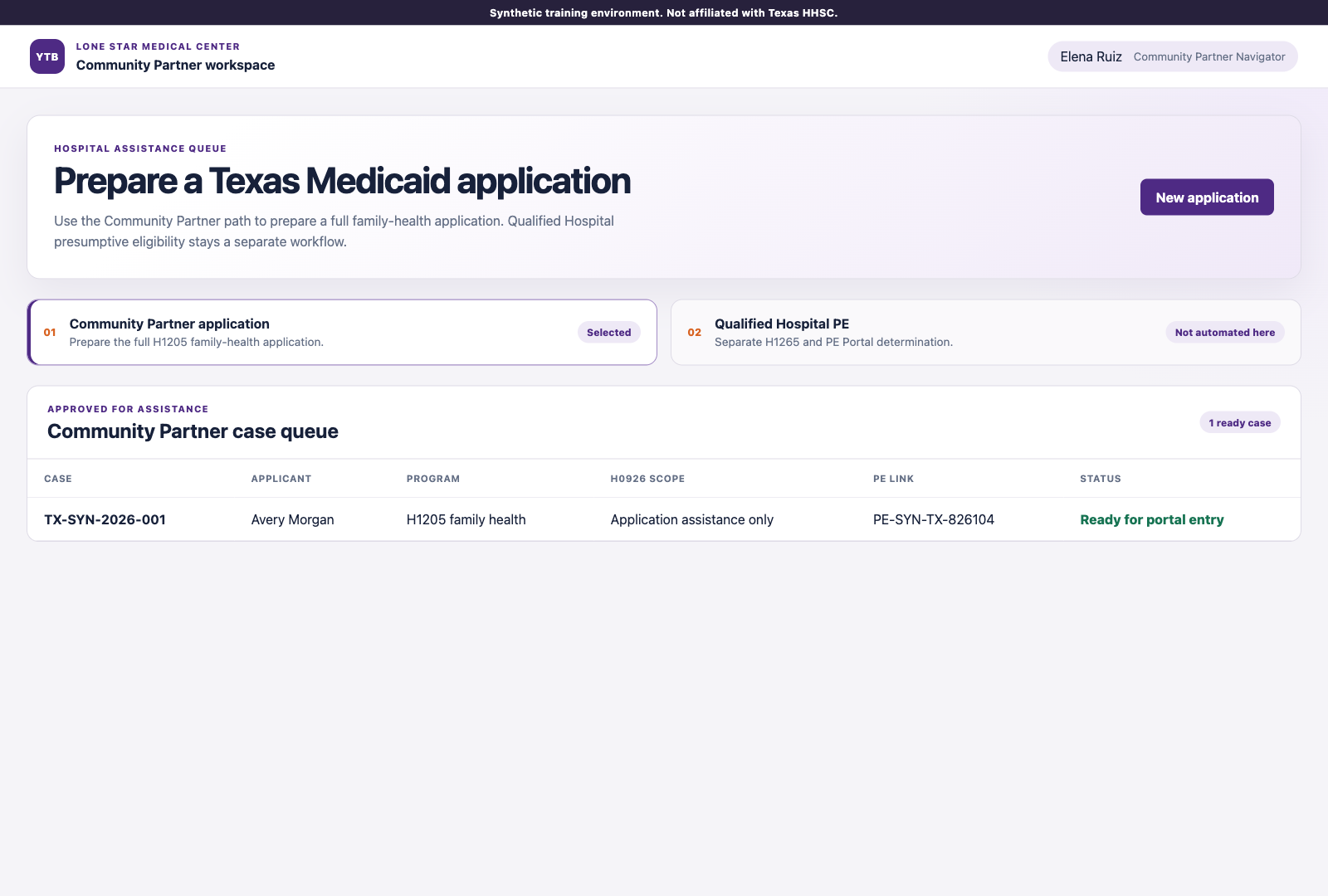
A simple work queue can hold the case pointers:
| Case ID | Application path | H0926 scope | PE link | Status |
|---|---|---|---|---|
| TX-SYN-2026-001 | H1205 family health | Application assistance only | PE-SYN-TX-826104 | Ready for portal entry |
The queue can point to a database, intake system, or Google Sheet. Keep one approved source rather than asking Skyvern to reconcile several partial records during portal entry.
Before a case starts, check that:
- the H0926 scope permits the planned help;
- every required answer has one approved value;
- the H1205 case type is already chosen;
- a PE submission ID comes from the separate hospital workflow;
- each evidence item belongs to the case; and
- unresolved conflicts are routed to staff.
3. Tell Skyvern what to do
Create a Skyvern browser task with the training-portal URL. We used Skyvern 1.0 and the following instruction:
This is a synthetic training environment using fictional data.

Start New application from the Community Partner case queue. On each
section, copy every value from the Approved hospital source panel into
the matching required field. Follow the H1205 family-health path.

The Qualified Hospital PE workflow is separate. Copy only the supplied
synthetic PE submission ID to link the existing PE record.

On Documents, click Add approved copy for all four packet items. Do not
open a local file picker. Do not attach H0926. Confirm every item says
Received.

On Check answers and submit, confirm Source comparison passed, 53 of 53
values match, four of four document items are received, and zero
mismatches remain. Then STOP. Never attest, sign, approve, or submit.
This tells Skyvern where to start, which record to trust, which branch to follow, what to check, and where human control begins. The task never asks Skyvern to infer eligibility or invent a missing answer.
For production, connect the workflow only to a credential and browser profile approved for the Community Partner account. Test with fictional cases before any protected information enters the system.
4. Move the application to review
Skyvern worked through seven training sections based on the public H1205 field map:
- About you
- Your family
- Medicaid path
- Income
- Health coverage
- Documents
- Review
The synthetic portal does not claim to copy the authenticated site's screen names or layout. Those details require authorized Community Partner access. It models the ordered questions and branches documented by Texas.
This case follows one narrow path: a pregnant applicant using the family-health application. An aged, disabled, institutional, or long-term-care case requires a different form and field map. Send those cases to a separately tested workflow or to staff.
5. Keep full applications and PE separate
Texas requires Qualified Hospital staff to make a presumptive-eligibility determination through the separate PE Portal using Form H1265. If the patient then applies for regular Medicaid, the hospital helps with the full H1205 application and links the two records with the PE submission ID.
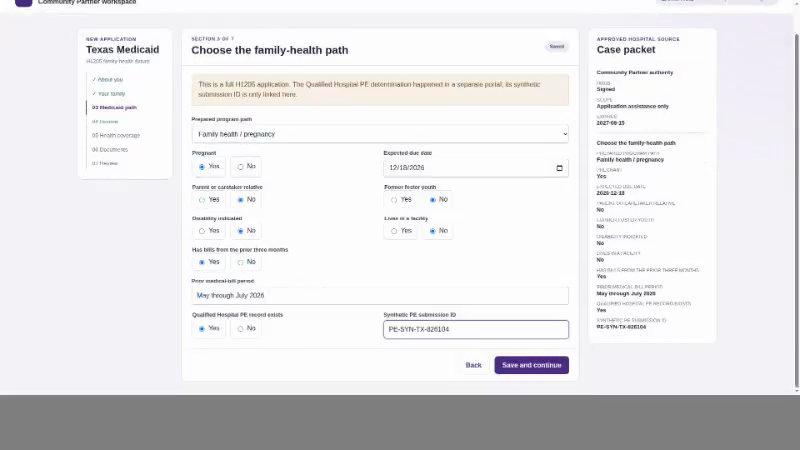
Our simulator makes that boundary visible. The queue identifies the Community Partner application as the active path. The Qualified Hospital PE path remains separate. Skyvern copies the existing synthetic PE ID into the full application but does not decide or submit presumptive eligibility.
This routing rule protects both accuracy and auditability. Your operations team can see which workflow created the PE record and which workflow prepared the regular application.
6. Handle employer coverage correctly
H1205 uses conditional appendices. Our case had an employer coverage offer, so Skyvern completed the Appendix A information: plan name, employee-only premium, payment frequency, and availability date.
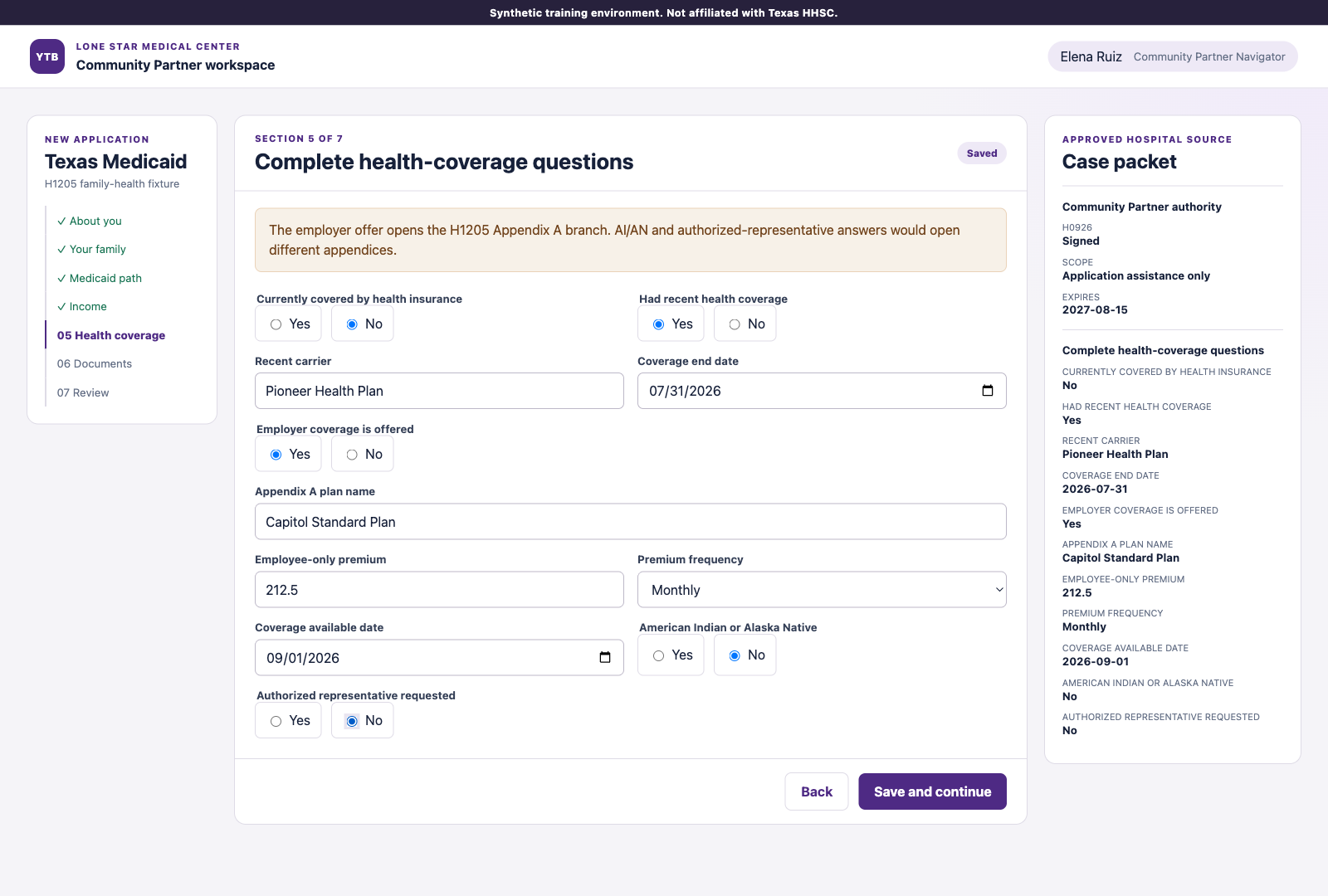
Appendix B covers an American Indian or Alaska Native family member. Appendix C covers an authorized representative. Those answers should open their own tested branch rather than being forced through the employer-coverage map.
At scale, this is where narrow workflows beat one broad automation. A branch flag in your source system can send each case to the correct map and return unknown combinations to staff.
7. Prepare the right supporting evidence
Skyvern added four items from the approved case packet:
- two recent pay statements;
- a recent coverage-end notice; and
- employer-coverage information.
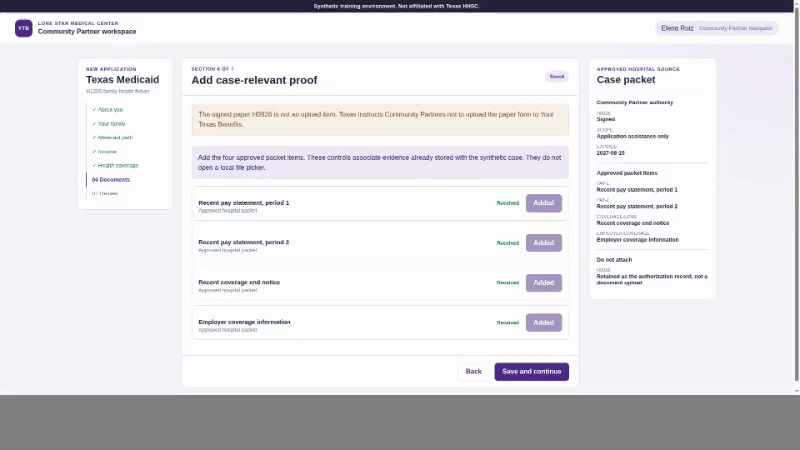
Texas may check electronic sources and request proof when information does not match. That means evidence is case-specific, not a universal upload bundle. Add only the documents approved for the case.
The signed paper H0926 is different. It establishes Community Partner authorization, but Texas says the paper form should not be uploaded to Your Texas Benefits. We kept it in the source panel as an access gate and removed it from the upload actions. That was the most important state-specific control in this test: the automation needs the authorization status without treating the authorization form as application evidence.
The training portal uses Add approved copy because it associates evidence records already stored with the synthetic case. A production workflow should receive the actual approved files, scan them, restrict access, and define retention before the run begins.
8. Send a clean application to review
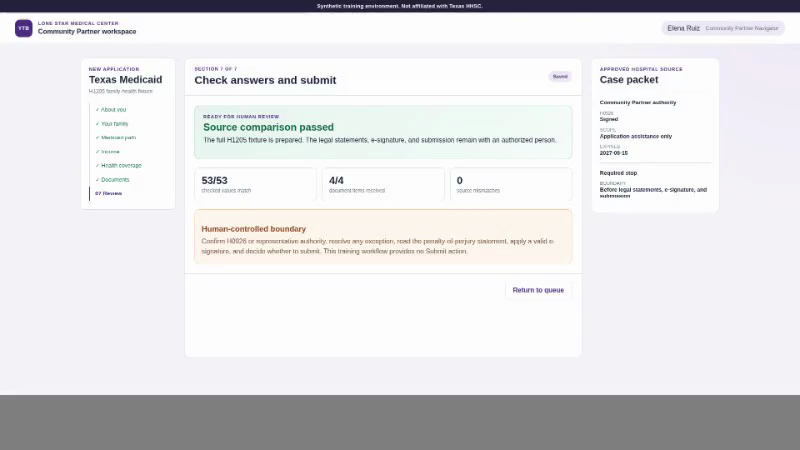
On Check answers and submit, the training workflow compared every entered answer with the case packet. Skyvern confirmed all 53 values matched, all four evidence items showed Received, and no mismatch remained. It then stopped.
| Check | Result |
|---|---|
| Total run time | 13 minutes 20 seconds |
| Training sections completed | 7 of 7 |
| Checked values matched | 53 of 53 |
| Approved document items received | 4 of 4 |
| Source mismatches | 0 |
| Human corrections during the run | 0 |
| Legal statement, signature, or submission performed | No |
This is one synthetic workflow result. It is not a success rate for the authenticated portal. An authorized pilot must test the real account, current page behavior, document constraints, and the exception mix your hospital sees.
Try the workflow yourself
Open the synthetic Texas application and run the prompt above.
A successful run should:
- choose the Community Partner H1205 path rather than the PE workflow;
- enter all 53 source values;
- link the existing synthetic PE submission ID;
- complete the employer-coverage branch;
- add four approved document items without attaching H0926;
- report zero mismatches; and
- stop before the legal statement, electronic signature, or submission.
Test failure paths as well. Remove the PE ID, one required income value, or one evidence item from separate fictional cases. The workflow should return each case to staff instead of guessing.
Move from one case to your full queue
Once this narrow case works reliably, save it as a reusable Skyvern Workflow. Pass a new approved packet and evidence set into the same workflow for each standard case.
Your hospital queue can then:
- start the workflow through the Skyvern API when a case becomes ready;
- restore approved account state with a Browser Profile;
- keep credentials in an approved credential store;
- send completed standard cases to Ready for review;
- send missing data, invalid authorization, unknown branches, and document problems to Needs attention; and
- write the result and run link back to your intake queue.
Build separate workflows for Community Partner applications and Qualified Hospital PE. Add a new H1205 branch only after you have an approved field map, test fixtures, evidence rules, human stop point, and exception owner.
The Business ROI
The return comes from removing repeated portal-entry work while staff focus on authorizations, missing facts, exceptions, and final review.
Monthly hours returned =
monthly applications x manual entry minutes / 60

Monthly entry cost addressed =
monthly hours returned x loaded hourly staff cost
For example, 500 applications at 25 minutes of manual portal work equal about 208 staff hours each month. At a loaded staff cost of $35 per hour, that work represents about $7,292 in monthly capacity. This is an illustration, not a measured result from our test. Replace it with your actual case volume, handling time, staff cost, Skyvern cost, exception rate, and review time.
The operating gain is capacity. Your team can move more complete cases to review while counselors spend less time copying values between systems.
What it takes to use this in production
Before using Skyvern with a live Texas account, confirm:
- your organization has the correct Community Partner role for full applications;
- Qualified Hospital PE and Community Partner application work remain distinct;
- H0926 is signed, in scope, and retained correctly before the task starts;
- the paper H0926 is not included in the document-upload queue;
- protected information follows your security, privacy, and retention controls;
- credentials and browser profiles have named owners;
- each run keeps its source, actions, result, and human reviewer together;
- unusual or incomplete cases return to staff; and
- legal review, electronic signature, and submission remain with an authorized person.
Start with one case type and a controlled pilot. Compare every prepared application with its source record and keep submission manual until your team trusts the evidence across the real branches it handles.
Skyvern can automate the repetitive browser work between your hospital systems and Your Texas Benefits. The safest first deployment is one case type, one approved source, one clear human checkpoint, and a recorded result for every run.
Talk to Skyvern about automating a healthcare portal workflow
Sources
- Your Texas Benefits Partner Login
- Form H1205, Texas Streamlined Application
- Form H0926 instructions
- Texas Presumptive Eligibility Handbook
- Texas Medicaid application and signature requirements
- Your Texas Benefits self-service portal capabilities
- Skyvern core concepts
- Skyvern Browser Profiles
- Skyvern credential stores
- Run Skyvern from code
- Synthetic Texas Medicaid application used in this tutorial
Keep reading
AI Automation for EOB Processing: Tools & Workflows (2026)
If you're looking into EOB processing, there's probably someone on your team spending hours downloading insurance payment documents and copying the numbers into billing software. They log in to one insurer's website, find the right document, save it, and move on to the next. We've built Skyvern for this kind of healthcare admin work. It's an AI browser agent that can log into these websites, find the documents, and download them for you. You can build the rest of the workflow in Skyvern too, fr
How to Automate Insurance Eligibility Verification with Skyvern
A step-by-step guide to using Skyvern for insurance eligibility checks, from entering patient details in payer portals to returning coverage and benefits to your appointment system.
How to Automate Pharmacy Invoice Downloads
When your accounting team needs an invoice from a wholesaler portal, somebody has to go and get it. They sign in, pick the pharmacy account, find the right billing period, download the PDFs, and file them. Then they repeat the process in the next portal. And then the next... Every billing cycle! I know the pain. We built Skyvern for healthcare workflows like this. You give an AI agent a job to do in the browser, and it works through the website to do it. For pharmacy invoice collection, that m
Put the browser to work
Use Skyvern for the work that lives in a browser.
Turn repetitive browser tasks into reliable workflows with Skyvern.