Browser MCP in 2026: What It Is, How It Functions, and the Best Servers Available
 Suchintan Singh13 min read
Most browser automation scripts fail the moment a site changes its layout. A button moves, a class name updates, and your carefully crafted Selenium script stops working. Skyvern solves this by giving AI agents live browser access instead of hardcoded selectors. The agent sees what's actually on the screen, decides what to do next, and adapts when things change. That's the difference between brittle scripts that need constant maintenance and automation that keeps working. This guide covers what browser MCP is, how it's structured, which server implementations are worth your time, and how to set one up with tools like Cursor and Claude Code.
TLDR:
- Browser MCP lets AI agents control real browsers to interact with login-protected pages and dynamic content that APIs cannot reach.
- It uses a client-server architecture where agents call standardized tools for clicking, typing, and inspecting pages instead of hardcoded selectors.
- Script maintenance drops because agents adapt to layout changes instead of breaking when a button moves or a class name changes.
- Popular servers include agentdeskai/browser-tools-mcp for Chrome, Puppeteer MCP, and Playwright MCP for multi-browser testing.
- Skyvern uses computer vision to read pages visually, so workflows keep running when layouts change without manual fixes.
What Is Browser MCP and Why It Matters in 2026
Browser MCP is a specification that lets AI agents control a real web browser during a task. Instead of guessing what a webpage contains from a text summary, an agent equipped with a browser MCP server can click buttons, fill forms, read dynamic content, and observe the results in real time.
The "MCP" stands for Model Context Protocol, an open standard that gives LLMs a structured way to call external tools. Browser MCP applies that protocol directly to browser control, so any compatible agent can open URLs, inspect the DOM, take screenshots, or run JavaScript without custom glue code for every project.
In 2026, this matters because most valuable workflows live behind login screens, multi-step forms, and JavaScript-generated pages that plain API calls cannot reach. 78% of enterprise AI teams use MCP, making browser MCP a practical standard and no longer an experimental tool. Browser MCP bridges that gap, letting agents operate the web the way a person would.
How Browser MCP Works: Architecture and Core Components
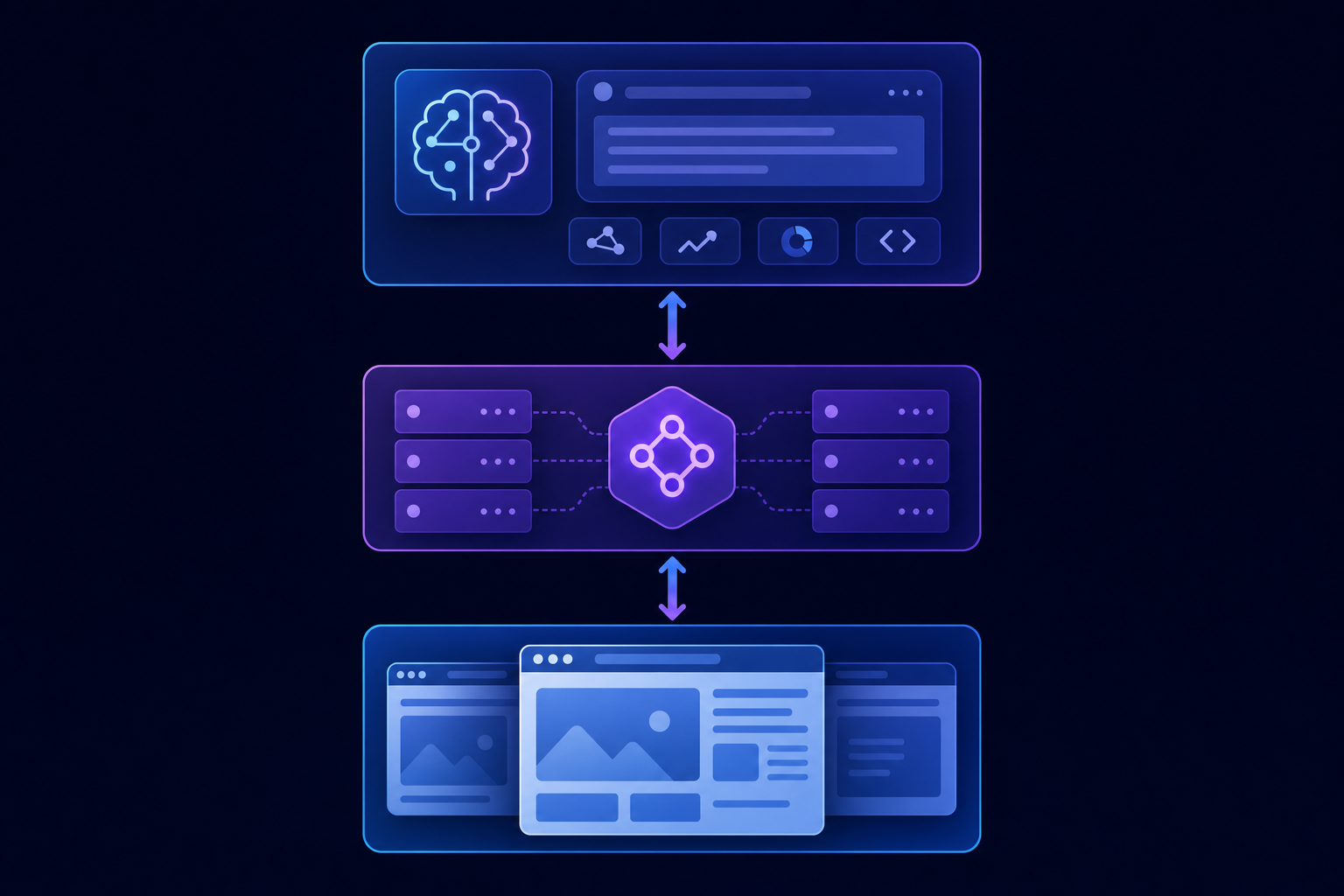
Browser MCP follows a client-server architecture where your AI agent or coding tool acts as the MCP client, and a locally running process acts as the MCP server. The server exposes a set of standardized tools that the client can call, each corresponding to a browser action like clicking, typing, scrolling, or taking a screenshot.
There are a number of components that work together here:
- The MCP server process runs locally on your machine and manages one or more browser instances, either through a Chrome DevTools Protocol connection to an existing browser or by spinning up a headless instance programmatically.
- The AI client sends tool-call requests over a local transport layer, typically stdio or HTTP with server-sent events, and receives structured responses containing page state, screenshots, or extracted data.
- The browser bridge handles the low-level communication between the server and the browser, forwarding commands and returning DOM snapshots, console logs, or network activity depending on what the tool requested.
When a user asks Claude or Cursor to complete a web task, the LLM decides which browser tool to call, passes the necessary arguments, and interprets the result before deciding its next step. This loop continues until the task is complete or the agent hits an error it cannot resolve on its own.
Browser MCP vs Traditional Browser Automation
Traditional browser automation tools like Selenium, Playwright, and Puppeteer work by targeting specific DOM elements through selectors, XPaths, or CSS classes. When a website updates its layout, those selectors break, and your scripts stop working. Maintaining these scripts requires constant attention from engineers who understand both the codebase and the sites being automated.
Browser MCP takes a different approach. Instead of hardcoding element selectors, it exposes browser state and actions as structured tools that an AI agent can call dynamically. The agent reads what's actually on the screen and decides how to interact with it, making the automation far more resilient to UI changes.
There are a few ways this plays out in practice:
- Script maintenance drops considerably because the agent adapts to layout changes instead of failing when a button moves or a class name changes.
- Complex multi-step workflows become easier to express as natural instructions instead of procedural code with dozens of brittle intermediate steps.
- Non-engineers can describe tasks in plain language, and the agent handles the execution details, lowering the barrier to building useful automations.
The tradeoff is that browser MCP setups introduce LLM inference into the loop, which adds latency and cost compared to direct script execution. For high-volume, repetitive tasks where the page structure never changes, traditional automation can still be faster and cheaper. But for tasks involving dynamic content, varied site structures, or workflows that require judgment calls, browser MCP handles cases that traditional scripts simply cannot.
Key Features of Browser MCP Servers
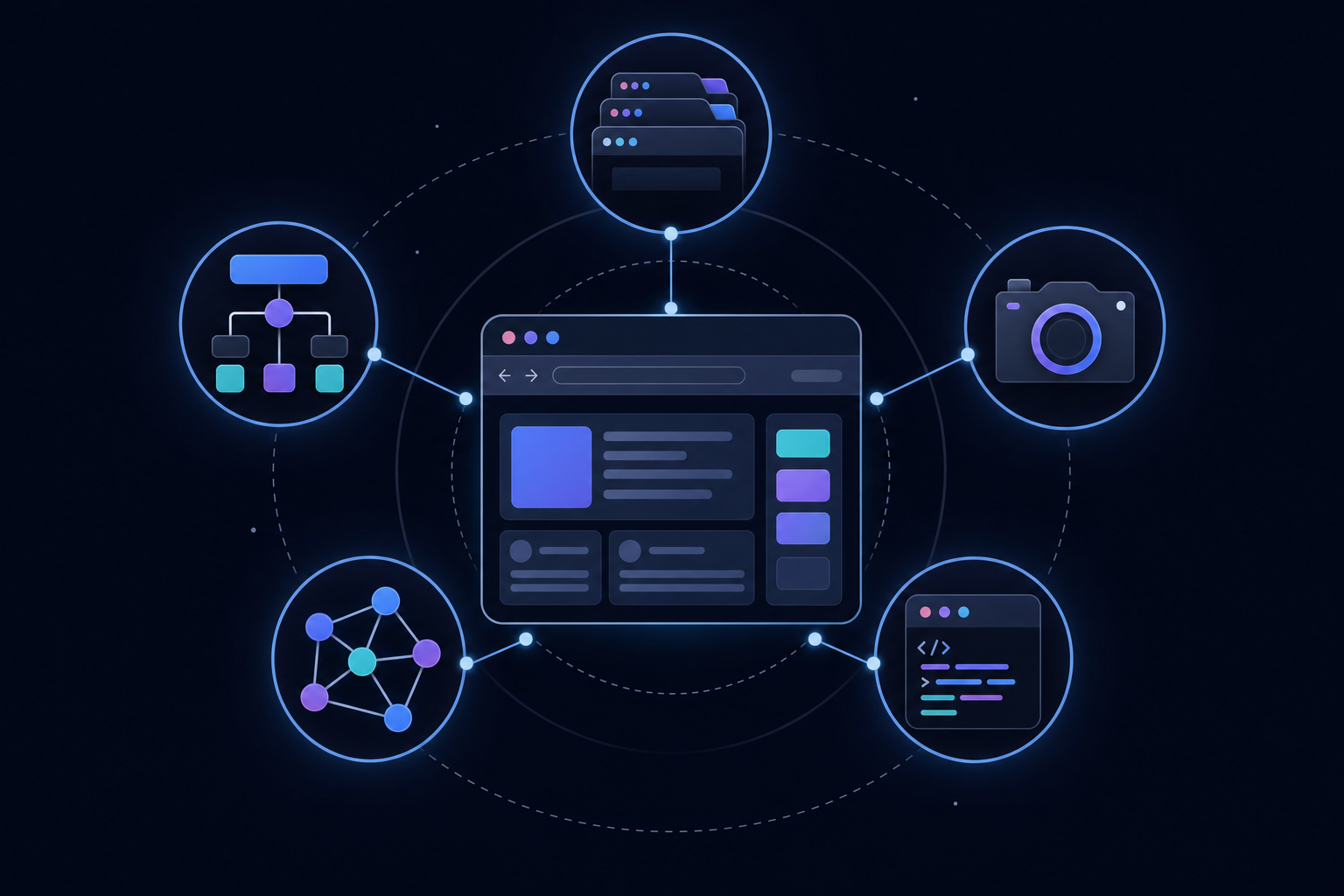
Browser MCP servers expose a consistent set of capabilities that let AI agents interact with the web the way a human would, without requiring custom integration code for every new task.
There are a number of core capabilities that define what a browser MCP server actually does:
- Page navigation and URL control, allowing agents to load pages, follow links, and manage browser history across multi-step workflows.
- DOM inspection and element interaction, so agents can read page content, click buttons, fill out forms, and trigger JavaScript events based on what's visible on screen.
- Screenshot capture and visual context, giving agents a pixel-level view of the page to handle sites where the underlying HTML alone doesn't tell the full story.
- Console and network log access, letting agents inspect errors, monitor API calls, and debug page behavior in real time.
- Tab and session management, so agents can open multiple windows, switch contexts, and maintain authenticated sessions across longer workflows.
How These Features Work Together
These capabilities become meaningful when combined. An agent submitting a form, for example, needs to read the page structure, identify the right fields, type into them, handle any validation errors that appear, and confirm the submission succeeded. A browser MCP server gives the agent all the hooks it needs to complete that sequence without brittle CSS selectors or hardcoded scripts.
The breadth of what's exposed also matters for reliability. Agents that can only click and type tend to fail when pages behave unexpectedly. Access to console logs and network responses gives the agent enough context to recover from errors instead of silently failing midway through a task.
Top Browser MCP Server Options
There are several browser MCP server options worth knowing about, each suited to different workflows and tools. Here is a look at the most widely used ones.
agentdeskai/browser-tools-mcp
agentdeskai/browser-tools-mcp is a browser MCP server that bridges AI coding tools and Chrome through a browser extension paired with a local Node.js server. It is one of the most referenced options in the developer community. It gives tools like Cursor and Claude Code access to console logs, network requests, screenshots, and DOM snapshots, making it a strong fit for debugging and iterative development workflows.
Puppeteer MCP Server
Puppeteer MCP Server is a browser automation server built on top of Google's Puppeteer library. It gives LLMs programmatic control over a headless Chrome instance and suits teams that need reliable browser automation and are comfortable with a code-forward setup.
Playwright MCP Server
Microsoft's Playwright MCP server supports Chrome, Firefox, and WebKit in 2026. It is a strong pick for multi-browser testing environments where cross-browser consistency matters.
Skyvern
Skyvern takes a different approach. Instead of relying on DOM selectors or hardcoded scripts, it uses computer vision and AI reasoning to interact with web pages the way a human would. This makes it far more resilient when page layouts change. Skyvern exposes an MCP-compatible server that works with Cursor, Claude Code, and other MCP clients, allowing agents to complete complex, multi-step browser tasks without brittle element targeting.
Side-by-Side Comparison of MCP Servers
Server | Primary Browser Support | Automation Approach | Best For | Resilience to Layout Changes |
|---|---|---|---|---|
Skyvern | Chrome via computer vision and AI reasoning | Visual understanding of page elements instead of DOM selectors, adapts when layouts change | Production workflows with authentication, dynamic sites, and multi-step tasks that need to work across layout updates | High - uses computer vision to identify elements visually, so changes to HTML structure or class names do not break workflows |
agentdeskai/browser-tools-mcp | Chrome via extension and local Node.js server | DOM inspection, console logs, network requests, and screenshots through browser extension | Development and debugging workflows where you need live browser state visibility during iterative coding | Low - relies on DOM structure and element selectors that break when sites update their HTML |
Puppeteer MCP Server | Headless Chrome via Puppeteer library | Programmatic browser control through DevTools Protocol with code-forward configuration | Teams comfortable with code-based setup who need reliable headless automation for stable page structures | Low - uses explicit element targeting that fails when selectors change during site updates |
Playwright MCP Server | Chrome, Firefox, and WebKit cross-browser support | Multi-browser testing with programmatic control across different browser engines | QA teams running cross-browser test suites where consistent behavior across browsers matters | Low - selector-based automation breaks on layout changes across all supported browsers |
Setting Up Browser MCP with Claude Code
Claude Code supports two paths for adding a browser MCP server, depending on how much control you want over the setup.
Project-level vs. global configuration
You can scope your MCP server to a single project by editing the .mcp.json file in your project root, or register it globally so every Claude Code session can access it. Most developers start with project-level scoping to keep configurations isolated.
Installation steps
- Run
claude mcp addin your terminal and follow the prompts to register your chosen browser MCP server by name and command path. - Confirm the server appears when you run
claude mcp list, which shows all active MCP connections for your current scope. - Test the connection by asking Claude Code to open a URL or take a screenshot, which triggers the browser MCP tools directly from the chat interface.
Installing Browser MCP in Cursor IDE
Cursor stores MCP server configurations in a JSON file at ~/.cursor/mcp.json, making the setup process different from Claude Code's command-line registration flow. There's no mcp add command here. You edit the config file directly.
Configuration file setup
Open or create ~/.cursor/mcp.json and add your browser MCP server as an entry under the mcpServers key:
{
  "mcpServers": {
    "browser-tools": {
      "command": "npx",
      "args": ["@agentdeskai/browser-tools-mcp"]
    }
  }
}
For setting up Skyvern's cloud-based MCP server in Cursor IDE, use HTTP transport instead:
{
  "mcpServers": {
    "skyvern": {
      "type": "http",
      "url": "https://api.skyvern.com/mcp/",
      "headers": {
        "x-api-key": "YOUR_SKYVERN_API_KEY"
      }
    }
  }
}
Save the file and restart Cursor. The MCP tools appear in the agent panel once the server connects.
Verifying the connection
Ask Cursor's AI to take a screenshot of a URL or inspect an element on a running page. If the browser tools respond, the setup worked. If you see a timeout or "tool not found" error, check that the server process is running and that the command path in your config resolves correctly on your system.
Cursor's agent mode is where browser MCP tools shine most. Describing a task like "check if the login form submits correctly on localhost:3000" lets the agent move through, interact, and report back without you writing a single test script.
Browser MCP Extensions for Chrome and Firefox
Browser MCP extensions bring AI-assisted browser control directly into Chrome and Firefox, letting AI agents observe and interact with web pages without requiring a separate server process running in the background.
For Chrome users, the most common setup pairs a browser extension with a local MCP server. The extension injects scripts into active tabs, captures DOM snapshots, monitors network requests, and forwards that data to whatever AI client is connected. Chrome DevTools Protocol access gives these extensions low-level visibility into page state that surface-level scraping cannot match.
Firefox support follows a similar pattern, though the extension ecosystem is less mature. Most browser MCP projects list Chrome as the primary target, with Firefox support arriving later or maintained as a community contribution. If Firefox is your default browser, check the project's GitHub issues before committing to a setup.
What to look for in a browser MCP extension
There are a number of factors worth checking before installing any browser MCP extension:
- Permissions requested at install time, since broad host permissions can expose sensitive session data to the connected AI client
- Whether the extension supports Manifest V3, as Chrome is phasing out Manifest V2 extensions
- Active maintenance signals like recent commits and open issue responses on the project's GitHub repository
- Compatibility with your AI client, whether that is Cursor, VS Code, or Claude Code, since not every extension ships with configs for all three
Common Use Cases for Browser MCP
Browser MCP slots into workflows where AI assistants keep hitting walls because they lack live browser access. There are a number of recurring scenarios where it earns its place:
- Authenticated web scraping: log in, move behind a session, and extract structured data from portals that block unauthenticated requests.
- Automated QA testing: ask your AI assistant to run through a checkout flow or login sequence on localhost before you push, with no test scripts to maintain.
- Form automation: fill and submit repetitive forms across multiple sites using natural language instructions instead of per-site scripts.
- OAuth and browser-based API flows: complete authorization redirects that REST clients cannot handle, then hand off the token to downstream logic.
- Frontend debugging: give your AI access to console errors and network traces while it inspects a broken page, so you get a diagnosis alongside the fix.
Troubleshooting Browser MCP Setup and Connection Issues
Most browser MCP failures fall into a handful of predictable categories. Here is how to diagnose and fix the common ones.
Connection Refused Errors
Check that the server started correctly by running it manually in your terminal and watching for startup errors. If the process launches but connections still fail, confirm no other service is occupying the expected port. On most systems, lsof -i :<port> shows what is using a given port.
Timeout Errors on Long Browser Tasks
Browser MCP clients have default request timeouts that shorter tasks never hit. Multi-step workflows can exceed these limits easily, so raise them if your client supports it, or break the task into smaller chained steps.
Extension Not Detected by the MCP Server
The server needs to be running before the browser opens the tab. Starting them in the wrong order means the extension cannot create its WebSocket connection. Restart Chrome after confirming the server is up, then reload the active tab.
CAPTCHA and Bot Detection Blocking Workflows
If the server uses a headless instance or datacenter IP, sites with aggressive bot detection will block it. Switching to non-headless mode and routing traffic through a residential proxy resolves most cases.
MCP Server Process Crashes Mid-Task
Crashes often trace back to an unhandled exception, memory pressure from many open tabs, or a missing dependency surfacing at runtime. Run the server with verbose logging turned on so you get a stack trace instead of a silent exit.
How Skyvern Provides Production-Grade Browser Automation
Skyvern approaches browser automation differently from most MCP-based tools. Instead of relying on DOM selectors or fragile CSS paths, Skyvern uses computer vision and AI to read web pages the way a human would, identifying elements by what they look like on screen instead of how they're structured in the underlying code.
This matters because most browser MCP setups break when a website updates its layout. Skyvern, though, adapts visually, so workflows keep running without manual fixes.
There are a number of things that make Skyvern well-suited for production use:
- Skyvern reads pages visually, so layout changes, A/B tests, and dynamic content don't break running workflows the way they do with selector-based tools.
- Authentication handling is built in, covering OAuth flows, MFA prompts, and session management without requiring custom workarounds.
- Workflows can run across multiple sites without site-specific configuration, since Skyvern reasons about what's on screen instead of following hardcoded instructions.
- The explainable AI component explains every action taken, which matters for teams that need audit trails or want to debug unexpected behavior.
- Skyvern runs as a managed cloud service, removing the infrastructure overhead that comes with self-hosted MCP server setups.
For teams that have outgrown simple browser MCP configurations and need automation that holds up under real-world conditions, skyvern.com offers a starting point for seeing what production-grade browser automation looks like in practice.
Code Example: Running a Browser Task with the Skyvern Python SDK
Most browser automations eventually hit a wall with login-protected pages, dynamic content, or multi-step flows that a selector-based tools cannot handle reliably. Here is what triggering a production browser workflow through Skyvern looks like using the Python SDK:
pip install skyvern
from skyvern import Skyvern
import asyncio

# Initialize the client with your Skyvern Cloud API key
skyvern = Skyvern(api_key="YOUR_SKYVERN_API_KEY")

async def run_invoice_download():
    task = await skyvern.run_task(
        # Starting URL for the workflow
        url="https://portal.example.com/invoices",
        # Natural language goal — no XPaths or selectors needed
        prompt="Log in, go to the invoices page, and download the most recent invoice. "
               "COMPLETE when the file has been downloaded successfully.",
        # Define the output schema so the response is structured JSON
        data_extraction_schema={
            "type": "object",
            "properties": {
                "invoice_number": {
                    "type": "string",
                    "description": "The invoice number from the downloaded file"
                },
                "amount_due": {
                    "type": "number",
                    "description": "Total amount due on the invoice"
                },
                "due_date": {
                    "type": "string",
                    "description": "Payment due date in YYYY-MM-DD format"
                }
            }
        },
        # Block until the task finishes before reading output
        wait_for_completion=True,
        # Pass a totp_identifier if the portal requires 2FA
        totp_identifier="invoices@yourcompany.com",
        # Receive a webhook notification when the run completes
        webhook_url="https://your-server.com/webhooks/skyvern",
    )
    # Structured output matching the schema above
    print(task.output)

asyncio.run(run_invoice_download())
No element IDs, no XPaths, no CSS selectors in sight. The agent reads the live page state, moves through the login flow, handles 2FA through the totp_identifier, and extracts structured data, all without a script that breaks the moment the portal updates its layout. Swap the url and prompt to point at a different site and the same code runs unchanged.
Final Thoughts on Browser Automation Through MCP
Browser MCP solves the problem of brittle automation scripts by letting AI agents read and interact with web pages the way a person would, instead of relying on selectors that break every time a site updates. Your choice of server depends on what you're building, whether you need simple development feedback or production workflows that handle authentication and dynamic content across multiple sites. Start with a basic setup to see how browser MCP fits your workflows, then move to something more capable when you need reliability at scale. Book time with us if you want to talk through what production-grade browser automation looks like for your specific use case.
FAQ
Browser MCP vs Playwright: which should you use?
Playwright is faster for repetitive tasks where the page structure stays the same, but browser MCP handles dynamic content and UI changes without breaking. If your workflows involve sites that update frequently or require judgment calls, browser MCP adapts where Playwright scripts fail.
Can browser MCP handle 2FA and CAPTCHA automatically?
Most browser MCP servers expose the browser state but leave authentication handling to your AI agent, which often struggles with CAPTCHA and multi-factor flows. Skyvern's MCP server includes built-in authentication handling that covers OAuth, MFA prompts, and CAPTCHA solving without requiring custom workarounds.
How do you install browser MCP in Cursor?
Edit ~/.cursor/mcp.json and add your browser MCP server under the mcpServers key with the command path and arguments. Save the file, restart Cursor, and verify the connection by asking Cursor's AI to take a screenshot or open a URL.
What's the best browser MCP server for production workflows?
For development and debugging, agentdeskai/browser-tools-mcp works well with Chrome. For production workflows that need to handle authentication complexity, dynamic sites, and ongoing maintenance, Skyvern's MCP server uses computer vision instead of DOM selectors, so automations keep working when websites change their layouts.
Keep reading
5 Best AI Browser Agents in 2026
The best browser agents can reliably and repeatedly handle jobs you would do by clicking through a web browser, like filling out a form, collecting documents, or updating customer records. So if you’re tired of wasting time filling out forms and clicking dropdowns, this article is for you. Before I continue, full disclosure: I am Skyvern’s CEO, a browser agent SDK written in Python built to automate workflows. It’s built specifically to handle complex business workflows, like dealing with heav
Page Object Model (POM) in Test Automation
I know why you’re looking into Page Object Model: you’re tired of fixing the same CSS selectors across five different tests every time someone changes a form. You copied the login steps a few times, the test suite grew, and now a small UI change means an afternoon of maintenance. POM gives those repeated interactions a home. Your test scripts call a method like signIn(), and a page object handles the fields and buttons underneath. When a shared selector changes, you have one place to fix it. I
What Is Playwright MCP Server? How It Works and When to Use It (May 2026)
Playwright MCP Server connects AI coding assistants to browsers so they can automate web interactions conversationally. You describe a test scenario, the assistant spins up Playwright, executes the steps, and returns results. That flow works well for generating new tests or working through unfamiliar UIs. Where it starts breaking down is high-volume regression testing, stable workflows with fixed selectors, or production pipelines where token overhead compounds fast. TLDR: * Playwright MCP Se
Put the browser to work
Use Skyvern for the work that lives in a browser.
Turn repetitive browser tasks into reliable workflows with Skyvern.