What Is Playwright MCP Server? How It Works and When to Use It (May 2026)
 Suchintan Singh12 min read
Playwright MCP Server connects AI coding assistants to browsers so they can automate web interactions conversationally. You describe a test scenario, the assistant spins up Playwright, executes the steps, and returns results. That flow works well for generating new tests or working through unfamiliar UIs. Where it starts breaking down is high-volume regression testing, stable workflows with fixed selectors, or production pipelines where token overhead compounds fast.
TLDR:
- Playwright MCP Server connects AI assistants to browsers via accessibility trees instead of screenshots
- Install in one command for Claude, Cursor, or VS Code, then ask your assistant to browse and interact with pages
- 114,000 vs 27,000 tokens benchmark, a 4x difference that matters for production
- Best for test generation and exploratory automation, but plain Playwright scripts run faster for stable workflows
- Skyvern handles production browser automation with cloud sessions, CAPTCHA solving, and multi-site workflows
What Is Playwright MCP Server?
Playwright MCP Server is a Model Context Protocol server that gives AI assistants direct control over a browser via Playwright. It acts as a bridge between an LLM and the web: the AI issues structured commands, and Playwright executes them by clicking buttons, filling forms, and navigating pages.
What distinguishes it from other browser automation approaches is how the AI "sees" a page. Instead of processing screenshots, Playwright MCP Server exposes the browser's accessibility tree as structured snapshots. The LLM reads element labels, roles, and states, which is faster and more predictable than interpreting pixels.
There are three components that come together here:
- The MCP protocol standardizes how AI tools communicate with external services, giving LLMs a consistent interface to interact with the outside world.
- Playwright handles actual browser interaction, managing clicks, form inputs, navigation, and page state under the hood.
- The server sits between both, translating AI intent into browser actions without requiring the model to parse visual output at every step.
How Model Context Protocol (MCP) Works
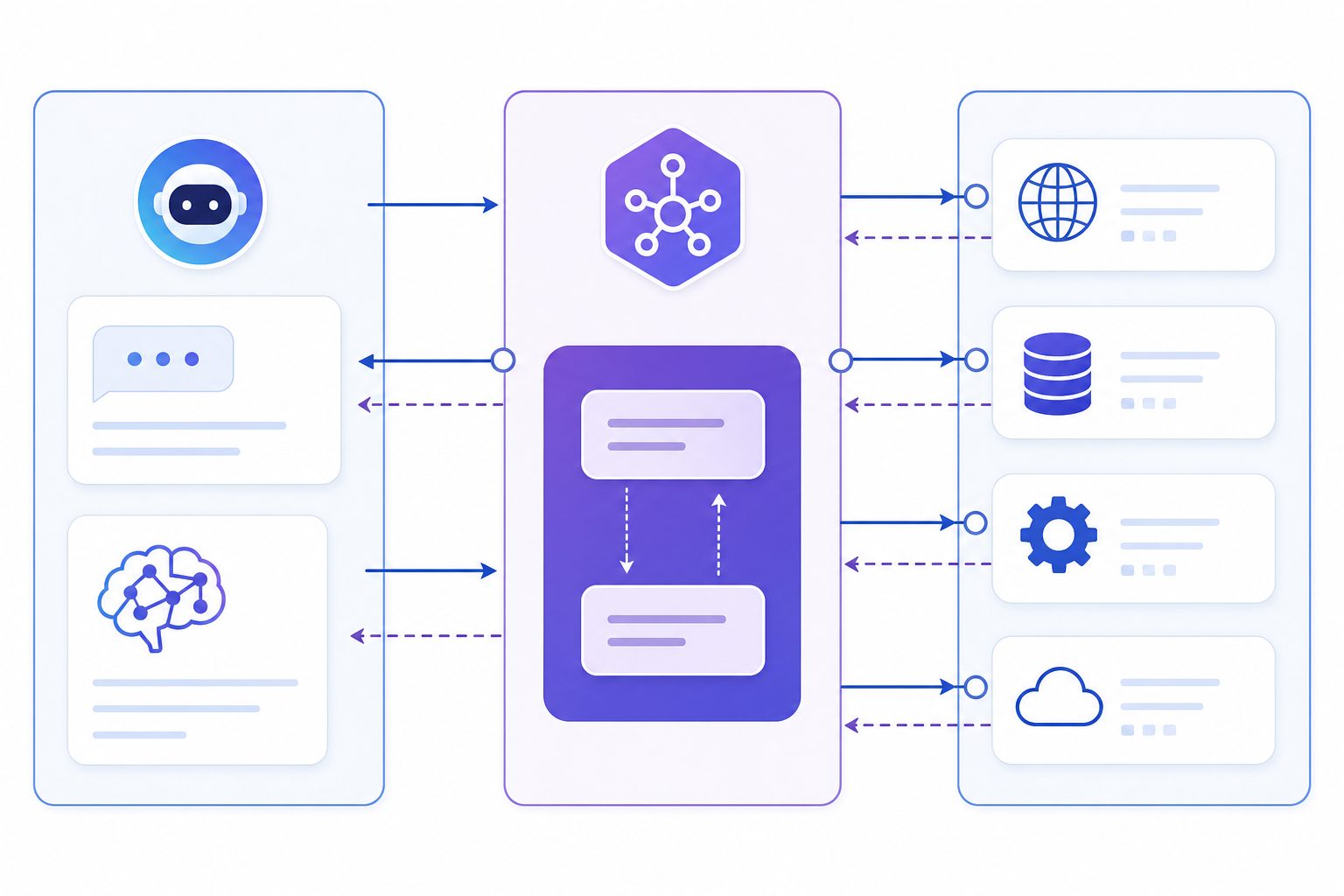
Think of MCP the way you'd think of USB-C. Before USB-C, every device needed its own cable and connector. MCP standardizes AI integrations: instead of building custom glue code every time an LLM needs to talk to a new tool, MCP gives developers one standard interface that works across clients.
The architecture follows a client-server model. An MCP client (your AI assistant) sends requests to an MCP server (like Playwright MCP Server) over JSON-RPC, a lightweight messaging format that defines how calls are structured and how responses come back. The server exposes a list of available tools, and the client calls them by name with typed parameters.
What this removes are worth noting. Without MCP, connecting Claude or GPT-4 to Playwright would mean writing custom API wrappers, handling authentication, parsing outputs, and maintaining that code as both sides evolve. With MCP, the server handles all of that. The client just needs to know the tool names and what arguments they accept.
"MCP is to AI integrations what REST was to web APIs: a shared contract that lets both sides evolve independently without breaking each other."
That standardization is exactly why Playwright MCP Server works across Claude, Cursor, VS Code, and other AI clients without needing separate implementations for each one.
How Playwright MCP Server Works
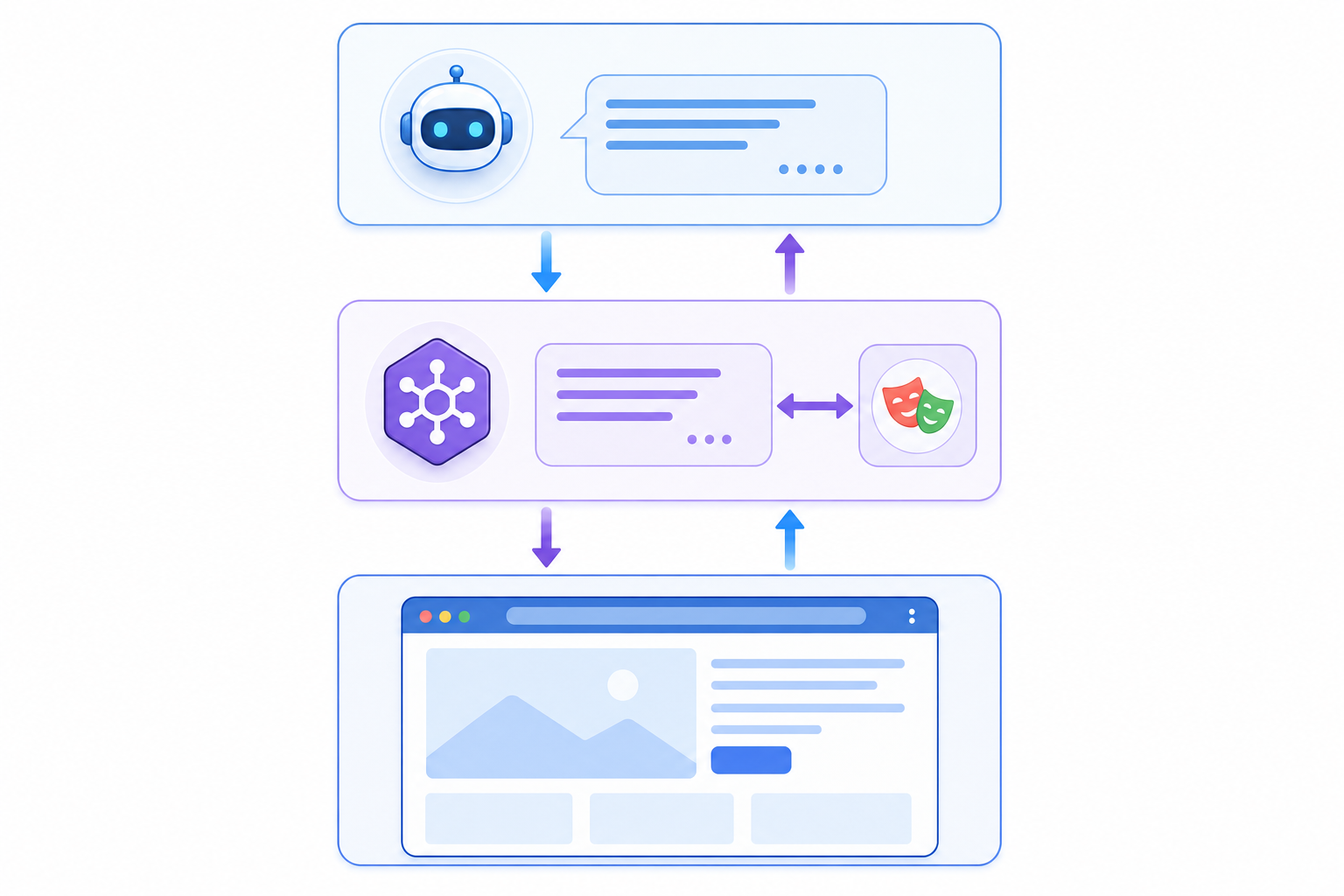
The execution cycle works as a loop. When an AI sends a task, it reaches the Playwright MCP server, which interprets the instruction and maps it to browser actions. The server opens a browser instance, performs the requested interaction, and returns structured results back to the AI agent.
The Three Layers Involved
There are three layers working together in every request:
- The AI agent or LLM sends instructions in plain language through an MCP-compatible client like Claude, Cursor, or VS Code Copilot.
- The MCP server receives those instructions and translates them into Playwright API calls, handling page navigation, element interaction, and data capture.
- The browser executes the actual web interaction and feeds results back up the chain so the AI can decide what to do next.
This back-and-forth continues until the task is complete or the agent determines it cannot proceed.
What the Server Can Actually Do
Once connected, the Playwright MCP server exposes a set of tools for browser automation. These include clicking elements, filling forms, taking screenshots, reading page content, and running assertions. The server can operate in headed or headless mode, which matters depending on whether you need visual feedback during debugging or silent execution in a CI pipeline.
Installing and Configuring Playwright MCP Server
Now that you understand how Playwright MCP Server works, here is how to get it running in your environment. Getting Playwright MCP Server running takes one command for most setups. For Claude Code, the quickest path is:
claude mcp add playwright npx @playwright/mcp@latest
For other clients, you'll add the server manually via a JSON config file. The block is the same across clients — only the file location changes.
{
  "mcpServers": {
    "playwright": {
      "command": "npx",
      "args": ["@playwright/mcp@latest"]
    }
  }
}
Config file locations by client
Client | Config path |
|---|---|
Claude Desktop (macOS) |
|
Claude Desktop (Linux) |
|
Claude Desktop (Windows) |
|
Cursor |
|
VS Code (project) |
|
After saving the config, restart your client. A quick verification: ask your assistant to open a page and describe what it sees. If it responds with actual content, the connection is live.
Common sesstup issues
- Missing browser binaries: run
npx playwright installto download Chromium, Firefox, and WebKit if your environment does not already have them - Config not detected: confirm the JSON is valid and saved to the correct path for your OS
- Node.js not found:
npxrequires Node.js 18 or later, which you can check by runningnode --version
Core Features and Available Tools
Playwright MCP Server ships with a focused set of tools that give AI agents structured access to browser automation capabilities. There are five tool categories worth knowing before you start working with it.
Browser Navigation
The server exposes tools for opening URLs, clicking elements, filling forms, and handling page transitions. Agents can interact with pages the way a user would, without writing selector logic manually.
Snapshot and Screenshot Capture
Agents can capture accessibility tree snapshots or visual screenshots, giving the LLM a structured or visual representation of the current page state to reason about next steps.
Script Execution
The server supports executing JavaScript directly on the page, which covers edge cases where direct element interaction falls short.
Tab and Dialog Management
Multiple tabs can be opened and switched between, and browser dialogs like alerts and confirms can be handled programmatically, keeping workflows from stalling on interruptions.
Network and Console Monitoring
The server can expose network request data and console output to the agent, which is useful for debugging or validating that the right API calls fired after an interaction.
When to Use Playwright MCP Server
Now that you know what Playwright MCP Server can do, the next question is when it actually makes sense to reach for it. Playwright MCP Server fits well when an AI assistant needs to reason through a browser interaction beyond simply executing a predetermined script.
Playwright MCP Server fits well when an AI assistant needs to reason through a browser interaction beyond simply executing a predetermined script. These five scenarios are where it shines:
- You want an AI coding assistant (Copilot, Claude, Cursor) to generate and run browser tests directly from a task description
- Workflows involve multi-step flows where the next action depends on what the page returns
- You need exploratory testing against an unfamiliar UI
- Web scraping requires authentication or dynamic navigation that changes between sessions
- You're doing one-off or low-frequency automation where setup speed matters more than raw execution speed
Poor fit signals are equally worth knowing:
- Simple, stable workflows with fixed selectors run faster and cheaper as plain Playwright scripts
- High-volume, parallelized production testing where LLM overhead adds latency at scale
- Environments without Node.js access or where installing
npxpackages is restricted
The clearest use case is AI-assisted QA: an engineer describes a test goal in natural language, the assistant generates the test steps, Playwright MCP Server executes them in a real browser, and results come back without writing a single selector by hand.
Playwright MCP vs Playwright CLI
The Playwright team's benchmarks show a typical browser automation task consuming roughly 114,000 tokens with MCP versus about 27,000 tokens with CLI, a 4x reduction, with longer sessions showing even wider gaps.
That number alone reframes how you pick between the two. CLI is not a stripped-down MCP. It's a different architecture built for token optimization and coding agents that need direct filesystem access, and in May 2026 it represents Microsoft's clearest signal about where agent-native browser automation is heading.
MCP | CLI | |
|---|---|---|
Context method | Accessibility tree snapshots | Structured command output |
Token consumption | ~114,000 per task | ~27,000 per task |
Strengths | Rich page introspection, sandboxed environments, exploratory automation | Token-efficient, filesystem access, production agent pipelines |
May 2026 status | Widely adopted across Claude, Cursor, VS Code | Microsoft's strategic direction for agent workflows |
MCP wins when exploration and deep page introspection matter more than cost: understanding unfamiliar UIs, running one-off tests in sandboxed environments, or letting an agent reason through ambiguous page states. CLI wins when you're building production agents where token consumption compounds fast, or when your agent needs to read and write files alongside browser actions.
Using Playwright MCP Server with AI Coding Assistants
Playwright MCP Server integrates directly with AI coding assistants like Claude (via Claude Desktop or Claude Code), GitHub Copilot, and Cursor to give those tools live browser control during development sessions.
The setup process varies slightly by assistant, but the core pattern stays the same across all of them.
Claude Desktop and Claude Code
Add the Playwright MCP Server to your claude_desktop_config.json file, pointing to the server's endpoint. Once configured, Claude can open browsers, click elements, and return screenshots mid-conversation.
Cursor and VS Code Copilot
Both support MCP through JSON-based configuration. In VS Code, you configure the MCP server URL inside your workspace or user settings. Cursor follows a similar JSON-based config approach, with a dedicated MCP settings panel on Mac and Windows.
What these integrations unlock
- The AI assistant can browse a live page while answering your question, so you get context-aware help instead of generic code snippets.
- You can ask the assistant to run a test scenario and report back what it saw, which speeds up debugging without leaving your editor.
- Assistants with browser access can fill out forms, navigate flows, and return structured results as part of a longer conversation.
Common Use Cases and Real-World Examples
Playwright MCP Server fits naturally into several categories of AI-assisted development work. Understanding where it actually helps clarifies when it makes sense to reach for it.
Test generation and debugging
Teams use it to generate Playwright test scripts by describing user flows in plain text. An AI agent can spin up a browser, walk through a multi-step registration or checkout flow, and output the resulting test file without manual scripting.
UI exploration and documentation
Instead of manually mapping out an app's interactive elements, developers can ask an agent to scan a page and return structured information about available controls, form fields, and navigation paths.
Ad hoc automation tasks
Quick one-off browser tasks like scraping a page, filling out a form, or checking visual output across different states become conversational instead of requiring a full script.
Learning and prototyping
For developers new to Playwright, pairing it with an AI agent in VS Code or Cursor makes it easier to see what generated code looks like in context, with real browser feedback confirming each step.
Configuration Options and Advanced Setup
Playwright MCP Server supports several configuration approaches depending on your environment and use case. You can pass configuration via command-line arguments, environment variables, or a JSON config block inside your MCP client settings file.
Headless vs. Headed Mode
By default, the server runs browsers in headless mode. To watch browser actions in real time, set browser: { headless: false } in your config.
Device and Viewport Emulation
You can emulate specific devices by passing a --device flag or set custom viewport dimensions directly in the config object.
Persistent Sessions
To reuse cookies and authentication state across sessions, configure a userDataDir pointing to a local profile directory. This avoids re-authentication on repeated runs.
Limitations and Trade-offs
Playwright MCP Server has some real trade-offs worth understanding before committing to it in production workflows.
Token costs compound across a session. Each round-trip between the AI and the server appends context to the conversation, so long workflows with many steps can push token usage into ranges that make repeated runs expensive, especially if your agent revisits pages or retries failed interactions.
The accessibility tree also has gaps. Canvas-based apps, complex SVG interfaces, and elements outside standard HTML accessibility are effectively invisible in snapshot mode. Screenshot mode helps, but reintroduces a slower interpretation path.
Security deserves direct attention. The browser_run_code_unsafe tool executes arbitrary JavaScript in the browser context, meaning any AI agent with access can read cookies, exfiltrate DOM data, or manipulate page state beyond what you explicitly authorized. In shared environments, think carefully about which tools you expose.
There are specific scenarios where plain Playwright scripts or CLI serve you better:
- Full regression suites triggered on every CI commit, where LLM overhead adds meaningful latency and cost that doesn't scale with test volume.
- Stable, well-defined flows with reliable selectors that haven't changed in months.
- Performance-sensitive testing where execution time is a hard constraint.
Playwright MCP Server is genuinely well-suited to generating new tests and validating them interactively. The right model is usually to use MCP for authoring and spot-checking, then run the generated scripts directly with Playwright for high-frequency execution.
How Skyvern Uses MCP for Production Browser Automation
Playwright MCP server works well for AI-assisted test generation and browser exploration in development environments. But when teams move into production, the gaps start showing. Playwright MCP requires a stable browser session, a running Node.js process, and direct access to a machine or container. It has no built-in support for CAPTCHA solving, proxy rotation, anti-bot detection, or workflow orchestration across multiple sites.
Skyvern connects to any MCP-compatible AI agent and takes over where Playwright MCP stops. Instead of sending browser commands to a local process, Skyvern runs fully managed browser sessions in the cloud, handling authentication flows, CAPTCHAs, and dynamic page loading automatically.
There are four specific gaps Skyvern handles that Playwright MCP does not:
- Cloud-native browser execution without requiring a local runtime or container setup
- Built-in CAPTCHA solving and anti-bot evasion, so agents do not stall on protected pages
- Multi-step workflow support where agents can chain tasks across multiple sites in a single run
- Persistent session management for authenticated workflows like account logins or form submissions
For teams building AI agents that need to interact with the web reliably, Skyvern gives MCP-compatible tools a production-grade browser backend. The agent describes what it needs to do, and Skyvern handles the execution layer.
Here is what triggering a production browser workflow through Skyvern looks like using the Python SDK:
from skyvern import Skyvern
import asyncio

skyvern = Skyvern(api_key="YOUR_API_KEY")

task = await skyvern.run_task(
    url="https://carrier-portal.example.com",
    prompt="Log in, download the latest declarations page, and return the file URL.",
    wait_for_completion=True,
    webhook_url="https://your-app.com/webhooks/skyvern",
    data_extraction_schema={
        "type": "object",
        "properties": {
            "document_url": {
                "type": "string",
                "description": "Direct download URL of the declarations page PDF"
            },
            "policy_number": {
                "type": "string",
                "description": "Policy number shown on the declarations page"
            }
        }
    }
)

print(task.status)         # completed
print(task.extracted_data) # { document_url: "...", policy_number: "..." }
Skyvern handles the login flow, any CAPTCHA or 2FA challenges, and the file download automatically. The webhook fires when the run completes, and the extracted data comes back as structured JSON ready for downstream processing.
Final Thoughts on AI-Powered Browser Automation
Playwright MCP server is a solid choice for teams that want AI agents to generate and validate browser tests without manual scripting. The accessibility tree approach keeps things fast and predictable for development work, and the cross-client MCP support means you're not locked into a single AI assistant. When you move beyond test generation into production automation that needs CAPTCHA handling, session management, and multi-step workflows across different sites, schedule a quick demo to see how managed browser execution fills those gaps. Your agents get the browser control they need, without the infrastructure overhead.
FAQ
What is Playwright MCP Server used for?
Playwright MCP Server bridges AI assistants and browsers, letting tools like Claude or Cursor control Playwright through structured commands instead of manual coding. It's best for AI-assisted test generation, exploratory testing on unfamiliar UIs, and development workflows where an assistant needs to reason through multi-step browser interactions, though it requires Node.js access and works best for lower-frequency tasks where setup speed beats raw execution performance.
Playwright MCP Server vs Playwright CLI: Which One Should You Use?
CLI consumes roughly 75% fewer tokens per task (27,000 vs 114,000) and gives coding agents direct filesystem access, making it better for production automation pipelines and high-volume workflows where token costs compound. MCP wins when deep page introspection matters more than speed, like working through unfamiliar interfaces or running one-off tests in sandboxed environments where rich accessibility tree snapshots help agents reason through ambiguous page states.
How do you install Playwright MCP Server in VS Code?
Add a JSON block to .vscode/mcp.json in your project directory with the server command (npx) and args (@playwright/mcp@latest), then restart VS Code. If the browser binaries are missing, run npx playwright install to download Chromium, Firefox, and WebKit; and verify Node.js 18+ is installed by running node --version before starting.
Can Playwright MCP Server handle production browser automation at scale?
No. It works well for generating tests and spot-checking workflows but lacks CAPTCHA solving, proxy rotation, anti-bot detection, and orchestration across multiple sites. High-volume regression suites triggered on every commit hit token and latency limits fast, and the accessibility tree misses canvas-rendered apps or SVG interfaces that fall outside standard HTML accessibility models.
How to use Playwright MCP Server with Claude Code?
Run claude mcp add playwright npx @playwright/mcp@latest to install, then restart Claude. Once connected, you can ask Claude to open URLs, click elements, fill forms, or take screenshots. The assistant sends structured commands through MCP, Playwright executes them in a real browser, and results come back mid-conversation without writing selectors manually.
Keep reading
5 Best AI Browser Agents in 2026
The best browser agents can reliably and repeatedly handle jobs you would do by clicking through a web browser, like filling out a form, collecting documents, or updating customer records. So if you’re tired of wasting time filling out forms and clicking dropdowns, this article is for you. Before I continue, full disclosure: I am Skyvern’s CEO, a browser agent SDK written in Python built to automate workflows. It’s built specifically to handle complex business workflows, like dealing with heav
Page Object Model (POM) in Test Automation
I know why you’re looking into Page Object Model: you’re tired of fixing the same CSS selectors across five different tests every time someone changes a form. You copied the login steps a few times, the test suite grew, and now a small UI change means an afternoon of maintenance. POM gives those repeated interactions a home. Your test scripts call a method like signIn(), and a page object handles the fields and buttons underneath. When a shared selector changes, you have one place to fix it. I
Browser MCP in 2026: What It Is, How It Functions, and the Best Servers Available
Most browser automation scripts fail the moment a site changes its layout. A button moves, a class name updates, and your carefully crafted Selenium script stops working. Skyvern solves this by giving AI agents live browser access instead of hardcoded selectors. The agent sees what's actually on the screen, decides what to do next, and adapts when things change. That's the difference between brittle scripts that need constant maintenance and automation that keeps working. This guide covers what
Put the browser to work
Use Skyvern for the work that lives in a browser.
Turn repetitive browser tasks into reliable workflows with Skyvern.