> ## Documentation Index
> Fetch the complete documentation index at: https://skyvern.com/docs/llms.txt
> Use this file to discover all available pages before exploring further.
# AI Agents Quickstart
> Give your AI coding assistant full browser control capabilities in one prommpt
export const ApiKeyPrompt = ({children}) => {
const [apiKey, setApiKey] = useState("");
const [copied, setCopied] = useState(false);
const text = typeof children === "string" ? children : String(children);
const lines = text.split("\n");
const indents = lines.slice(1).filter(l => l.trim()).map(l => l.match(/^(\s*)/)[1].length);
const min = indents.length ? Math.min(...indents) : 0;
const raw = min > 0 ? lines.map((l, i) => i === 0 ? l : l.slice(min)).join("\n") : text;
const content = apiKey ? raw.replace(/PASTE_YOUR_API_KEY_HERE/g, apiKey) : raw;
return
;
};
Skyvern lets AI coding assistants (Claude Code, Cursor, Windsurf, Codex) control browsers, extract data, and run agents.
**Copy the prompt below** into your AI coding agent and you'll have a running automation in minutes.
Looking to self-host instead? See the [local installation guide](/developers/getting-started/quickstart) for full setup instructions.
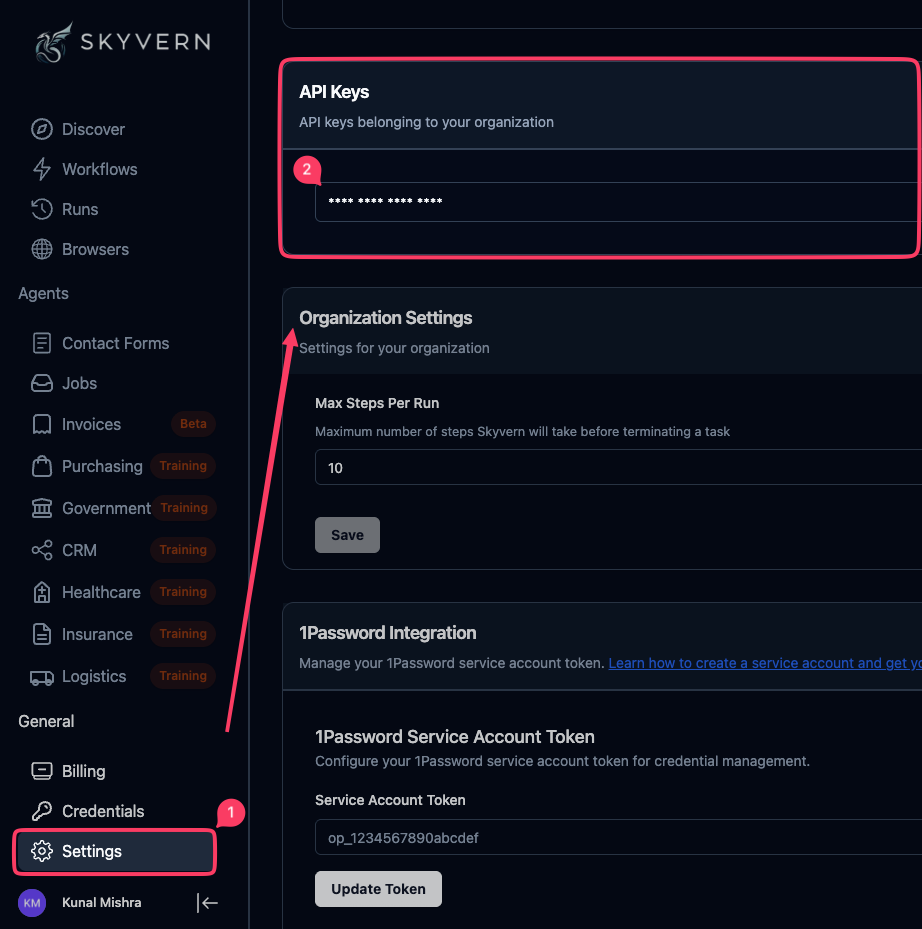
## 1. Get your API key
Go to [app.skyvern.com/settings](https://app.skyvern.com/settings) and get your API key.
## 2. Give this prompt to your AI coding agent
Paste your API key below, then copy the prompt into your AI coding assistant.
It will:
1. Install the Skyvern Python/TypeScript SDK
2. Ask what you want to automate (say "Go to Hacker News and get the top comment of the #1 post" for example)
3. Write a browser automation that launches a cloud browser, runs AI actions on pages, and prints the result
{`Set up Skyvern for browser automation:
1. Install the Skyvern Python SDK (requires Python 3.11, 3.12, or 3.13).
If you hit version errors, use pipx to install in an isolated environment:
pip install skyvern
# or: pipx install skyvern
2. Install all Skyvern skills into this project:
skyvern skill copy --output .claude/skills/
3. Set my API key:
export SKYVERN_API_KEY="PASTE_YOUR_API_KEY_HERE"
Now ask me what I want to automate in the browser. Suggest this as a default:
"Go to Hacker News and get the top comment of the #1 post"
After I respond, create a skyvern-tasks/ folder and save a Python file there
using this template, replacing , , and the schema fields with what
I asked for. Use the Page/Agent/Browser pattern: launch a cloud browser, get a
page, then run AI actions on it.
import os
import asyncio
from skyvern import Skyvern
async def main():
skyvern = Skyvern(api_key=os.getenv("SKYVERN_API_KEY"))
# 1. Launch a cloud browser and get a page
browser = await skyvern.launch_cloud_browser()
page = await browser.get_working_page()
try:
await page.goto("")
# 2. For a multi-step goal (navigate + extract), use the agent
result = await page.agent.run_task(
"",
data_extraction_schema={
"type": "object",
"properties": {
"answer": {"type": "string"},
},
},
)
print(f"Status: {result.status}")
print(f"View run: {result.app_url}")
print(f"Steps used: {result.step_count}")
if result.output is not None:
print(f"Output: {result.output}")
elif result.failure_reason:
print(f"Failed: {result.failure_reason}")
finally:
# 3. Always close the browser to release cloud resources
await browser.close()
asyncio.run(main())
Run the file and show me the output.
Notes:
- For one-shot extraction on a single page, use page.extract() directly instead of agent.run_task().
- For anything requiring login, use page.agent.login() before the task.
- Always wrap browser usage in try/finally with browser.close().
Reference docs you can fetch as needed:
- https://skyvern.com/docs/llms.txt (full page index, LLM-friendly)
- https://skyvern.com/docs/sdk-reference/complete-reference.md (every SDK method, parameter, and type; unified Python + TypeScript)
- https://skyvern.com/docs/api-reference/openapi.json (OpenAPI spec for the REST API)`}
{`Set up Skyvern for browser automation:
1. Initialize a Node.js project (if needed) and install the Skyvern TypeScript SDK:
npm init -y
npm install @skyvern/client
2. Set my API key:
export SKYVERN_API_KEY="PASTE_YOUR_API_KEY_HERE"
Now ask me what I want to automate in the browser. Suggest this as a default:
"Go to Hacker News and get the top comment of the #1 post"
After I respond, create a skyvern-tasks/ folder and save a TypeScript file there
using this template, replacing , , and the schema fields with what
I asked for. Use the Page/Agent/Browser pattern: launch a cloud browser, get a
page, then run AI actions on it.
import { Skyvern } from "@skyvern/client";
async function main() {
const skyvern = new Skyvern({ apiKey: process.env.SKYVERN_API_KEY });
// 1. Launch a cloud browser and get a page
const browser = await skyvern.launchCloudBrowser();
const page = await browser.getWorkingPage();
try {
await page.goto("");
// 2. For a multi-step goal (navigate + extract), use the agent
const result = await page.agent.runTask("", {
dataExtractionSchema: {
type: "object",
properties: {
answer: { type: "string" },
},
},
});
console.log(\`Status: \${result.status}\`);
console.log(\`View run: \${result.appUrl}\`);
console.log(\`Steps used: \${result.stepCount}\`);
if (result.output != null) {
console.log("Output:", result.output);
} else if (result.failureReason) {
console.log(\`Failed: \${result.failureReason}\`);
}
} finally {
// 3. Always close the browser to release cloud resources
await browser.close();
}
}
main();
Run the file and show me the output.
Notes:
- For one-shot extraction on a single page, use page.extract() directly instead of agent.runTask().
- For anything requiring login, use page.agent.login() before the task.
- Always wrap browser usage in try/finally with browser.close().
Reference docs you can fetch as needed:
- https://skyvern.com/docs/llms.txt (full page index, LLM-friendly)
- https://skyvern.com/docs/sdk-reference/complete-reference.md (every SDK method, parameter, and type; unified Python + TypeScript)
- https://skyvern.com/docs/api-reference/openapi.json (OpenAPI spec for the REST API)`}
## 3. Next steps
### Connect the MCP server
Give your AI coding assistant direct browser control through natural language. No SDK code needed.
Claude Code and Cursor support MCP OAuth: point them at Skyvern Cloud and sign in through your browser. No API key is required in the MCP config. Other clients still use the API key from Section 1.
```bash theme={null}
claude mcp add --transport http skyvern https://api.skyvern.com/mcp/ --scope user
```
Then run `/mcp` in Claude Code and follow the authentication prompt. Your browser opens for Skyvern sign-in and the token is stored for future sessions.
Prefer a static key instead? Use `claude mcp add-json skyvern '{"type":"http","url":"https://api.skyvern.com/mcp/","headers":{"x-api-key":"YOUR_SKYVERN_API_KEY"}}' --scope user`.
Add to `~/.cursor/mcp.json`:
```json theme={null}
{
"mcpServers": {
"Skyvern": {
"type": "streamable-http",
"url": "https://api.skyvern.com/mcp/"
}
}
}
```
This config intentionally has no `headers` field. Cursor starts OAuth for remote servers that require authentication. Use a current Cursor release; if the prompt does not appear, update Cursor and reopen MCP settings.
Restart Cursor, open MCP settings, and authenticate the Skyvern server when prompted.
Add to `~/.codeium/windsurf/mcp_config.json`:
```json theme={null}
{
"mcpServers": {
"Skyvern": {
"type": "streamable-http",
"url": "https://api.skyvern.com/mcp/",
"headers": {
"x-api-key": "YOUR_SKYVERN_API_KEY"
}
}
}
}
```
Add to `~/.codex/config.toml`:
```toml theme={null}
[mcp_servers.skyvern]
url = "https://api.skyvern.com/mcp/"
[mcp_servers.skyvern.http_headers]
x-api-key = "YOUR_SKYVERN_API_KEY"
```
### Keep building
The full Page/Agent/Browser walkthrough
Every SDK method, parameter, and type (Python + TypeScript)
All tools, config options, local mode, and troubleshooting
Machine-readable doc index for AI coding agents
 ## 2. Give this prompt to your AI coding agent
Paste your API key below, then copy the prompt into your AI coding assistant.
It will:
1. Install the Skyvern Python/TypeScript SDK
2. Ask what you want to automate (say "Go to Hacker News and get the top comment of the #1 post" for example)
3. Write a browser automation that launches a cloud browser, runs AI actions on pages, and prints the result
## 2. Give this prompt to your AI coding agent
Paste your API key below, then copy the prompt into your AI coding assistant.
It will:
1. Install the Skyvern Python/TypeScript SDK
2. Ask what you want to automate (say "Go to Hacker News and get the top comment of the #1 post" for example)
3. Write a browser automation that launches a cloud browser, runs AI actions on pages, and prints the result