> ## Documentation Index
> Fetch the complete documentation index at: https://skyvern.com/docs/llms.txt
> Use this file to discover all available pages before exploring further.
# Troubleshooting Guide
> Diagnose and fix common Skyvern run failures using the step timeline, artifacts, and run status. Covers issues like wrong output, timeouts, CAPTCHA blocks, login failures, and element detection problems.
When a run fails or produces unexpected results, this guide helps you identify the cause and fix it.
## Quick debugging checklist
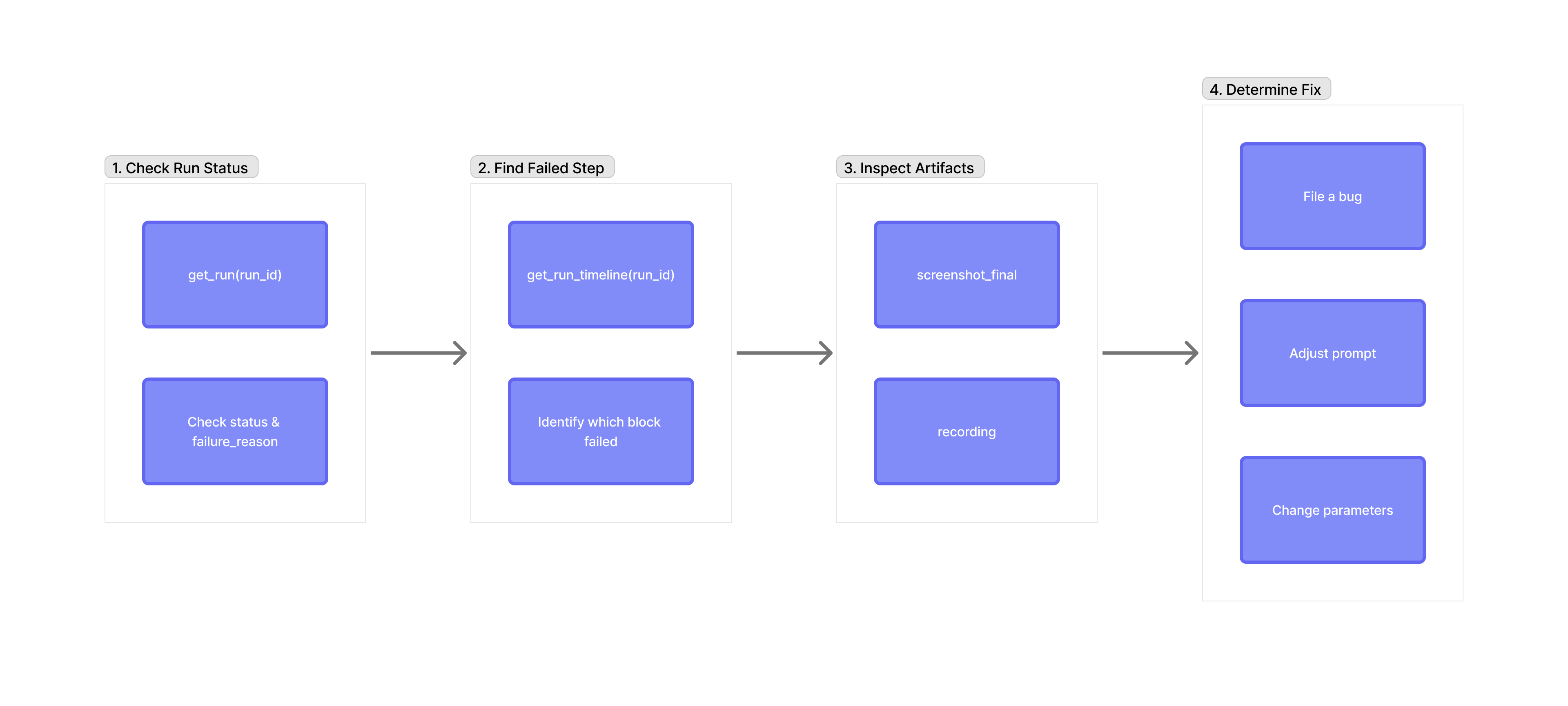 Call `get_run(run_id)` and check `status` and `failure_reason`
Call `get_run_timeline(run_id)` to see which block failed
Check `screenshot_final` to see where it stopped, `recording` to watch what happened
Adjust prompt, parameters, or file a bug based on what you find
**Key artifacts to check:**
* `screenshot_final`: Final page state
* `recording`: Video of what happened
* `llm_response_parsed`: What the AI decided to do
* `visible_elements_tree`: What elements were detected
* `har`: Network requests if something failed to load
***
## Step 1: Check the run
```python Python theme={null}
import os
from skyvern import Skyvern
client = Skyvern(api_key=os.getenv("SKYVERN_API_KEY"))
run = await client.get_run(run_id)
print(f"Status: {run.status}")
print(f"Failure reason: {run.failure_reason}")
print(f"Step count: {run.step_count}")
print(f"Output: {run.output}")
```
```typescript TypeScript theme={null}
import { SkyvernClient } from "@skyvern/client";
const client = new SkyvernClient({
apiKey: process.env.SKYVERN_API_KEY,
});
const run = await client.getRun(runId);
console.log(`Status: ${run.status}`);
console.log(`Failure reason: ${run.failure_reason}`);
console.log(`Step count: ${run.step_count}`);
console.log(`Output: ${JSON.stringify(run.output)}`);
```
```bash cURL theme={null}
curl -X GET "https://api.skyvern.com/v1/runs/$RUN_ID" \
-H "x-api-key: $SKYVERN_API_KEY" \
| jq '{status, failure_reason, step_count, output}'
```
| Status | What it means | Likely cause |
| ------------ | ------------------------------------- | ---------------------------------------- |
| `completed` | Run finished, but output may be wrong | Prompt interpretation issue |
| `failed` | System error | Browser crash, network failure |
| `terminated` | AI gave up | Login blocked, CAPTCHA, page unavailable |
| `timed_out` | Exceeded `max_steps` | Task too complex, or AI got stuck |
| `canceled` | Manually stopped | N/A |
***
## Step 2: Read the step timeline
The timeline shows each block and action in execution order.
```python Python theme={null}
timeline = await client.get_run_timeline(run_id)
for item in timeline:
if item.type == "block":
block = item.block
print(f"Block: {block.label}")
print(f" Status: {block.status}")
print(f" Duration: {block.duration}s")
if block.failure_reason:
print(f" Failure: {block.failure_reason}")
for action in block.actions:
print(f" Action: {action.action_type} -> {action.status}")
```
```typescript TypeScript theme={null}
const timeline = await client.getRunTimeline(runId);
for (const item of timeline) {
if (item.type === "block") {
const block = item.block;
console.log(`Block: ${block.label}`);
console.log(` Status: ${block.status}`);
console.log(` Duration: ${block.duration}s`);
if (block.failure_reason) {
console.log(` Failure: ${block.failure_reason}`);
}
for (const action of block.actions || []) {
console.log(` Action: ${action.action_type} -> ${action.status}`);
}
}
}
```
```bash cURL theme={null}
curl -X GET "https://api.skyvern.com/v1/runs/$RUN_ID/timeline" \
-H "x-api-key: $SKYVERN_API_KEY"
```
***
## Step 3: Inspect artifacts
```python Python theme={null}
artifacts = await client.get_run_artifacts(
run_id,
artifact_type=["screenshot_final", "llm_response_parsed", "skyvern_log"]
)
for a in artifacts:
print(f"{a.artifact_type}: {a.signed_url}")
```
```typescript TypeScript theme={null}
const artifacts = await client.getRunArtifacts(runId, {
artifact_type: ["screenshot_final", "llm_response_parsed", "skyvern_log"]
});
for (const a of artifacts) {
console.log(`${a.artifact_type}: ${a.signed_url}`);
}
```
```bash cURL theme={null}
curl -X GET "https://api.skyvern.com/v1/runs/$RUN_ID/artifacts?artifact_type=screenshot_final&artifact_type=llm_response_parsed&artifact_type=skyvern_log" \
-H "x-api-key: $SKYVERN_API_KEY" \
| jq '.[] | "\(.artifact_type): \(.signed_url)"'
```
See [Using Artifacts](/developers/debugging/using-artifacts) for the full list of artifact types.
***
## Common issues and fixes
### Run Status Issues
**Symptom:** Status is `completed`, but the extracted data is incorrect or incomplete.
**Check:** `screenshot_final` (right page?) and `llm_response_parsed` (right elements?)
**Fix:**
* Add specific descriptions in your schema: `"description": "The price in USD, without currency symbol"`
* Add visual hints: "The price is displayed in bold below the product title"
**Symptom:** Status is `timed_out`.
**Check:** `recording` (stuck in a loop?) and `step_count` (how many steps?)
**Fix:**
* Increase `max_steps` if the task genuinely needs more steps
* Add explicit completion criteria: "COMPLETE when you see 'Order confirmed'"
* Break complex tasks into multiple agent blocks
**Symptom:** Run stays in `queued` status and never starts.
**Likely causes:** Concurrency limit hit, sequential run lock, or high platform load.
**Fix:**
* Wait for other runs to complete
* Check your plan's concurrency limits in Settings
* If using "Prevent Overlapping Runs" with credentials, ensure prior runs finish
**Symptom:** Getting `504 Gateway Timeout` errors when creating browser sessions.
**Fix:**
* Retry after a few seconds; usually transient
* For self-hosted: check infrastructure resources
* If persistent, contact support with your run IDs
### Element & Interaction Issues
**Symptom:** Recording shows the AI clicking something other than intended.
**Check:** `visible_elements_tree` (element detected?) and `llm_prompt` (target described clearly?)
**Fix:**
* Add distinguishing details: "Click the **blue** Submit button at the **bottom** of the form"
* Reference surrounding text: "Click Download in the row that says 'January 2024'"
**Symptom:** `failure_reason` mentions an element couldn't be found.
**Check:** `screenshot_final` (element visible?) and `visible_elements_tree` (element detected?)
**Likely causes:** Dynamic loading, iframe, below the fold, unusual rendering (canvas, shadow DOM)
**Fix:**
* Add `max_screenshot_scrolls` to capture lazy-loaded content
* Describe elements visually rather than by technical properties
* Add wait or scroll instructions in your prompt
**Symptom:** Dates entered in wrong format (MM/DD vs DD/MM) or wrong date entirely.
**Check:** `recording` (how did AI interact with the date picker?)
**Fix:**
* Specify exact format: "Enter the date as **15/01/2024** (DD/MM/YYYY format)"
* For date pickers: "Click the date field, then select January 15, 2024 from the calendar"
* If site auto-formats: "Type 01152024 and let the field format it"
**Symptom:** AI keeps clicking through address suggestions in a loop, or selects wrong address.
**Check:** `recording` (is autocomplete dropdown appearing?)
**Fix:**
* Specify selection: "Type '123 Main St' and select the first suggestion showing 'New York, NY'"
* Disable autocomplete: "Type the full address without using autocomplete suggestions"
* Break into steps: "Enter street address, wait for dropdown, select the matching suggestion"
### Authentication Issues
**Symptom:** Status is `terminated` with login-related failure reason.
**Check:** `screenshot_final` (error message?) and `recording` (fields filled correctly?)
**Likely causes:** Expired credentials, CAPTCHA, MFA required, automation detected
**Fix:**
* Verify credentials in your credential store
* Use `RESIDENTIAL_ISP` proxy for more stable IPs
* Configure TOTP if MFA is required
* Use a browser profile with an existing session
**Symptom:** `failure_reason` mentions CAPTCHA.
**Fix options:**
1. **Browser profile**: Use an authenticated session that skips login
2. **Human interaction block**: Pause for manual CAPTCHA solving
3. **Different proxy**: Use `RESIDENTIAL_ISP` for static IPs sites trust more
### Data & Output Issues
**Symptom:** Extracted data contains information not on the page.
**Check:** `screenshot_final` (data visible?) and `llm_response_parsed` (what did AI claim to see?)
**Fix:**
* Add instruction: "Only extract data **visibly displayed** on the page. Return null if not found"
* Make schema fields optional where appropriate
* Add validation: "If price is not displayed, set price to null instead of guessing"
**Symptom:** Files download repeatedly, wrong files, or downloads don't complete.
**Check:** `recording` (download button clicked correctly?) and `downloaded_files` in response
**Fix:**
* Be specific: "Click the **PDF** download button, not the Excel one"
* Add wait time: "Wait for the download to complete"
* For multi-step downloads: "Click Download, then select PDF format, then click Confirm"
### Environment Issues
**Symptom:** Site displays in unexpected language based on proxy location.
**Check:** What `proxy_location` is being used? Does site geo-target?
**Fix:**
* Use appropriate proxy: `RESIDENTIAL_US` for English US sites
* Add instruction: "If the site asks for language preference, select English"
* Set language in URL: `https://example.com/en/`
**Symptom:** Recording shows AI repeating the same actions without progressing.
**Check:** `recording` (what pattern is repeating?) and conditional block exit conditions
**Fix:**
* Add termination: "STOP if you've attempted this action 3 times without success"
* Add completion markers: "COMPLETE when you see 'Success' message"
* Review loop conditions to ensure exit criteria are achievable
***
## When to adjust prompts vs parameters
* AI misunderstood what to do
* Clicked wrong element
* Ambiguous completion criteria
* Extracted wrong data
* Timed out → increase `max_steps`
* Site blocked → change `proxy_location`
* Content didn't load → increase `max_screenshot_scrolls`
* Visible element not detected
* Standard UI patterns don't work
* Consistent wrong element despite clear prompts
***
## Next steps
Detailed reference for all artifact types
Write prompts that fail less often
Call `get_run(run_id)` and check `status` and `failure_reason`
Call `get_run_timeline(run_id)` to see which block failed
Check `screenshot_final` to see where it stopped, `recording` to watch what happened
Adjust prompt, parameters, or file a bug based on what you find
**Key artifacts to check:**
* `screenshot_final`: Final page state
* `recording`: Video of what happened
* `llm_response_parsed`: What the AI decided to do
* `visible_elements_tree`: What elements were detected
* `har`: Network requests if something failed to load
***
## Step 1: Check the run
```python Python theme={null}
import os
from skyvern import Skyvern
client = Skyvern(api_key=os.getenv("SKYVERN_API_KEY"))
run = await client.get_run(run_id)
print(f"Status: {run.status}")
print(f"Failure reason: {run.failure_reason}")
print(f"Step count: {run.step_count}")
print(f"Output: {run.output}")
```
```typescript TypeScript theme={null}
import { SkyvernClient } from "@skyvern/client";
const client = new SkyvernClient({
apiKey: process.env.SKYVERN_API_KEY,
});
const run = await client.getRun(runId);
console.log(`Status: ${run.status}`);
console.log(`Failure reason: ${run.failure_reason}`);
console.log(`Step count: ${run.step_count}`);
console.log(`Output: ${JSON.stringify(run.output)}`);
```
```bash cURL theme={null}
curl -X GET "https://api.skyvern.com/v1/runs/$RUN_ID" \
-H "x-api-key: $SKYVERN_API_KEY" \
| jq '{status, failure_reason, step_count, output}'
```
| Status | What it means | Likely cause |
| ------------ | ------------------------------------- | ---------------------------------------- |
| `completed` | Run finished, but output may be wrong | Prompt interpretation issue |
| `failed` | System error | Browser crash, network failure |
| `terminated` | AI gave up | Login blocked, CAPTCHA, page unavailable |
| `timed_out` | Exceeded `max_steps` | Task too complex, or AI got stuck |
| `canceled` | Manually stopped | N/A |
***
## Step 2: Read the step timeline
The timeline shows each block and action in execution order.
```python Python theme={null}
timeline = await client.get_run_timeline(run_id)
for item in timeline:
if item.type == "block":
block = item.block
print(f"Block: {block.label}")
print(f" Status: {block.status}")
print(f" Duration: {block.duration}s")
if block.failure_reason:
print(f" Failure: {block.failure_reason}")
for action in block.actions:
print(f" Action: {action.action_type} -> {action.status}")
```
```typescript TypeScript theme={null}
const timeline = await client.getRunTimeline(runId);
for (const item of timeline) {
if (item.type === "block") {
const block = item.block;
console.log(`Block: ${block.label}`);
console.log(` Status: ${block.status}`);
console.log(` Duration: ${block.duration}s`);
if (block.failure_reason) {
console.log(` Failure: ${block.failure_reason}`);
}
for (const action of block.actions || []) {
console.log(` Action: ${action.action_type} -> ${action.status}`);
}
}
}
```
```bash cURL theme={null}
curl -X GET "https://api.skyvern.com/v1/runs/$RUN_ID/timeline" \
-H "x-api-key: $SKYVERN_API_KEY"
```
***
## Step 3: Inspect artifacts
```python Python theme={null}
artifacts = await client.get_run_artifacts(
run_id,
artifact_type=["screenshot_final", "llm_response_parsed", "skyvern_log"]
)
for a in artifacts:
print(f"{a.artifact_type}: {a.signed_url}")
```
```typescript TypeScript theme={null}
const artifacts = await client.getRunArtifacts(runId, {
artifact_type: ["screenshot_final", "llm_response_parsed", "skyvern_log"]
});
for (const a of artifacts) {
console.log(`${a.artifact_type}: ${a.signed_url}`);
}
```
```bash cURL theme={null}
curl -X GET "https://api.skyvern.com/v1/runs/$RUN_ID/artifacts?artifact_type=screenshot_final&artifact_type=llm_response_parsed&artifact_type=skyvern_log" \
-H "x-api-key: $SKYVERN_API_KEY" \
| jq '.[] | "\(.artifact_type): \(.signed_url)"'
```
See [Using Artifacts](/developers/debugging/using-artifacts) for the full list of artifact types.
***
## Common issues and fixes
### Run Status Issues
**Symptom:** Status is `completed`, but the extracted data is incorrect or incomplete.
**Check:** `screenshot_final` (right page?) and `llm_response_parsed` (right elements?)
**Fix:**
* Add specific descriptions in your schema: `"description": "The price in USD, without currency symbol"`
* Add visual hints: "The price is displayed in bold below the product title"
**Symptom:** Status is `timed_out`.
**Check:** `recording` (stuck in a loop?) and `step_count` (how many steps?)
**Fix:**
* Increase `max_steps` if the task genuinely needs more steps
* Add explicit completion criteria: "COMPLETE when you see 'Order confirmed'"
* Break complex tasks into multiple agent blocks
**Symptom:** Run stays in `queued` status and never starts.
**Likely causes:** Concurrency limit hit, sequential run lock, or high platform load.
**Fix:**
* Wait for other runs to complete
* Check your plan's concurrency limits in Settings
* If using "Prevent Overlapping Runs" with credentials, ensure prior runs finish
**Symptom:** Getting `504 Gateway Timeout` errors when creating browser sessions.
**Fix:**
* Retry after a few seconds; usually transient
* For self-hosted: check infrastructure resources
* If persistent, contact support with your run IDs
### Element & Interaction Issues
**Symptom:** Recording shows the AI clicking something other than intended.
**Check:** `visible_elements_tree` (element detected?) and `llm_prompt` (target described clearly?)
**Fix:**
* Add distinguishing details: "Click the **blue** Submit button at the **bottom** of the form"
* Reference surrounding text: "Click Download in the row that says 'January 2024'"
**Symptom:** `failure_reason` mentions an element couldn't be found.
**Check:** `screenshot_final` (element visible?) and `visible_elements_tree` (element detected?)
**Likely causes:** Dynamic loading, iframe, below the fold, unusual rendering (canvas, shadow DOM)
**Fix:**
* Add `max_screenshot_scrolls` to capture lazy-loaded content
* Describe elements visually rather than by technical properties
* Add wait or scroll instructions in your prompt
**Symptom:** Dates entered in wrong format (MM/DD vs DD/MM) or wrong date entirely.
**Check:** `recording` (how did AI interact with the date picker?)
**Fix:**
* Specify exact format: "Enter the date as **15/01/2024** (DD/MM/YYYY format)"
* For date pickers: "Click the date field, then select January 15, 2024 from the calendar"
* If site auto-formats: "Type 01152024 and let the field format it"
**Symptom:** AI keeps clicking through address suggestions in a loop, or selects wrong address.
**Check:** `recording` (is autocomplete dropdown appearing?)
**Fix:**
* Specify selection: "Type '123 Main St' and select the first suggestion showing 'New York, NY'"
* Disable autocomplete: "Type the full address without using autocomplete suggestions"
* Break into steps: "Enter street address, wait for dropdown, select the matching suggestion"
### Authentication Issues
**Symptom:** Status is `terminated` with login-related failure reason.
**Check:** `screenshot_final` (error message?) and `recording` (fields filled correctly?)
**Likely causes:** Expired credentials, CAPTCHA, MFA required, automation detected
**Fix:**
* Verify credentials in your credential store
* Use `RESIDENTIAL_ISP` proxy for more stable IPs
* Configure TOTP if MFA is required
* Use a browser profile with an existing session
**Symptom:** `failure_reason` mentions CAPTCHA.
**Fix options:**
1. **Browser profile**: Use an authenticated session that skips login
2. **Human interaction block**: Pause for manual CAPTCHA solving
3. **Different proxy**: Use `RESIDENTIAL_ISP` for static IPs sites trust more
### Data & Output Issues
**Symptom:** Extracted data contains information not on the page.
**Check:** `screenshot_final` (data visible?) and `llm_response_parsed` (what did AI claim to see?)
**Fix:**
* Add instruction: "Only extract data **visibly displayed** on the page. Return null if not found"
* Make schema fields optional where appropriate
* Add validation: "If price is not displayed, set price to null instead of guessing"
**Symptom:** Files download repeatedly, wrong files, or downloads don't complete.
**Check:** `recording` (download button clicked correctly?) and `downloaded_files` in response
**Fix:**
* Be specific: "Click the **PDF** download button, not the Excel one"
* Add wait time: "Wait for the download to complete"
* For multi-step downloads: "Click Download, then select PDF format, then click Confirm"
### Environment Issues
**Symptom:** Site displays in unexpected language based on proxy location.
**Check:** What `proxy_location` is being used? Does site geo-target?
**Fix:**
* Use appropriate proxy: `RESIDENTIAL_US` for English US sites
* Add instruction: "If the site asks for language preference, select English"
* Set language in URL: `https://example.com/en/`
**Symptom:** Recording shows AI repeating the same actions without progressing.
**Check:** `recording` (what pattern is repeating?) and conditional block exit conditions
**Fix:**
* Add termination: "STOP if you've attempted this action 3 times without success"
* Add completion markers: "COMPLETE when you see 'Success' message"
* Review loop conditions to ensure exit criteria are achievable
***
## When to adjust prompts vs parameters
* AI misunderstood what to do
* Clicked wrong element
* Ambiguous completion criteria
* Extracted wrong data
* Timed out → increase `max_steps`
* Site blocked → change `proxy_location`
* Content didn't load → increase `max_screenshot_scrolls`
* Visible element not detected
* Standard UI patterns don't work
* Consistent wrong element despite clear prompts
***
## Next steps
Detailed reference for all artifact types
Write prompts that fail less often