> ## Documentation Index
> Fetch the complete documentation index at: https://skyvern.com/docs/llms.txt
> Use this file to discover all available pages before exploring further.
# Concepts
> Learn the parts every Skyvern automation is made of (agents, blocks, inputs, runs, engines, browsers, credentials, schedules and webhooks) and how the app and the API name them.
Skyvern automates work in a real browser. You describe the goal, and Skyvern reads each page, decides what to do and does it, the same way whether you start from the app, the API, an SDK or an MCP client.
## How Skyvern works
Every browser step runs the same loop:
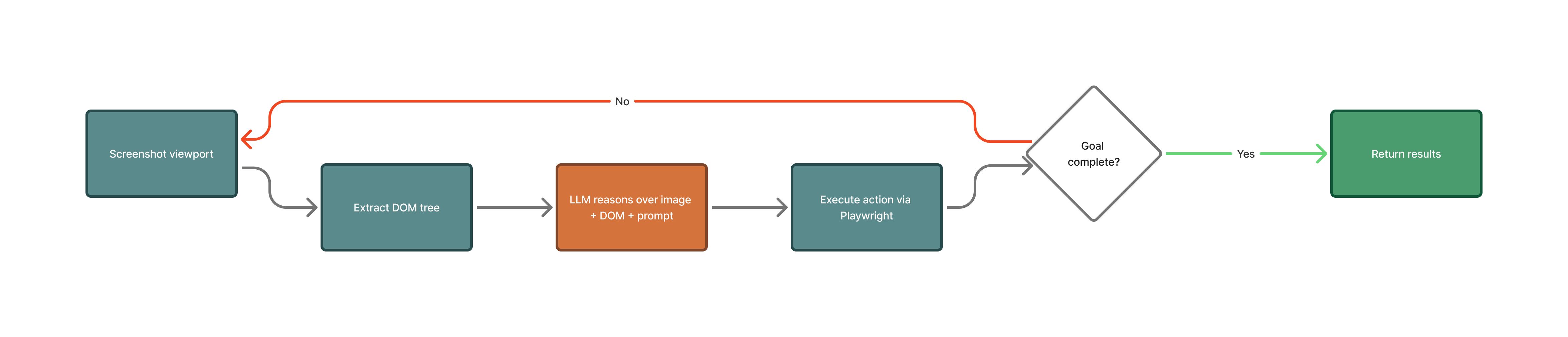 1. Skyvern takes a screenshot of the page and reads its interactive elements: inputs, buttons, links and dropdowns.
2. An LLM looks at both, together with your goal, and picks the next action: click, type, select, scroll, upload or extract.
3. Playwright runs the action in a Chromium browser.
4. Skyvern checks whether the goal is met. If not, it loops with the new page.
Each pass through the loop is a **step**. Because Skyvern reads the page instead of following hard-coded selectors, the same agent keeps working when a site changes its layout.
## Agents
An **agent** is a saved, reusable automation: a sequence of blocks plus the inputs it takes. You build agents in the app with Copilot or in Studio, or create them through the API. You run them by hand, on a schedule or from code.
The API, the SDKs and older docs call agents **workflows**. They are the same thing:
| In the app | In the API and SDKs |
| - | - |
| Agent | Workflow, identified by a `workflow_permanent_id` that starts with `wpid_` |
| Inputs | `parameters` |
| Agent run | Workflow run, with a `run_id` that starts with `wr_` |
Go next: [build your first agent](/docs/cloud/quickstart) in the app, or [run one from code](/docs/developers/getting-started/quickstart).
## Blocks
A **block** is one step of an agent. Some blocks drive the browser (**Browser Task Block**, **Login Block**, **Extraction Block**, **Go to URL Block**). Others control the flow (**Loop Block**, **Conditional Block**, **Wait Block**), handle files (**File Download Block**, **File Parser Block**, **PDF Fill Block**) or talk to other systems (**HTTP Request Block**, **Send Email Block**, **Google Sheets Read**).
Each block's output is available to the blocks after it. Reference it as `{{ _output }}`, for example `{{ extract_invoices_output }}`.
Go next: the [blocks reference](/docs/reference/blocks) lists every block and field.
## Inputs
**Inputs** are the values an agent needs for each run: a search term, an account number, a file URL. You define them once and reference them in any block as `{{ input_key }}`. In Studio, open **Inputs** in the top bar to add or edit them.
An input has a type: `string`, `integer`, `float`, `boolean`, `json`, `file_url` or `credential_id`. When you run the agent you fill in each value. From code, pass them as `parameters`.
Go next: [Build in Studio](/docs/cloud/studio).
## Runs
A **run** is one execution of an agent, or of a single task started from code. It records everything: a recording of the browser, a screenshot for each action, the reasoning behind each action, the output and any downloaded files.
A run moves through these statuses:
| Status | Meaning |
| - | - |
| `created`, `queued` | Accepted and waiting for a browser |
| `running` | In progress |
| `paused` | Waiting for a person at a **Human Interaction Block** |
| `completed` | Finished and met its goal |
| `failed` | Stopped by an error, or reached its step limit |
| `terminated` | Skyvern decided the goal can't be reached on this site |
| `timed_out` | Ran past its time limit |
| `canceled` | Stopped by you |
A **task** is the code-only shortcut: one prompt and a starting URL, run without saving an agent first. Use `run_task` in the SDK.
Go next: [Runs and schedules](/docs/cloud/runs) in the app, or [Going to production](/docs/developers/production) for polling, retries and errors in code.
## Engines
An **engine** is the AI that drives the browser inside a block or a task.
| Engine | API value | Status |
| - | - | - |
| Skyvern 3.0 | `skyvern-3.0` | Recommended in the app |
| Skyvern 1.0 | `skyvern-1.0` | Legacy. Default for `run_task` from the API and SDK |
| Skyvern 2.0 | `skyvern-2.0` | Legacy |
| OpenAI CUA | `openai-cua` | Enterprise |
| Anthropic CUA | `anthropic-cua` | Enterprise |
In Studio, a browser block's engine starts as **Default**. In Skyvern Cloud, a block left on **Default** in a new agent runs on Skyvern 3.0. From code, pass `engine` to choose one explicitly.
## Copilot
**Copilot** is the chat pane in Studio. You describe the job in plain words, and Copilot builds the agent: it adds and edits blocks, opens the site in a browser to work out the steps, and runs blocks to test them. You can keep chatting to change the agent at any time.
Go next: [build your first agent with Copilot](/docs/cloud/quickstart).
## Studio
**Studio** is where you open and edit an agent in the app. It has four panes: **Copilot**, **Editor** (the blocks, as a flow you can edit directly), **Browser** (the live browser while a block runs) and **Run** (the timeline, inputs and outputs of a run). The top bar holds **Inputs**, **Run** and **Schedule**.
Go next: [Build in Studio](/docs/cloud/studio).
## Browser sessions and profiles
A **browser session** is a live browser that stays open between runs, so a second run starts where the first left off: same tab, same cookies, same login. A session lasts 60 minutes by default. You can create it for up to 4 hours and extend it while it runs to a total of 6 hours. When it ends, its state is gone.
A **browser profile** is saved browser state (cookies and storage) that you keep and reuse. You save one from a session or from a finished agent run, then start later runs from it to skip the login.
Go next: [Browsers](/docs/browsers).
## Credentials
A **credential** is a login, a credit card or a secret that Skyvern stores encrypted and fills into the page at run time. The LLM sees a placeholder and decides where the value goes; Skyvern types the real value. To also hide typed values in an agent's screenshots and logs, turn on **Mask Secrets** in the agent's settings. A password credential can also carry its 2FA method: an authenticator key, a code sent by email or text, or a passkey.
You can store credentials in Skyvern or keep them in a vault you already use, such as Bitwarden, 1Password or Azure Key Vault.
Go next: [Credentials and 2FA](/docs/credentials).
## Schedules
A **schedule** runs an agent automatically, with the inputs you set. You pick a repeat pattern and a timezone in the app, or pass a cron expression or an interval from code. Runs can't be closer than 5 minutes apart.
Go next: [Runs and schedules](/docs/cloud/runs).
## Webhooks
A **webhook** tells your system when a run finishes. Set a URL in the agent's **Webhook Callback URL** setting, or pass `webhook_url` when you start a run from code. Skyvern posts the run result as JSON and signs it with your API key in the `x-skyvern-signature` and `x-skyvern-timestamp` headers, so you can check it came from Skyvern.
Go next: [Going to production](/docs/developers/production) shows how to verify the signature.
## Next
Build your first agent with Copilot.
Run Skyvern from Python, TypeScript or the API.
Give your MCP client a browser.
This documentation is built and hosted on [Mintlify](https://mintlify.com), a developer documentation platform.
1. Skyvern takes a screenshot of the page and reads its interactive elements: inputs, buttons, links and dropdowns.
2. An LLM looks at both, together with your goal, and picks the next action: click, type, select, scroll, upload or extract.
3. Playwright runs the action in a Chromium browser.
4. Skyvern checks whether the goal is met. If not, it loops with the new page.
Each pass through the loop is a **step**. Because Skyvern reads the page instead of following hard-coded selectors, the same agent keeps working when a site changes its layout.
## Agents
An **agent** is a saved, reusable automation: a sequence of blocks plus the inputs it takes. You build agents in the app with Copilot or in Studio, or create them through the API. You run them by hand, on a schedule or from code.
The API, the SDKs and older docs call agents **workflows**. They are the same thing:
| In the app | In the API and SDKs |
| - | - |
| Agent | Workflow, identified by a `workflow_permanent_id` that starts with `wpid_` |
| Inputs | `parameters` |
| Agent run | Workflow run, with a `run_id` that starts with `wr_` |
Go next: [build your first agent](/docs/cloud/quickstart) in the app, or [run one from code](/docs/developers/getting-started/quickstart).
## Blocks
A **block** is one step of an agent. Some blocks drive the browser (**Browser Task Block**, **Login Block**, **Extraction Block**, **Go to URL Block**). Others control the flow (**Loop Block**, **Conditional Block**, **Wait Block**), handle files (**File Download Block**, **File Parser Block**, **PDF Fill Block**) or talk to other systems (**HTTP Request Block**, **Send Email Block**, **Google Sheets Read**).
Each block's output is available to the blocks after it. Reference it as `{{ _output }}`, for example `{{ extract_invoices_output }}`.
Go next: the [blocks reference](/docs/reference/blocks) lists every block and field.
## Inputs
**Inputs** are the values an agent needs for each run: a search term, an account number, a file URL. You define them once and reference them in any block as `{{ input_key }}`. In Studio, open **Inputs** in the top bar to add or edit them.
An input has a type: `string`, `integer`, `float`, `boolean`, `json`, `file_url` or `credential_id`. When you run the agent you fill in each value. From code, pass them as `parameters`.
Go next: [Build in Studio](/docs/cloud/studio).
## Runs
A **run** is one execution of an agent, or of a single task started from code. It records everything: a recording of the browser, a screenshot for each action, the reasoning behind each action, the output and any downloaded files.
A run moves through these statuses:
| Status | Meaning |
| - | - |
| `created`, `queued` | Accepted and waiting for a browser |
| `running` | In progress |
| `paused` | Waiting for a person at a **Human Interaction Block** |
| `completed` | Finished and met its goal |
| `failed` | Stopped by an error, or reached its step limit |
| `terminated` | Skyvern decided the goal can't be reached on this site |
| `timed_out` | Ran past its time limit |
| `canceled` | Stopped by you |
A **task** is the code-only shortcut: one prompt and a starting URL, run without saving an agent first. Use `run_task` in the SDK.
Go next: [Runs and schedules](/docs/cloud/runs) in the app, or [Going to production](/docs/developers/production) for polling, retries and errors in code.
## Engines
An **engine** is the AI that drives the browser inside a block or a task.
| Engine | API value | Status |
| - | - | - |
| Skyvern 3.0 | `skyvern-3.0` | Recommended in the app |
| Skyvern 1.0 | `skyvern-1.0` | Legacy. Default for `run_task` from the API and SDK |
| Skyvern 2.0 | `skyvern-2.0` | Legacy |
| OpenAI CUA | `openai-cua` | Enterprise |
| Anthropic CUA | `anthropic-cua` | Enterprise |
In Studio, a browser block's engine starts as **Default**. In Skyvern Cloud, a block left on **Default** in a new agent runs on Skyvern 3.0. From code, pass `engine` to choose one explicitly.
## Copilot
**Copilot** is the chat pane in Studio. You describe the job in plain words, and Copilot builds the agent: it adds and edits blocks, opens the site in a browser to work out the steps, and runs blocks to test them. You can keep chatting to change the agent at any time.
Go next: [build your first agent with Copilot](/docs/cloud/quickstart).
## Studio
**Studio** is where you open and edit an agent in the app. It has four panes: **Copilot**, **Editor** (the blocks, as a flow you can edit directly), **Browser** (the live browser while a block runs) and **Run** (the timeline, inputs and outputs of a run). The top bar holds **Inputs**, **Run** and **Schedule**.
Go next: [Build in Studio](/docs/cloud/studio).
## Browser sessions and profiles
A **browser session** is a live browser that stays open between runs, so a second run starts where the first left off: same tab, same cookies, same login. A session lasts 60 minutes by default. You can create it for up to 4 hours and extend it while it runs to a total of 6 hours. When it ends, its state is gone.
A **browser profile** is saved browser state (cookies and storage) that you keep and reuse. You save one from a session or from a finished agent run, then start later runs from it to skip the login.
Go next: [Browsers](/docs/browsers).
## Credentials
A **credential** is a login, a credit card or a secret that Skyvern stores encrypted and fills into the page at run time. The LLM sees a placeholder and decides where the value goes; Skyvern types the real value. To also hide typed values in an agent's screenshots and logs, turn on **Mask Secrets** in the agent's settings. A password credential can also carry its 2FA method: an authenticator key, a code sent by email or text, or a passkey.
You can store credentials in Skyvern or keep them in a vault you already use, such as Bitwarden, 1Password or Azure Key Vault.
Go next: [Credentials and 2FA](/docs/credentials).
## Schedules
A **schedule** runs an agent automatically, with the inputs you set. You pick a repeat pattern and a timezone in the app, or pass a cron expression or an interval from code. Runs can't be closer than 5 minutes apart.
Go next: [Runs and schedules](/docs/cloud/runs).
## Webhooks
A **webhook** tells your system when a run finishes. Set a URL in the agent's **Webhook Callback URL** setting, or pass `webhook_url` when you start a run from code. Skyvern posts the run result as JSON and signs it with your API key in the `x-skyvern-signature` and `x-skyvern-timestamp` headers, so you can check it came from Skyvern.
Go next: [Going to production](/docs/developers/production) shows how to verify the signature.
## Next
Build your first agent with Copilot.
Run Skyvern from Python, TypeScript or the API.
Give your MCP client a browser.
This documentation is built and hosted on [Mintlify](https://mintlify.com), a developer documentation platform.