> ## Documentation Index
> Fetch the complete documentation index at: https://skyvern.com/docs/llms.txt
> Use this file to discover all available pages before exploring further.
# Run History
> Search, filter, and inspect past task and agent runs in the Skyvern Cloud UI Runs page, including filtering by status, trigger type, and run parameters.
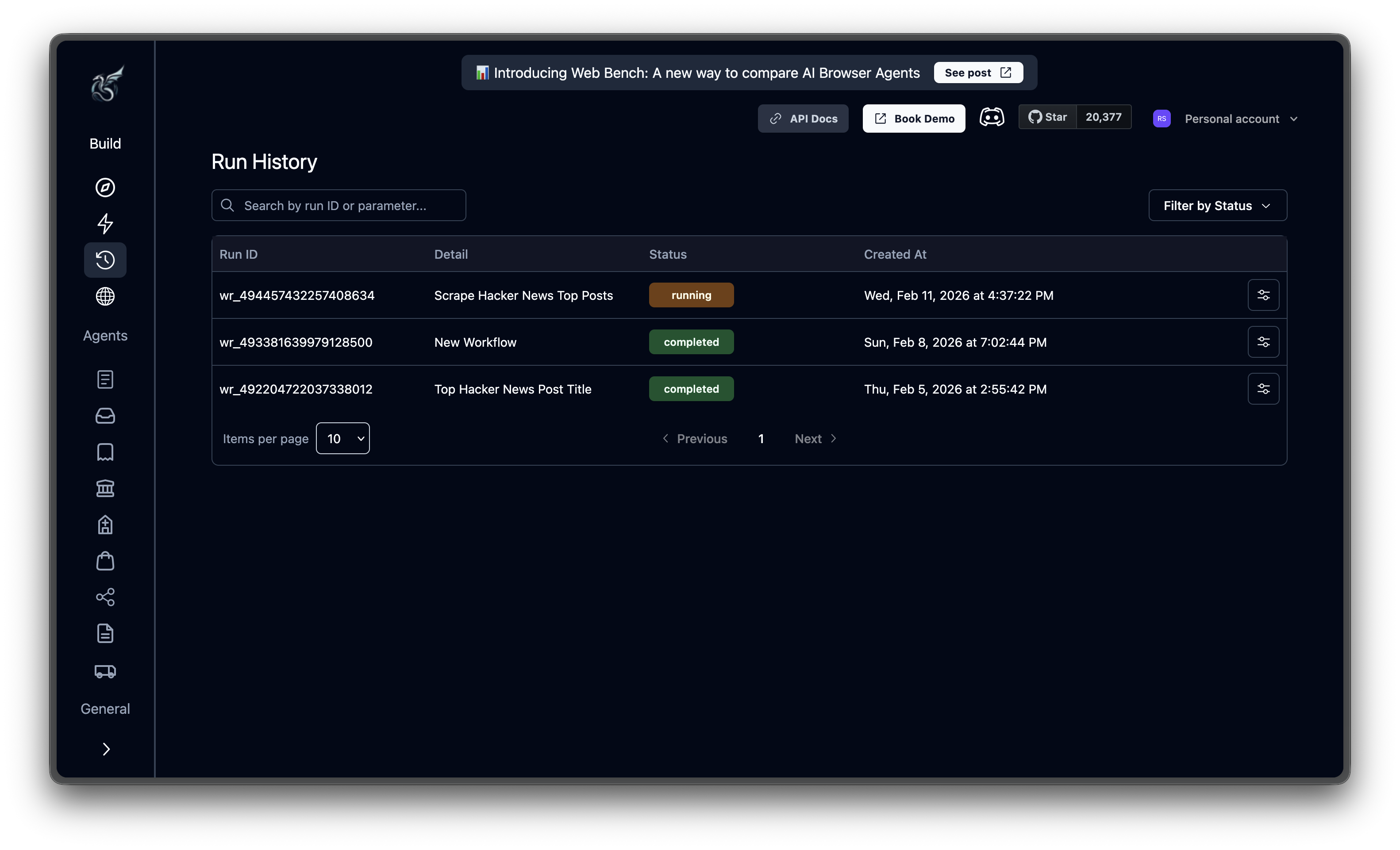
The **Runs** page shows every task and agent execution, sorted newest-first. Use it to check on past runs, find failures, or verify that a scheduled agent completed.
 ## Finding a specific run
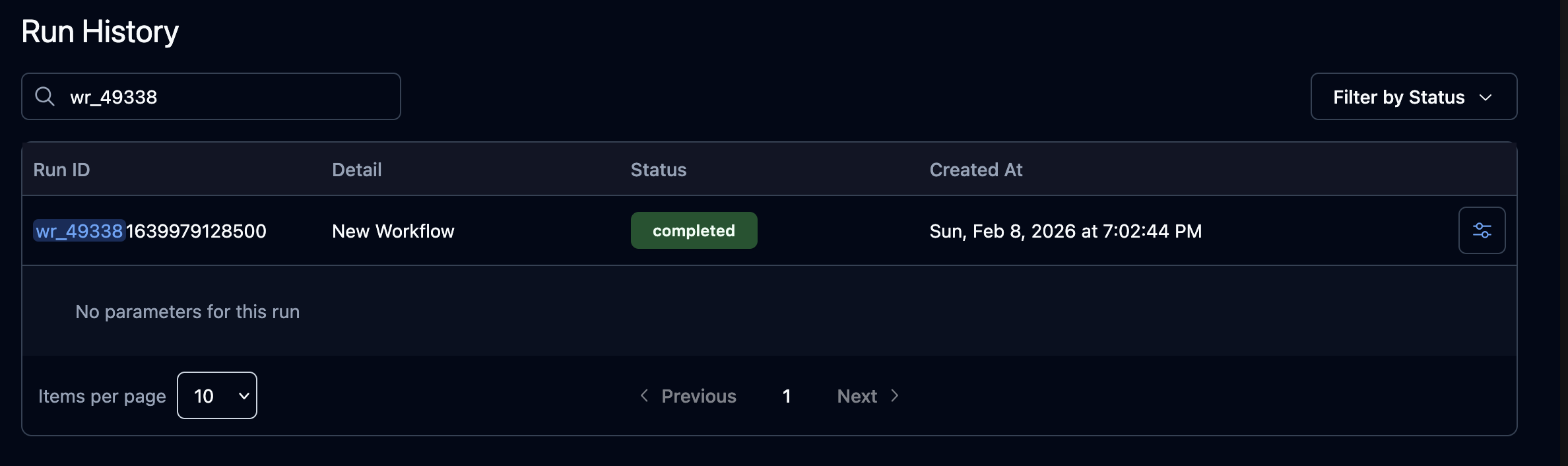
**Search** narrows the list by run ID or agent parameter value. Type part of an ID (e.g., `wr_49338`) or a parameter you passed (like a URL), and matching results appear as you type.
## Finding a specific run
**Search** narrows the list by run ID or agent parameter value. Type part of an ID (e.g., `wr_49338`) or a parameter you passed (like a URL), and matching results appear as you type.
 **Filter by Status** opens a multi-select dropdown. Check one or more statuses to narrow results; `failed` and `timed_out` together show everything that went wrong. Filters and search can be combined: search for a parameter value while filtering to only failed runs.
Available statuses: **Created**, **Queued**, **Running**, **Completed**, **Failed**, **Terminated**, **Canceled**, **Timed Out**.
## Reading the table
Each row is one run. The columns:
| Column | What it shows |
| -------------- | ----------------------------------------------------------------------------------------------------------------------------- |
| **Run ID** | Agent run (`wr_...`) or task (`tsk_...`) identifier. Hover for the full ID. |
| **Detail** | Agent title or task description. A lightning bolt icon means code generation was used. |
| **Status** | Color-coded badge: green (completed), yellow (running/queued/created), red (failed/timed\_out), orange (terminated/canceled). |
| **Trigger** | How the run was started: **Manual**, **API**, or **Scheduled** (calendar icon). |
| **Created At** | Start time in your local timezone. Hover for UTC. |
Agent runs have a **settings icon** in the last column. Click it to expand the row and see the parameters passed to that run. If your search matches something inside the parameters, the row auto-expands so you can see the match in context.
## Trigger type
Every run has a trigger type that indicates how it was started:
| Trigger type | Description |
| ------------- | ------------------------------------------------------------------------ |
| **Manual** | Started by clicking **Run** in the Cloud UI |
| **API** | Started via the REST API or SDK |
| **Scheduled** | Started automatically by a [schedule](/cloud/building-agents/scheduling) |
Scheduled runs display a **calendar icon badge** next to the run ID. Click the run to see the schedule name and cron expression in the run details.
### Filtering by trigger type
Use the **Trigger Type** dropdown filter to show only runs of a specific type. For example, select **Scheduled** to see all runs triggered by cron schedules. This filter can be combined with the status filter and search.
***
## Opening a run
Click any row to jump to its [detail page](/cloud/viewing-results/run-details). Hold **Ctrl** (or **Cmd** on Mac) to open in a new tab.
Pagination controls at the bottom let you adjust the page size (5, 10, 20, or 50 items) and navigate between pages. Settings are stored in the URL, so you can bookmark a filtered view or share it with a teammate.
Inspect actions, outputs, recordings, and parameters for any run
Save recordings, screenshots, and output files
**Filter by Status** opens a multi-select dropdown. Check one or more statuses to narrow results; `failed` and `timed_out` together show everything that went wrong. Filters and search can be combined: search for a parameter value while filtering to only failed runs.
Available statuses: **Created**, **Queued**, **Running**, **Completed**, **Failed**, **Terminated**, **Canceled**, **Timed Out**.
## Reading the table
Each row is one run. The columns:
| Column | What it shows |
| -------------- | ----------------------------------------------------------------------------------------------------------------------------- |
| **Run ID** | Agent run (`wr_...`) or task (`tsk_...`) identifier. Hover for the full ID. |
| **Detail** | Agent title or task description. A lightning bolt icon means code generation was used. |
| **Status** | Color-coded badge: green (completed), yellow (running/queued/created), red (failed/timed\_out), orange (terminated/canceled). |
| **Trigger** | How the run was started: **Manual**, **API**, or **Scheduled** (calendar icon). |
| **Created At** | Start time in your local timezone. Hover for UTC. |
Agent runs have a **settings icon** in the last column. Click it to expand the row and see the parameters passed to that run. If your search matches something inside the parameters, the row auto-expands so you can see the match in context.
## Trigger type
Every run has a trigger type that indicates how it was started:
| Trigger type | Description |
| ------------- | ------------------------------------------------------------------------ |
| **Manual** | Started by clicking **Run** in the Cloud UI |
| **API** | Started via the REST API or SDK |
| **Scheduled** | Started automatically by a [schedule](/cloud/building-agents/scheduling) |
Scheduled runs display a **calendar icon badge** next to the run ID. Click the run to see the schedule name and cron expression in the run details.
### Filtering by trigger type
Use the **Trigger Type** dropdown filter to show only runs of a specific type. For example, select **Scheduled** to see all runs triggered by cron schedules. This filter can be combined with the status filter and search.
***
## Opening a run
Click any row to jump to its [detail page](/cloud/viewing-results/run-details). Hold **Ctrl** (or **Cmd** on Mac) to open in a new tab.
Pagination controls at the bottom let you adjust the page size (5, 10, 20, or 50 items) and navigate between pages. Settings are stored in the URL, so you can bookmark a filtered view or share it with a teammate.
Inspect actions, outputs, recordings, and parameters for any run
Save recordings, screenshots, and output files