> ## Documentation Index
> Fetch the complete documentation index at: https://skyvern.com/docs/llms.txt
> Use this file to discover all available pages before exploring further.
# Run Details
> Inspect the details of any task or agent run in the Skyvern Cloud UI, including AI reasoning timelines, extracted data, recordings, screenshots, and parameters.
Every run has a detail page showing what the AI saw, what it decided, what it extracted, and whether anything went wrong. Click any run in [Run History](/cloud/viewing-results/run-history) to get here.
 ## The header
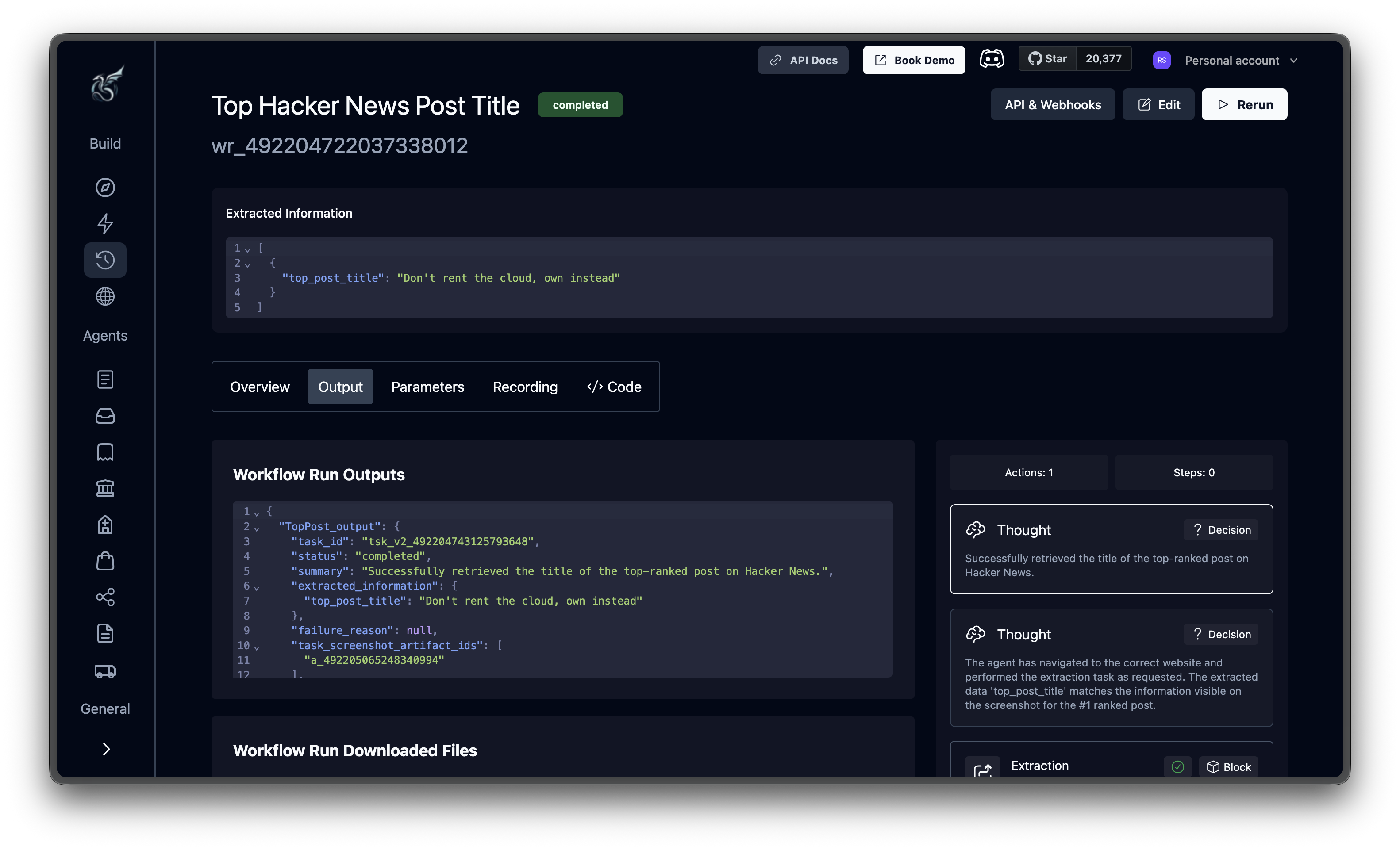
The top of the page shows the agent title, a color-coded status badge, and the run ID. Three buttons on the right:
* **API & Webhooks**: the exact API request that would reproduce this run, including endpoint, headers, and payload
* **Edit**: jump to the agent editor
* **Rerun**: start a new run pre-filled with the same parameters (appears after the run finishes)
While a run is in progress, a **Cancel** button appears instead of Rerun.
## The header
The top of the page shows the agent title, a color-coded status badge, and the run ID. Three buttons on the right:
* **API & Webhooks**: the exact API request that would reproduce this run, including endpoint, headers, and payload
* **Edit**: jump to the agent editor
* **Rerun**: start a new run pre-filled with the same parameters (appears after the run finishes)
While a run is in progress, a **Cancel** button appears instead of Rerun.
 ## Extracted information
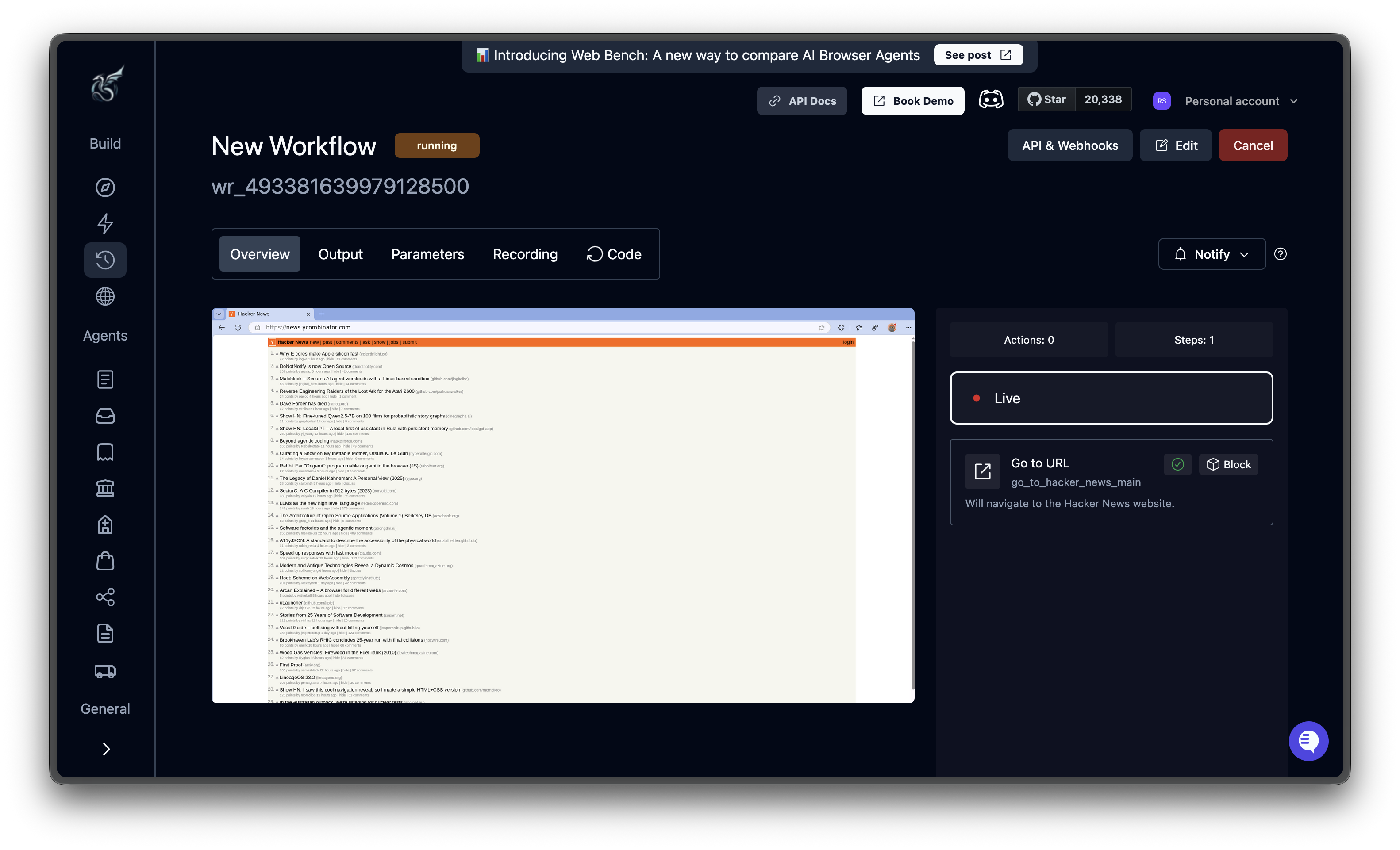
On success, the **Extracted Information** section appears above the tabs, showing the structured data you asked for, displayed as JSON.
## Extracted information
On success, the **Extracted Information** section appears above the tabs, showing the structured data you asked for, displayed as JSON.
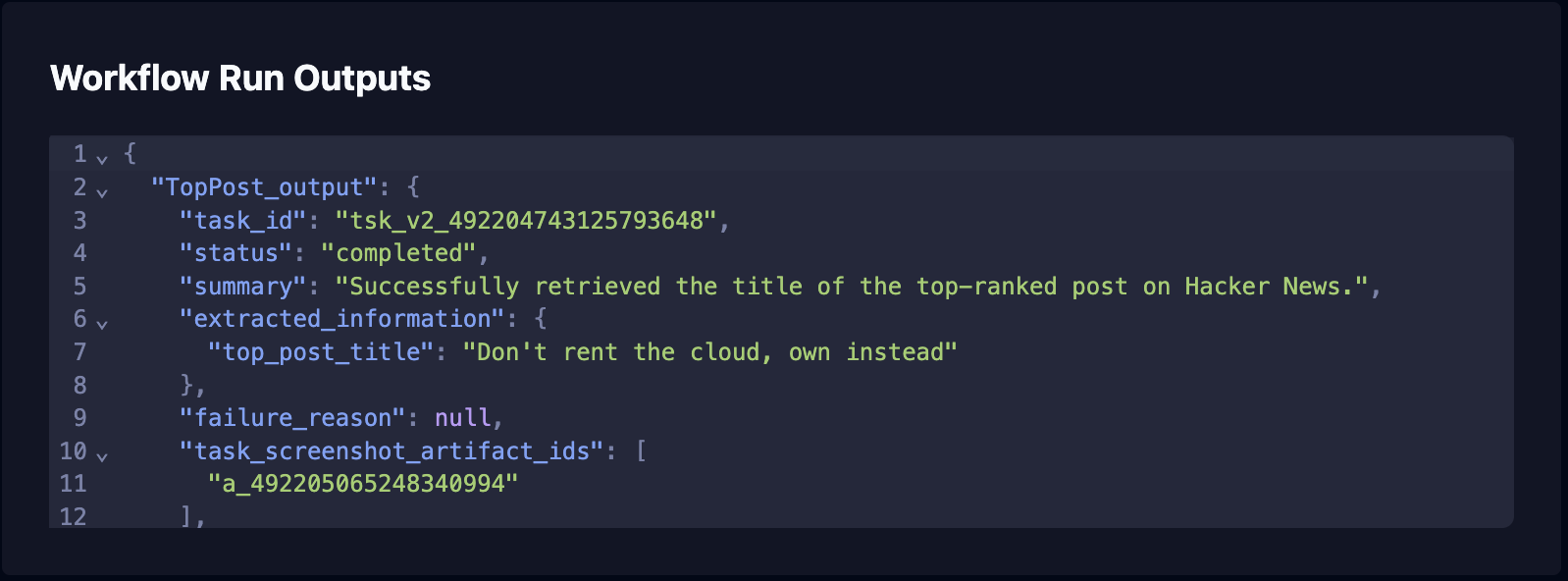 The output includes a `summary` (natural language description of what was accomplished), `extracted_information` (structured data matching your schema), and a `failure_reason` field that's `null` on success. On failure, a **Failure Reason** section appears instead with error details in a red box.
## The five tabs
### Overview
The left panel shows the browser state (live stream while running, screenshots after completion). The right panel shows the AI's reasoning timeline.
The output includes a `summary` (natural language description of what was accomplished), `extracted_information` (structured data matching your schema), and a `failure_reason` field that's `null` on success. On failure, a **Failure Reason** section appears instead with error details in a red box.
## The five tabs
### Overview
The left panel shows the browser state (live stream while running, screenshots after completion). The right panel shows the AI's reasoning timeline.
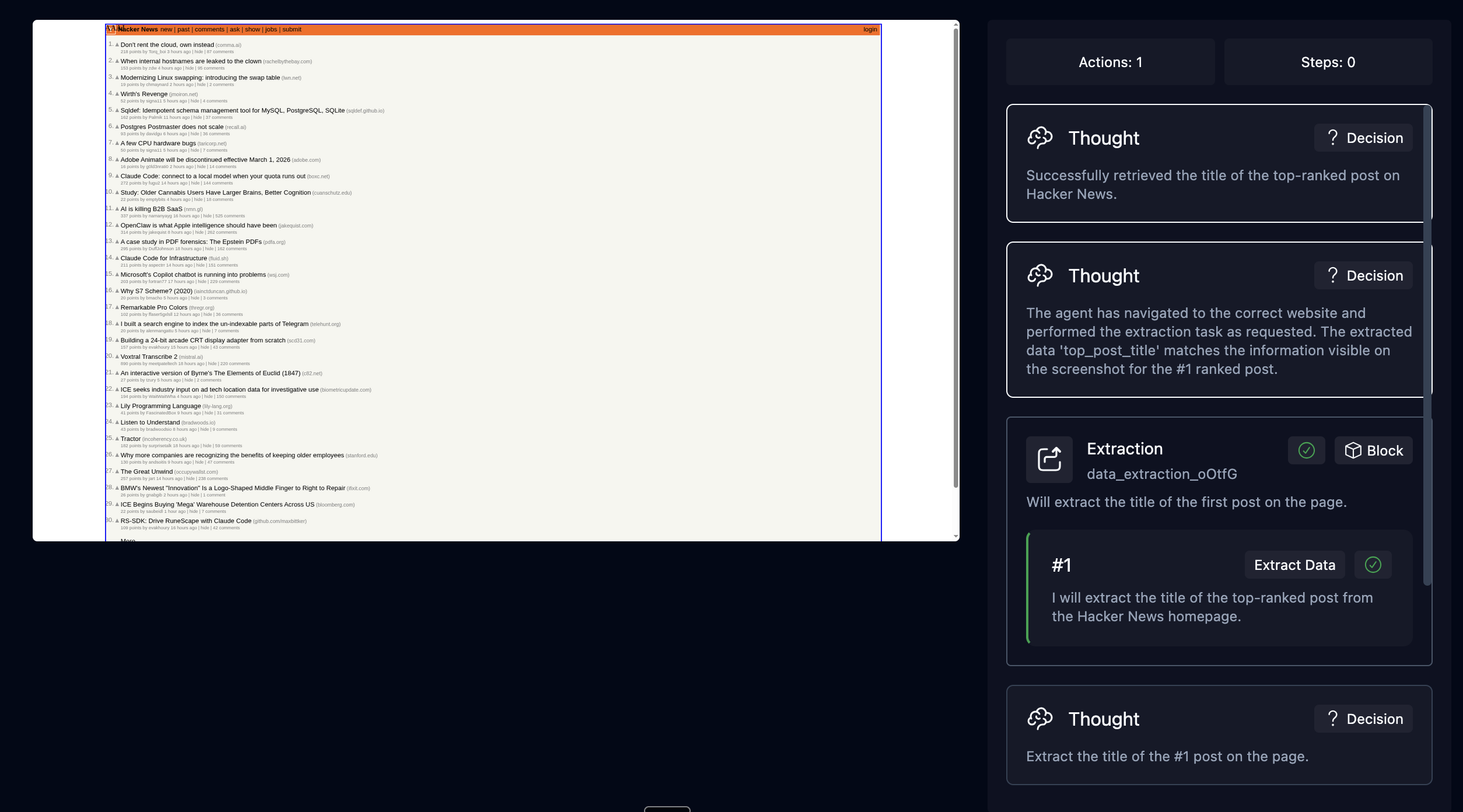 The timeline is a chronological feed of three card types:
| Card | What it shows |
| ----------- | ------------------------------------------------------------------------------------------------ |
| **Thought** | The AI's internal reasoning: what it sees, what it plans to do, and why. Tagged with "Decision." |
| **Block** | When an agent block starts or finishes (e.g., "Extraction"). Green checkmark = success. |
| **Action** | Individual browser operations (e.g., "#1 Extract Data") with a description of what was done. |
Click any timeline item to see its corresponding screenshot in the left panel. The **Actions** and **Steps** counters at the top give you a quick sense of how much work the run involved.
When a run produces wrong results, start with the Thought cards. Read the AI's reasoning to find where it went off track, such as a misidentified element, or a premature "goal met" conclusion.
### Output
All output data in one place. **Agent Run Outputs** shows the complete JSON with line numbers and syntax highlighting. **Agent Run Downloaded Files** lists any files the agent downloaded; click to download directly.
### Parameters
The configuration that produced this run: agent input parameters (key-value pairs), webhook URL, proxy location, and HTTP headers. Use this to verify a run received the right inputs or to recreate a past result.
When you select a block in the Overview timeline, this tab also shows that block's configuration: prompt, URL, schema, and other settings.
### Recording
Full video replay of the browser session. Every run is recorded automatically. Scrub through to see exactly what appeared on screen at any point.
If the run was canceled before the browser started, you'll see a "No recording available" message.
### Code
Python code generated from the run. This tab appears when code generation is enabled. Copy the code to run outside Skyvern, or click **Copy & Explain** for an AI-generated explanation.
The timeline is a chronological feed of three card types:
| Card | What it shows |
| ----------- | ------------------------------------------------------------------------------------------------ |
| **Thought** | The AI's internal reasoning: what it sees, what it plans to do, and why. Tagged with "Decision." |
| **Block** | When an agent block starts or finishes (e.g., "Extraction"). Green checkmark = success. |
| **Action** | Individual browser operations (e.g., "#1 Extract Data") with a description of what was done. |
Click any timeline item to see its corresponding screenshot in the left panel. The **Actions** and **Steps** counters at the top give you a quick sense of how much work the run involved.
When a run produces wrong results, start with the Thought cards. Read the AI's reasoning to find where it went off track, such as a misidentified element, or a premature "goal met" conclusion.
### Output
All output data in one place. **Agent Run Outputs** shows the complete JSON with line numbers and syntax highlighting. **Agent Run Downloaded Files** lists any files the agent downloaded; click to download directly.
### Parameters
The configuration that produced this run: agent input parameters (key-value pairs), webhook URL, proxy location, and HTTP headers. Use this to verify a run received the right inputs or to recreate a past result.
When you select a block in the Overview timeline, this tab also shows that block's configuration: prompt, URL, schema, and other settings.
### Recording
Full video replay of the browser session. Every run is recorded automatically. Scrub through to see exactly what appeared on screen at any point.
If the run was canceled before the browser started, you'll see a "No recording available" message.
### Code
Python code generated from the run. This tab appears when code generation is enabled. Copy the code to run outside Skyvern, or click **Copy & Explain** for an AI-generated explanation.
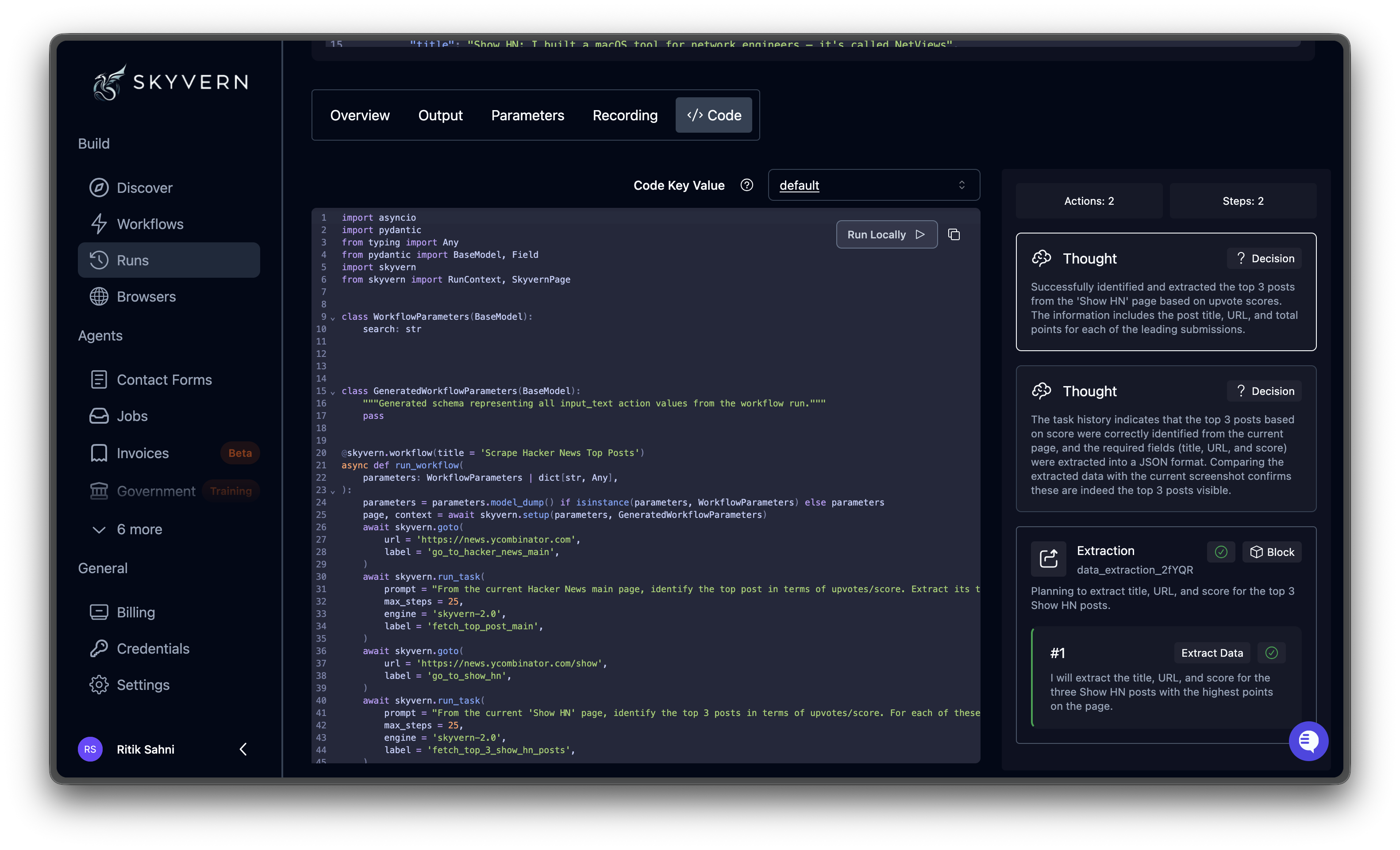 If the agent uses cached code, a **Cache Key selector** lets you switch between versions.
## Debugging failed runs
Work through these in order:
1. **Read the Failure Reason** at the top. It usually tells you what happened: timeout, navigation error, or missing element.
2. **Walk the Thought cards** in the Overview timeline. Find the point where the AI made an incorrect assumption about page state.
3. **Check the Parameters tab** to confirm inputs were correct. A wrong URL or missing parameter is a common cause.
4. **Watch the Recording** to see what actually happened. Popups, CAPTCHAs, and unexpected page layouts are often obvious on video.
## Run statuses
| Status | Meaning |
| ------------ | --------------------------------------------- |
| `created` | Initialized, waiting to be queued |
| `queued` | Waiting for an available browser slot |
| `running` | Actively executing; browser stream is live |
| `completed` | Finished successfully |
| `failed` | Stopped due to an error |
| `terminated` | Stopped by the system (e.g., resource limits) |
| `canceled` | Stopped by you via the Cancel button |
| `timed_out` | Exceeded the configured time limit |
While a run is in progress, the status badge updates automatically, the Overview tab shows a live browser stream, and the timeline grows as new items complete.
Access recordings, screenshots, and output files
Monitor and take control of running tasks
If the agent uses cached code, a **Cache Key selector** lets you switch between versions.
## Debugging failed runs
Work through these in order:
1. **Read the Failure Reason** at the top. It usually tells you what happened: timeout, navigation error, or missing element.
2. **Walk the Thought cards** in the Overview timeline. Find the point where the AI made an incorrect assumption about page state.
3. **Check the Parameters tab** to confirm inputs were correct. A wrong URL or missing parameter is a common cause.
4. **Watch the Recording** to see what actually happened. Popups, CAPTCHAs, and unexpected page layouts are often obvious on video.
## Run statuses
| Status | Meaning |
| ------------ | --------------------------------------------- |
| `created` | Initialized, waiting to be queued |
| `queued` | Waiting for an available browser slot |
| `running` | Actively executing; browser stream is live |
| `completed` | Finished successfully |
| `failed` | Stopped due to an error |
| `terminated` | Stopped by the system (e.g., resource limits) |
| `canceled` | Stopped by you via the Cancel button |
| `timed_out` | Exceeded the configured time limit |
While a run is in progress, the status badge updates automatically, the Overview tab shows a live browser stream, and the timeline grows as new items complete.
Access recordings, screenshots, and output files
Monitor and take control of running tasks