> ## Documentation Index
> Fetch the complete documentation index at: https://skyvern.com/docs/llms.txt
> Use this file to discover all available pages before exploring further.
# 2FA / TOTP Setup
> Configure TOTP authenticator app, email, or SMS two-factor authentication for automated logins in the Skyvern Cloud UI, including secret key setup and manual code delivery.
Skyvern supports three 2FA methods for automated logins. **Authenticator App (TOTP)** is fully automatic: Skyvern generates codes locally. **Email** and **Text Message** require you to push codes via the UI or API. All three are configured on the [password credential](/cloud/managing-credentials/password-credentials) itself.
## Authenticator App (TOTP)
The preferred method. Skyvern generates valid 6-digit codes on demand during login flows with no delay and no manual steps.
### How it works
1. The Login block enters the username and password
2. The site prompts for a 2FA code
3. Skyvern generates a fresh TOTP code from the stored secret key
4. The code is entered automatically and login completes
### Setting it up
Go to the Credentials page and create a new password credential.
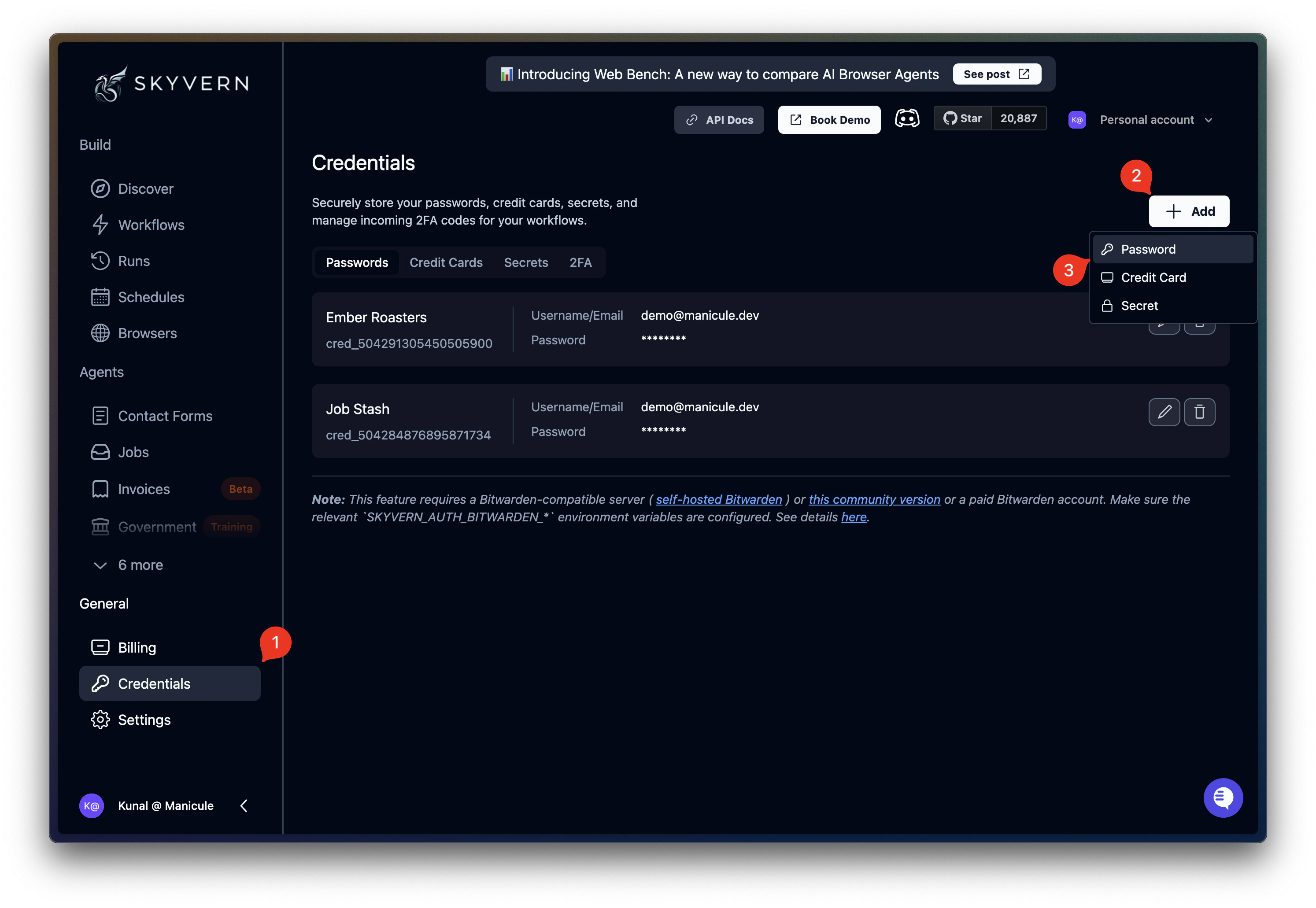 Below the password fields, click the **Two-Factor Authentication** accordion.
Choose **Authenticator App** from the three options.
Enter the secret key into the **Authenticator Key** field, or click **Scan QR** to upload a QR code image from the site's 2FA setup screen. Then click **Save**.
Below the password fields, click the **Two-Factor Authentication** accordion.
Choose **Authenticator App** from the three options.
Enter the secret key into the **Authenticator Key** field, or click **Scan QR** to upload a QR code image from the site's 2FA setup screen. Then click **Save**.
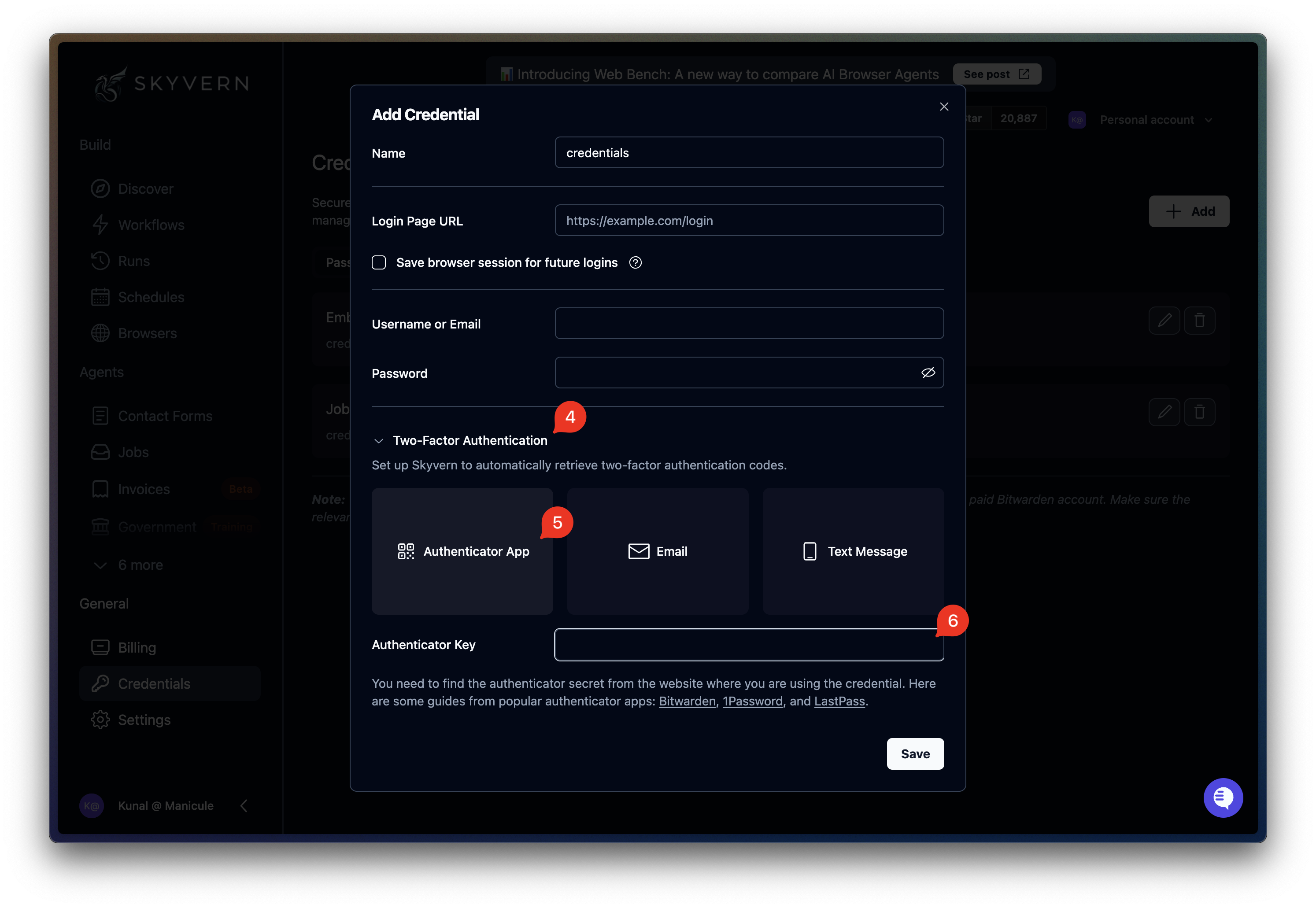 The secret key is the base32-encoded string behind the QR code you'd normally scan in an authenticator app. You can find it in a few places:
* **Bitwarden**: Edit the login → TOTP field → copy the key
* **1Password**: Edit the login → One-Time Password → copy the secret
* **LastPass**: Edit the login → Advanced Settings → copy the TOTP secret
* **Site settings**: Many sites show a "Can't scan?" link during 2FA setup that reveals the text key
If you only have a QR code, use **Scan QR** in the credential form or paste the full `otpauth://totp/...?secret=BASE32KEY` URI.
***
## Email and Text Message codes
When a site sends 2FA codes via email or SMS, someone (or something) needs to deliver the code to Skyvern before the login can complete.
### How it works
1. The Login block enters the username and password
2. The site sends a 2FA code to the configured email or phone number
3. You push the code to Skyvern via the **2FA tab** or the API
4. Skyvern enters the code and completes the login
### Setting it up
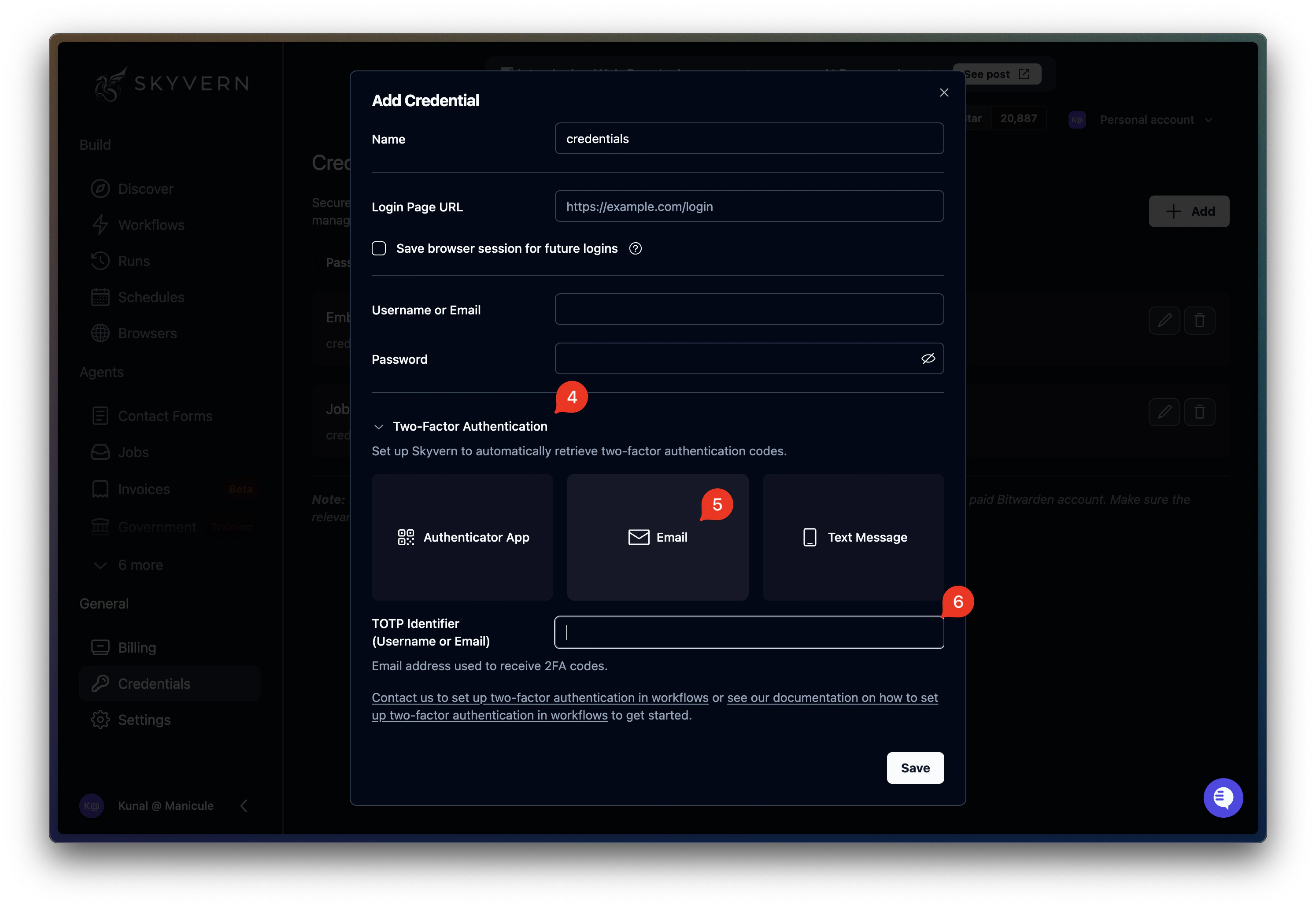
Go to the Credentials page and create a new password credential.
Below the password fields, click the **Two-Factor Authentication** accordion.
Choose the method that matches how the site delivers codes.
Provide the **email address** or **phone number** that receives the codes. For Email, this auto-fills from the Username field.
The secret key is the base32-encoded string behind the QR code you'd normally scan in an authenticator app. You can find it in a few places:
* **Bitwarden**: Edit the login → TOTP field → copy the key
* **1Password**: Edit the login → One-Time Password → copy the secret
* **LastPass**: Edit the login → Advanced Settings → copy the TOTP secret
* **Site settings**: Many sites show a "Can't scan?" link during 2FA setup that reveals the text key
If you only have a QR code, use **Scan QR** in the credential form or paste the full `otpauth://totp/...?secret=BASE32KEY` URI.
***
## Email and Text Message codes
When a site sends 2FA codes via email or SMS, someone (or something) needs to deliver the code to Skyvern before the login can complete.
### How it works
1. The Login block enters the username and password
2. The site sends a 2FA code to the configured email or phone number
3. You push the code to Skyvern via the **2FA tab** or the API
4. Skyvern enters the code and completes the login
### Setting it up
Go to the Credentials page and create a new password credential.
Below the password fields, click the **Two-Factor Authentication** accordion.
Choose the method that matches how the site delivers codes.
Provide the **email address** or **phone number** that receives the codes. For Email, this auto-fills from the Username field.
 ***
## Pushing codes to Skyvern
Once an agent is running and waiting for a 2FA code, you need to deliver it. There are two ways.
### Via the UI
Open the **2FA** tab on the Credentials page. The **Push a 2FA Code** form has two fields:
| Field | What to enter |
| ------------------------ | -------------------------------------------------------------------------------------------- |
| **Identifier** | The email address or phone number that received the code |
| **Verification content** | The full email/SMS body, or just the code itself. Skyvern extracts the digits automatically. |
***
## Pushing codes to Skyvern
Once an agent is running and waiting for a 2FA code, you need to deliver it. There are two ways.
### Via the UI
Open the **2FA** tab on the Credentials page. The **Push a 2FA Code** form has two fields:
| Field | What to enter |
| ------------------------ | -------------------------------------------------------------------------------------------- |
| **Identifier** | The email address or phone number that received the code |
| **Verification content** | The full email/SMS body, or just the code itself. Skyvern extracts the digits automatically. |
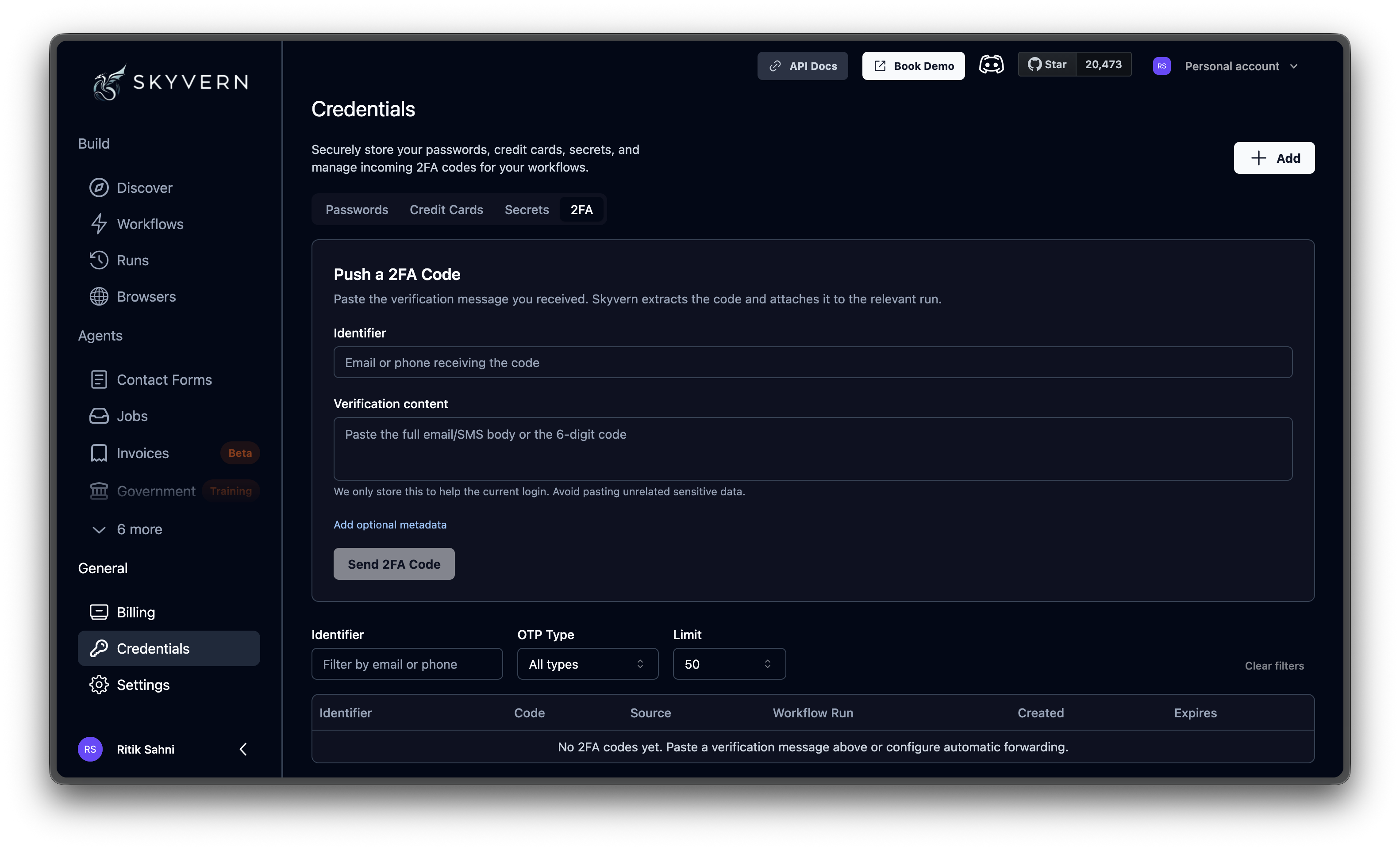 If multiple agents are running simultaneously, click **Add optional metadata** to link the code to a specific run using the workflow run ID, workflow ID, or task ID.
### Via the API
For production, automate code delivery. Set up a forwarding rule that sends 2FA emails or texts to a script, and the script pushes the code to Skyvern:
```bash cURL theme={null}
curl -X POST "https://api.skyvern.com/v1/credentials/totp" \
-H "x-api-key: YOUR_API_KEY" \
-H "Content-Type: application/json" \
-d '{
"totp_identifier": "user@example.com",
"content": "Your verification code is 847291",
"source": "email_forwarder"
}'
```
```python Python theme={null}
from skyvern import Skyvern
skyvern = Skyvern(api_key="YOUR_API_KEY")
await skyvern.send_totp_code(
totp_identifier="user@example.com",
content="Your verification code is 847291",
source="email_forwarder",
)
```
```typescript TypeScript theme={null}
import { SkyvernClient } from "@skyvern/client";
const skyvern = new SkyvernClient({ apiKey: "YOUR_API_KEY" });
await skyvern.sendTotpCode({
totp_identifier: "user@example.com",
content: "Your verification code is 847291",
source: "email_forwarder",
});
```
**Response:**
```json theme={null}
{
"totp_code_id": "tc_abc123",
"totp_identifier": "user@example.com",
"code": "847291",
"source": "email_forwarder",
"created_at": "2025-01-15T10:30:00Z"
}
```
The `source` field is a free-text label for your own tracking (e.g., `"email_forwarder"`, `"twilio_webhook"`).
To link a code to a specific run, pass `workflow_run_id`, `workflow_id`, or `task_id`. This is the API equivalent of the **Add optional metadata** option in the UI.
This turns email-based 2FA into something nearly as automated as an authenticator app. The main difference is latency while the email arrives and gets forwarded.
***
## Server-fetched codes (totp\_url)
Instead of pushing codes to Skyvern, you can have Skyvern pull them from your server. Skyvern calls your endpoint only when the automation reaches a page that asks for a verification code.
For saved agents or workflows, configure the endpoint on the block that performs the login. Open the browser, action, file download, or login block and set **TOTP Verification URL**. Passing `totp_url` only in the top-level workflow run request does not automatically populate a block whose **TOTP Verification URL** is empty.
If the endpoint changes per run, create a workflow parameter such as `totp_url`, set the block's **TOTP Verification URL** to `{{ totp_url }}`, and pass the URL in `parameters` when starting the run.
Your endpoint must accept a POST request with `task_id`, `workflow_run_id`, and `workflow_permanent_id` in the body, and return:
```json theme={null}
{
"verification_code": "123456"
}
```
Validate the `x-skyvern-signature` header to confirm the request came from Skyvern:
```python theme={null}
import hashlib, hmac
def validate_skyvern_request(request) -> bool:
signature = request.headers["x-skyvern-signature"]
payload = request.body() # bytes
expected = hmac.new(
SKYVERN_API_KEY.encode("utf-8"),
msg=payload,
digestmod=hashlib.sha256,
).hexdigest()
return signature == expected
```
***
## Magic links (one-time login links)
Some sites use one-time login links instead of numeric codes. Skyvern supports these by splitting the flow into two steps:
1. **Trigger the magic link**: Run a task that initiates the login. The site emails a one-time link.
2. **Use the link**: Monitor the inbox (e.g., via Zapier), extract the URL, then start a new task with that URL as the starting point.
```python theme={null}
# Step 1: Trigger the magic link email
await client.run_task(
prompt="Click 'Sign in with email link' and enter user@example.com",
url="https://app.example.com/login",
wait_for_completion=True,
)
# Step 2: Your email monitor extracts the magic link URL, then:
await client.run_task(
prompt="Complete the onboarding form after login",
url=magic_link_url, # The one-time URL from the email
wait_for_completion=True,
)
```
The magic link URL becomes the `url` parameter for the second task. Skyvern opens it directly, which logs the user in, and then continues with the rest of the automation.
***
## Viewing past codes
The table below the push form shows all 2FA codes your organization has received: identifier, extracted code, source type, associated workflow run, and timestamps. Filter by identifier, OTP type (numeric code vs. magic link), and number of results per page.
Use this for auditing and debugging: confirming that a code was received and delivered to the right run.
### Listing codes via API
```bash theme={null}
curl -X GET "https://api.skyvern.com/v1/credentials/totp?totp_identifier=user@example.com&limit=10" \
-H "x-api-key: $SKYVERN_API_KEY"
```
| Parameter | Description |
| ----------------- | ----------------------------------------- |
| `totp_identifier` | Filter by identifier (email, phone, etc.) |
| `workflow_run_id` | Restrict to a specific workflow run |
| `otp_type` | Filter by `totp` or `magic_link` |
| `limit` | Number of records (default 50, max 200) |
Returns historical records ordered newest first, capped by `limit`. Runtime polling still only uses unexpired codes within `TOTP_LIFESPAN_MINUTES`.
Create credentials with 2FA methods attached
Security model, quick start, and all credential types
If multiple agents are running simultaneously, click **Add optional metadata** to link the code to a specific run using the workflow run ID, workflow ID, or task ID.
### Via the API
For production, automate code delivery. Set up a forwarding rule that sends 2FA emails or texts to a script, and the script pushes the code to Skyvern:
```bash cURL theme={null}
curl -X POST "https://api.skyvern.com/v1/credentials/totp" \
-H "x-api-key: YOUR_API_KEY" \
-H "Content-Type: application/json" \
-d '{
"totp_identifier": "user@example.com",
"content": "Your verification code is 847291",
"source": "email_forwarder"
}'
```
```python Python theme={null}
from skyvern import Skyvern
skyvern = Skyvern(api_key="YOUR_API_KEY")
await skyvern.send_totp_code(
totp_identifier="user@example.com",
content="Your verification code is 847291",
source="email_forwarder",
)
```
```typescript TypeScript theme={null}
import { SkyvernClient } from "@skyvern/client";
const skyvern = new SkyvernClient({ apiKey: "YOUR_API_KEY" });
await skyvern.sendTotpCode({
totp_identifier: "user@example.com",
content: "Your verification code is 847291",
source: "email_forwarder",
});
```
**Response:**
```json theme={null}
{
"totp_code_id": "tc_abc123",
"totp_identifier": "user@example.com",
"code": "847291",
"source": "email_forwarder",
"created_at": "2025-01-15T10:30:00Z"
}
```
The `source` field is a free-text label for your own tracking (e.g., `"email_forwarder"`, `"twilio_webhook"`).
To link a code to a specific run, pass `workflow_run_id`, `workflow_id`, or `task_id`. This is the API equivalent of the **Add optional metadata** option in the UI.
This turns email-based 2FA into something nearly as automated as an authenticator app. The main difference is latency while the email arrives and gets forwarded.
***
## Server-fetched codes (totp\_url)
Instead of pushing codes to Skyvern, you can have Skyvern pull them from your server. Skyvern calls your endpoint only when the automation reaches a page that asks for a verification code.
For saved agents or workflows, configure the endpoint on the block that performs the login. Open the browser, action, file download, or login block and set **TOTP Verification URL**. Passing `totp_url` only in the top-level workflow run request does not automatically populate a block whose **TOTP Verification URL** is empty.
If the endpoint changes per run, create a workflow parameter such as `totp_url`, set the block's **TOTP Verification URL** to `{{ totp_url }}`, and pass the URL in `parameters` when starting the run.
Your endpoint must accept a POST request with `task_id`, `workflow_run_id`, and `workflow_permanent_id` in the body, and return:
```json theme={null}
{
"verification_code": "123456"
}
```
Validate the `x-skyvern-signature` header to confirm the request came from Skyvern:
```python theme={null}
import hashlib, hmac
def validate_skyvern_request(request) -> bool:
signature = request.headers["x-skyvern-signature"]
payload = request.body() # bytes
expected = hmac.new(
SKYVERN_API_KEY.encode("utf-8"),
msg=payload,
digestmod=hashlib.sha256,
).hexdigest()
return signature == expected
```
***
## Magic links (one-time login links)
Some sites use one-time login links instead of numeric codes. Skyvern supports these by splitting the flow into two steps:
1. **Trigger the magic link**: Run a task that initiates the login. The site emails a one-time link.
2. **Use the link**: Monitor the inbox (e.g., via Zapier), extract the URL, then start a new task with that URL as the starting point.
```python theme={null}
# Step 1: Trigger the magic link email
await client.run_task(
prompt="Click 'Sign in with email link' and enter user@example.com",
url="https://app.example.com/login",
wait_for_completion=True,
)
# Step 2: Your email monitor extracts the magic link URL, then:
await client.run_task(
prompt="Complete the onboarding form after login",
url=magic_link_url, # The one-time URL from the email
wait_for_completion=True,
)
```
The magic link URL becomes the `url` parameter for the second task. Skyvern opens it directly, which logs the user in, and then continues with the rest of the automation.
***
## Viewing past codes
The table below the push form shows all 2FA codes your organization has received: identifier, extracted code, source type, associated workflow run, and timestamps. Filter by identifier, OTP type (numeric code vs. magic link), and number of results per page.
Use this for auditing and debugging: confirming that a code was received and delivered to the right run.
### Listing codes via API
```bash theme={null}
curl -X GET "https://api.skyvern.com/v1/credentials/totp?totp_identifier=user@example.com&limit=10" \
-H "x-api-key: $SKYVERN_API_KEY"
```
| Parameter | Description |
| ----------------- | ----------------------------------------- |
| `totp_identifier` | Filter by identifier (email, phone, etc.) |
| `workflow_run_id` | Restrict to a specific workflow run |
| `otp_type` | Filter by `totp` or `magic_link` |
| `limit` | Number of records (default 50, max 200) |
Returns historical records ordered newest first, capped by `limit`. Runtime polling still only uses unexpired codes within `TOTP_LIFESPAN_MINUTES`.
Create credentials with 2FA methods attached
Security model, quick start, and all credential types