> ## Documentation Index
> Fetch the complete documentation index at: https://skyvern.com/docs/llms.txt
> Use this file to discover all available pages before exploring further.
# Password Credentials
> Create and manage password credentials in the Skyvern Cloud UI with optional two-factor authentication via TOTP, email, or SMS for automated login agents.
Password credentials store a username, password, and optional 2FA configuration. Reference them from [Login blocks](/cloud/building-agents/configure-blocks) in your agents, and Skyvern handles the entire sign-in flow, including entering 2FA codes.
## Creating a password credential
Click **+ Add → Password** from the Credentials page.
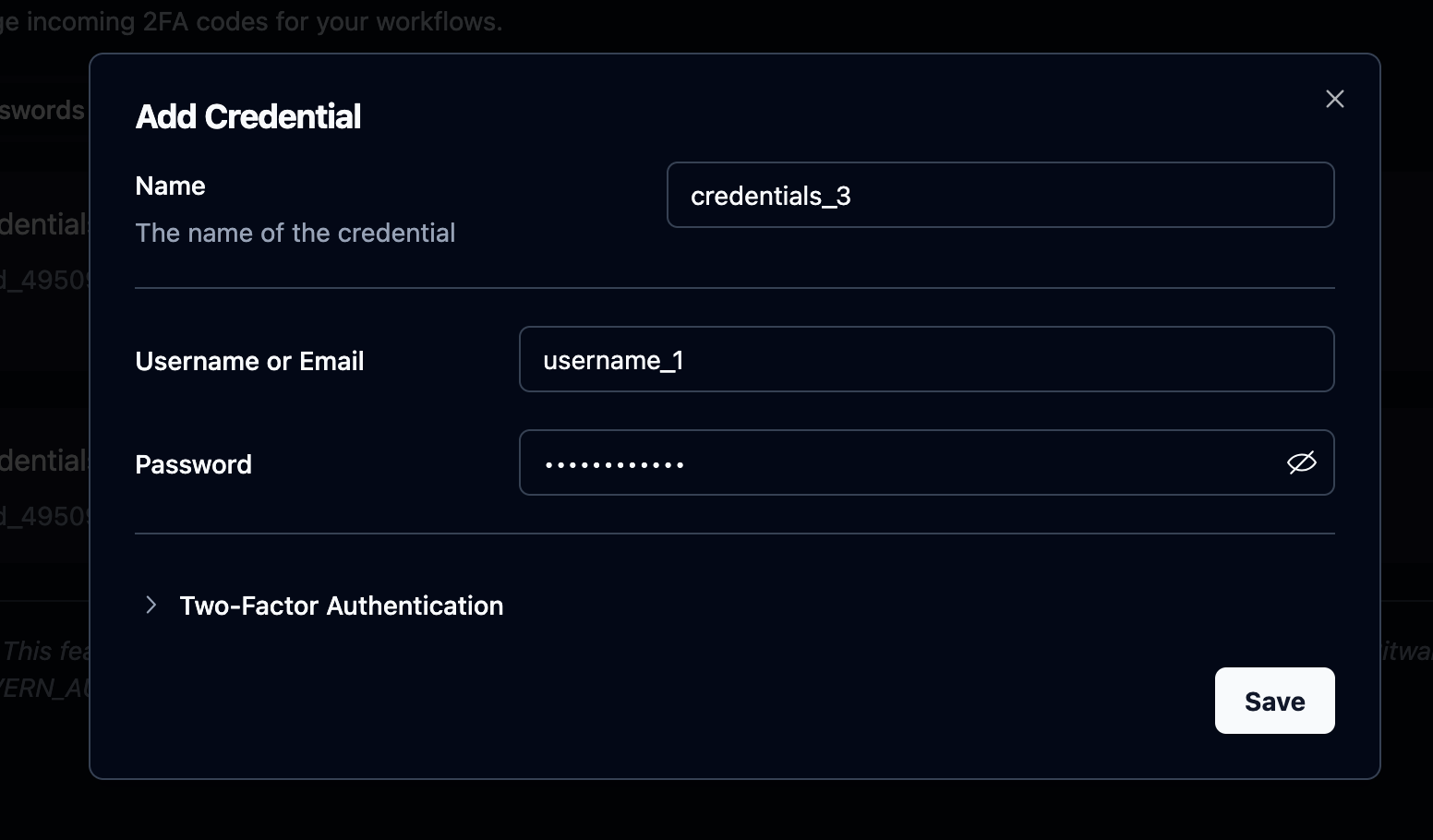
Enter a **Name** (a label like "Salesforce Production"), **Username or Email**, and **Password**. The password field has an eye icon to toggle visibility.
Expand the **Two-Factor Authentication** accordion to set up automated 2FA handling. See [below](#adding-two-factor-authentication) for details.
Click **Save**. The credential is immediately available for use in agents.
 ## Adding two-factor authentication
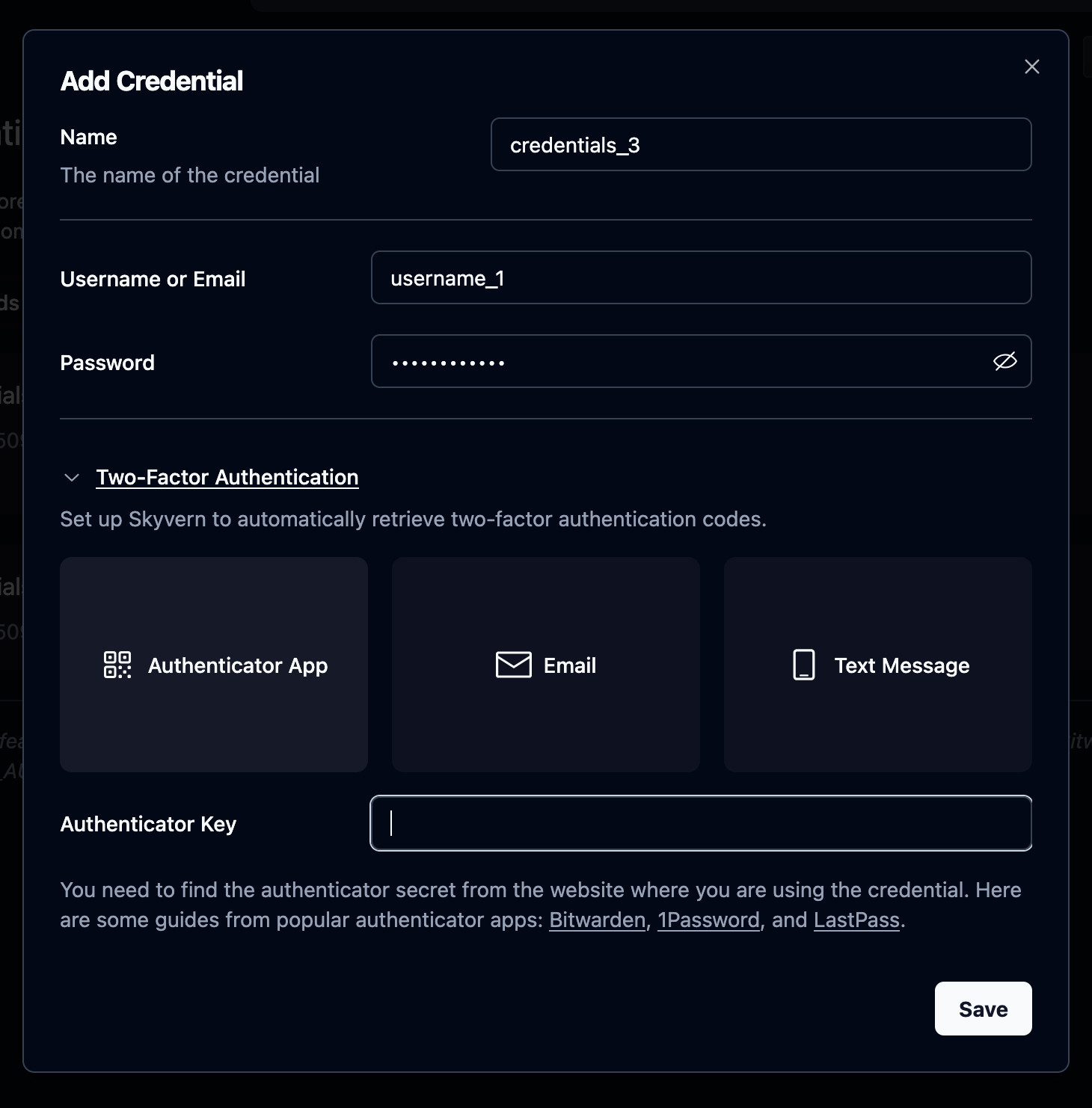
If the site requires 2FA, expand the **Two-Factor Authentication** accordion below the password fields. Three options, depending on how the site delivers codes:
## Adding two-factor authentication
If the site requires 2FA, expand the **Two-Factor Authentication** accordion below the password fields. Three options, depending on how the site delivers codes:
 | Method | How it works |
| --------------------- | ------------------------------------------------------------------------------------------------------------------------------------------------------------------------------------------------------ |
| **Authenticator App** | Paste the TOTP secret key and Skyvern generates codes locally on demand. Fully automated with no delay. Preferred when the site supports it. |
| **Email** | Provide the email address that receives codes. Skyvern waits for you to push the code via the [2FA tab](/cloud/managing-credentials/totp-setup) or API. Identifier auto-fills from the Username field. |
| **Text Message** | Provide the phone number that receives codes. Same push-based flow as Email. |
Authenticator App is always the best option when available. Email and Text require either manual code entry or setting up automatic forwarding.
The secret key is the base32-encoded string behind the QR code you'd scan in an authenticator app. Most password managers let you view it:
* **Bitwarden**: Edit the login → TOTP field → copy the key
* **1Password**: Edit the login → One-Time Password → copy the secret
* **LastPass**: Edit the login → Advanced Settings → copy the TOTP secret
* **Site settings**: Many sites show a "Can't scan?" link during 2FA setup that reveals the text key
If you only have a QR code, decode it to extract the `secret=` parameter from the `otpauth://totp/...?secret=BASE32KEY` URI.
## Using credentials in an agent
In the Login block configuration, select a stored credential from the dropdown. Skyvern fills in the username and password automatically, and handles 2FA if configured.
## Managing credentials
Stored credentials show the name, credential ID, username (plain text), password (always masked), and 2FA method if configured.
To edit a credential, click the **pencil icon** on its row. For security, saved passwords and secrets are never retrieved, so you must re-enter all sensitive fields when updating.
Push verification codes and manage 2FA for Email and Text methods
Configure Login blocks and other blocks that use credentials
| Method | How it works |
| --------------------- | ------------------------------------------------------------------------------------------------------------------------------------------------------------------------------------------------------ |
| **Authenticator App** | Paste the TOTP secret key and Skyvern generates codes locally on demand. Fully automated with no delay. Preferred when the site supports it. |
| **Email** | Provide the email address that receives codes. Skyvern waits for you to push the code via the [2FA tab](/cloud/managing-credentials/totp-setup) or API. Identifier auto-fills from the Username field. |
| **Text Message** | Provide the phone number that receives codes. Same push-based flow as Email. |
Authenticator App is always the best option when available. Email and Text require either manual code entry or setting up automatic forwarding.
The secret key is the base32-encoded string behind the QR code you'd scan in an authenticator app. Most password managers let you view it:
* **Bitwarden**: Edit the login → TOTP field → copy the key
* **1Password**: Edit the login → One-Time Password → copy the secret
* **LastPass**: Edit the login → Advanced Settings → copy the TOTP secret
* **Site settings**: Many sites show a "Can't scan?" link during 2FA setup that reveals the text key
If you only have a QR code, decode it to extract the `secret=` parameter from the `otpauth://totp/...?secret=BASE32KEY` URI.
## Using credentials in an agent
In the Login block configuration, select a stored credential from the dropdown. Skyvern fills in the username and password automatically, and handles 2FA if configured.
## Managing credentials
Stored credentials show the name, credential ID, username (plain text), password (always masked), and 2FA method if configured.
To edit a credential, click the **pencil icon** on its row. For security, saved passwords and secrets are never retrieved, so you must re-enter all sensitive fields when updating.
Push verification codes and manage 2FA for Email and Text methods
Configure Login blocks and other blocks that use credentials