> ## Documentation Index
> Fetch the complete documentation index at: https://skyvern.com/docs/llms.txt
> Use this file to discover all available pages before exploring further.
# Credentials Overview
> Securely store passwords, credit cards, and secrets in the Skyvern Cloud UI Credentials page, with encrypted-at-rest vault storage and just-in-time injection during browser automation.
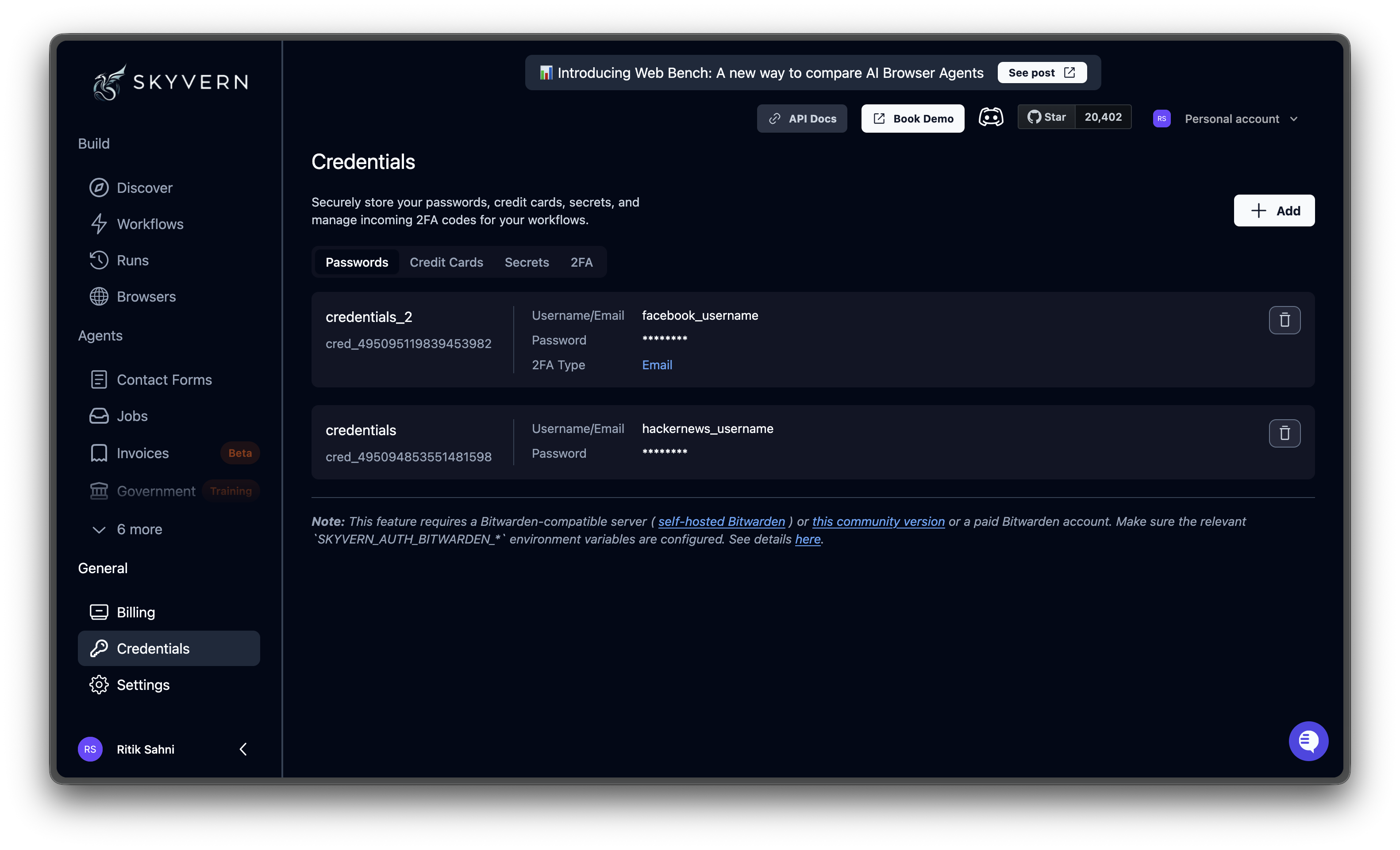
The **Credentials** page stores sensitive values (passwords, payment cards, and secrets) so your agents can use them without embedding secrets in prompts or parameters. Skyvern stores credentials by default with no external service required.
 ## How Skyvern keeps credentials secure
Sensitive credential data never reaches the LLM, logs, or API responses.
When you save a credential, the sensitive data (passwords, card numbers, CVVs, and TOTP secrets) is sent to a secure vault that provides encryption at rest. Skyvern supports multiple vault backends: Bitwarden, 1Password, Azure Key Vault, and custom webhook providers. Skyvern's own database stores only non-sensitive metadata: credential name, username, card last four digits, card brand, TOTP method, and similar identifiers. Passwords, full card numbers, CVVs, and TOTP secrets are stored exclusively in the vault.
When an agent runs, the LLM receives only placeholder IDs like `placeholder_Xk9m_password`. The AI decides *where* to type on the page, but never sees the real values. No third party, including the LLM provider, ever accesses your actual credentials.
At the browser level, the automation layer resolves placeholders to real values and types them directly into the page. After execution, credential values that appear in HTTP Request block responses, block context snapshots, and conditional evaluation outputs are automatically masked before storage.
***
## Quick start
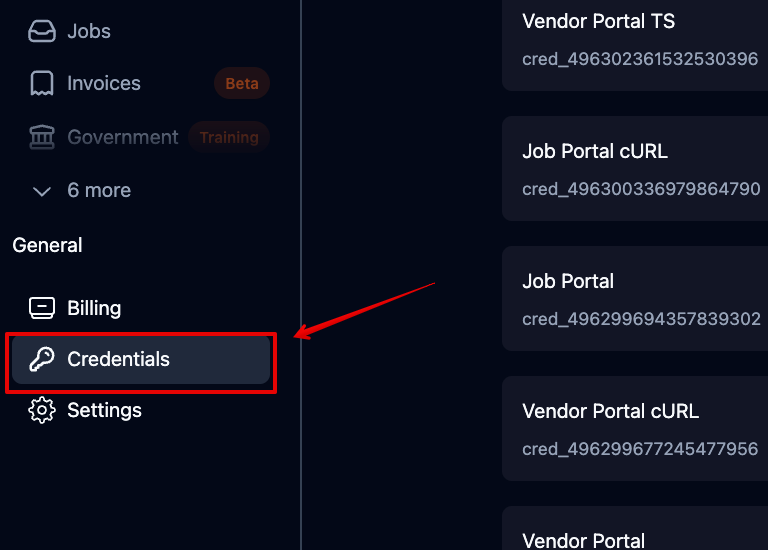
Click **Credentials** in the left sidebar under **General**.
## How Skyvern keeps credentials secure
Sensitive credential data never reaches the LLM, logs, or API responses.
When you save a credential, the sensitive data (passwords, card numbers, CVVs, and TOTP secrets) is sent to a secure vault that provides encryption at rest. Skyvern supports multiple vault backends: Bitwarden, 1Password, Azure Key Vault, and custom webhook providers. Skyvern's own database stores only non-sensitive metadata: credential name, username, card last four digits, card brand, TOTP method, and similar identifiers. Passwords, full card numbers, CVVs, and TOTP secrets are stored exclusively in the vault.
When an agent runs, the LLM receives only placeholder IDs like `placeholder_Xk9m_password`. The AI decides *where* to type on the page, but never sees the real values. No third party, including the LLM provider, ever accesses your actual credentials.
At the browser level, the automation layer resolves placeholders to real values and types them directly into the page. After execution, credential values that appear in HTTP Request block responses, block context snapshots, and conditional evaluation outputs are automatically masked before storage.
***
## Quick start
Click **Credentials** in the left sidebar under **General**.
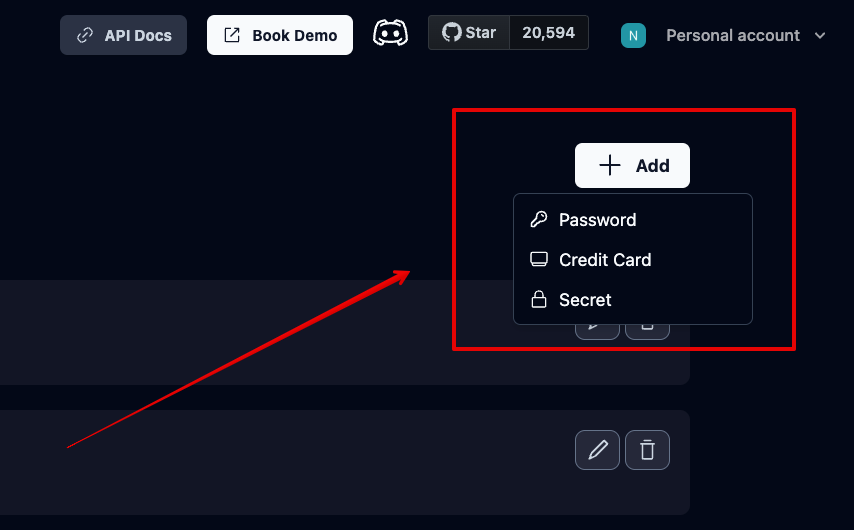
 Choose the credential type: **Password**, **Credit Card**, or **Secret**.
 Enter the required fields and click **Save**. The credential is immediately available for use in agents.
***
## What you can store
Username, password, and optional 2FA configuration for automated logins
Payment card details for purchase and checkout agents
A single sensitive string such as an API key, bearer token, or any value you don't want hardcoded
Password and Credit Card credentials have their own pages. Secrets are simpler and documented here.
### Secret credentials
Secrets store a single sensitive value (an API key, bearer token, or similar). Create one from **+ Add → Secret**, give it a name and value, then reference it in HTTP Request, Code, or Workflow Trigger blocks using the credential parameter's key:
```
{{ parameter_key.secret_value }}
```
Replace `parameter_key` with the **key** assigned to the credential parameter in the agent editor (e.g., `credentials`, `credentials_1`).
***
## Using credentials in agents
The most common pattern is a **Login block**. A Login block is an agent step that signs into a website using stored credentials. Select a credential from the dropdown, and Skyvern fills in the username, password, and 2FA code (if configured) automatically. See [Block Reference](/cloud/building-agents/configure-blocks) for details.
For agents that need different credentials at runtime, add a **Credential parameter** (type: `credential_id`). When someone runs the agent, they pick which credential to use from a dropdown. See [Agent Parameters](/cloud/building-agents/add-parameters) for setup.
***
## Deleting credentials
Click the **trash icon** on any credential row. Deletion is permanent and cannot be undone. If an agent references a deleted credential, the run will fail during initialization until you assign a replacement.
Store logins with optional 2FA
Store payment details for checkout agents
Configure and manage two-factor authentication
Connect Bitwarden, 1Password, Azure Key Vault, or a custom API
Enter the required fields and click **Save**. The credential is immediately available for use in agents.
***
## What you can store
Username, password, and optional 2FA configuration for automated logins
Payment card details for purchase and checkout agents
A single sensitive string such as an API key, bearer token, or any value you don't want hardcoded
Password and Credit Card credentials have their own pages. Secrets are simpler and documented here.
### Secret credentials
Secrets store a single sensitive value (an API key, bearer token, or similar). Create one from **+ Add → Secret**, give it a name and value, then reference it in HTTP Request, Code, or Workflow Trigger blocks using the credential parameter's key:
```
{{ parameter_key.secret_value }}
```
Replace `parameter_key` with the **key** assigned to the credential parameter in the agent editor (e.g., `credentials`, `credentials_1`).
***
## Using credentials in agents
The most common pattern is a **Login block**. A Login block is an agent step that signs into a website using stored credentials. Select a credential from the dropdown, and Skyvern fills in the username, password, and 2FA code (if configured) automatically. See [Block Reference](/cloud/building-agents/configure-blocks) for details.
For agents that need different credentials at runtime, add a **Credential parameter** (type: `credential_id`). When someone runs the agent, they pick which credential to use from a dropdown. See [Agent Parameters](/cloud/building-agents/add-parameters) for setup.
***
## Deleting credentials
Click the **trash icon** on any credential row. Deletion is permanent and cannot be undone. If an agent references a deleted credential, the run will fail during initialization until you assign a replacement.
Store logins with optional 2FA
Store payment details for checkout agents
Configure and manage two-factor authentication
Connect Bitwarden, 1Password, Azure Key Vault, or a custom API