> ## Documentation Index
> Fetch the complete documentation index at: https://skyvern.com/docs/llms.txt
> Use this file to discover all available pages before exploring further.
# Integrations
> Connect Google Sheets, Google Drive, Gmail, Outlook, password vaults and MCP clients to Skyvern, and run your agents from Zapier, Make, n8n or Workato.
Open **Integrations** in the sidebar to connect outside services to your agents. The page lists everything you have connected at the top, then every integration you can add under **Available**. Search by name, or filter with the category chips (**Workspace**, **Communication**, **Docs**, **Agent Orchestrators**, **Credentials**).
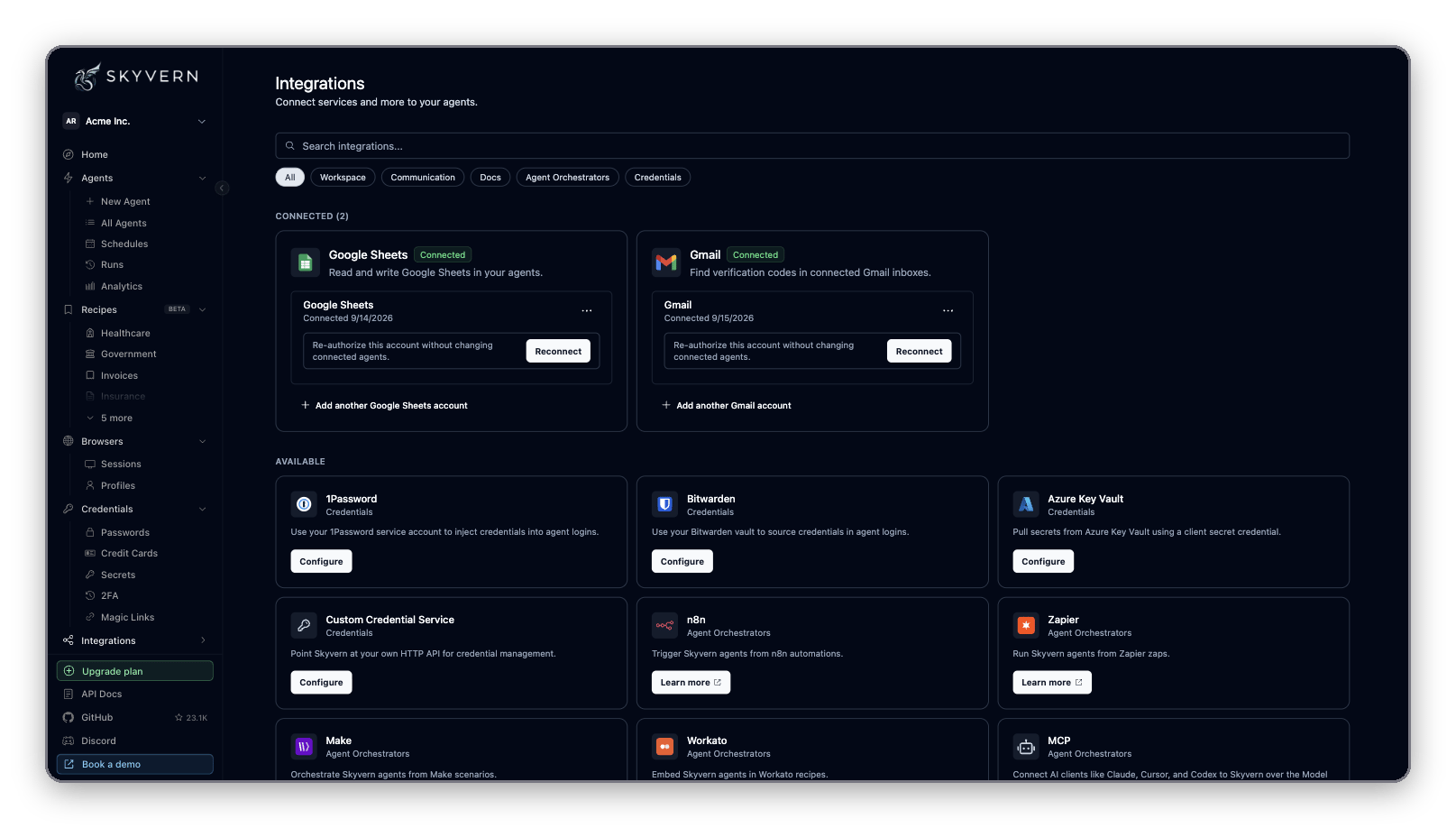 Every integration with a **Connect**, **Configure** or **Set up →** button is self-serve: you connect it yourself, with no sales call. The sidebar's **Integrations** group also has shortcuts to **API keys**, **MCP**, **1Password** and **n8n**.
| Integration | Category | What it does | Button |
| - | - | - | - |
| Google Sheets | Workspace | Read and write sheets in your agents | **Connect** |
| Google Drive | Workspace | Upload run files to Drive folders | **Connect** |
| Gmail | Communication | Find verification codes and emails in your inbox | **Connect** |
| Outlook | Communication | Find verification codes and emails in your inbox | **Connect** |
| 1Password | Credentials | Use logins from your 1Password vaults | **Configure** |
| Bitwarden | Credentials | Use logins from your Bitwarden vault | **Configure** |
| Azure Key Vault | Credentials | Read secrets from Azure Key Vault | **Configure** |
| Custom Credential Service | Credentials | Fetch credentials from your own HTTP API | **Configure** |
| MCP | Agent Orchestrators | Connect Claude, Cursor, Codex and other AI clients | **Set up →** |
| n8n, Zapier, Make, Workato | Agent Orchestrators | Run Skyvern agents from those platforms | **Learn more** |
| Google Docs, Notion | Workspace, Docs | Not available yet | **Request →** |
Don't see what you need? Click **Request →** on the **Request another integration** card and name the service.
## Google and Microsoft accounts
Google Sheets, Google Drive, Gmail and Outlook connect through Google or Microsoft sign-in.
Click **Connect** on the tile.
Enter a name, such as "Finance Gmail". You pick the account by this name in your agent's blocks. Click **Continue to Google** (or **Continue to Microsoft** for Outlook).
Sign in and approve every permission on the consent screen. Skyvern sends you back to Integrations, where the account appears under **Connected**.
What each connection asks for, and where you use it:
| Integration | Access requested | Where you use it |
| - | - | - |
| Google Sheets | Read and write spreadsheets, read Drive file metadata | **Google Sheets Read** and **Google Sheets Write** blocks |
| Google Drive | Full Drive access | **Cloud Storage** block with storage type **Google Drive**; **File Download** block for Drive links |
| Gmail | Read-only mail | **Email Inbox** block, and email-based 2FA on [credentials](/docs/credentials) |
| Outlook | Read mail (`Mail.Read`) | **Email Inbox** block, and email-based 2FA on [credentials](/docs/credentials) |
Block settings are in the [blocks reference](/docs/reference/blocks).
### Manage a connected account
Each connected card lists its accounts. From there you can:
* **Add another account**: click **Add another Gmail account** (or the matching name) to connect a second inbox or Google account.
* **Rename** or **Disconnect**: open the **...** menu on the account row. The name you set is what agent blocks show in their account picker.
* **Reconnect** (Google only): if the card shows **Needs reconnect**, the authorization expired or you didn't approve every permission. Click **Reconnect** and approve again. Agents that use the account resume without edits.
Disconnecting cannot be undone. Agents that use the account fail on their next run until you reconnect it or pick another account in their blocks.
## Password vaults
The four **Credentials** tiles let agents log in with secrets you already keep elsewhere. Click **Configure**, fill in the form, and save. The tile then shows **Status: Active**, or **Status: Inactive** if Skyvern could not use what you entered.
| Vault | What you enter |
| - | - |
| 1Password | **Service Account Token** (starts with `ops_`). The dialog walks you through creating one. |
| Bitwarden | **Email** and **Master Password** of the Bitwarden account. |
| Azure Key Vault | **Tenant ID**, **Client ID** and **Client Secret** of an app registration that can read the vault. |
| Custom Credential Service | **API Base URL** and **API Token** of your service. Click **Test Connection** before you save. |
To change or remove a vault, click **Edit** on the tile, then update the fields or click **Clear Token** / **Clear Credential** / **Clear Configuration**.
How agents pick a vault item at run time, and how to reference items in an agent's inputs, is on [Credentials and 2FA](/docs/credentials).
## MCP
Click **Set up →** on the **MCP** tile, or **Integrations → MCP** in the sidebar, to open **Connect Skyvern with MCP** at `/integrations/mcp`. Pick your client: **Claude Code**, **Cursor**, **Codex CLI**, **ChatGPT**, **Claude Desktop**, **Windsurf**, **Hermes** or **OpenClaw**. The page shows the recommended setup for that client, with commands you can copy. Browser sign-in (OAuth) methods need no API key. API key methods come pre-filled with your key.
Every integration with a **Connect**, **Configure** or **Set up →** button is self-serve: you connect it yourself, with no sales call. The sidebar's **Integrations** group also has shortcuts to **API keys**, **MCP**, **1Password** and **n8n**.
| Integration | Category | What it does | Button |
| - | - | - | - |
| Google Sheets | Workspace | Read and write sheets in your agents | **Connect** |
| Google Drive | Workspace | Upload run files to Drive folders | **Connect** |
| Gmail | Communication | Find verification codes and emails in your inbox | **Connect** |
| Outlook | Communication | Find verification codes and emails in your inbox | **Connect** |
| 1Password | Credentials | Use logins from your 1Password vaults | **Configure** |
| Bitwarden | Credentials | Use logins from your Bitwarden vault | **Configure** |
| Azure Key Vault | Credentials | Read secrets from Azure Key Vault | **Configure** |
| Custom Credential Service | Credentials | Fetch credentials from your own HTTP API | **Configure** |
| MCP | Agent Orchestrators | Connect Claude, Cursor, Codex and other AI clients | **Set up →** |
| n8n, Zapier, Make, Workato | Agent Orchestrators | Run Skyvern agents from those platforms | **Learn more** |
| Google Docs, Notion | Workspace, Docs | Not available yet | **Request →** |
Don't see what you need? Click **Request →** on the **Request another integration** card and name the service.
## Google and Microsoft accounts
Google Sheets, Google Drive, Gmail and Outlook connect through Google or Microsoft sign-in.
Click **Connect** on the tile.
Enter a name, such as "Finance Gmail". You pick the account by this name in your agent's blocks. Click **Continue to Google** (or **Continue to Microsoft** for Outlook).
Sign in and approve every permission on the consent screen. Skyvern sends you back to Integrations, where the account appears under **Connected**.
What each connection asks for, and where you use it:
| Integration | Access requested | Where you use it |
| - | - | - |
| Google Sheets | Read and write spreadsheets, read Drive file metadata | **Google Sheets Read** and **Google Sheets Write** blocks |
| Google Drive | Full Drive access | **Cloud Storage** block with storage type **Google Drive**; **File Download** block for Drive links |
| Gmail | Read-only mail | **Email Inbox** block, and email-based 2FA on [credentials](/docs/credentials) |
| Outlook | Read mail (`Mail.Read`) | **Email Inbox** block, and email-based 2FA on [credentials](/docs/credentials) |
Block settings are in the [blocks reference](/docs/reference/blocks).
### Manage a connected account
Each connected card lists its accounts. From there you can:
* **Add another account**: click **Add another Gmail account** (or the matching name) to connect a second inbox or Google account.
* **Rename** or **Disconnect**: open the **...** menu on the account row. The name you set is what agent blocks show in their account picker.
* **Reconnect** (Google only): if the card shows **Needs reconnect**, the authorization expired or you didn't approve every permission. Click **Reconnect** and approve again. Agents that use the account resume without edits.
Disconnecting cannot be undone. Agents that use the account fail on their next run until you reconnect it or pick another account in their blocks.
## Password vaults
The four **Credentials** tiles let agents log in with secrets you already keep elsewhere. Click **Configure**, fill in the form, and save. The tile then shows **Status: Active**, or **Status: Inactive** if Skyvern could not use what you entered.
| Vault | What you enter |
| - | - |
| 1Password | **Service Account Token** (starts with `ops_`). The dialog walks you through creating one. |
| Bitwarden | **Email** and **Master Password** of the Bitwarden account. |
| Azure Key Vault | **Tenant ID**, **Client ID** and **Client Secret** of an app registration that can read the vault. |
| Custom Credential Service | **API Base URL** and **API Token** of your service. Click **Test Connection** before you save. |
To change or remove a vault, click **Edit** on the tile, then update the fields or click **Clear Token** / **Clear Credential** / **Clear Configuration**.
How agents pick a vault item at run time, and how to reference items in an agent's inputs, is on [Credentials and 2FA](/docs/credentials).
## MCP
Click **Set up →** on the **MCP** tile, or **Integrations → MCP** in the sidebar, to open **Connect Skyvern with MCP** at `/integrations/mcp`. Pick your client: **Claude Code**, **Cursor**, **Codex CLI**, **ChatGPT**, **Claude Desktop**, **Windsurf**, **Hermes** or **OpenClaw**. The page shows the recommended setup for that client, with commands you can copy. Browser sign-in (OAuth) methods need no API key. API key methods come pre-filled with your key.
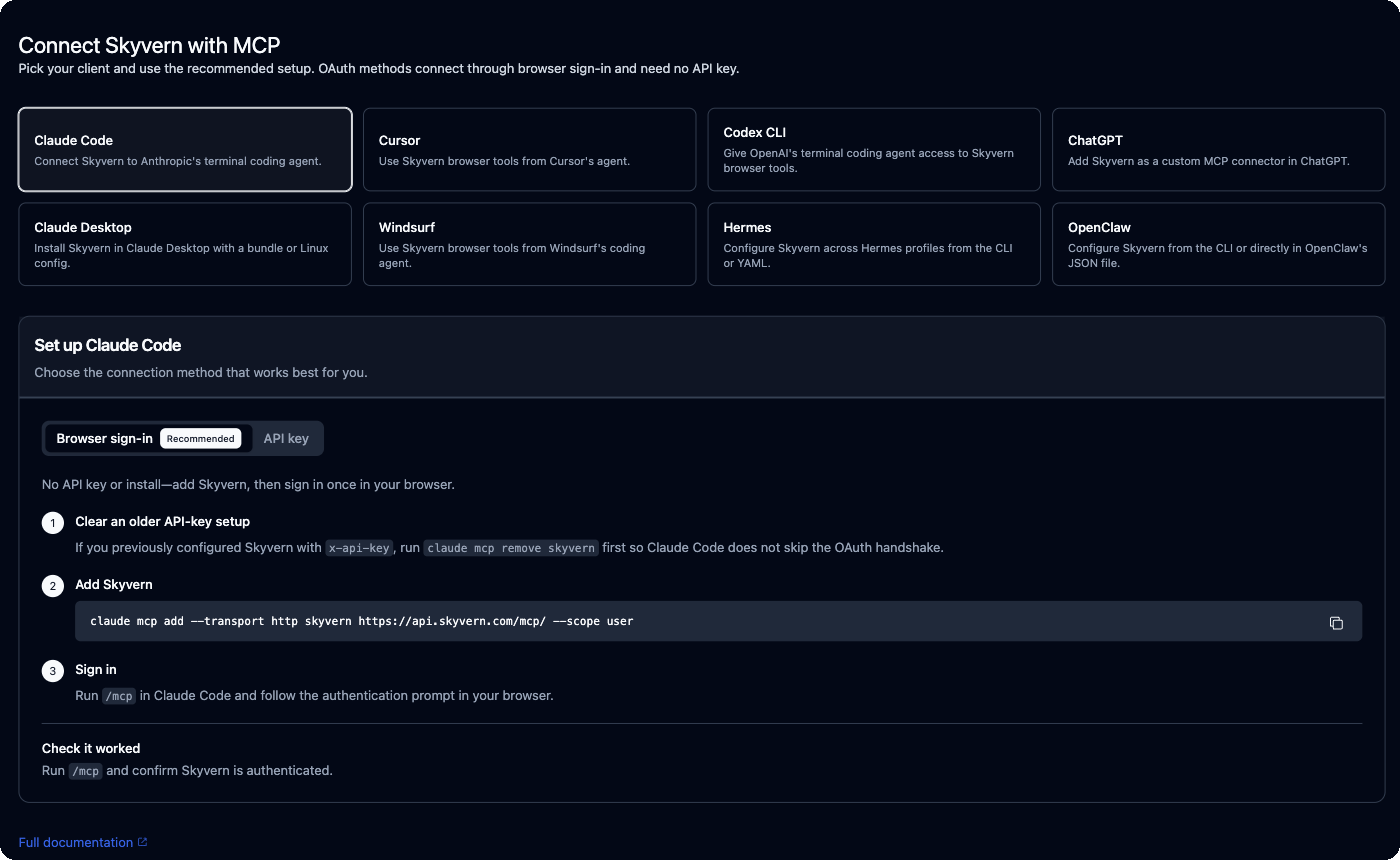 Per-client details, tool scopes and troubleshooting are on [MCP and coding agents](/docs/developers/getting-started/mcp).
## Automation platforms
Zapier, Make, n8n and Workato connect from their side: you add Skyvern inside the platform and paste your [API key](/docs/cloud/account#api-keys). The tiles on the Integrations page link to each platform's Skyvern listing.
All four follow the same pattern:
1. **Build the agent in Skyvern first.** The platform's "run an agent" step only lists agents that already exist.
2. **Run it.** Choose the agent and fill in its inputs. Add a webhook callback URL if you want the platform to hear back when the run finishes, rather than polling.
3. **Get the result.** Use the platform's "get" step with the run ID: agent run IDs start with `wr_`, task run IDs with `tsk_`.
Watch progress in the Skyvern app while you test. Every run started from a platform appears in your run history like any other run. See [Runs and schedules](/docs/cloud/runs).
### Zapier
Add Skyvern in your Zap and paste your API key. Listing: [zapier.com/apps/skyvern](https://zapier.com/apps/skyvern/integrations).
### Make
Add Skyvern in your scenario and paste your API key. Listing: [make.com/en/integrations/skyvern-ai](https://www.make.com/en/integrations/skyvern-ai).
### n8n
Install the community node [`n8n-nodes-skyvern`](https://www.npmjs.com/package/n8n-nodes-skyvern), add it to your workflow and paste your API key.
### Workato
Add the Skyvern connector to your recipe and paste your API key. Listing: [workato.com/integrations/skyvern](https://www.workato.com/integrations/skyvern).
## Next
Store logins and use vault items in agents
Find and rotate the key the platforms need
Drive Skyvern from Claude, Cursor or Codex
This documentation is built and hosted on [Mintlify](https://mintlify.com), a developer documentation platform.
Per-client details, tool scopes and troubleshooting are on [MCP and coding agents](/docs/developers/getting-started/mcp).
## Automation platforms
Zapier, Make, n8n and Workato connect from their side: you add Skyvern inside the platform and paste your [API key](/docs/cloud/account#api-keys). The tiles on the Integrations page link to each platform's Skyvern listing.
All four follow the same pattern:
1. **Build the agent in Skyvern first.** The platform's "run an agent" step only lists agents that already exist.
2. **Run it.** Choose the agent and fill in its inputs. Add a webhook callback URL if you want the platform to hear back when the run finishes, rather than polling.
3. **Get the result.** Use the platform's "get" step with the run ID: agent run IDs start with `wr_`, task run IDs with `tsk_`.
Watch progress in the Skyvern app while you test. Every run started from a platform appears in your run history like any other run. See [Runs and schedules](/docs/cloud/runs).
### Zapier
Add Skyvern in your Zap and paste your API key. Listing: [zapier.com/apps/skyvern](https://zapier.com/apps/skyvern/integrations).
### Make
Add Skyvern in your scenario and paste your API key. Listing: [make.com/en/integrations/skyvern-ai](https://www.make.com/en/integrations/skyvern-ai).
### n8n
Install the community node [`n8n-nodes-skyvern`](https://www.npmjs.com/package/n8n-nodes-skyvern), add it to your workflow and paste your API key.
### Workato
Add the Skyvern connector to your recipe and paste your API key. Listing: [workato.com/integrations/skyvern](https://www.workato.com/integrations/skyvern).
## Next
Store logins and use vault items in agents
Find and rotate the key the platforms need
Drive Skyvern from Claude, Cursor or Codex
This documentation is built and hosted on [Mintlify](https://mintlify.com), a developer documentation platform.