> ## Documentation Index
> Fetch the complete documentation index at: https://skyvern.com/docs/llms.txt
> Use this file to discover all available pages before exploring further.
# The Discover Page
> Use the Discover page in the Skyvern Cloud UI to run ad-hoc browser automation tasks with natural language prompts, choose an engine, and configure advanced settings like proxies and webhooks.
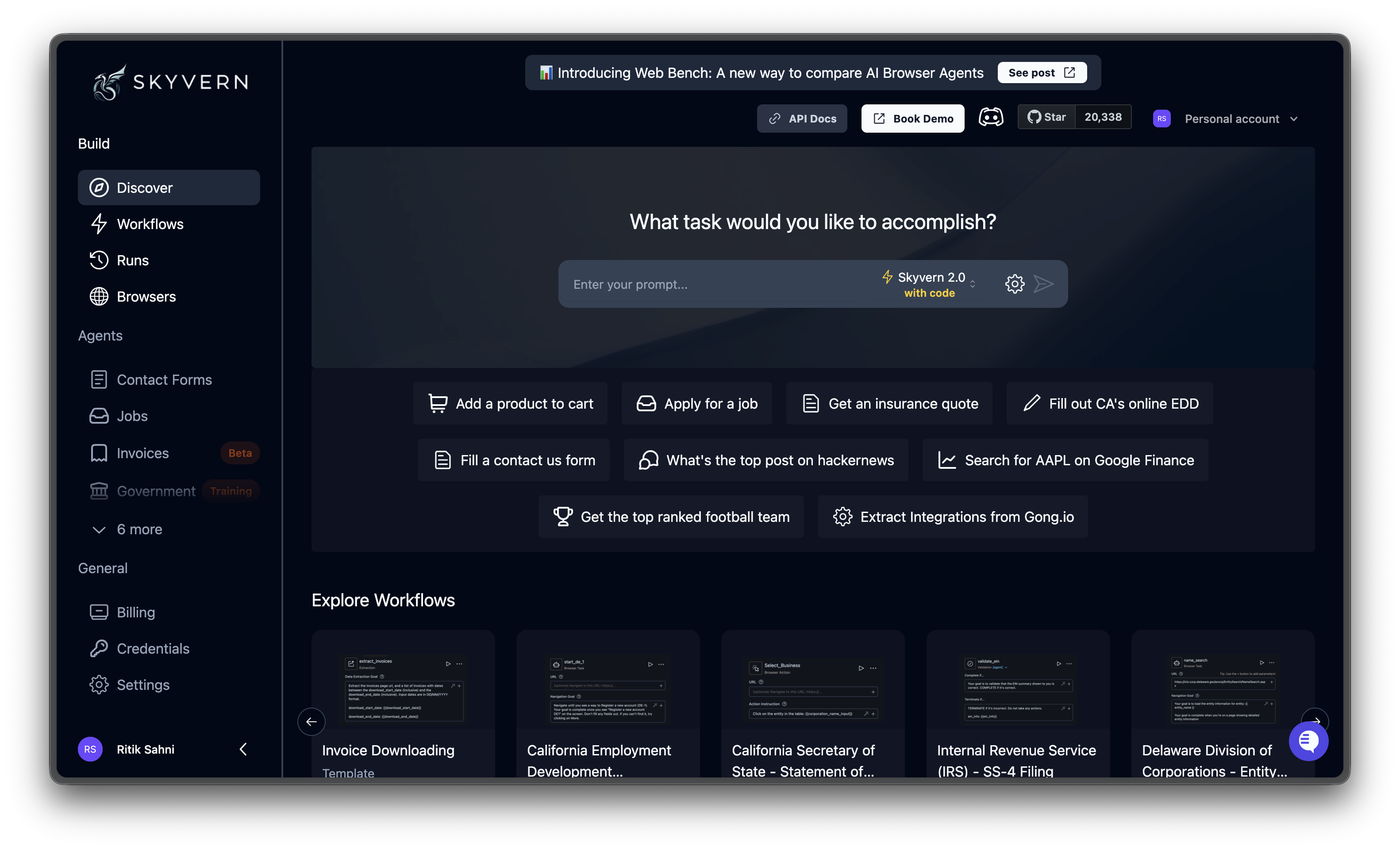
The **Discover** page is where you run one-off browser automations. Type what you want done in plain language, and Skyvern opens a browser and does it for you.
 ***
## The prompt box
Type a natural language instruction describing what you want automated. Be specific about the goal and any data you want extracted.
**Examples:**
* "Go to amazon.com and find the price of the MacBook Air M4"
* "Fill out the contact form at example.com/contact with name John Doe and email [john@example.com](mailto:john@example.com)"
* "Get an insurance quote from geico.com for a 2020 Toyota Camry"
***
## The prompt box
Type a natural language instruction describing what you want automated. Be specific about the goal and any data you want extracted.
**Examples:**
* "Go to amazon.com and find the price of the MacBook Air M4"
* "Fill out the contact form at example.com/contact with name John Doe and email [john@example.com](mailto:john@example.com)"
* "Get an insurance quote from geico.com for a 2020 Toyota Camry"
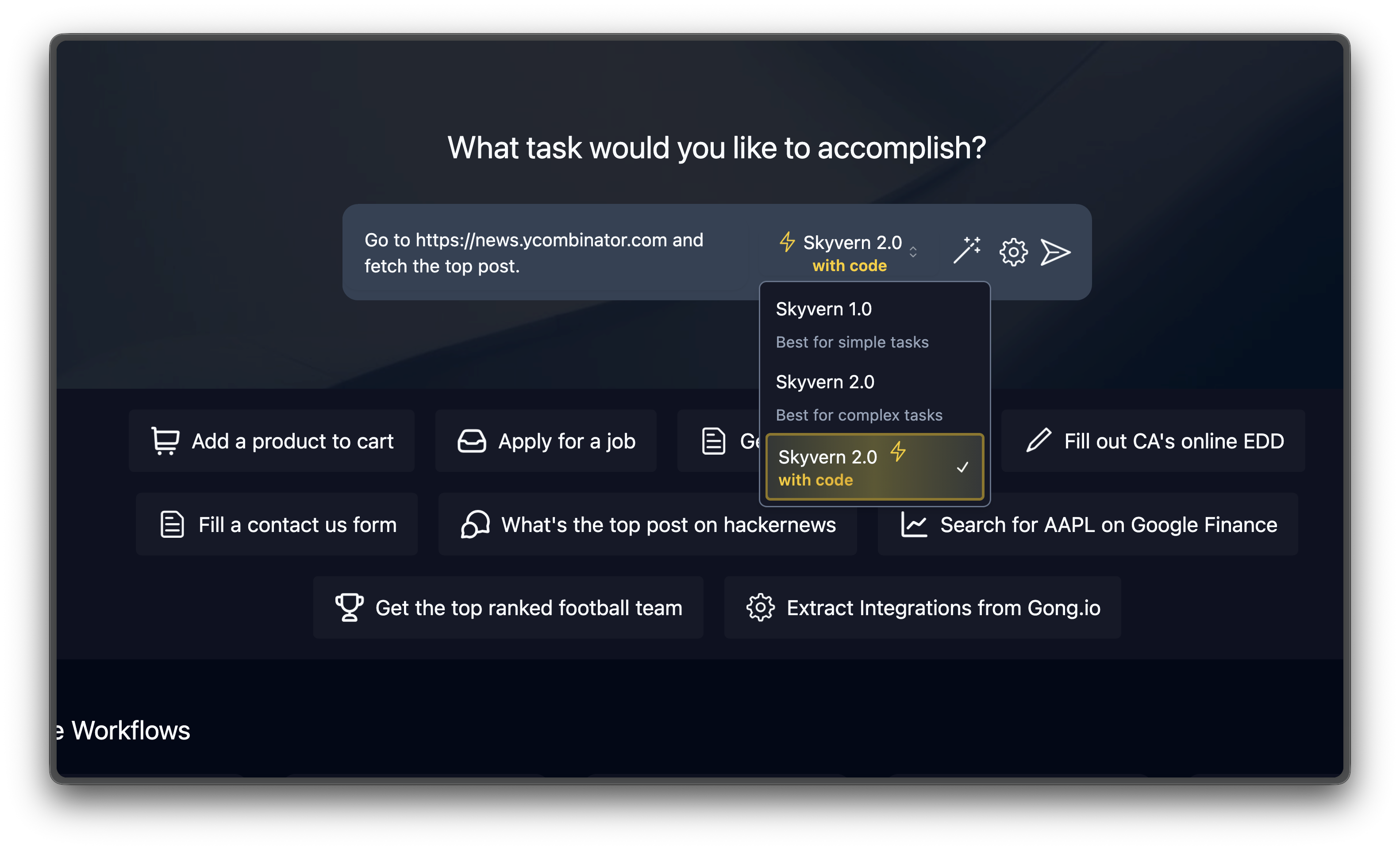 Click the **send button** or press **Enter** to start.
Below the prompt box, **quick-action buttons** offer pre-built examples like "Add a product to cart" or "Get an insurance quote." Click one to run it immediately or use it as a starting point.
***
## Choosing an engine
New tasks created from the Discover page use the default Skyvern 1.0 task engine. For API and SDK calls, the `engine` parameter controls which engine runs the task.
| Engine | Best for |
| ----------------- | -------------------------------------------------------------------------- |
| **Skyvern 1.0** | Default for new tasks. Simple, single-objective tasks. Faster and cheaper. |
| **OpenAI CUA** | Computer-use tasks powered by OpenAI's CUA model |
| **Anthropic CUA** | Computer-use tasks powered by Anthropic's Claude model |
Start with the default. Move repeated automations into agents when you need scheduling, reusable parameters, or cached code replays.
***
## Advanced settings
Click the **gear icon** next to the prompt box to expand the settings panel.
Click the **send button** or press **Enter** to start.
Below the prompt box, **quick-action buttons** offer pre-built examples like "Add a product to cart" or "Get an insurance quote." Click one to run it immediately or use it as a starting point.
***
## Choosing an engine
New tasks created from the Discover page use the default Skyvern 1.0 task engine. For API and SDK calls, the `engine` parameter controls which engine runs the task.
| Engine | Best for |
| ----------------- | -------------------------------------------------------------------------- |
| **Skyvern 1.0** | Default for new tasks. Simple, single-objective tasks. Faster and cheaper. |
| **OpenAI CUA** | Computer-use tasks powered by OpenAI's CUA model |
| **Anthropic CUA** | Computer-use tasks powered by Anthropic's Claude model |
Start with the default. Move repeated automations into agents when you need scheduling, reusable parameters, or cached code replays.
***
## Advanced settings
Click the **gear icon** next to the prompt box to expand the settings panel.
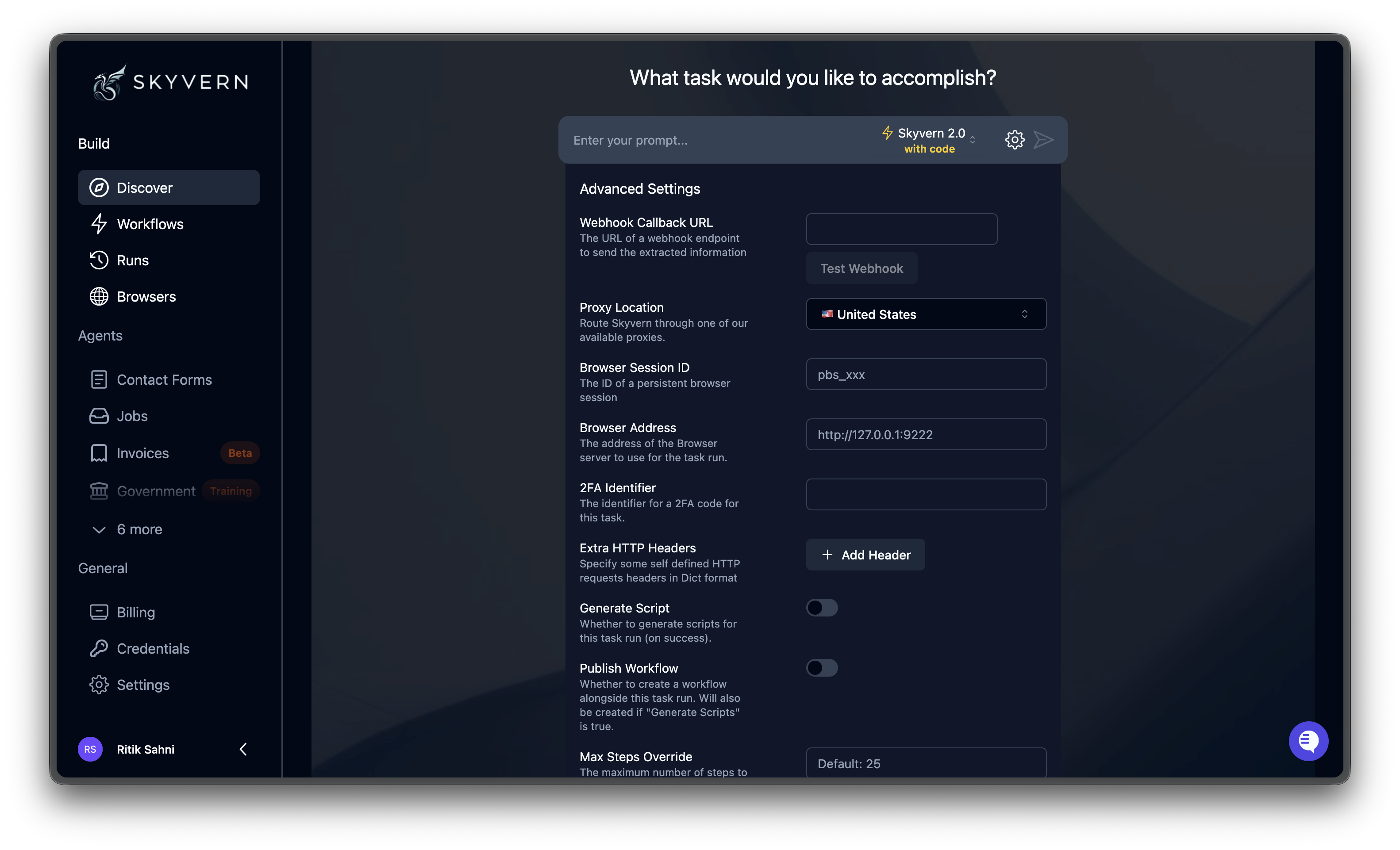 | Setting | What it does |
| -------------------------- | ----------------------------------------------------------------------------------------------------------------------------------------------------------------------------------------------------------------------------------------------------------------------------------------------------------------- |
| **Proxy Location** | Route the browser through a residential proxy in a specific country. Default is `RESIDENTIAL` (US). Set to `NONE` to disable. Available: US, UK, Germany, France, Spain, Ireland, India, Japan, Australia, Canada, Brazil, Mexico, Argentina, New Zealand, South Africa, Italy, Netherlands, Philippines, Turkey. |
| **Webhook URL** | URL that receives a POST request when the task finishes. The payload includes status, extracted data, screenshots, and recording URL. |
| **Browser Session ID** | Run inside an existing persistent browser session (`pbs_xxx`). Preserves cookies and login state across multiple tasks. |
| **CDP Address** | Connect to your own browser via Chrome DevTools Protocol (e.g., `http://127.0.0.1:9222`). For local development. |
| **2FA Identifier** | Links your TOTP credentials to this task. Skyvern uses it to retrieve the correct code when a 2FA prompt appears. |
| **Extra HTTP Headers** | Custom headers sent with every browser request, as JSON (e.g., `{"Authorization": "Bearer token"}`). |
| **Publish Agent** | Save a reusable agent alongside the task run. Re-run the same automation later from the Agents page. |
| **Max Steps Override** | Cap the number of AI reasoning steps. Each step = one screenshot-analyze-act cycle. Useful for controlling cost during development. |
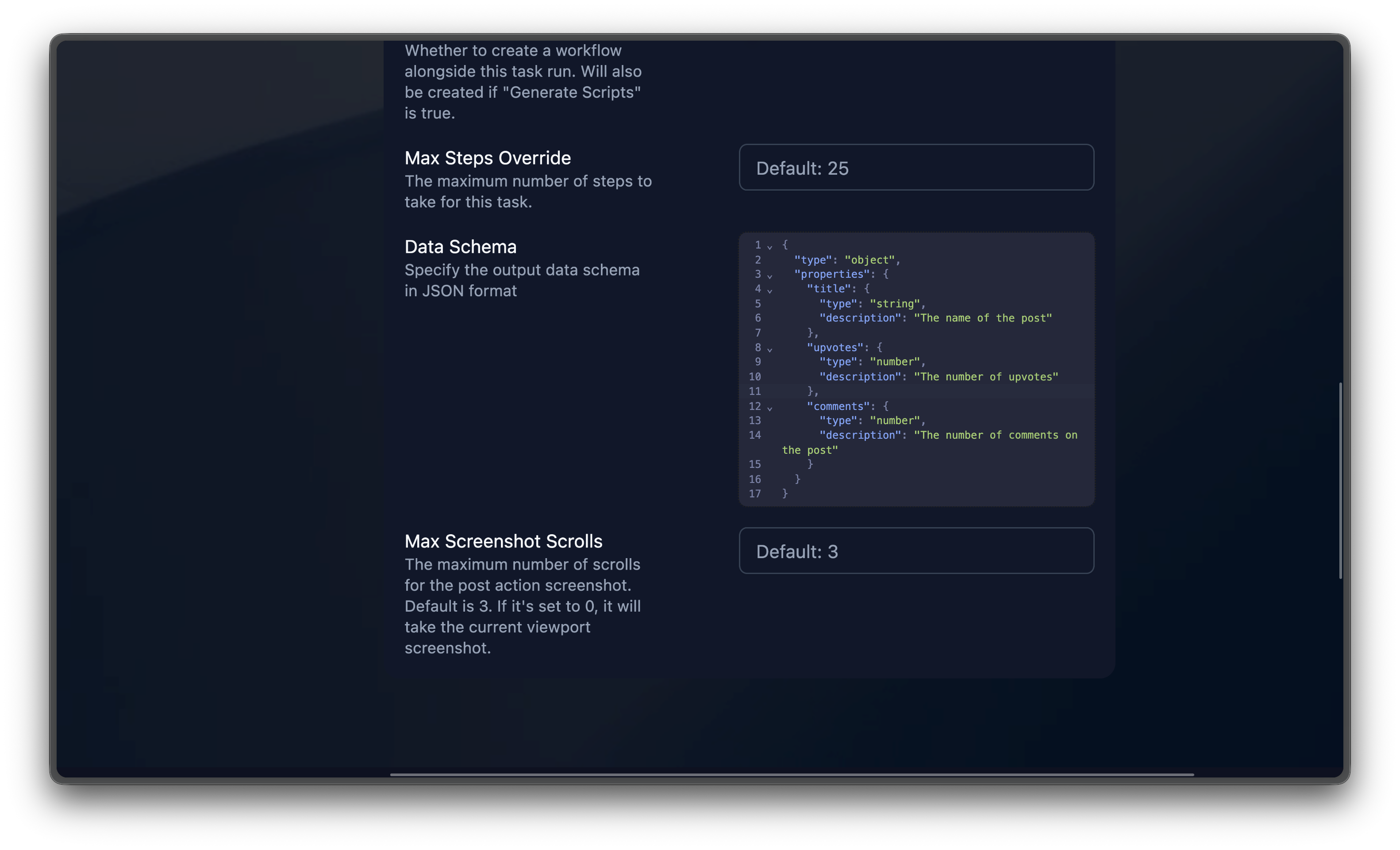
| **Max Screenshot Scrolls** | Number of scrolls for post-action screenshots. Increase for pages with lazy-loaded content. `0` = viewport only. |
***
## Data extraction schema
The **Data Schema** field in advanced settings lets you define the structure of extracted output as [JSON Schema](https://json-schema.org/).
Without a schema, the AI returns data in whatever format it chooses. With a schema, output conforms to your structure, making it predictable for downstream use.
| Setting | What it does |
| -------------------------- | ----------------------------------------------------------------------------------------------------------------------------------------------------------------------------------------------------------------------------------------------------------------------------------------------------------------- |
| **Proxy Location** | Route the browser through a residential proxy in a specific country. Default is `RESIDENTIAL` (US). Set to `NONE` to disable. Available: US, UK, Germany, France, Spain, Ireland, India, Japan, Australia, Canada, Brazil, Mexico, Argentina, New Zealand, South Africa, Italy, Netherlands, Philippines, Turkey. |
| **Webhook URL** | URL that receives a POST request when the task finishes. The payload includes status, extracted data, screenshots, and recording URL. |
| **Browser Session ID** | Run inside an existing persistent browser session (`pbs_xxx`). Preserves cookies and login state across multiple tasks. |
| **CDP Address** | Connect to your own browser via Chrome DevTools Protocol (e.g., `http://127.0.0.1:9222`). For local development. |
| **2FA Identifier** | Links your TOTP credentials to this task. Skyvern uses it to retrieve the correct code when a 2FA prompt appears. |
| **Extra HTTP Headers** | Custom headers sent with every browser request, as JSON (e.g., `{"Authorization": "Bearer token"}`). |
| **Publish Agent** | Save a reusable agent alongside the task run. Re-run the same automation later from the Agents page. |
| **Max Steps Override** | Cap the number of AI reasoning steps. Each step = one screenshot-analyze-act cycle. Useful for controlling cost during development. |
| **Max Screenshot Scrolls** | Number of scrolls for post-action screenshots. Increase for pages with lazy-loaded content. `0` = viewport only. |
***
## Data extraction schema
The **Data Schema** field in advanced settings lets you define the structure of extracted output as [JSON Schema](https://json-schema.org/).
Without a schema, the AI returns data in whatever format it chooses. With a schema, output conforms to your structure, making it predictable for downstream use.
 ```json theme={null}
{
"type": "object",
"properties": {
"product_name": {
"type": "string",
"description": "The name of the product"
},
"price": {
"type": "number",
"description": "The price in USD"
},
"in_stock": {
"type": "boolean",
"description": "Whether the product is in stock"
}
}
}
```
Use the `description` field on each property to guide the AI on what to extract.
```json theme={null}
{
"type": "object",
"properties": {
"quotes": {
"type": "array",
"items": {
"type": "object",
"properties": {
"premium_amount": {
"type": "string",
"description": "Total premium in USD (e.g., '$321.57')"
},
"coverage_type": {
"type": "string",
"description": "Type of coverage (e.g., 'Full Coverage')"
},
"deductible": {
"type": "string",
"description": "Deductible amount"
}
}
}
}
}
}
```
***
## Agent templates
Below the prompt box, the Discover page shows a gallery of **agent templates**: pre-built automations for common use cases.
```json theme={null}
{
"type": "object",
"properties": {
"product_name": {
"type": "string",
"description": "The name of the product"
},
"price": {
"type": "number",
"description": "The price in USD"
},
"in_stock": {
"type": "boolean",
"description": "Whether the product is in stock"
}
}
}
```
Use the `description` field on each property to guide the AI on what to extract.
```json theme={null}
{
"type": "object",
"properties": {
"quotes": {
"type": "array",
"items": {
"type": "object",
"properties": {
"premium_amount": {
"type": "string",
"description": "Total premium in USD (e.g., '$321.57')"
},
"coverage_type": {
"type": "string",
"description": "Type of coverage (e.g., 'Full Coverage')"
},
"deductible": {
"type": "string",
"description": "Deductible amount"
}
}
}
}
}
}
```
***
## Agent templates
Below the prompt box, the Discover page shows a gallery of **agent templates**: pre-built automations for common use cases.
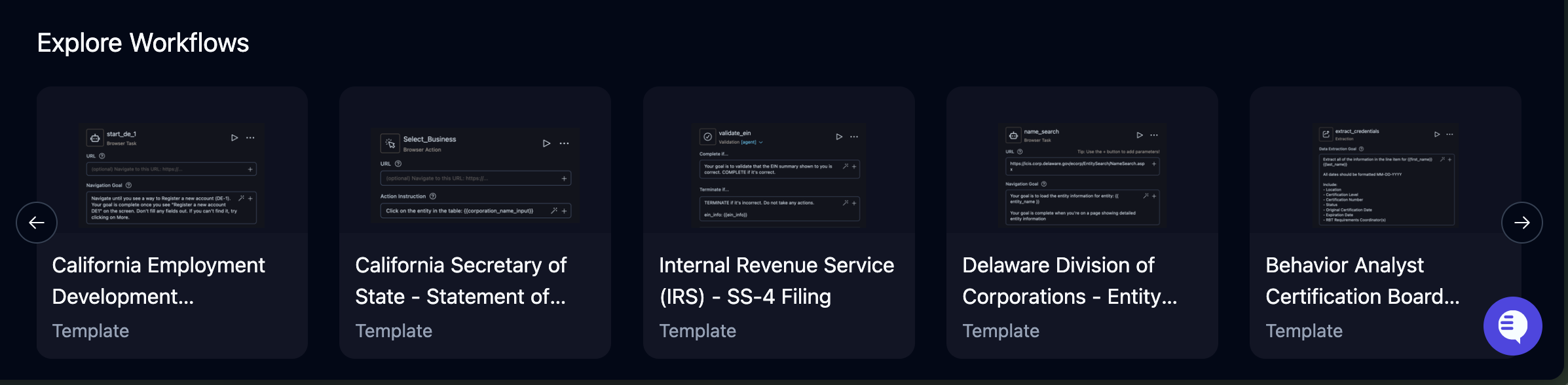 Click any template to launch it with pre-filled configuration, or use it as a starting point and customize.
***
## Tips for better results
**Write specific prompts.** Include the exact goal, target fields, and what "done" looks like.
| Instead of | Write |
| ------------------------------ | ---------------------------------------------------------------------------------------------------------------------------------------------------- |
| "Get some data from this site" | "Extract the product name, price, and availability from the first 5 results on amazon.com/s?k=wireless+mouse" |
| "Fill out the form" | "Fill the contact form at example.com/contact with name 'Jane Doe', email '[jane@example.com](mailto:jane@example.com)', and message 'Demo request'" |
**Control cost with Max Steps.** Set **Max Steps Override** to a reasonable limit (e.g., 10–20 for simple tasks) during development. Each step consumes one credit. Remove the cap once you've confirmed the task works.
**Debug failures in order.** If a task fails or produces wrong results:
1. Check the **Failure Reason** at the top of the run detail page
2. Read the **Thought cards** in the Overview timeline to find where the AI went off track
3. Watch the **Recording** to see what actually happened on screen
4. Review **Parameters** to confirm the inputs were correct
***
## What happens next
1. Your prompt is sent to Skyvern
2. A cloud browser opens and navigates to the target URL (or finds one from your prompt)
3. The AI analyzes the page, plans actions, and executes them step by step
4. You're taken to the [live execution view](/cloud/getting-started/monitor-a-run) where you can watch it happen in real time
5. When complete, results appear on the run detail page under **Runs**
***
## Next steps
Monitor runs, take control of the browser, and review results
Turn a successful task into a reusable multi-step agent
Click any template to launch it with pre-filled configuration, or use it as a starting point and customize.
***
## Tips for better results
**Write specific prompts.** Include the exact goal, target fields, and what "done" looks like.
| Instead of | Write |
| ------------------------------ | ---------------------------------------------------------------------------------------------------------------------------------------------------- |
| "Get some data from this site" | "Extract the product name, price, and availability from the first 5 results on amazon.com/s?k=wireless+mouse" |
| "Fill out the form" | "Fill the contact form at example.com/contact with name 'Jane Doe', email '[jane@example.com](mailto:jane@example.com)', and message 'Demo request'" |
**Control cost with Max Steps.** Set **Max Steps Override** to a reasonable limit (e.g., 10–20 for simple tasks) during development. Each step consumes one credit. Remove the cap once you've confirmed the task works.
**Debug failures in order.** If a task fails or produces wrong results:
1. Check the **Failure Reason** at the top of the run detail page
2. Read the **Thought cards** in the Overview timeline to find where the AI went off track
3. Watch the **Recording** to see what actually happened on screen
4. Review **Parameters** to confirm the inputs were correct
***
## What happens next
1. Your prompt is sent to Skyvern
2. A cloud browser opens and navigates to the target URL (or finds one from your prompt)
3. The AI analyzes the page, plans actions, and executes them step by step
4. You're taken to the [live execution view](/cloud/getting-started/monitor-a-run) where you can watch it happen in real time
5. When complete, results appear on the run detail page under **Runs**
***
## Next steps
Monitor runs, take control of the browser, and review results
Turn a successful task into a reusable multi-step agent