> ## Documentation Index
> Fetch the complete documentation index at: https://skyvern.com/docs/llms.txt
> Use this file to discover all available pages before exploring further.
# Managing Agents
> Organize, clone, import, export, and delete agents in the Skyvern Cloud UI, including folder management and template sharing across your organization.
Agents are multi-step automations built visually in the Cloud UI. Once you've [built an agent](/cloud/building-agents/build-an-agent), the **Agents** page is where you organize, share, and manage them. Each agent is a reusable sequence of blocks that you can run with different inputs each time.
If you're building automations in code instead, see the [Browser Automation](/developers/browser-automations/overview) developer docs.
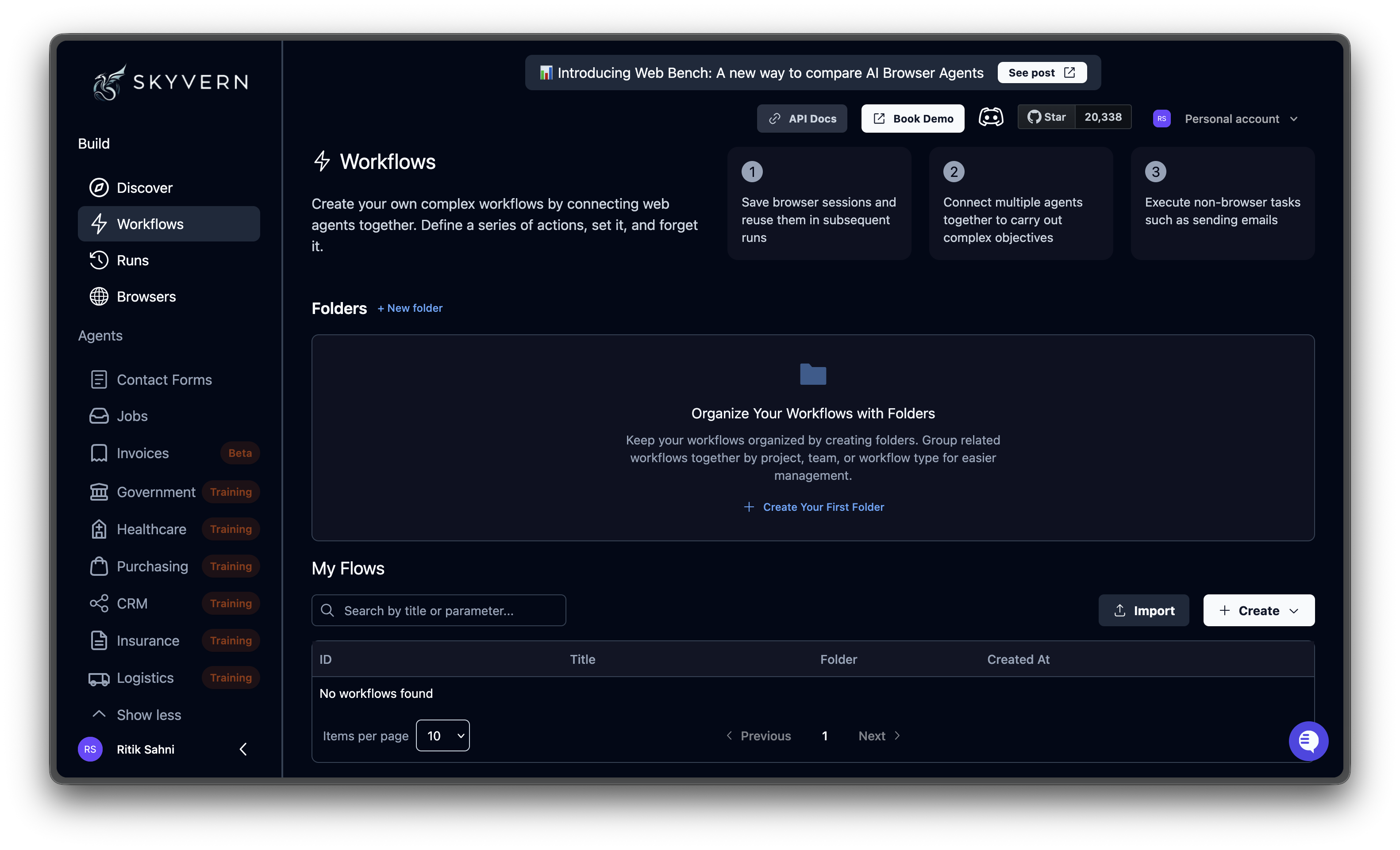
Click **Agents** in the left sidebar to open it.
 ***
## The agents table
The table lists all agents in your organization with the following columns:
| Column | Description |
| -------------- | ------------------------------------------ |
| **ID** | Unique agent identifier |
| **Title** | Display name (click to open in the editor) |
| **Folder** | Folder assignment, if any |
| **Created At** | When the agent was created |
| **Actions** | Inline buttons and three-dot menu |
Each row also has inline action buttons: folder assignment, parameter toggle, open in editor (pencil icon), run (play icon), and a three-dot menu for additional actions.
***
## Organizing with folders
The top of the page shows your recent folders as cards. Use folders to group related agents.
* Click **+ New folder** to create one
* Click a folder card to filter the table to that folder's agents
* Assign an agent to a folder using the folder icon in the table row
* Click **View all** to see all folders when you have more than five
***
## The agents table
The table lists all agents in your organization with the following columns:
| Column | Description |
| -------------- | ------------------------------------------ |
| **ID** | Unique agent identifier |
| **Title** | Display name (click to open in the editor) |
| **Folder** | Folder assignment, if any |
| **Created At** | When the agent was created |
| **Actions** | Inline buttons and three-dot menu |
Each row also has inline action buttons: folder assignment, parameter toggle, open in editor (pencil icon), run (play icon), and a three-dot menu for additional actions.
***
## Organizing with folders
The top of the page shows your recent folders as cards. Use folders to group related agents.
* Click **+ New folder** to create one
* Click a folder card to filter the table to that folder's agents
* Assign an agent to a folder using the folder icon in the table row
* Click **View all** to see all folders when you have more than five
 ***
## Searching and filtering
Use the search bar above the table to filter agents by title or parameter. The results highlight matching text and auto-expand parameter rows when a parameter matches.
The items-per-page selector at the bottom lets you choose 5, 10, 20, or 50 rows per page.
***
## Agent actions
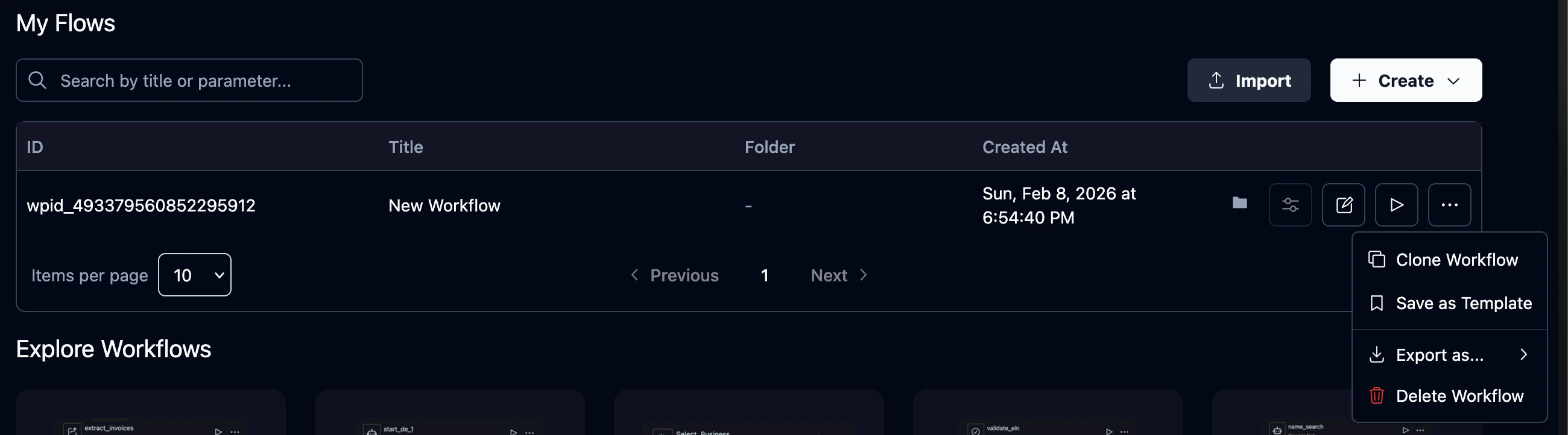
Click the **three-dot menu** on any agent row to access these actions:
| Action | What it does |
| ------------------------- | ----------------------------------------------------------------------------------------------------------- |
| **Clone Agent** | Creates a copy named "Copy of ..." with the original title |
| **Save as Template** | Makes this agent available in the organization template gallery. A bookmark icon appears next to the title. |
| **Remove from Templates** | Removes the agent from the template gallery (appears instead of "Save as Template" for templates) |
| **Export as... > YAML** | Downloads the agent definition as a `.yaml` file |
| **Export as... > JSON** | Downloads the agent definition as a `.json` file |
| **Delete Agent** | Opens a confirmation dialog, then permanently deletes the agent |
***
## Searching and filtering
Use the search bar above the table to filter agents by title or parameter. The results highlight matching text and auto-expand parameter rows when a parameter matches.
The items-per-page selector at the bottom lets you choose 5, 10, 20, or 50 rows per page.
***
## Agent actions
Click the **three-dot menu** on any agent row to access these actions:
| Action | What it does |
| ------------------------- | ----------------------------------------------------------------------------------------------------------- |
| **Clone Agent** | Creates a copy named "Copy of ..." with the original title |
| **Save as Template** | Makes this agent available in the organization template gallery. A bookmark icon appears next to the title. |
| **Remove from Templates** | Removes the agent from the template gallery (appears instead of "Save as Template" for templates) |
| **Export as... > YAML** | Downloads the agent definition as a `.yaml` file |
| **Export as... > JSON** | Downloads the agent definition as a `.json` file |
| **Delete Agent** | Opens a confirmation dialog, then permanently deletes the agent |
 Deleting an agent is permanent. Clone it first if you want to keep a backup.
***
## Importing agents
Click the **Import** button to upload agent files.
| Format | Behavior |
| ---------------- | -------------------------------------------------------------------------------- |
| `.yaml` / `.yml` | Parsed and created as a new agent |
| `.json` | Converted to YAML internally, then created |
| `.pdf` | Sent to the AI to generate an agent from a Standard Operating Procedure document |
Upload a PDF of your Standard Operating Procedure and Skyvern generates an agent from it automatically.
***
## What's next
Build automations visually with the agent editor
Make agents reusable with dynamic input values
Deleting an agent is permanent. Clone it first if you want to keep a backup.
***
## Importing agents
Click the **Import** button to upload agent files.
| Format | Behavior |
| ---------------- | -------------------------------------------------------------------------------- |
| `.yaml` / `.yml` | Parsed and created as a new agent |
| `.json` | Converted to YAML internally, then created |
| `.pdf` | Sent to the AI to generate an agent from a Standard Operating Procedure document |
Upload a PDF of your Standard Operating Procedure and Skyvern generates an agent from it automatically.
***
## What's next
Build automations visually with the agent editor
Make agents reusable with dynamic input values