> ## Documentation Index
> Fetch the complete documentation index at: https://skyvern.com/docs/llms.txt
> Use this file to discover all available pages before exploring further.
# Browser Sessions
> Create and manage persistent browser sessions in the Skyvern Cloud UI to preserve cookies, login state, and page context across multiple tasks and agents.
A **browser session** is a live browser instance that stays open between runs. Cookies, login state, cart contents, and page context all persist, like keeping a browser tab open. Use sessions when you need back-to-back tasks to share state, or when you want to interact with the browser yourself between automated steps.
Looking to use browser sessions from code? See the [API & SDK guide](/developers/optimization/browser-sessions) instead.
***
## The Browsers page
Click **Browsers** in the left sidebar to open the Browsers page. It lists all browser sessions in your organization.
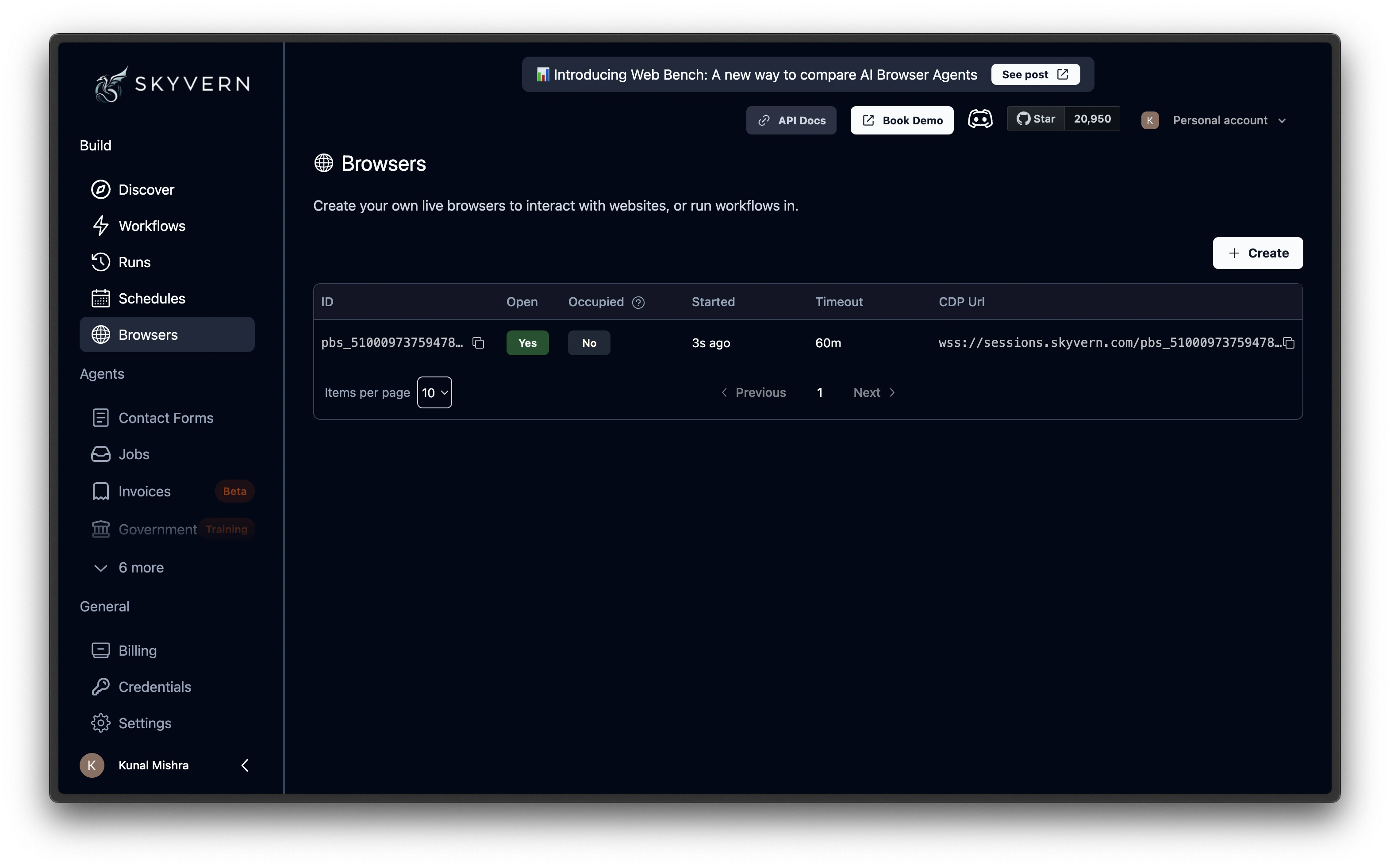 Each row shows:
| Column | What it shows |
| ------------ | ------------------------------------------------------ |
| **ID** | Session identifier (starts with `pbs_`) |
| **Open** | Whether the browser is currently running |
| **Occupied** | Whether a task or agent is actively using the session |
| **Started** | When the session launched |
| **Timeout** | How long the session stays open before auto-closing |
| **CDP URL** | Chrome DevTools Protocol address for direct connection |
***
## Creating a session
Click the **Create Browser Session** button at the top of the Browsers page. A panel opens with the following settings:
Each row shows:
| Column | What it shows |
| ------------ | ------------------------------------------------------ |
| **ID** | Session identifier (starts with `pbs_`) |
| **Open** | Whether the browser is currently running |
| **Occupied** | Whether a task or agent is actively using the session |
| **Started** | When the session launched |
| **Timeout** | How long the session stays open before auto-closing |
| **CDP URL** | Chrome DevTools Protocol address for direct connection |
***
## Creating a session
Click the **Create Browser Session** button at the top of the Browsers page. A panel opens with the following settings:
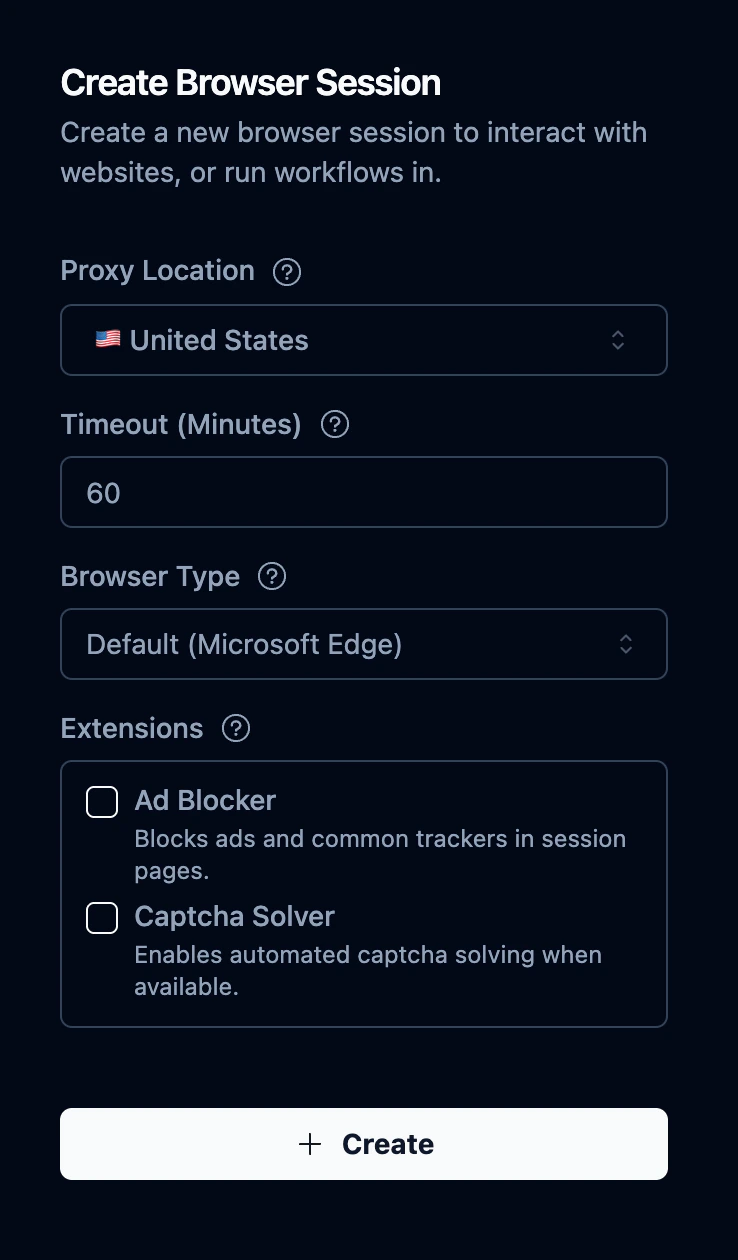 | Setting | What it does |
| ------------------- | -------------------------------------------------------------------------------------------------------------------------------------- |
| **Timeout** | How long the session stays open, in minutes. Min: 5, max: 1440 (24 hours). Default: 60. |
| **Proxy Location** | Route the browser through a residential proxy in a specific country. Default: US. |
| **Browser Type** | Chrome (default, widest compatibility) or Microsoft Edge. |
| **Extensions** | Optional add-ons: **Ad Blocker** (removes overlay ads that interfere with clicks) and **Captcha Solver** (auto-solves CAPTCHAs). |
| **Browser Profile** | Load a saved [browser profile](/cloud/browser-management/browser-profiles) to restore cookies and login state from a previous session. |
Click **Create** to launch the session. It appears in the table within a few seconds.
Sessions bill while open, even when idle. Set the timeout to match your use case and close sessions when you're done.
***
## Viewing a live session
Click any session row in the table to open its detail page. The detail page has three tabs:
### Stream
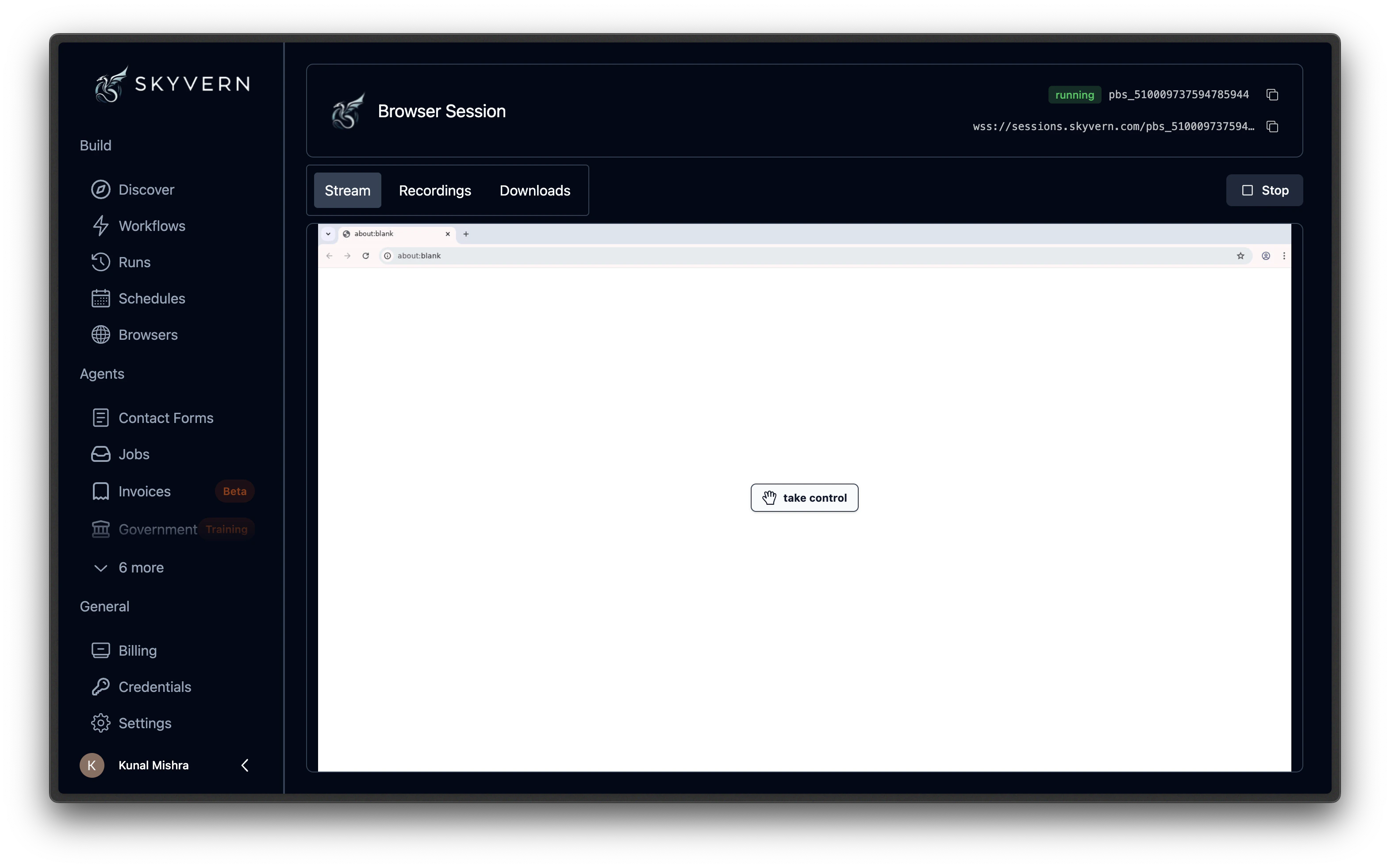
A live view of the browser. You can watch pages load and actions fire in real time.
Click on Take Control to interact with the browser yourself. Use this to log in, dismiss a popup, solve a CAPTCHA.
| Setting | What it does |
| ------------------- | -------------------------------------------------------------------------------------------------------------------------------------- |
| **Timeout** | How long the session stays open, in minutes. Min: 5, max: 1440 (24 hours). Default: 60. |
| **Proxy Location** | Route the browser through a residential proxy in a specific country. Default: US. |
| **Browser Type** | Chrome (default, widest compatibility) or Microsoft Edge. |
| **Extensions** | Optional add-ons: **Ad Blocker** (removes overlay ads that interfere with clicks) and **Captcha Solver** (auto-solves CAPTCHAs). |
| **Browser Profile** | Load a saved [browser profile](/cloud/browser-management/browser-profiles) to restore cookies and login state from a previous session. |
Click **Create** to launch the session. It appears in the table within a few seconds.
Sessions bill while open, even when idle. Set the timeout to match your use case and close sessions when you're done.
***
## Viewing a live session
Click any session row in the table to open its detail page. The detail page has three tabs:
### Stream
A live view of the browser. You can watch pages load and actions fire in real time.
Click on Take Control to interact with the browser yourself. Use this to log in, dismiss a popup, solve a CAPTCHA.
 ### Recordings
Video recordings of activity in the session. Each recording captures what happened during a task or agent that ran inside this session.
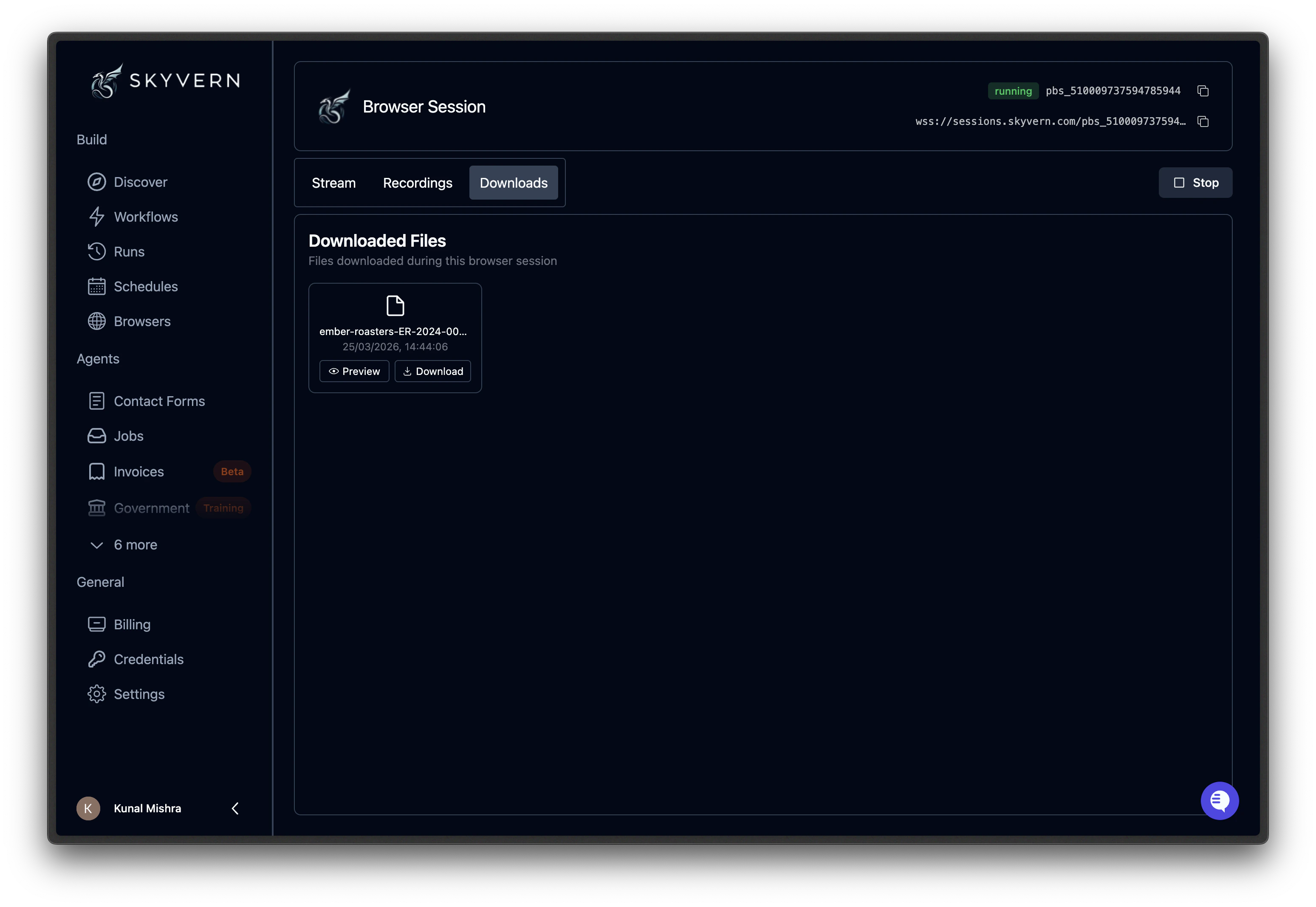
### Downloads
Files downloaded by the browser during the session. Click any file to save it locally.
### Recordings
Video recordings of activity in the session. Each recording captures what happened during a task or agent that ran inside this session.
### Downloads
Files downloaded by the browser during the session. Click any file to save it locally.
 ***
## Using a session with a task
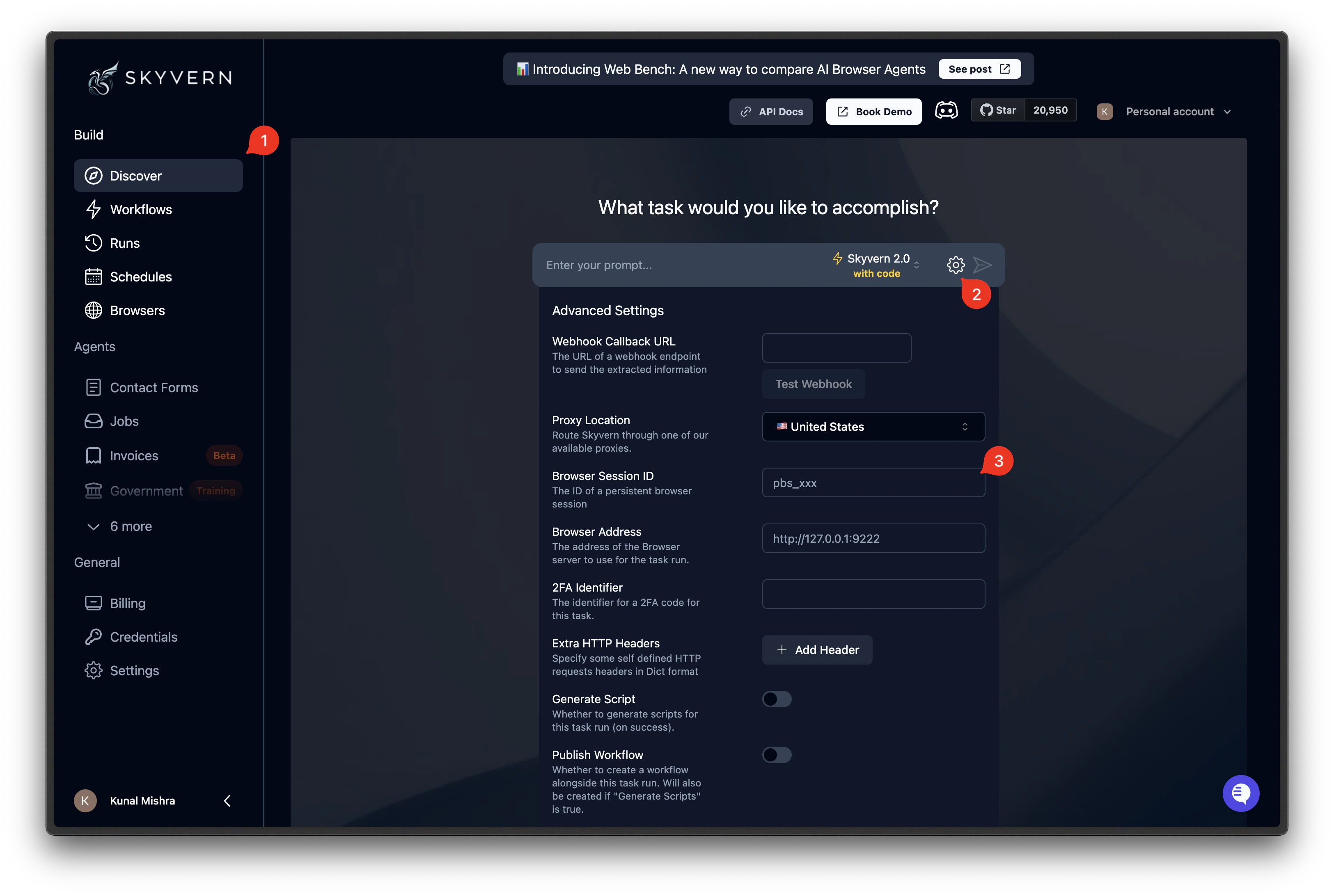
Once you have a running session, you can run tasks inside it from the [Discover page](/cloud/getting-started/run-a-task):
1. Copy the session ID (`pbs_...`) from the Browsers page
2. Go to the **Discover** page
3. Click the **gear icon** to open Advanced Settings
4. Paste the ID into the **Browser Session ID** field
5. Write your prompt and run
The task executes inside your existing session. Cookies, login state, and page context from previous tasks are still there.
***
## Using a session with a task
Once you have a running session, you can run tasks inside it from the [Discover page](/cloud/getting-started/run-a-task):
1. Copy the session ID (`pbs_...`) from the Browsers page
2. Go to the **Discover** page
3. Click the **gear icon** to open Advanced Settings
4. Paste the ID into the **Browser Session ID** field
5. Write your prompt and run
The task executes inside your existing session. Cookies, login state, and page context from previous tasks are still there.
 ***
## Using a session with an agent
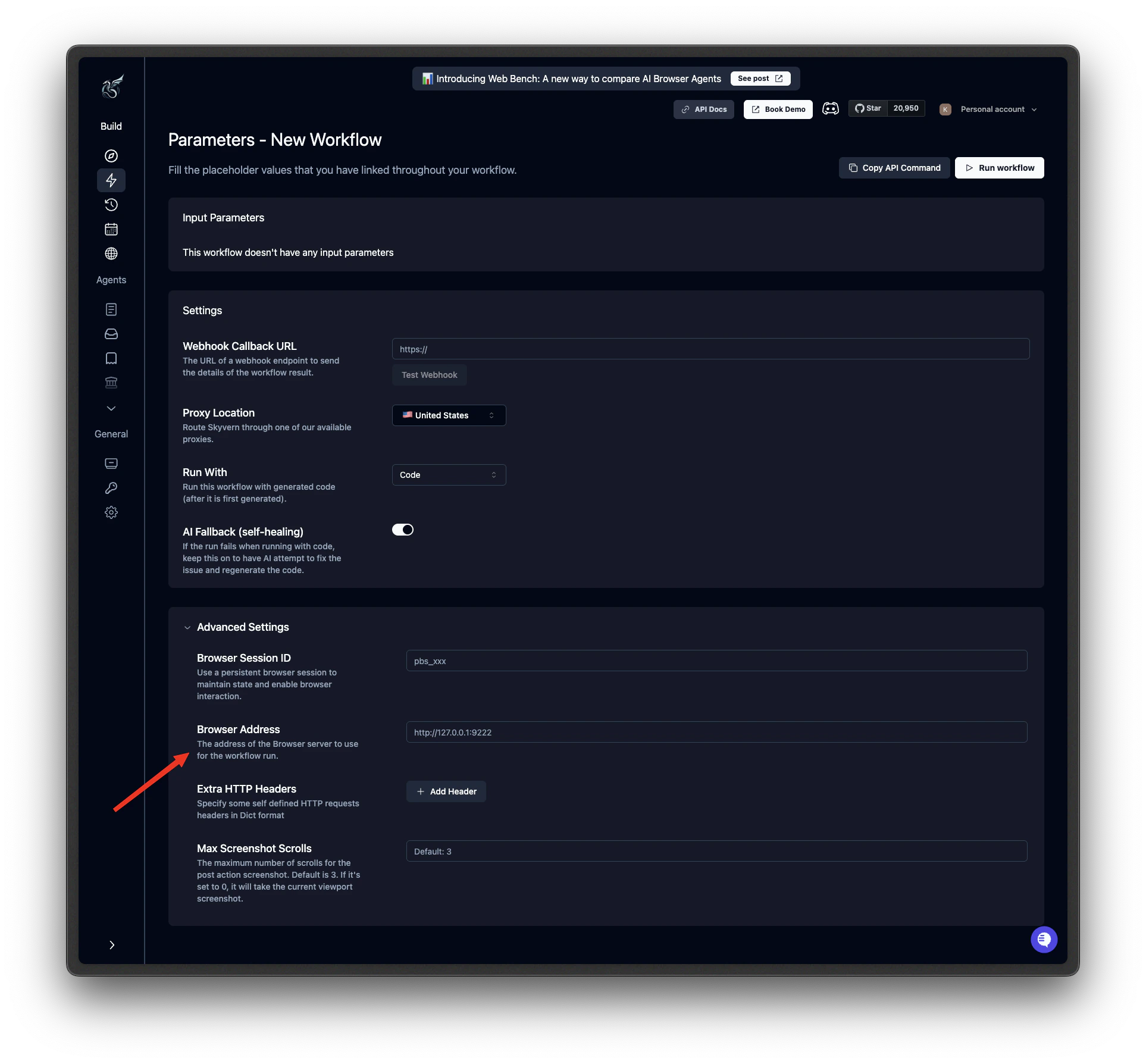
You can also run agents inside an existing session:
1. Copy the session ID from the Browsers page
2. Go to **Agents** and click **Run** on your agent
3. On the parameters page, scroll to **Run Settings**
4. Paste the ID into the **Browser Session ID** field
5. Click **Run Agent**
The agent picks up where the browser left off: same page, same cookies, same form data.
***
## Using a session with an agent
You can also run agents inside an existing session:
1. Copy the session ID from the Browsers page
2. Go to **Agents** and click **Run** on your agent
3. On the parameters page, scroll to **Run Settings**
4. Paste the ID into the **Browser Session ID** field
5. Click **Run Agent**
The agent picks up where the browser left off: same page, same cookies, same form data.
 ***
## Closing a session
From the session detail page, click **Stop**. A confirmation dialog appears. The browser shuts down immediately and the session moves to `closed` status.
***
## Closing a session
From the session detail page, click **Stop**. A confirmation dialog appears. The browser shuts down immediately and the session moves to `closed` status.
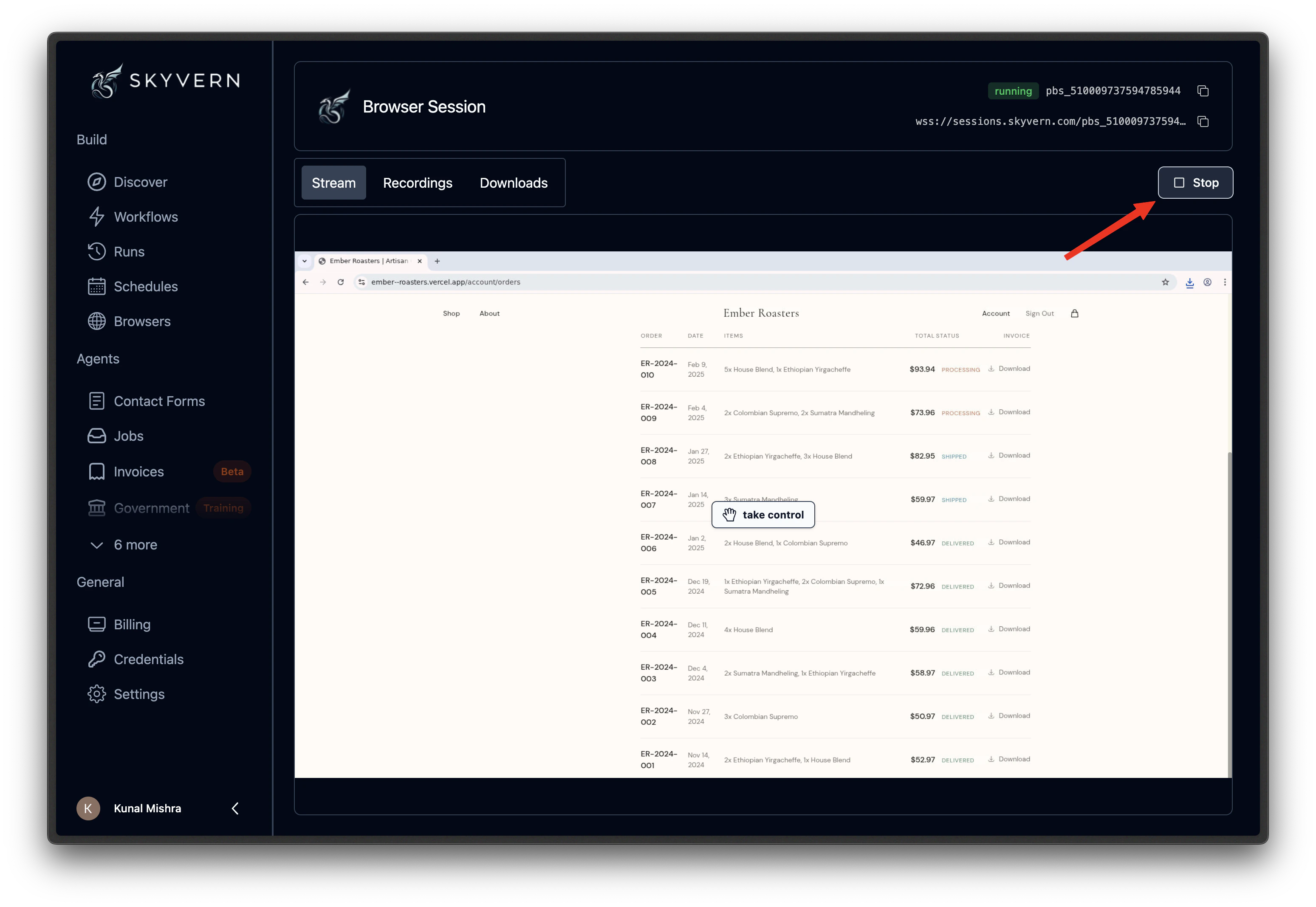 Sessions also close automatically when their timeout expires, **even if a task is still running**. Set timeouts with enough margin for your longest expected task.
Closed sessions cannot be reopened, and a session only saves its browser state at close when profile generation is enabled for it. The **Save browser session** credential flow handles this automatically; for API-created sessions, see [Save a session's profile](/developers/optimization/browser-sessions#save-a-sessions-profile). If you need the same login state later, capture it as a [browser profile](/cloud/browser-management/browser-profiles) before closing.
***
## When to use sessions vs agents
If your steps run back-to-back with no pauses between them, an [agent](/cloud/building-agents/build-an-agent) is more efficient. Agent blocks share one browser instance with no inter-step startup cost.
Sessions are the right choice when you need:
* **Pauses between steps**: review results, get approval, or wait for external input before continuing
* **Human-in-the-loop**: interact with the browser yourself between automated steps
* **Ad-hoc sequences**: run different tasks one after another without pre-building an agent
***
## Sessions vs profiles
| | Browser Session | Browser Profile |
| -------------- | --------------------------------------- | ------------------------------------ |
| **What it is** | Live browser instance | Saved snapshot of browser state |
| **Lifetime** | Minutes to hours | Days to months |
| **State** | Current page, cookies, open connections | Cookies, localStorage, session files |
| **Billing** | Charged while open | No cost when not in use |
| **Best for** | Back-to-back tasks, human-in-the-loop | Repeated logins, scheduled agents |
Use a session when you need a live browser right now. Use a [profile](/cloud/browser-management/browser-profiles) when you want to save login state and reuse it later.
***
## What's next
Save login state and reuse it across sessions
Create and manage sessions programmatically
Sessions also close automatically when their timeout expires, **even if a task is still running**. Set timeouts with enough margin for your longest expected task.
Closed sessions cannot be reopened, and a session only saves its browser state at close when profile generation is enabled for it. The **Save browser session** credential flow handles this automatically; for API-created sessions, see [Save a session's profile](/developers/optimization/browser-sessions#save-a-sessions-profile). If you need the same login state later, capture it as a [browser profile](/cloud/browser-management/browser-profiles) before closing.
***
## When to use sessions vs agents
If your steps run back-to-back with no pauses between them, an [agent](/cloud/building-agents/build-an-agent) is more efficient. Agent blocks share one browser instance with no inter-step startup cost.
Sessions are the right choice when you need:
* **Pauses between steps**: review results, get approval, or wait for external input before continuing
* **Human-in-the-loop**: interact with the browser yourself between automated steps
* **Ad-hoc sequences**: run different tasks one after another without pre-building an agent
***
## Sessions vs profiles
| | Browser Session | Browser Profile |
| -------------- | --------------------------------------- | ------------------------------------ |
| **What it is** | Live browser instance | Saved snapshot of browser state |
| **Lifetime** | Minutes to hours | Days to months |
| **State** | Current page, cookies, open connections | Cookies, localStorage, session files |
| **Billing** | Charged while open | No cost when not in use |
| **Best for** | Back-to-back tasks, human-in-the-loop | Repeated logins, scheduled agents |
Use a session when you need a live browser right now. Use a [profile](/cloud/browser-management/browser-profiles) when you want to save login state and reuse it later.
***
## What's next
Save login state and reuse it across sessions
Create and manage sessions programmatically