> ## Documentation Index
> Fetch the complete documentation index at: https://skyvern.com/docs/llms.txt
> Use this file to discover all available pages before exploring further.
# Browser Profiles
> Save and reuse browser state snapshots in the Skyvern Cloud UI to skip login flows by restoring cookies and session data from a previously authenticated browser session.
A **browser profile** is a saved snapshot of browser state: cookies, localStorage, and session files. Load a profile into a new [browser session](/cloud/browser-management/browser-sessions) and the browser starts with that saved state restored, skipping login flows you've already completed.
Profiles are ideal when you:
* Run the same automation repeatedly with the same account (daily reports, scheduled data extraction)
* Want to skip login steps that consume credits and time
* Need multiple agents to share the same authenticated state
Looking to manage profiles from code? See the [API & SDK guide](/developers/optimization/browser-profiles) instead.
***
## How profiles are created
Browser profiles are created automatically when you test a password credential with the **Save browser session** option enabled. There is no standalone "create profile" button; the profile is a byproduct of a successful login test.
### Creating a profile from a credential
Click **Credentials** in the left sidebar under **General**.
Click **+ Add → Password** to create a new credential, or click the **pencil icon** on an existing one. Enter the username and password. See [Password Credentials](/cloud/managing-credentials/password-credentials) for details.
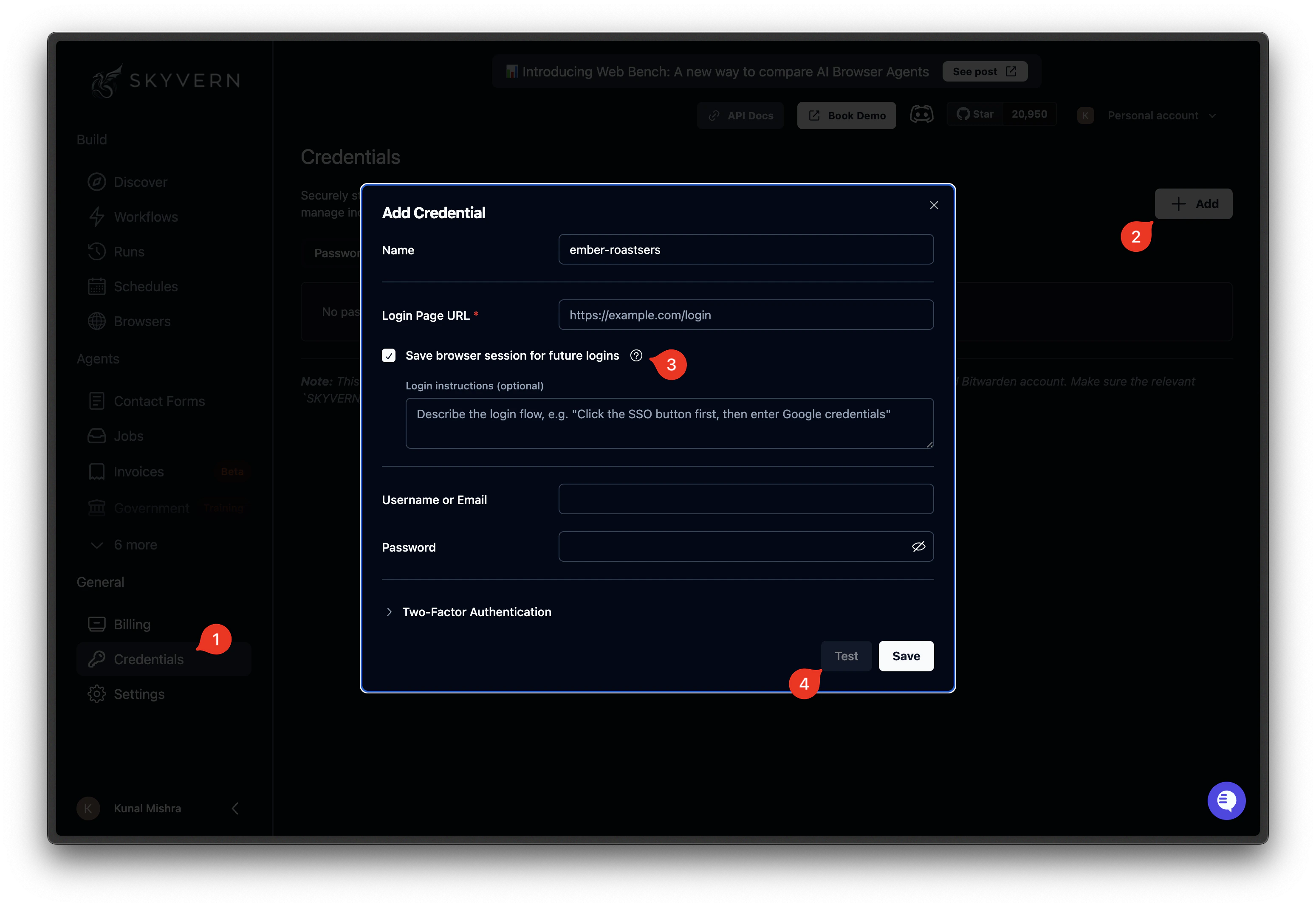 Below the password fields, enable the **Save browser session** option. Enter the **login URL** for the site (e.g., `https://app.example.com/login`). You can also add optional context to help the AI navigate the login flow.
Click **Test**. Skyvern opens a browser, navigates to the login URL, signs in with the credential, and, if the login succeeds, saves the browser state as a profile. The profile is linked to this credential automatically.
When the test completes, the credential row shows a **saved-profile** badge with the site hostname. This means the browser profile is ready to use.
Below the password fields, enable the **Save browser session** option. Enter the **login URL** for the site (e.g., `https://app.example.com/login`). You can also add optional context to help the AI navigate the login flow.
Click **Test**. Skyvern opens a browser, navigates to the login URL, signs in with the credential, and, if the login succeeds, saves the browser state as a profile. The profile is linked to this credential automatically.
When the test completes, the credential row shows a **saved-profile** badge with the site hostname. This means the browser profile is ready to use.
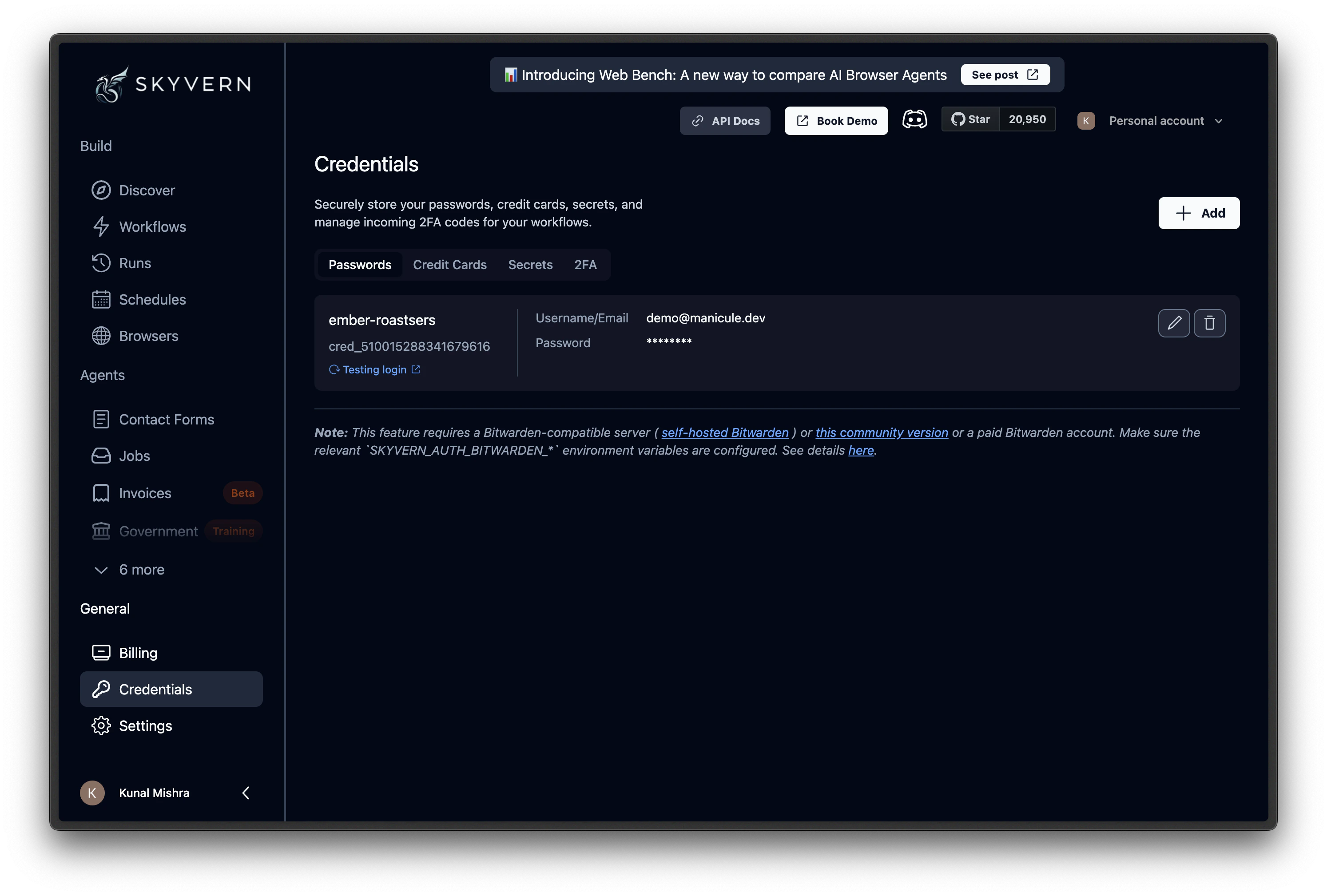 The **Save browser session** flow is the easiest way to create a profile. It handles the full lifecycle: open browser, log in, save state. No agents or API calls required.
***
## When to refresh profiles
Cookies and session tokens expire. A profile that worked last week may not work today if the site's authentication tokens have a short lifespan.
**Signs a profile needs refreshing:**
* Tasks that use the profile start failing with login-related errors
* The browser loads a login page instead of the authenticated dashboard
* The site forces re-authentication after a set period
**To refresh:** go back to the credential, click **Test** again with **Save browser session** enabled. The new profile replaces the old one.
For sites with short-lived sessions (banks, healthcare portals), refresh profiles before each batch of runs. For sites with long-lived cookies (most SaaS apps), weekly or monthly refreshes are usually sufficient.
***
## Sessions vs profiles
| | Browser Session | Browser Profile |
| -------------- | --------------------------------------- | ------------------------------------ |
| **What it is** | Live browser instance | Saved snapshot of browser state |
| **Lifetime** | Minutes to hours | Days to months |
| **State** | Current page, cookies, open connections | Cookies, localStorage, session files |
| **Billing** | Charged while open | No cost when not in use |
| **Best for** | Back-to-back tasks, human-in-the-loop | Repeated logins, scheduled agents |
***
## What's next
Keep a browser open across multiple tasks
Store the login details that profiles are built from
Create and manage profiles programmatically
The **Save browser session** flow is the easiest way to create a profile. It handles the full lifecycle: open browser, log in, save state. No agents or API calls required.
***
## When to refresh profiles
Cookies and session tokens expire. A profile that worked last week may not work today if the site's authentication tokens have a short lifespan.
**Signs a profile needs refreshing:**
* Tasks that use the profile start failing with login-related errors
* The browser loads a login page instead of the authenticated dashboard
* The site forces re-authentication after a set period
**To refresh:** go back to the credential, click **Test** again with **Save browser session** enabled. The new profile replaces the old one.
For sites with short-lived sessions (banks, healthcare portals), refresh profiles before each batch of runs. For sites with long-lived cookies (most SaaS apps), weekly or monthly refreshes are usually sufficient.
***
## Sessions vs profiles
| | Browser Session | Browser Profile |
| -------------- | --------------------------------------- | ------------------------------------ |
| **What it is** | Live browser instance | Saved snapshot of browser state |
| **Lifetime** | Minutes to hours | Days to months |
| **State** | Current page, cookies, open connections | Cookies, localStorage, session files |
| **Billing** | Charged while open | No cost when not in use |
| **Best for** | Back-to-back tasks, human-in-the-loop | Repeated logins, scheduled agents |
***
## What's next
Keep a browser open across multiple tasks
Store the login details that profiles are built from
Create and manage profiles programmatically