> ## Documentation Index
> Fetch the complete documentation index at: https://skyvern.com/docs/llms.txt
> Use this file to discover all available pages before exploring further.
# Profile Settings
> Update your display name, change your password, and review active sessions from the Skyvern Cloud UI Account page.
Click your avatar at the bottom of the sidebar to open the **Account** page. It has two tabs: **Profile** and **Security**.
## Profile
The **Profile** tab shows your display name and email address. Update your display name and click **Save** to apply.
## Security
The **Security** tab is where you manage your password and review active sessions.
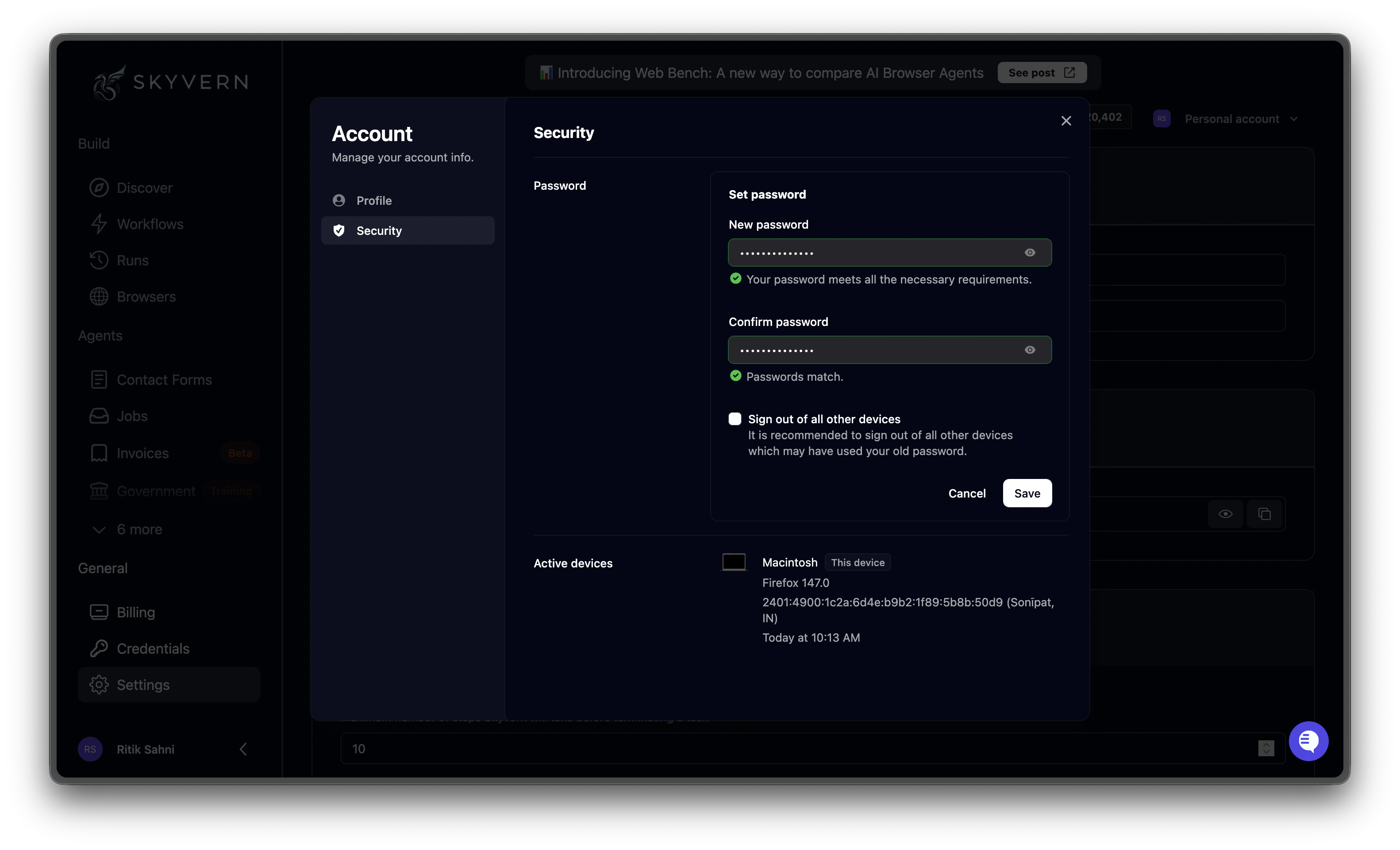 Under **Set password**, enter your new password and confirm it. A green checkmark appears when the password meets requirements and both fields match. Check **Sign out of all other devices** if you want to invalidate existing sessions, recommended if you suspect unauthorized access.
Click **Save** to apply.
**Active devices** lists every device currently signed into your account, showing the browser, IP address, and last access time. Use this to verify that all sessions are yours.
If you signed up with Google or another SSO provider, password management is handled by the external provider and this section may not appear.
Manage your team and organization details
View and manage API keys
Under **Set password**, enter your new password and confirm it. A green checkmark appears when the password meets requirements and both fields match. Check **Sign out of all other devices** if you want to invalidate existing sessions, recommended if you suspect unauthorized access.
Click **Save** to apply.
**Active devices** lists every device currently signed into your account, showing the browser, IP address, and last access time. Use this to verify that all sessions are yours.
If you signed up with Google or another SSO provider, password management is handled by the external provider and this section may not appear.
Manage your team and organization details
View and manage API keys