> ## Documentation Index
> Fetch the complete documentation index at: https://skyvern.com/docs/llms.txt
> Use this file to discover all available pages before exploring further.
# Browsers: sessions and profiles
> Keep a live browser open across runs with browser sessions, save signed-in state as reusable browser profiles, watch or take control of a running browser, and let Skyvern drive your own Chrome.
Skyvern gives you two ways to keep a browser's state between runs:
| | Browser session | Browser profile |
| - | - | - |
| What it is | A live browser that stays open | Saved browser state: cookies, storage, sign-ins |
| Lifetime | 5 minutes to 4 hours, extendable to 6 | Until you delete it |
| Billing | Billed while open, even when idle | Not billed while stored |
| Use it for | Back-to-back runs, pausing for a person, keeping the current page | Skipping the login on scheduled or repeated runs, many runs in parallel from one sign-in |
Use a session when you need a browser right now. Use a profile when you want to sign in once and reuse that later.
## Browser sessions
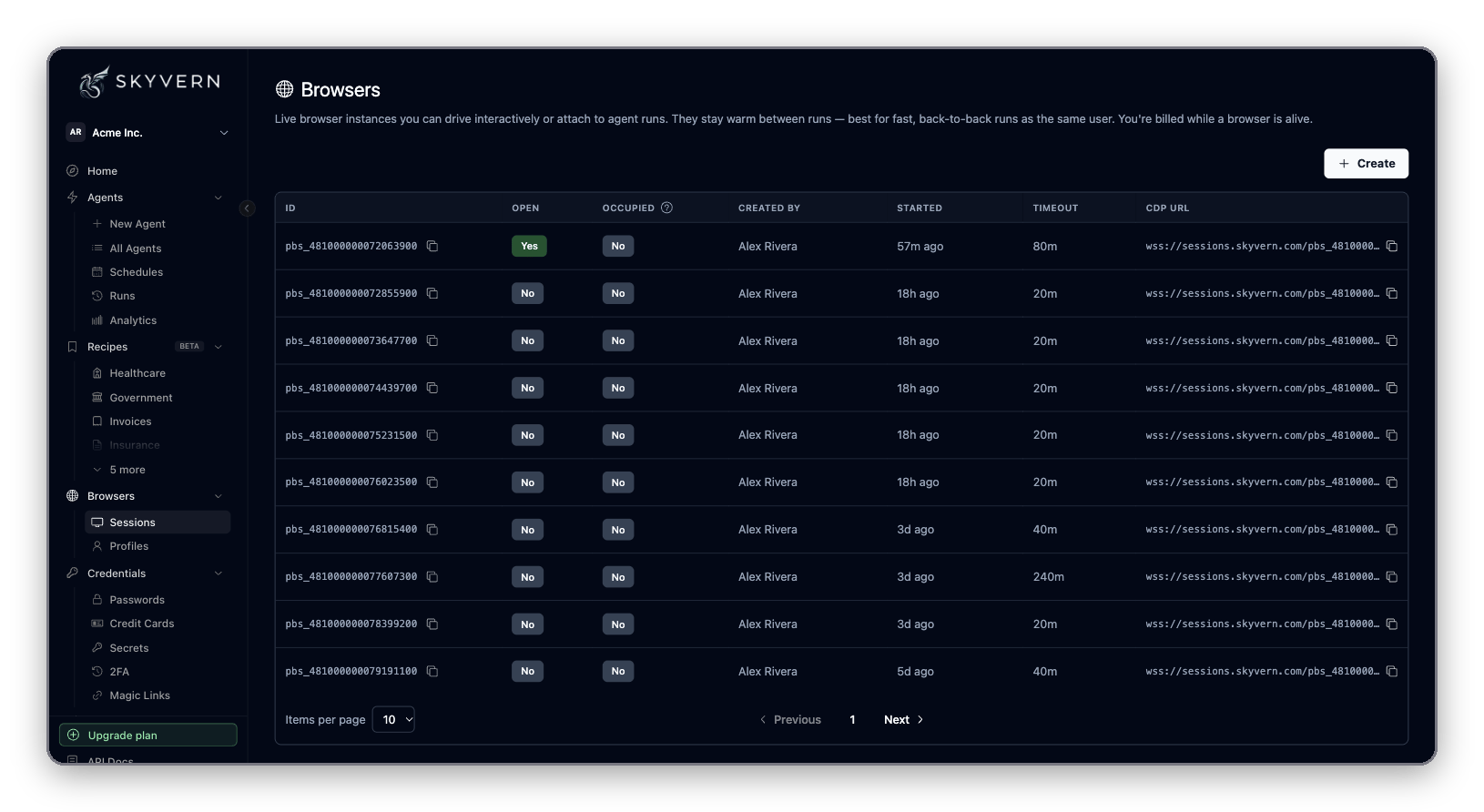
Click **Browsers → Sessions** in the sidebar. The table lists every session in your organization with its **ID** (`pbs_...`), whether it is **Open** and **Occupied** by a run, who created it, when it started, its **Timeout** and its **CDP URL**.
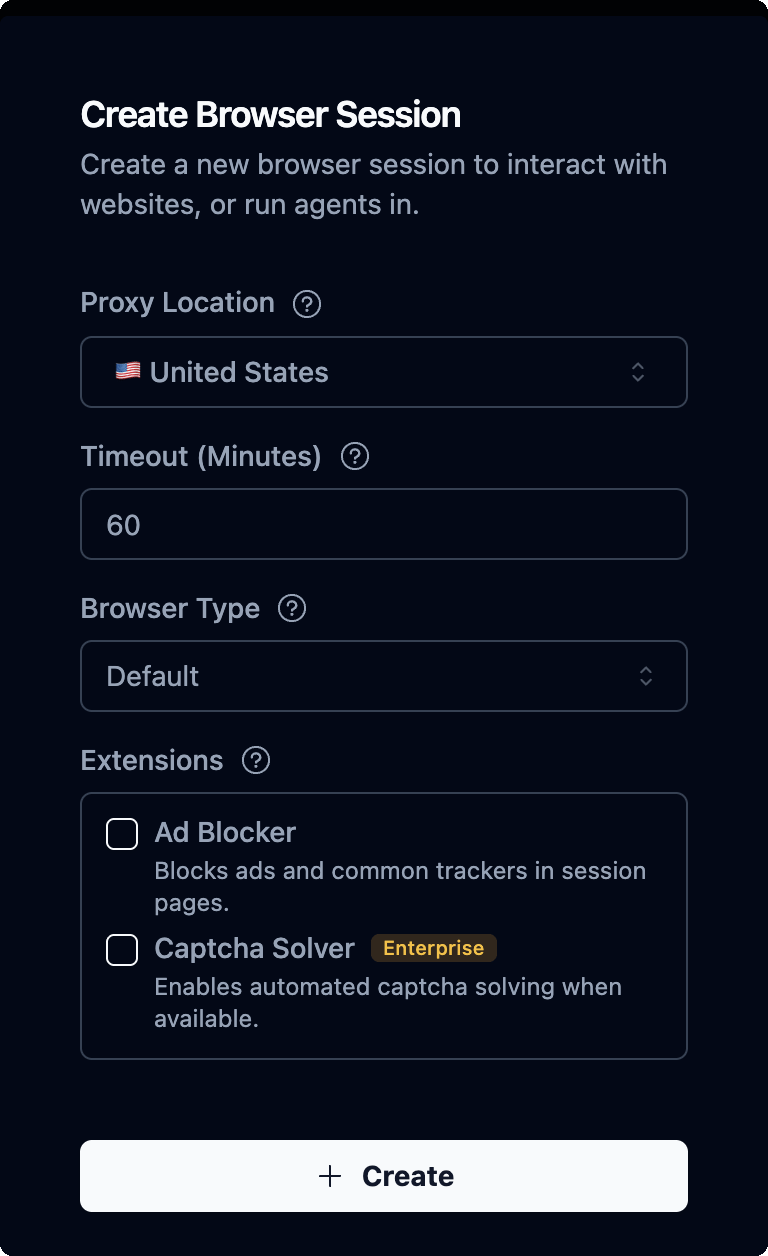
 To start one, click **Create**. The **Create Browser Session** drawer has:
| Setting | What it does |
| - | - |
| **Proxy Location** | Country the browser browses from. Default: United States. |
| **Timeout (Minutes)** | How long the session stays open: 5 to 240. Default: 60. |
| **Browser Type** | **Default**, **Microsoft Edge**, **Google Chrome** or **Stealth Chromium**. |
| **Extensions** | **Ad Blocker** removes ads and trackers that get in the way of clicks. **Captcha Solver** (Enterprise) solves captchas. |
To start one, click **Create**. The **Create Browser Session** drawer has:
| Setting | What it does |
| - | - |
| **Proxy Location** | Country the browser browses from. Default: United States. |
| **Timeout (Minutes)** | How long the session stays open: 5 to 240. Default: 60. |
| **Browser Type** | **Default**, **Microsoft Edge**, **Google Chrome** or **Stealth Chromium**. |
| **Extensions** | **Ad Blocker** removes ads and trackers that get in the way of clicks. **Captcha Solver** (Enterprise) solves captchas. |
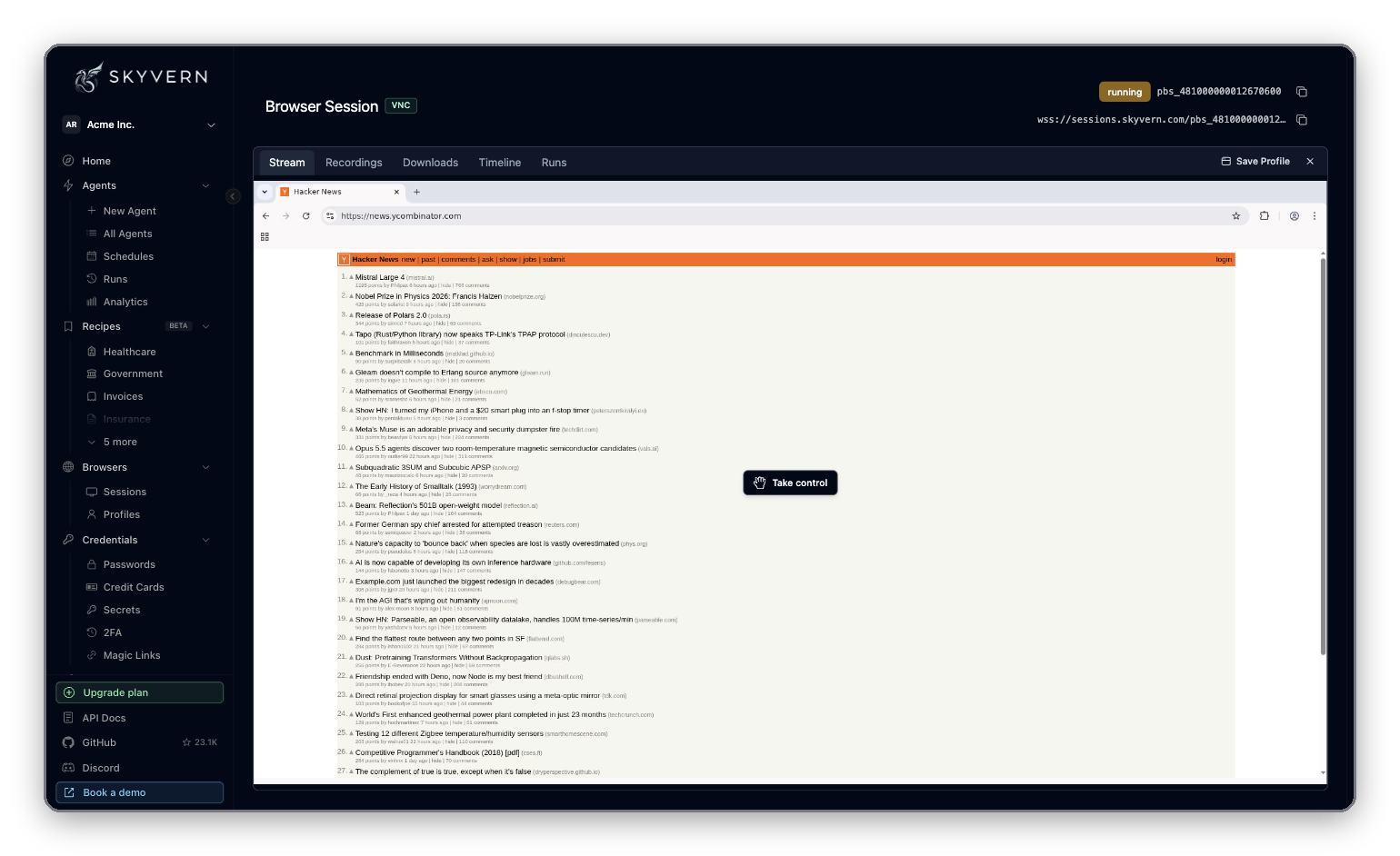
 Click **Create**. The session's page opens with five tabs: **Stream** (the live browser), **Recordings**, **Downloads** (files the browser saved), **Timeline** and **Runs**.
 To close it, click the **Close** icon and confirm with **Stop Browser Session**. The session also closes on its own when the timeout runs out. Activity can keep it open a little longer, up to a hard limit, so set a timeout that covers your longest run.
```python Python theme={null}
import asyncio
import os
from skyvern import Skyvern
async def main():
client = Skyvern(api_key=os.environ["SKYVERN_API_KEY"])
session = await client.create_browser_session(timeout=30)
session_id = session.browser_session_id
try:
await client.run_task(
prompt="Sign in with the saved login",
url="https://portal.example.com/login",
browser_session_id=session_id,
wait_for_completion=True,
)
# Still signed in: same browser, same cookies, same page
result = await client.run_task(
prompt="Find the latest invoice and return its total",
browser_session_id=session_id,
wait_for_completion=True,
)
print(result.output)
finally:
await client.close_browser_session(browser_session_id=session_id)
asyncio.run(main())
```
```typescript TypeScript theme={null}
import { Skyvern } from "@skyvern/client";
const client = new Skyvern({ apiKey: process.env.SKYVERN_API_KEY! });
const session = await client.createBrowserSession({ timeout: 30 });
const sessionId = session.browser_session_id;
try {
await client.runTask({
prompt: "Sign in with the saved login",
url: "https://portal.example.com/login",
browser_session_id: sessionId,
waitForCompletion: true,
});
// Still signed in: same browser, same cookies, same page
const result = await client.runTask({
prompt: "Find the latest invoice and return its total",
browser_session_id: sessionId,
waitForCompletion: true,
});
console.log(result.output);
} finally {
await client.closeBrowserSession(sessionId);
}
```
```bash cURL theme={null}
# Create
curl -X POST "https://api.skyvern.com/v1/browser_sessions" \
-H "x-api-key: $SKYVERN_API_KEY" \
-H "Content-Type: application/json" \
-d '{"timeout": 30}'
# Run a task in it
curl -X POST "https://api.skyvern.com/v1/run/tasks" \
-H "x-api-key: $SKYVERN_API_KEY" \
-H "Content-Type: application/json" \
-d '{"prompt": "Find the latest invoice", "browser_session_id": "pbs_123"}'
# Close
curl -X POST "https://api.skyvern.com/v1/browser_sessions/pbs_123/close" \
-H "x-api-key: $SKYVERN_API_KEY"
```
Wait for each run to finish (`wait_for_completion=True`) before starting the next one in the same session. Always close sessions in a `finally` block: an idle session keeps billing.
`create_browser_session` takes:
| Parameter | Values |
| - | - |
| `timeout` | Minutes, 5 to 240. Default 60. Larger values are capped at 240. |
| `proxy_location` | A country, such as `RESIDENTIAL` (US). See the [API reference](/docs/api-reference) for the list. |
| `browser_type` | `chrome`, `msedge` or `stealth-chromium`. If you omit it, Skyvern picks a managed default that may not be Chrome. |
| `extensions` | `ad-blocker`, `captcha-solver` (Cloud only) |
| `browser_profile_id` | Start from a saved [profile](#browser-profiles) |
| `generate_browser_profile` | Save this session's state when it closes, so you can turn it into a profile |
A session's `status` is `running` while it is usable, then `completed` (closed), `timeout` (ran out) or `failed`.
**Extend a running session.** Each call adds minutes, up to 6 hours in total since the session started. Read the new `timeout` from the response; a retried call adds again. The call returns `409` if the session has ended, has under two minutes left, or is already at 6 hours. The TypeScript SDK has no `extendBrowserSession` method yet; call the REST endpoint.
```python Python theme={null}
session = await client.extend_browser_session(
browser_session_id="pbs_123",
additional_minutes=60,
)
```
```bash cURL theme={null}
curl -X POST "https://api.skyvern.com/v1/browser_sessions/pbs_123/extend" \
-H "x-api-key: $SKYVERN_API_KEY" \
-H "Content-Type: application/json" \
-d '{"additional_minutes": 60}'
```
### Run an agent in a session
* **In the app**: on the agent's run form, open **Advanced Settings** and paste the `pbs_...` ID into **Browser Session ID**. The agent starts where the browser is: same page, same cookies.
* **With code**: pass `browser_session_id` to `run_workflow` (Python) or `runWorkflow` (TypeScript), as with tasks above.
If the steps run back to back with no pause, build them as one agent instead. Blocks in one agent already share a browser, without the cost of a separate session.
### Watch and take control
Every session, and every run with a live browser, streams its screen. Click **Take control** on the stream to use the browser yourself: sign in, dismiss a popup, solve a captcha. Click **Stop controlling** to hand it back. This is how you put a person in the loop: run a task, pause while someone reviews or acts in the browser, then run the next task in the same session.
## Browser profiles
A profile is a snapshot of a browser's state. Start a session or a run from it and the browser opens already signed in.
Click **Browsers → Profiles**. The **Browser Profiles** page lists profiles with their **Source Browser** and creation date. Filter with **All**, **User profiles** or **Auto-managed**, or search by name.
To close it, click the **Close** icon and confirm with **Stop Browser Session**. The session also closes on its own when the timeout runs out. Activity can keep it open a little longer, up to a hard limit, so set a timeout that covers your longest run.
```python Python theme={null}
import asyncio
import os
from skyvern import Skyvern
async def main():
client = Skyvern(api_key=os.environ["SKYVERN_API_KEY"])
session = await client.create_browser_session(timeout=30)
session_id = session.browser_session_id
try:
await client.run_task(
prompt="Sign in with the saved login",
url="https://portal.example.com/login",
browser_session_id=session_id,
wait_for_completion=True,
)
# Still signed in: same browser, same cookies, same page
result = await client.run_task(
prompt="Find the latest invoice and return its total",
browser_session_id=session_id,
wait_for_completion=True,
)
print(result.output)
finally:
await client.close_browser_session(browser_session_id=session_id)
asyncio.run(main())
```
```typescript TypeScript theme={null}
import { Skyvern } from "@skyvern/client";
const client = new Skyvern({ apiKey: process.env.SKYVERN_API_KEY! });
const session = await client.createBrowserSession({ timeout: 30 });
const sessionId = session.browser_session_id;
try {
await client.runTask({
prompt: "Sign in with the saved login",
url: "https://portal.example.com/login",
browser_session_id: sessionId,
waitForCompletion: true,
});
// Still signed in: same browser, same cookies, same page
const result = await client.runTask({
prompt: "Find the latest invoice and return its total",
browser_session_id: sessionId,
waitForCompletion: true,
});
console.log(result.output);
} finally {
await client.closeBrowserSession(sessionId);
}
```
```bash cURL theme={null}
# Create
curl -X POST "https://api.skyvern.com/v1/browser_sessions" \
-H "x-api-key: $SKYVERN_API_KEY" \
-H "Content-Type: application/json" \
-d '{"timeout": 30}'
# Run a task in it
curl -X POST "https://api.skyvern.com/v1/run/tasks" \
-H "x-api-key: $SKYVERN_API_KEY" \
-H "Content-Type: application/json" \
-d '{"prompt": "Find the latest invoice", "browser_session_id": "pbs_123"}'
# Close
curl -X POST "https://api.skyvern.com/v1/browser_sessions/pbs_123/close" \
-H "x-api-key: $SKYVERN_API_KEY"
```
Wait for each run to finish (`wait_for_completion=True`) before starting the next one in the same session. Always close sessions in a `finally` block: an idle session keeps billing.
`create_browser_session` takes:
| Parameter | Values |
| - | - |
| `timeout` | Minutes, 5 to 240. Default 60. Larger values are capped at 240. |
| `proxy_location` | A country, such as `RESIDENTIAL` (US). See the [API reference](/docs/api-reference) for the list. |
| `browser_type` | `chrome`, `msedge` or `stealth-chromium`. If you omit it, Skyvern picks a managed default that may not be Chrome. |
| `extensions` | `ad-blocker`, `captcha-solver` (Cloud only) |
| `browser_profile_id` | Start from a saved [profile](#browser-profiles) |
| `generate_browser_profile` | Save this session's state when it closes, so you can turn it into a profile |
A session's `status` is `running` while it is usable, then `completed` (closed), `timeout` (ran out) or `failed`.
**Extend a running session.** Each call adds minutes, up to 6 hours in total since the session started. Read the new `timeout` from the response; a retried call adds again. The call returns `409` if the session has ended, has under two minutes left, or is already at 6 hours. The TypeScript SDK has no `extendBrowserSession` method yet; call the REST endpoint.
```python Python theme={null}
session = await client.extend_browser_session(
browser_session_id="pbs_123",
additional_minutes=60,
)
```
```bash cURL theme={null}
curl -X POST "https://api.skyvern.com/v1/browser_sessions/pbs_123/extend" \
-H "x-api-key: $SKYVERN_API_KEY" \
-H "Content-Type: application/json" \
-d '{"additional_minutes": 60}'
```
### Run an agent in a session
* **In the app**: on the agent's run form, open **Advanced Settings** and paste the `pbs_...` ID into **Browser Session ID**. The agent starts where the browser is: same page, same cookies.
* **With code**: pass `browser_session_id` to `run_workflow` (Python) or `runWorkflow` (TypeScript), as with tasks above.
If the steps run back to back with no pause, build them as one agent instead. Blocks in one agent already share a browser, without the cost of a separate session.
### Watch and take control
Every session, and every run with a live browser, streams its screen. Click **Take control** on the stream to use the browser yourself: sign in, dismiss a popup, solve a captcha. Click **Stop controlling** to hand it back. This is how you put a person in the loop: run a task, pause while someone reviews or acts in the browser, then run the next task in the same session.
## Browser profiles
A profile is a snapshot of a browser's state. Start a session or a run from it and the browser opens already signed in.
Click **Browsers → Profiles**. The **Browser Profiles** page lists profiles with their **Source Browser** and creation date. Filter with **All**, **User profiles** or **Auto-managed**, or search by name.
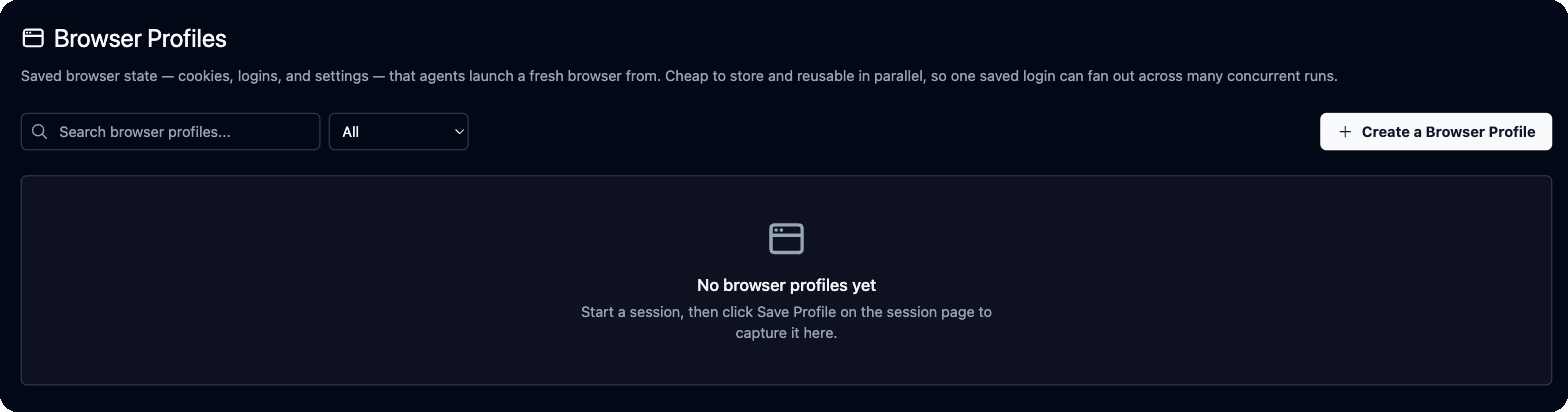 **Create a profile:**
Click **Create a Browser Profile**. Tick **Use a consistent IP address** to capture on a stable residential IP, so the site is less likely to challenge the saved login later. Click **Create**. A live browser session opens.
Click **Take control** and sign in to the sites you want saved.
Click **Save Profile** in the session's tab bar, enter a **Name** and an optional **Description**, and click **Save Profile**. Saving closes the session and finishes in the background.
The same **Save Profile** button is on every running session, so you can save a browser you've been using.
**Refresh a profile** when its sign-in expires. Click the refresh icon on its row, then **Open browser session**. Sign in again or clear the challenge, then close the session. The browser you leave behind is saved back to the same profile.
**Rename** and **Delete** are icons on each row. Deleting a profile is permanent.
**Use a profile in an agent.** On the run form, **Advanced Settings → Browser Profile** loads a profile for that run. In the agent's settings in [Studio](/docs/cloud/studio), **Save & reuse browser profile** saves the browser at the end of each run and starts the next run from it, and **Reuse browser session** keeps one live browser across consecutive runs.
A password credential with **Save browser session for future logins** saves its signed-in browser for you. See [Credentials](/docs/credentials#store-a-credential).
Capture a profile from a session. The session must have `generate_browser_profile` turned on, or have started from a profile:
```python Python theme={null}
session = await client.create_browser_session(generate_browser_profile=True)
await client.run_task(
prompt="Sign in with the saved login",
url="https://portal.example.com/login",
browser_session_id=session.browser_session_id,
wait_for_completion=True,
)
await client.close_browser_session(browser_session_id=session.browser_session_id)
profile = await client.create_browser_profile(
name="vendor-portal-admin",
browser_session_id=session.browser_session_id,
)
print(profile.browser_profile_id) # bp_...
```
```typescript TypeScript theme={null}
const session = await client.createBrowserSession({ generate_browser_profile: true });
await client.runTask({
prompt: "Sign in with the saved login",
url: "https://portal.example.com/login",
browser_session_id: session.browser_session_id,
waitForCompletion: true,
});
await client.closeBrowserSession(session.browser_session_id);
const profile = await client.createBrowserProfile({
name: "vendor-portal-admin",
browser_session_id: session.browser_session_id,
});
console.log(profile.browser_profile_id); // bp_...
```
The session uploads its state after it closes. Until the upload finishes, `create_browser_profile` returns `400` with "does not have a persisted profile archive"; retry for a few seconds. Any other `400` is final: the session wasn't set to save its state, or its state was already saved once. You can turn saving on for a live session with `update_browser_session(browser_session_id, generate_browser_profile=True)`.
Other ways to get a profile:
* **From an agent run**: turn on `persist_browser_session` in the agent definition (it is not a run parameter), run it, then call `create_browser_profile(name=..., workflow_run_id=...)`. Retry the same way while the state uploads.
* **Blank**: `create_browser_profile(name=...)` with no source.
Use a profile:
```python Python theme={null}
run = await client.run_workflow(
workflow_id="wpid_123",
browser_profile_id="bp_123",
wait_for_completion=True,
)
session = await client.create_browser_session(browser_profile_id="bp_123")
```
```typescript TypeScript theme={null}
const run = await client.runWorkflow({
agent_id: "wpid_123",
browser_profile_id: "bp_123",
waitForCompletion: true,
});
const session = await client.createBrowserSession({ browser_profile_id: "bp_123" });
```
`POST /v1/run/tasks` accepts `browser_profile_id` too, but only with `engine=skyvern_v2` (other engines return a 400 error), and the SDK `run_task` / `runTask` helpers don't expose it yet; call the REST endpoint. A session started from a profile saves its state back to that profile when it closes, so the profile stays fresh.
Manage profiles with `list_browser_profiles`, `get_browser_profile`, `update_browser_profile` and `delete_browser_profile`.
**Pin an IP.** Create a profile with `proxy_location="RESIDENTIAL_ISP"` and every run that uses it browses from the same residential IP. If that IP gets flagged, call `update_browser_profile(profile_id, rotate_proxy_session_id=True)` for a new one, or send `"proxy_location": null` in a `PATCH /v1/browser_profiles/{id}` to remove the pin. `proxy_session_id` is only accepted with `RESIDENTIAL_ISP`.
Sign-ins expire. When runs that use a profile start landing on a login page, refresh the profile or capture a new one. Names that say the account and site, such as `vendor-portal-admin`, make the right profile easy to find.
## Use your own Chrome
Skyvern can drive a Chrome on your machine, with its cookies, sign-ins and extensions. Two options:
| | `skyvern browser serve` | Skyvern Agent Chrome extension |
| - | - | - |
| Who drives it | Skyvern Cloud runs, through a tunnel | A local Skyvern MCP server |
| Which browser | A separate Chrome that Skyvern starts, optionally with your Chrome profile's logins copied in | Tabs you share from the Chrome you already use |
### Let Cloud runs use your Chrome
```bash theme={null}
skyvern browser serve --use-local-profile --tunnel --api-key "$SKYVERN_API_KEY"
```
This starts Chrome, copies the logins from your local Chrome profile, and opens an ngrok tunnel (install and authenticate [ngrok](https://ngrok.com/download) first). Pass the printed **CDP URL** (`wss://…/devtools/browser/…`) as `browser_address`, and send your `--api-key` value as `x-api-key` in `cdp_connect_headers`:
```bash theme={null}
curl -X POST "https://api.skyvern.com/v1/run/tasks" \
-H "x-api-key: $SKYVERN_API_KEY" \
-H "Content-Type: application/json" \
-d '{
"prompt": "Download the latest invoice from my account",
"browser_address": "wss://abc123.ngrok-free.dev/devtools/browser/",
"cdp_connect_headers": {"x-api-key": "'"$SKYVERN_API_KEY"'"}
}'
```
Without `--api-key`, anyone with the tunnel URL controls your browser and every account signed in to it. `--api-key` can also be set with `SKYVERN_BROWSER_SERVE_API_KEY`.
Useful options: `--port` (default `9222`), `--chrome-profile-name` (copy from a profile other than `Default`, such as `Profile 1`), `--profile-dir` (use a separate Chrome data directory instead), `--headless`, `--chrome-path`, and `--json` (print connection details; can't be combined with `--tunnel`). The full list is in the [CLI reference](/docs/reference/cli).
### Share tabs with a local MCP server
The **Skyvern Agent** extension lets a local MCP server drive tabs in your everyday Chrome. It needs Chrome 138 or later and an MCP server running locally over stdio. Hosted MCP can't use it yet.
1. Run `skyvern browser extension-install` and follow its steps: in `chrome://extensions`, turn on **Developer mode**, click **Load unpacked** and pick the printed folder.
2. Start the MCP server with `skyvern run mcp --browser-extension`, or set `BROWSER_TYPE=extension-connect` in its environment.
3. Run `skyvern browser extension-pair` and approve the pairing in the browser, then again in the **Skyvern Agent** tab that opens.
4. Drag the tabs you want to share into the **Skyvern Controlled** tab group, or use **Add to Skyvern Controlled** in the extension popup.
Skyvern only sees tabs in that group. Drag a tab out to revoke access at once. Shared tabs show "Skyvern is controlling this tab". The extension can't evaluate JavaScript, handle downloads or file pickers, or work in incognito windows. Check the setup with `skyvern browser extension-status`. MCP client setup is on [MCP and coding agents](/docs/developers/getting-started/mcp).
The extension connects to `ws://127.0.0.1:19777/extension/v1` on your machine. What listens there depends on the platform:
| Mode | Platforms | What runs | Pairing |
| - | - | - | - |
| Broker (default) | macOS, Linux | A persistent background broker that MCP processes share | `extension-pair` only. The broker keeps its credential to itself. |
| Legacy relay | Windows (always), or macOS and Linux with `SKYVERN_BROWSER_EXTENSION_BROKER=0` | A relay inside the MCP server | `extension-pair`, or manual: `skyvern browser extension-token` copies the token, then paste it in the popup and click **Connect** |
| Setting | Default | What it does |
| - | - | - |
| `SKYVERN_BROWSER_EXTENSION_PORT` | `19777` | Bridge port. Set the same port under **Advanced settings** in the extension popup. |
| `SKYVERN_BROWSER_EXTENSION_BROKER` | unset | `0` uses the legacy relay on macOS and Linux. Any other value uses the broker. |
| Problem | Fix |
| - | - |
| Extension not connected | Run `skyvern browser extension-status`. Confirm the MCP server runs in extension mode, pair again, and add at least one tab to **Skyvern Controlled**. |
| Pairing stuck | `skyvern browser extension-pair --cancel-pending` |
| Port already in use | `skyvern browser extension-broker-status` shows the owner. `skyvern browser extension-broker-stop` stops the broker and frees the port. Or pick another port with `SKYVERN_BROWSER_EXTENSION_PORT` and the popup, then restart the MCP server. |
| `extension-token` refused | It only works with the legacy relay. In broker mode, use `extension-pair`. |
| Broker refuses to start | Unset `SKYVERN_BROWSER_EXTENSION_TOKEN`; it is only allowed with the legacy relay. |
| A tab dropped out after DevTools opened or you clicked **Cancel** on Chrome's debugger bar | Close DevTools and add the tab to **Skyvern Controlled** again. Skyvern never reattaches on its own. |
## Next
* [Credentials, logins and 2FA](/docs/credentials): save logins that agents sign in with.
* [Browser automation](/docs/developers/browser-automation): drive a session with your own Playwright code.
* [Runs and schedules](/docs/cloud/runs): watch runs and their recordings.
This documentation is built and hosted on [Mintlify](https://mintlify.com), a developer documentation platform.
**Create a profile:**
Click **Create a Browser Profile**. Tick **Use a consistent IP address** to capture on a stable residential IP, so the site is less likely to challenge the saved login later. Click **Create**. A live browser session opens.
Click **Take control** and sign in to the sites you want saved.
Click **Save Profile** in the session's tab bar, enter a **Name** and an optional **Description**, and click **Save Profile**. Saving closes the session and finishes in the background.
The same **Save Profile** button is on every running session, so you can save a browser you've been using.
**Refresh a profile** when its sign-in expires. Click the refresh icon on its row, then **Open browser session**. Sign in again or clear the challenge, then close the session. The browser you leave behind is saved back to the same profile.
**Rename** and **Delete** are icons on each row. Deleting a profile is permanent.
**Use a profile in an agent.** On the run form, **Advanced Settings → Browser Profile** loads a profile for that run. In the agent's settings in [Studio](/docs/cloud/studio), **Save & reuse browser profile** saves the browser at the end of each run and starts the next run from it, and **Reuse browser session** keeps one live browser across consecutive runs.
A password credential with **Save browser session for future logins** saves its signed-in browser for you. See [Credentials](/docs/credentials#store-a-credential).
Capture a profile from a session. The session must have `generate_browser_profile` turned on, or have started from a profile:
```python Python theme={null}
session = await client.create_browser_session(generate_browser_profile=True)
await client.run_task(
prompt="Sign in with the saved login",
url="https://portal.example.com/login",
browser_session_id=session.browser_session_id,
wait_for_completion=True,
)
await client.close_browser_session(browser_session_id=session.browser_session_id)
profile = await client.create_browser_profile(
name="vendor-portal-admin",
browser_session_id=session.browser_session_id,
)
print(profile.browser_profile_id) # bp_...
```
```typescript TypeScript theme={null}
const session = await client.createBrowserSession({ generate_browser_profile: true });
await client.runTask({
prompt: "Sign in with the saved login",
url: "https://portal.example.com/login",
browser_session_id: session.browser_session_id,
waitForCompletion: true,
});
await client.closeBrowserSession(session.browser_session_id);
const profile = await client.createBrowserProfile({
name: "vendor-portal-admin",
browser_session_id: session.browser_session_id,
});
console.log(profile.browser_profile_id); // bp_...
```
The session uploads its state after it closes. Until the upload finishes, `create_browser_profile` returns `400` with "does not have a persisted profile archive"; retry for a few seconds. Any other `400` is final: the session wasn't set to save its state, or its state was already saved once. You can turn saving on for a live session with `update_browser_session(browser_session_id, generate_browser_profile=True)`.
Other ways to get a profile:
* **From an agent run**: turn on `persist_browser_session` in the agent definition (it is not a run parameter), run it, then call `create_browser_profile(name=..., workflow_run_id=...)`. Retry the same way while the state uploads.
* **Blank**: `create_browser_profile(name=...)` with no source.
Use a profile:
```python Python theme={null}
run = await client.run_workflow(
workflow_id="wpid_123",
browser_profile_id="bp_123",
wait_for_completion=True,
)
session = await client.create_browser_session(browser_profile_id="bp_123")
```
```typescript TypeScript theme={null}
const run = await client.runWorkflow({
agent_id: "wpid_123",
browser_profile_id: "bp_123",
waitForCompletion: true,
});
const session = await client.createBrowserSession({ browser_profile_id: "bp_123" });
```
`POST /v1/run/tasks` accepts `browser_profile_id` too, but only with `engine=skyvern_v2` (other engines return a 400 error), and the SDK `run_task` / `runTask` helpers don't expose it yet; call the REST endpoint. A session started from a profile saves its state back to that profile when it closes, so the profile stays fresh.
Manage profiles with `list_browser_profiles`, `get_browser_profile`, `update_browser_profile` and `delete_browser_profile`.
**Pin an IP.** Create a profile with `proxy_location="RESIDENTIAL_ISP"` and every run that uses it browses from the same residential IP. If that IP gets flagged, call `update_browser_profile(profile_id, rotate_proxy_session_id=True)` for a new one, or send `"proxy_location": null` in a `PATCH /v1/browser_profiles/{id}` to remove the pin. `proxy_session_id` is only accepted with `RESIDENTIAL_ISP`.
Sign-ins expire. When runs that use a profile start landing on a login page, refresh the profile or capture a new one. Names that say the account and site, such as `vendor-portal-admin`, make the right profile easy to find.
## Use your own Chrome
Skyvern can drive a Chrome on your machine, with its cookies, sign-ins and extensions. Two options:
| | `skyvern browser serve` | Skyvern Agent Chrome extension |
| - | - | - |
| Who drives it | Skyvern Cloud runs, through a tunnel | A local Skyvern MCP server |
| Which browser | A separate Chrome that Skyvern starts, optionally with your Chrome profile's logins copied in | Tabs you share from the Chrome you already use |
### Let Cloud runs use your Chrome
```bash theme={null}
skyvern browser serve --use-local-profile --tunnel --api-key "$SKYVERN_API_KEY"
```
This starts Chrome, copies the logins from your local Chrome profile, and opens an ngrok tunnel (install and authenticate [ngrok](https://ngrok.com/download) first). Pass the printed **CDP URL** (`wss://…/devtools/browser/…`) as `browser_address`, and send your `--api-key` value as `x-api-key` in `cdp_connect_headers`:
```bash theme={null}
curl -X POST "https://api.skyvern.com/v1/run/tasks" \
-H "x-api-key: $SKYVERN_API_KEY" \
-H "Content-Type: application/json" \
-d '{
"prompt": "Download the latest invoice from my account",
"browser_address": "wss://abc123.ngrok-free.dev/devtools/browser/",
"cdp_connect_headers": {"x-api-key": "'"$SKYVERN_API_KEY"'"}
}'
```
Without `--api-key`, anyone with the tunnel URL controls your browser and every account signed in to it. `--api-key` can also be set with `SKYVERN_BROWSER_SERVE_API_KEY`.
Useful options: `--port` (default `9222`), `--chrome-profile-name` (copy from a profile other than `Default`, such as `Profile 1`), `--profile-dir` (use a separate Chrome data directory instead), `--headless`, `--chrome-path`, and `--json` (print connection details; can't be combined with `--tunnel`). The full list is in the [CLI reference](/docs/reference/cli).
### Share tabs with a local MCP server
The **Skyvern Agent** extension lets a local MCP server drive tabs in your everyday Chrome. It needs Chrome 138 or later and an MCP server running locally over stdio. Hosted MCP can't use it yet.
1. Run `skyvern browser extension-install` and follow its steps: in `chrome://extensions`, turn on **Developer mode**, click **Load unpacked** and pick the printed folder.
2. Start the MCP server with `skyvern run mcp --browser-extension`, or set `BROWSER_TYPE=extension-connect` in its environment.
3. Run `skyvern browser extension-pair` and approve the pairing in the browser, then again in the **Skyvern Agent** tab that opens.
4. Drag the tabs you want to share into the **Skyvern Controlled** tab group, or use **Add to Skyvern Controlled** in the extension popup.
Skyvern only sees tabs in that group. Drag a tab out to revoke access at once. Shared tabs show "Skyvern is controlling this tab". The extension can't evaluate JavaScript, handle downloads or file pickers, or work in incognito windows. Check the setup with `skyvern browser extension-status`. MCP client setup is on [MCP and coding agents](/docs/developers/getting-started/mcp).
The extension connects to `ws://127.0.0.1:19777/extension/v1` on your machine. What listens there depends on the platform:
| Mode | Platforms | What runs | Pairing |
| - | - | - | - |
| Broker (default) | macOS, Linux | A persistent background broker that MCP processes share | `extension-pair` only. The broker keeps its credential to itself. |
| Legacy relay | Windows (always), or macOS and Linux with `SKYVERN_BROWSER_EXTENSION_BROKER=0` | A relay inside the MCP server | `extension-pair`, or manual: `skyvern browser extension-token` copies the token, then paste it in the popup and click **Connect** |
| Setting | Default | What it does |
| - | - | - |
| `SKYVERN_BROWSER_EXTENSION_PORT` | `19777` | Bridge port. Set the same port under **Advanced settings** in the extension popup. |
| `SKYVERN_BROWSER_EXTENSION_BROKER` | unset | `0` uses the legacy relay on macOS and Linux. Any other value uses the broker. |
| Problem | Fix |
| - | - |
| Extension not connected | Run `skyvern browser extension-status`. Confirm the MCP server runs in extension mode, pair again, and add at least one tab to **Skyvern Controlled**. |
| Pairing stuck | `skyvern browser extension-pair --cancel-pending` |
| Port already in use | `skyvern browser extension-broker-status` shows the owner. `skyvern browser extension-broker-stop` stops the broker and frees the port. Or pick another port with `SKYVERN_BROWSER_EXTENSION_PORT` and the popup, then restart the MCP server. |
| `extension-token` refused | It only works with the legacy relay. In broker mode, use `extension-pair`. |
| Broker refuses to start | Unset `SKYVERN_BROWSER_EXTENSION_TOKEN`; it is only allowed with the legacy relay. |
| A tab dropped out after DevTools opened or you clicked **Cancel** on Chrome's debugger bar | Close DevTools and add the tab to **Skyvern Controlled** again. Skyvern never reattaches on its own. |
## Next
* [Credentials, logins and 2FA](/docs/credentials): save logins that agents sign in with.
* [Browser automation](/docs/developers/browser-automation): drive a session with your own Playwright code.
* [Runs and schedules](/docs/cloud/runs): watch runs and their recordings.
This documentation is built and hosted on [Mintlify](https://mintlify.com), a developer documentation platform.